Printer features: Laser, print only, black & white
Xerox MS730 Series Support
Learn how to set up your printer.
Learn how to install the 250- or 550-sheet tray to your printer.
Learn how to install the optional lockable 550-sheet tray to your printer.
Learn how to install the 2100-sheet tray to your printer.
Learn how to install the 4-bin mailbox to your printer.
Learn how to install the high-capacity output expander to your printer.
Learn how to install the staple finisher to your printer.
Learn how to install the staple, hole-punch finisher to your printer.
Learn how to install the intelligent storage drive to your printer.
Learn how to install a hard disk drive or solid-state drive to your printer.
Learn how to install the hot roll fuser wiper to your printer.
Learn how to load the 250-sheet or 550-sheet tray to your printer.
Learn how to load the 2100-sheet tray to your printer.
Learn how to load paper in the multipurpose feeder.
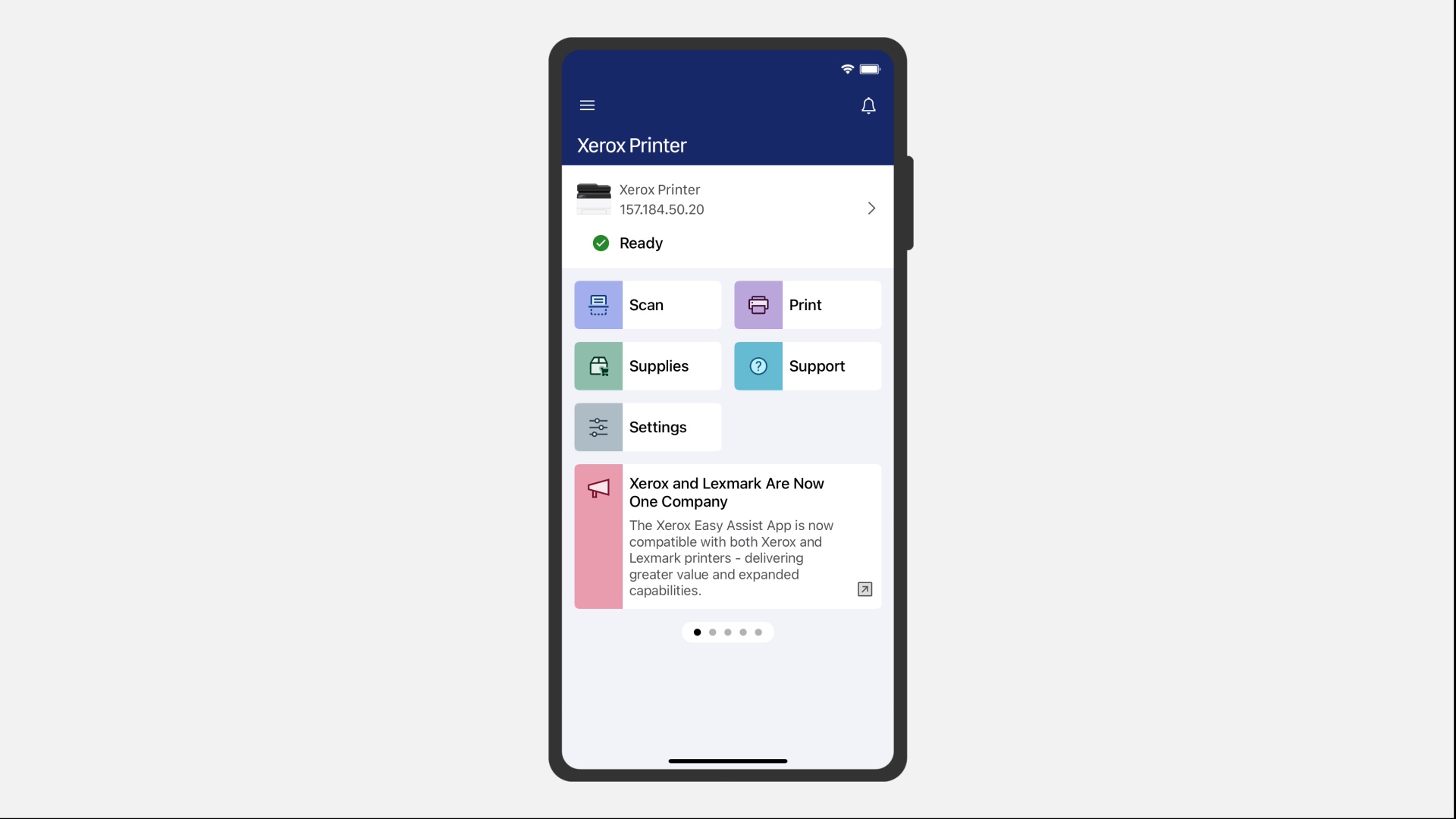
Learn how to send print a job from your iOS or Android mobile phone using the Xerox® Easy Assist app.
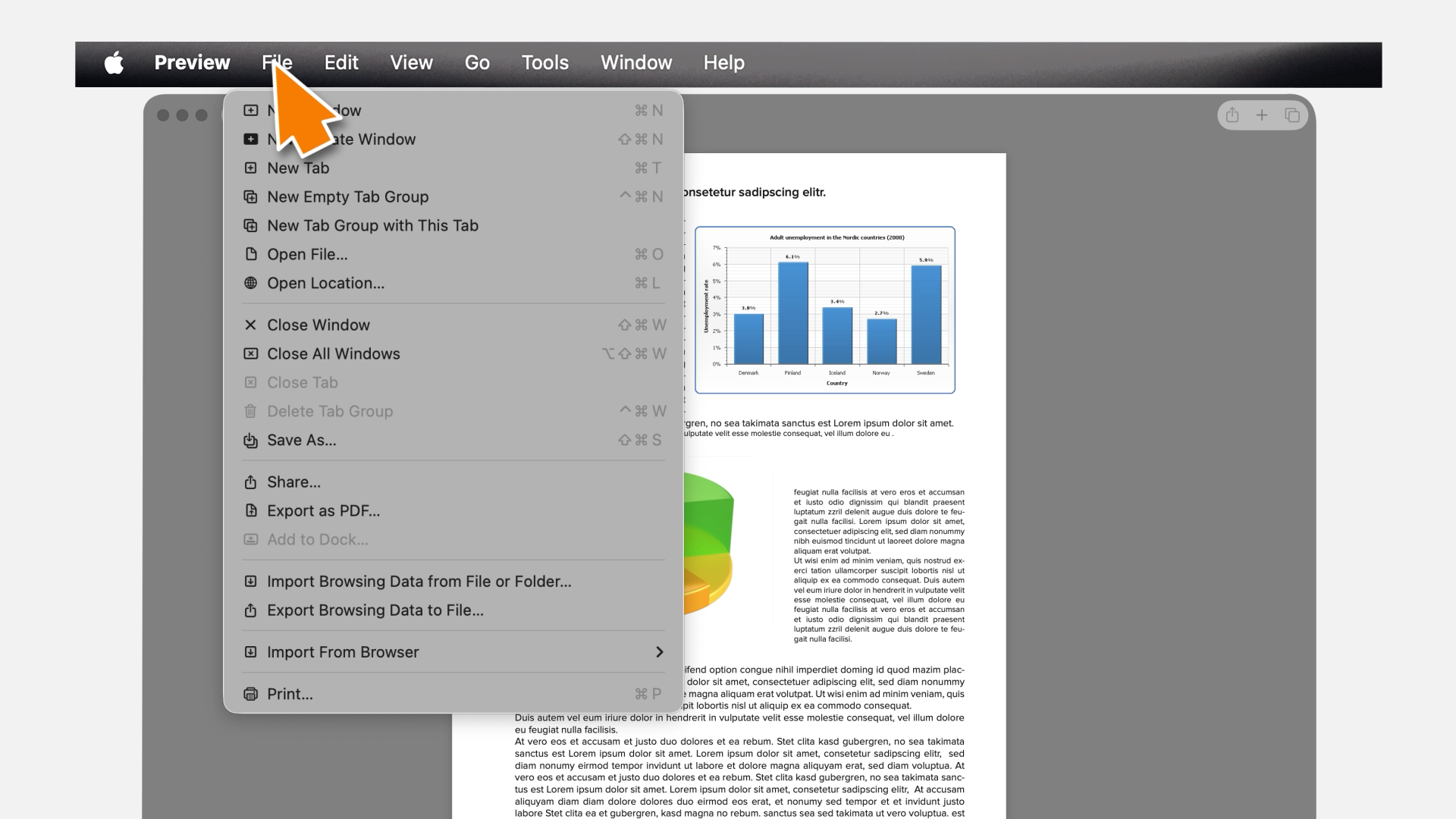
Learn how to use the AirPrint on your Macintosh computer to send a print job to your printer.
Follow these steps to replace the hot roll fuser in your printer.
Follow these steps to replace the hot roll fuser wiper in your printer.
Follow these steps to replace the transfer roller in your printer.
Learn how to replace the MPF pick roller to prevent paper feed problems.
Install a new 250- or 550-sheet tray separator pad and pick roller to prevent paper feed problems.
Install a new 2100-sheet pick roller and separator pad to prevent paper feed problems.
Follow these steps to replace the 250/550-sheet tray insert in your printer.
Follow these steps to replace the 2100-sheet tray insert in your printer.
Follow these steps to replace the toner cartridge in your printer.
Follow these steps to replace the staple cartridge in your printer.
Follow these steps to replace the imaging unit in your printer.
Learn how to clean the pick roller in the multipurpose feeder to prevent paper feed problems.
Remove paper that is stuck in the standard tray to continue printing.
Remove paper that is stuck in the front door to continue printing.
Remove paper that is stuck in door B to continue printing.
Remove paper that is stuck in the output expander or high-capacity output expander to continue printing.
Remove paper that is stuck in the 4-bin mailbox to continue printing.
Remove paper that is stuck in the duplex unit to continue printing.
Remove paper that is stuck in the staple finisher to continue printing.
Remove paper that is stuck in the staple, hole punch finisher to continue printing.
Learn how to use the stapling feature in your printer.
Learn how to use your Windows computer to send stapling jobs to your printer.
Learn how to use AirPrint to send stapling jobs to your printer.
Learn how to use XPSE to send stapling jobs to your printer.
Learn how to use the hole punch feature in your printer.
Learn how to use your Windows computer to send hole punch jobs to your printer.
Learn how to use AirPrint to send hole punch jobs to your printer.
Learn how to use XPSE to send hole punch jobs to your printer.
Learn how to use the offset stacking feature in your printer.
Learn how to use your Windows computer to send offset stacking jobs to your printer.