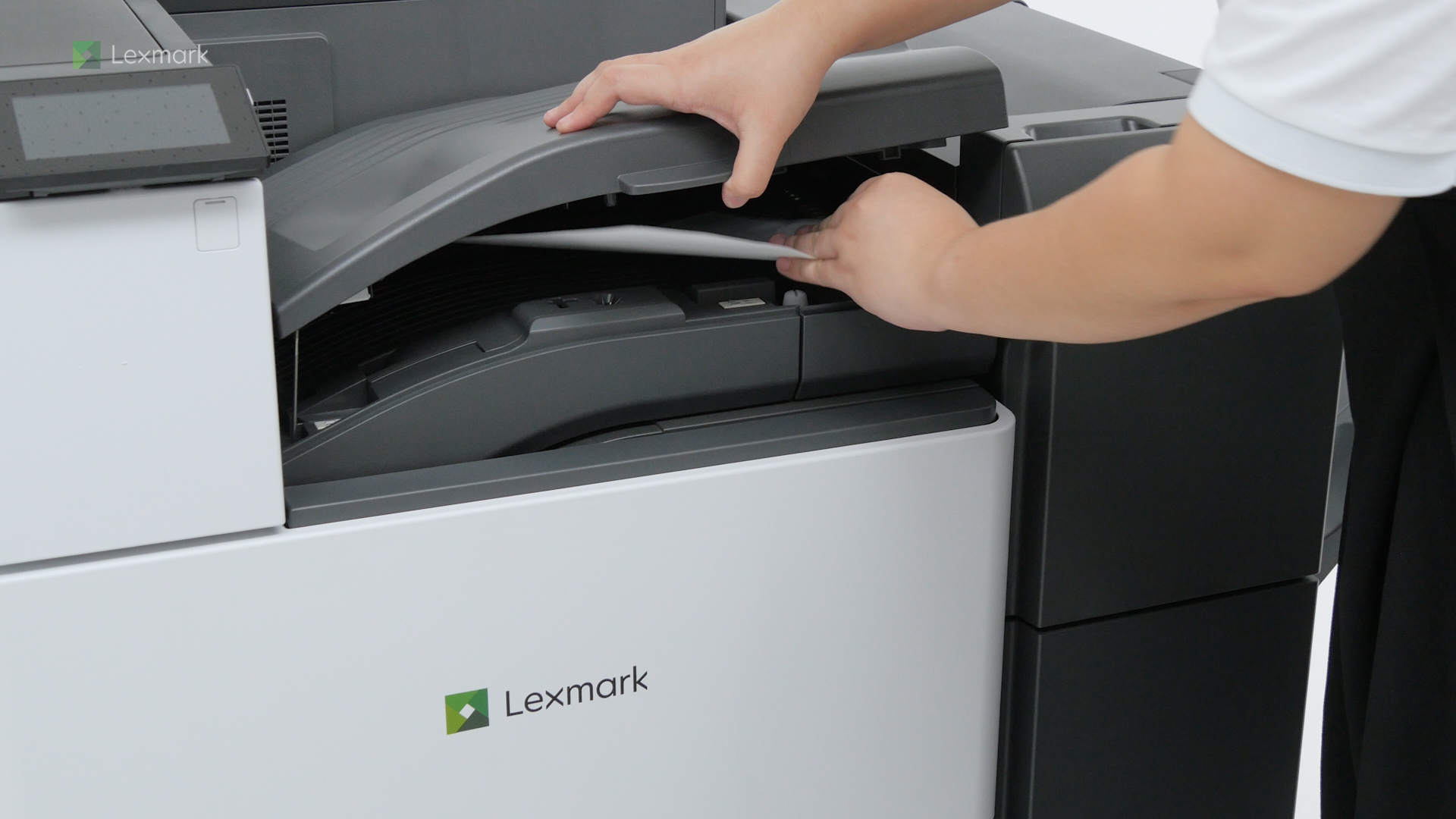
Printer features: Laser, multifunction, color
Lexmark XC9335 Support
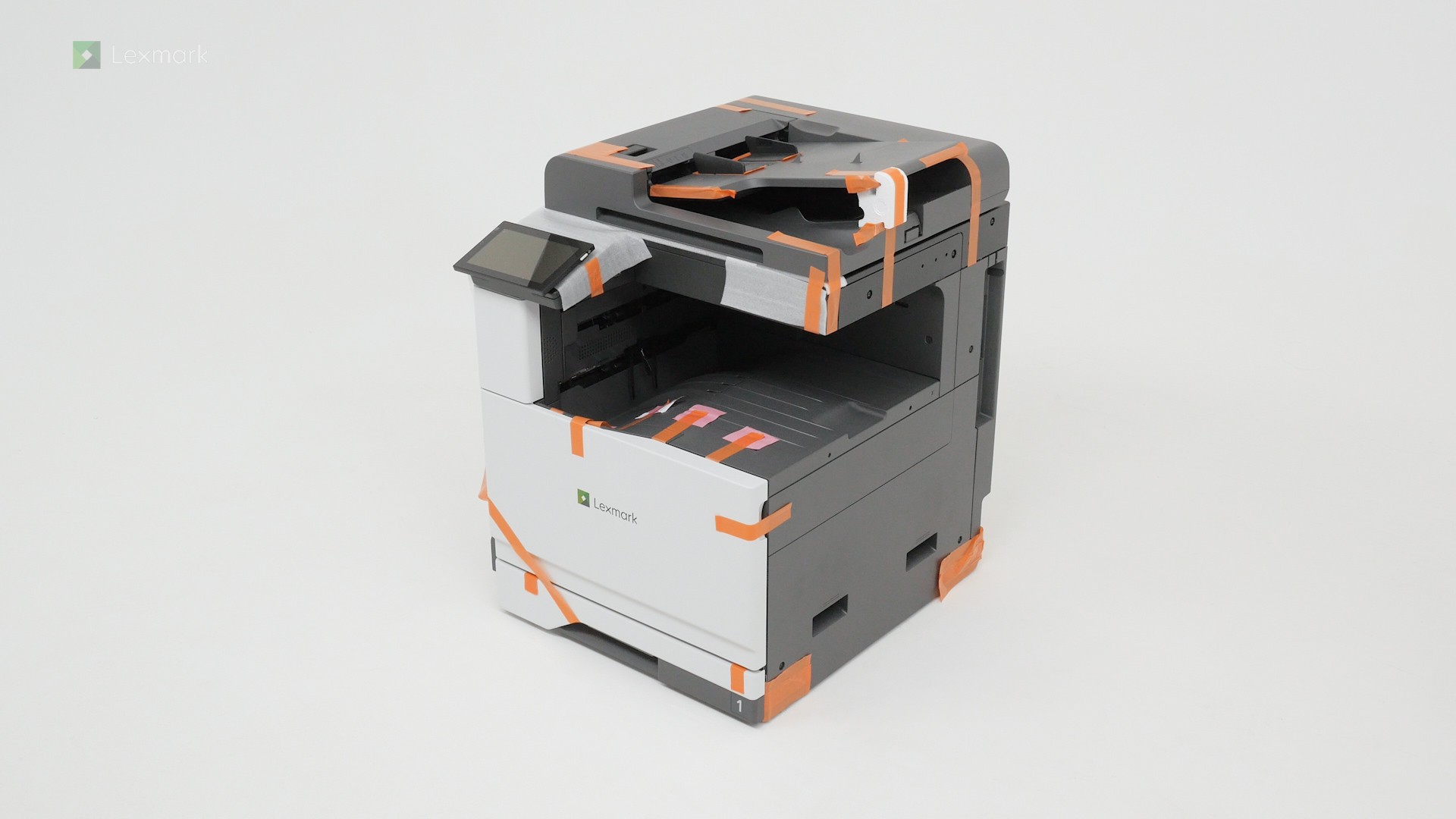
Learn how to set up your new printer.
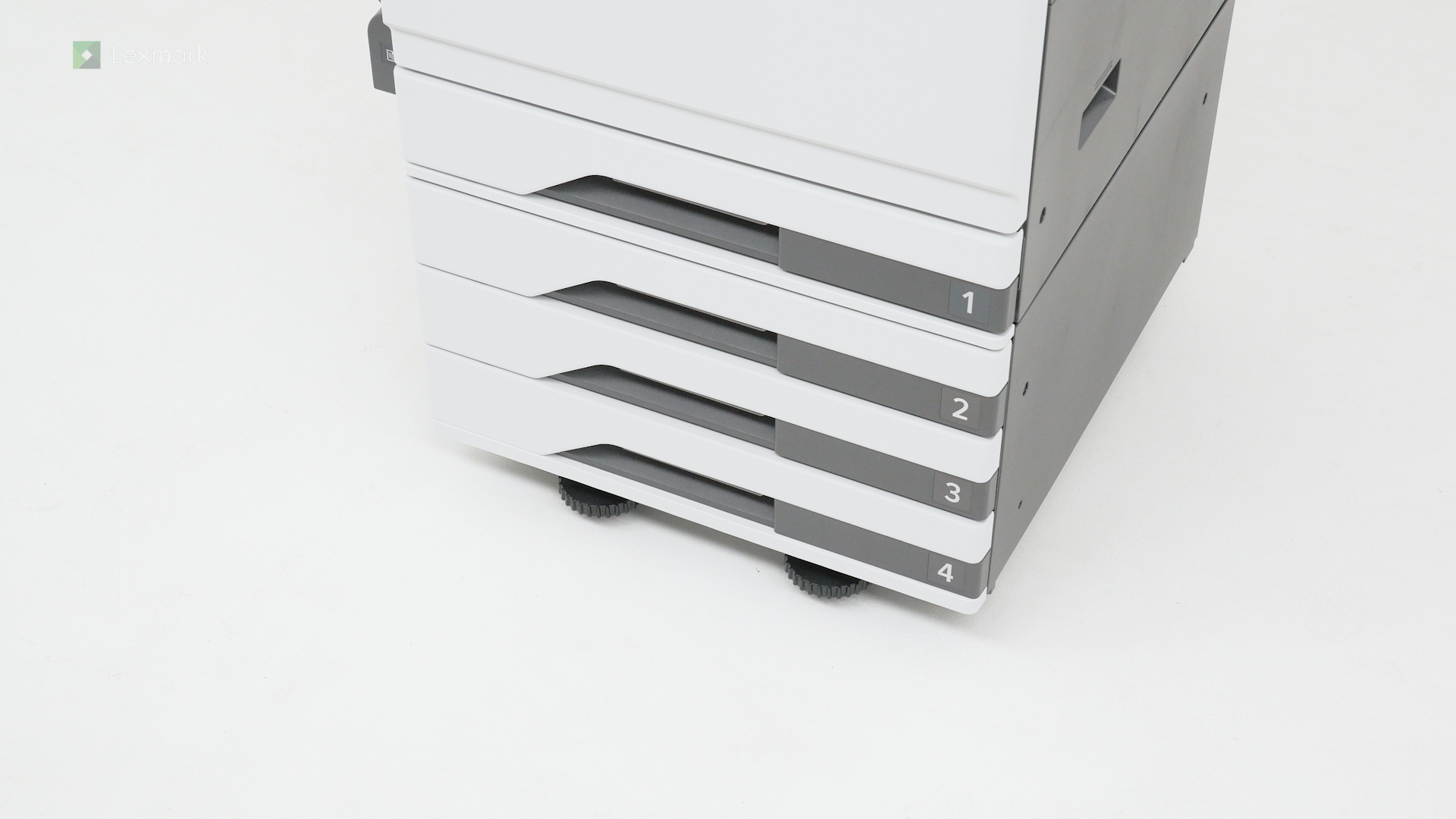
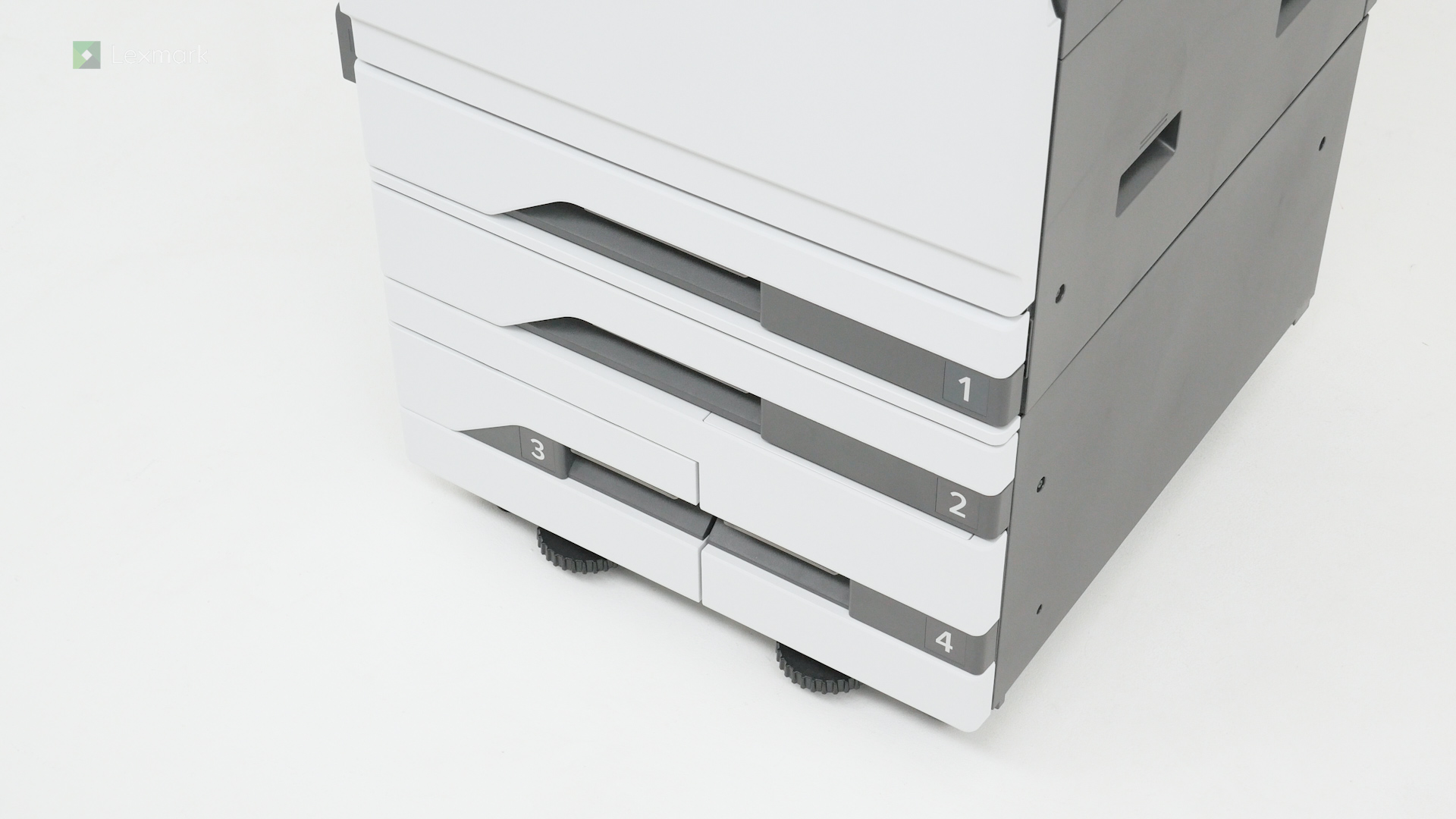
Learn the steps of installing the optional 3 x 520-sheet tray.
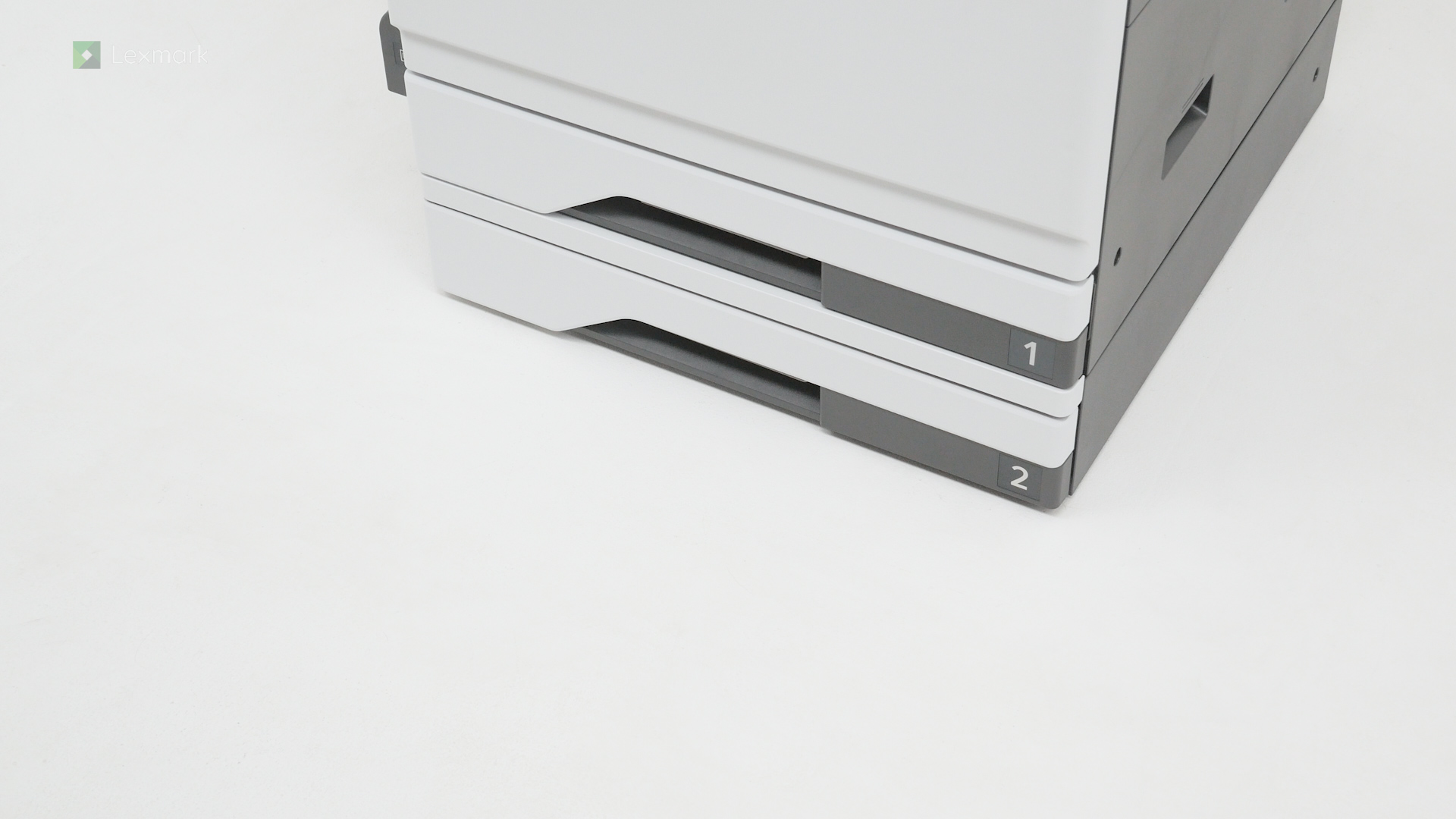
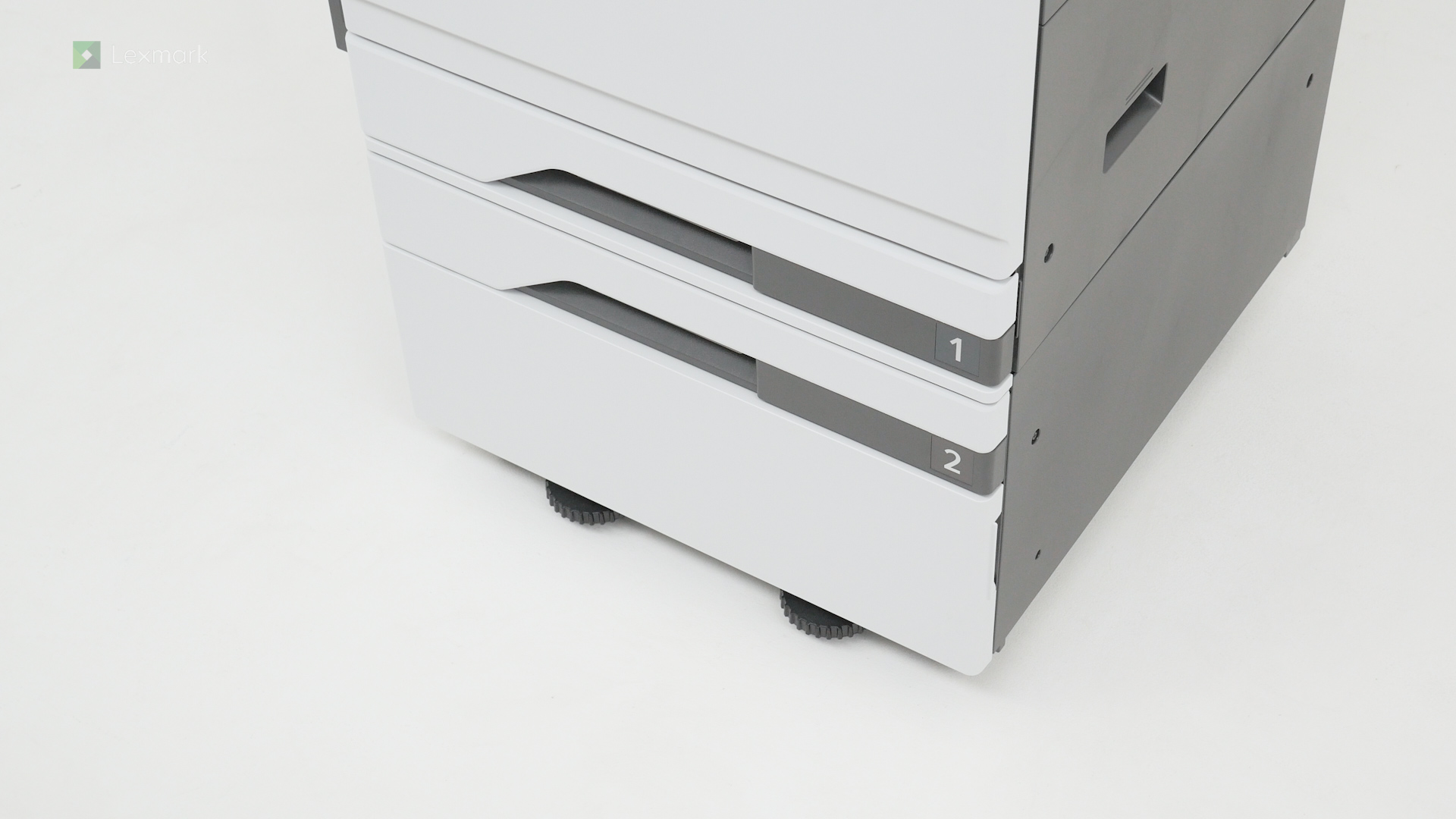
Learn the steps of installing the optional 520-sheet tray.
Learn the steps of installing the optional 520-sheet tray with cabinet.
Learn the steps of installing the optional 2520-sheet tandem tray.
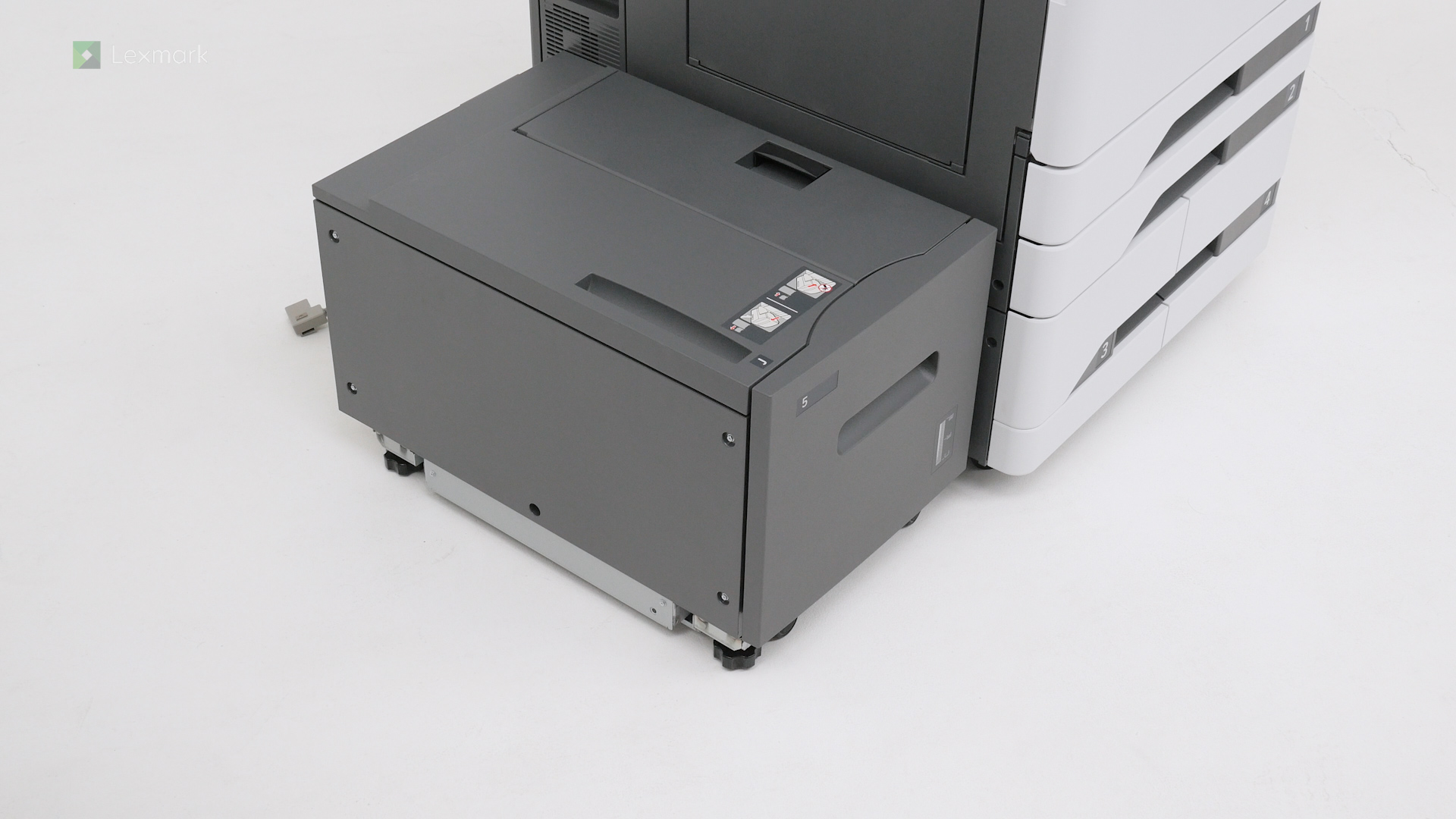
Increase the input capacity of your printer by installing the optional 2000-sheet tray.
Watch a video on how to install the banner tray of your printer.
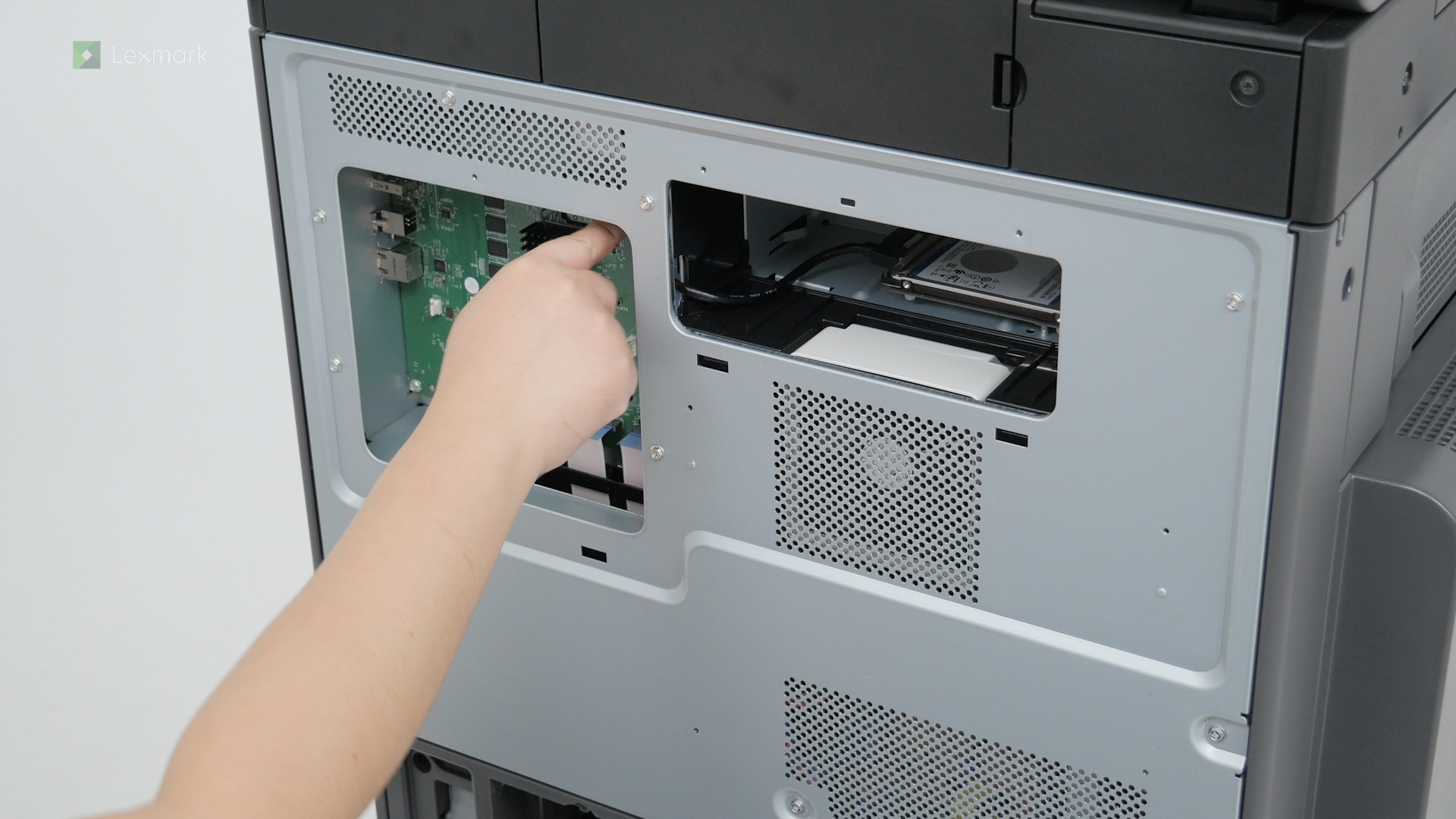
Learn how to install a hard disk on your printer to let it store large amounts of information.
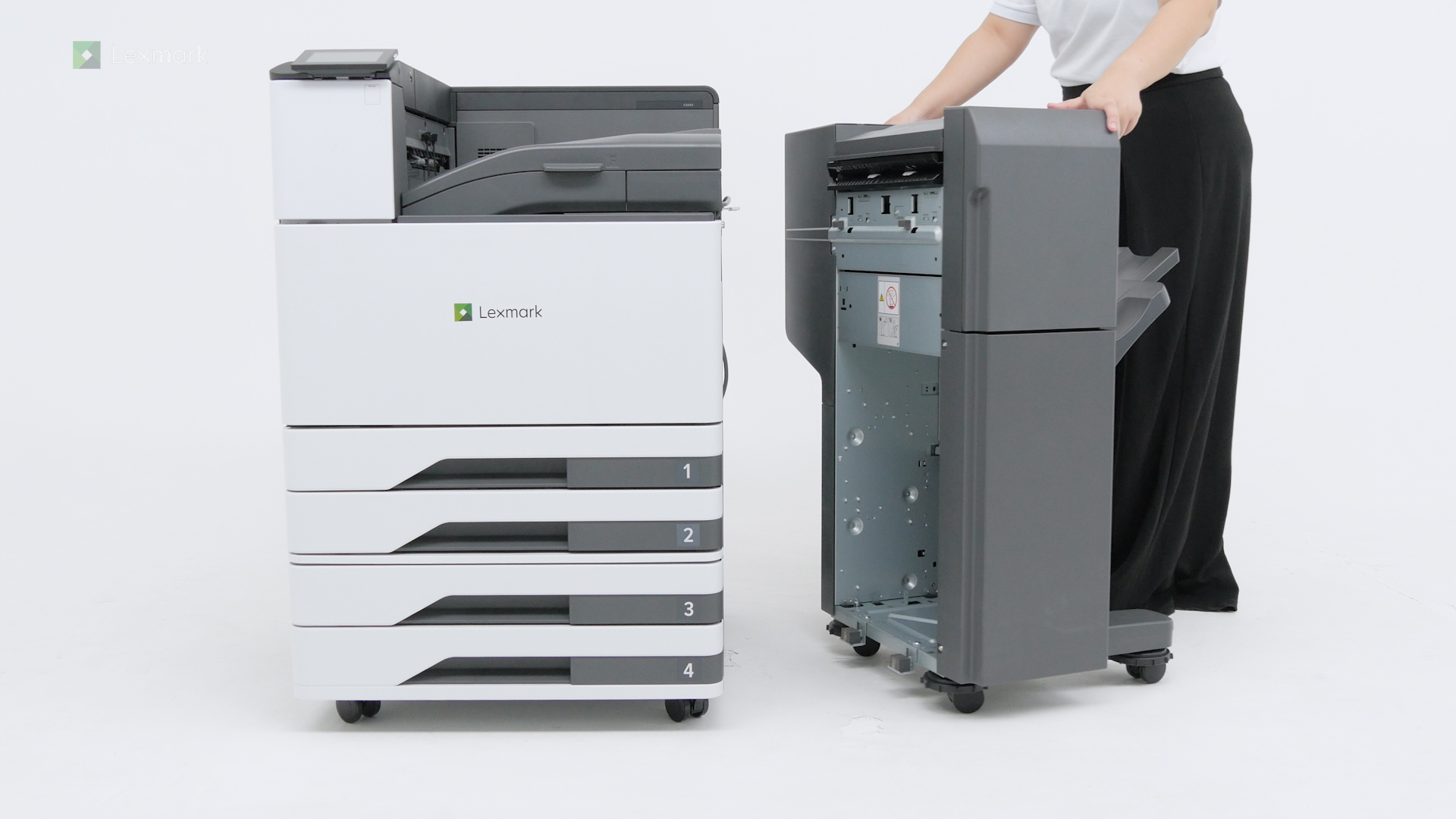
Follow these steps to install the staple finisher and expand your printer capabilities.
Follow these steps to install the staple, hole punch finisher properly.
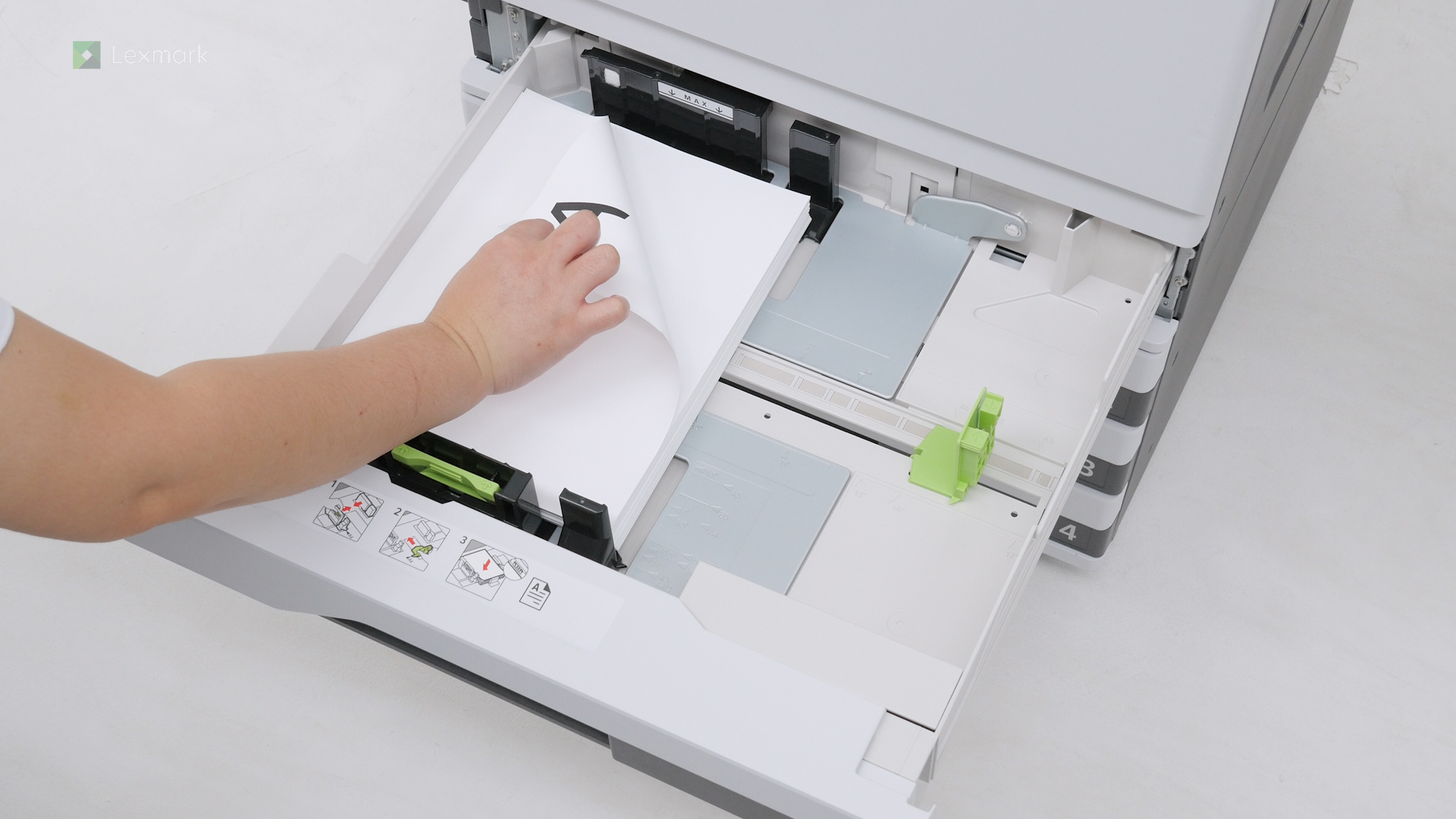
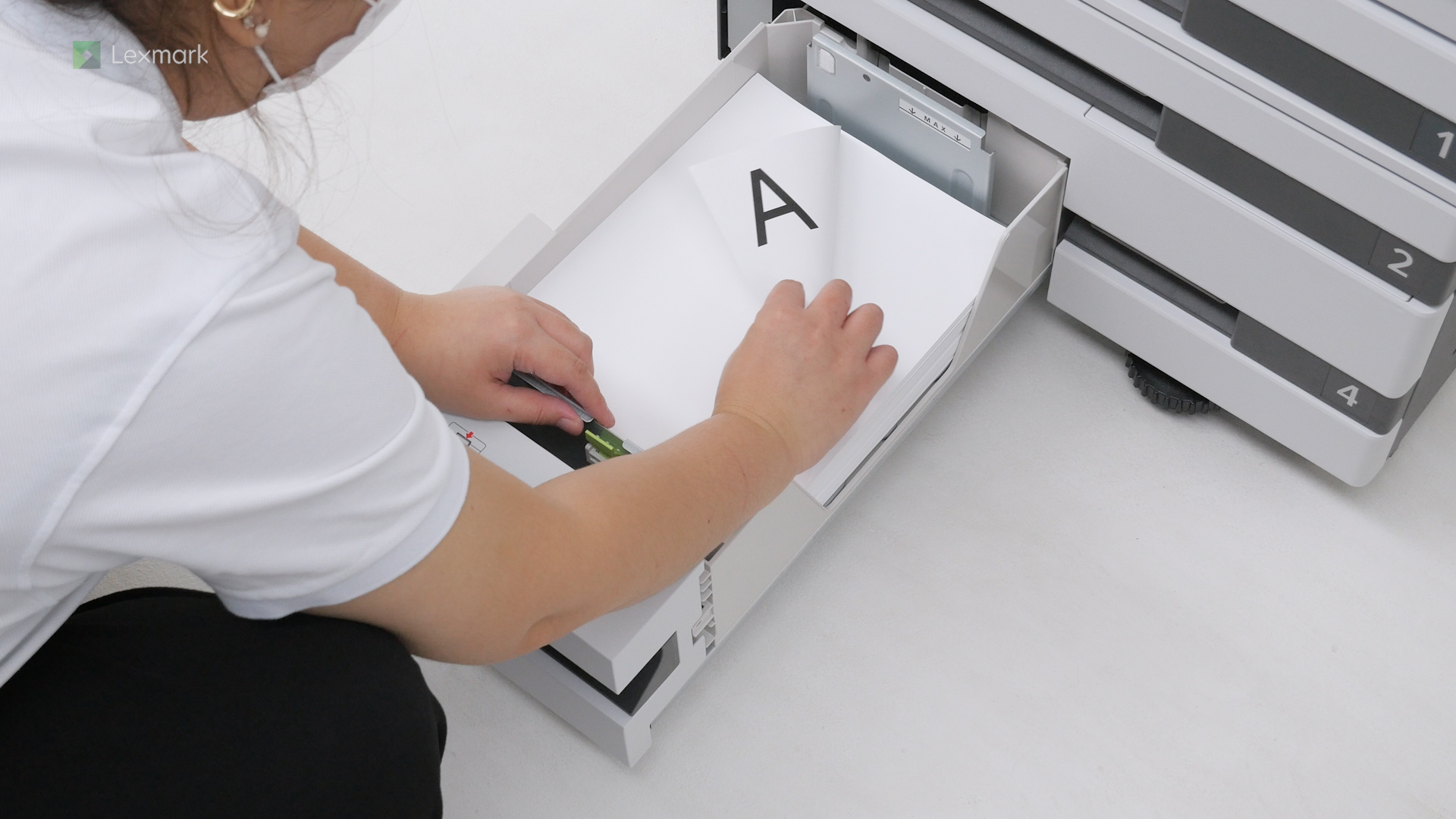
For reliable printing results, use these instructions to load paper properly into the 520-sheet tray.
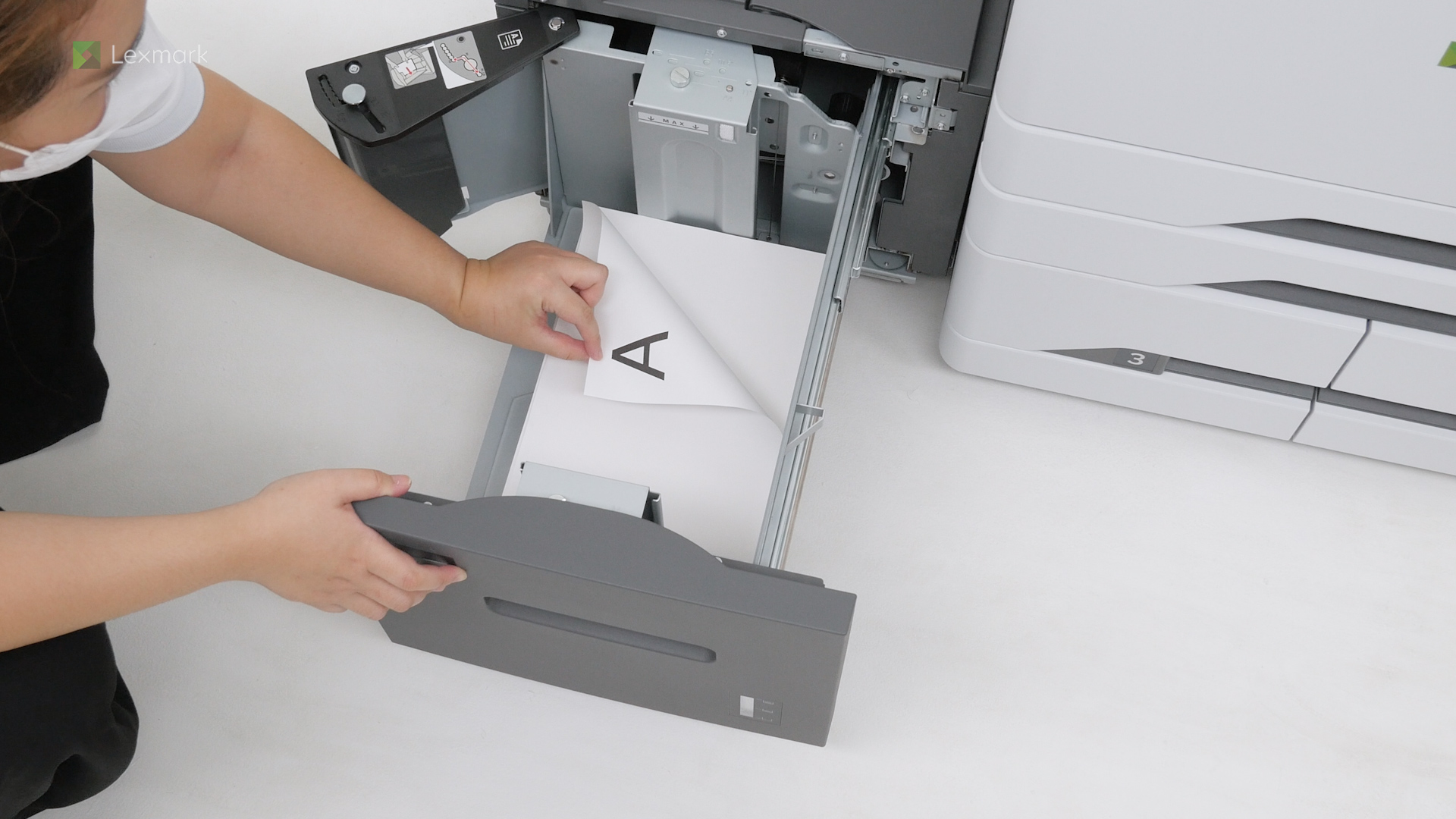
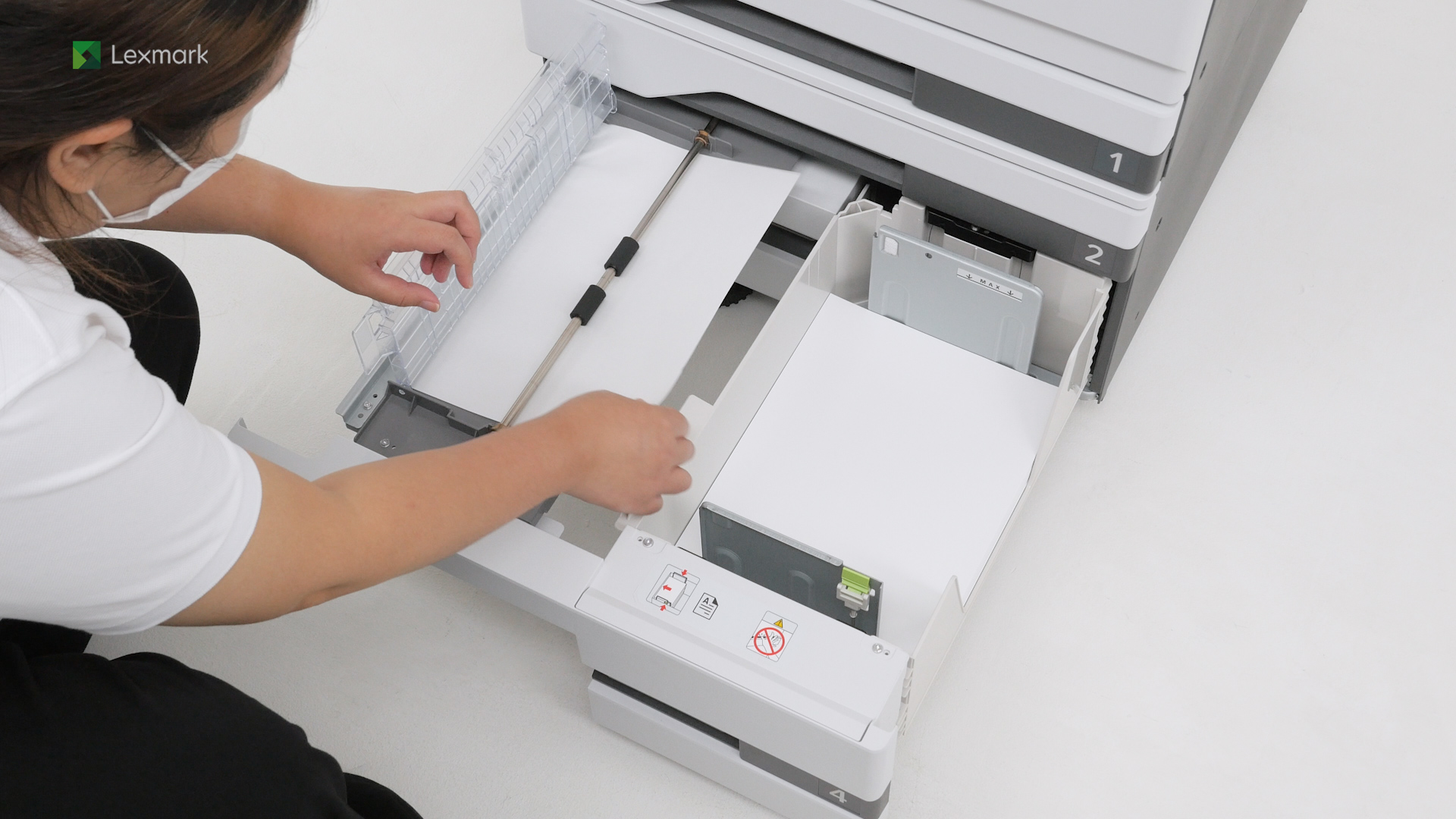
For reliable printing results, use these instructions to load paper properly into the tandem tray.
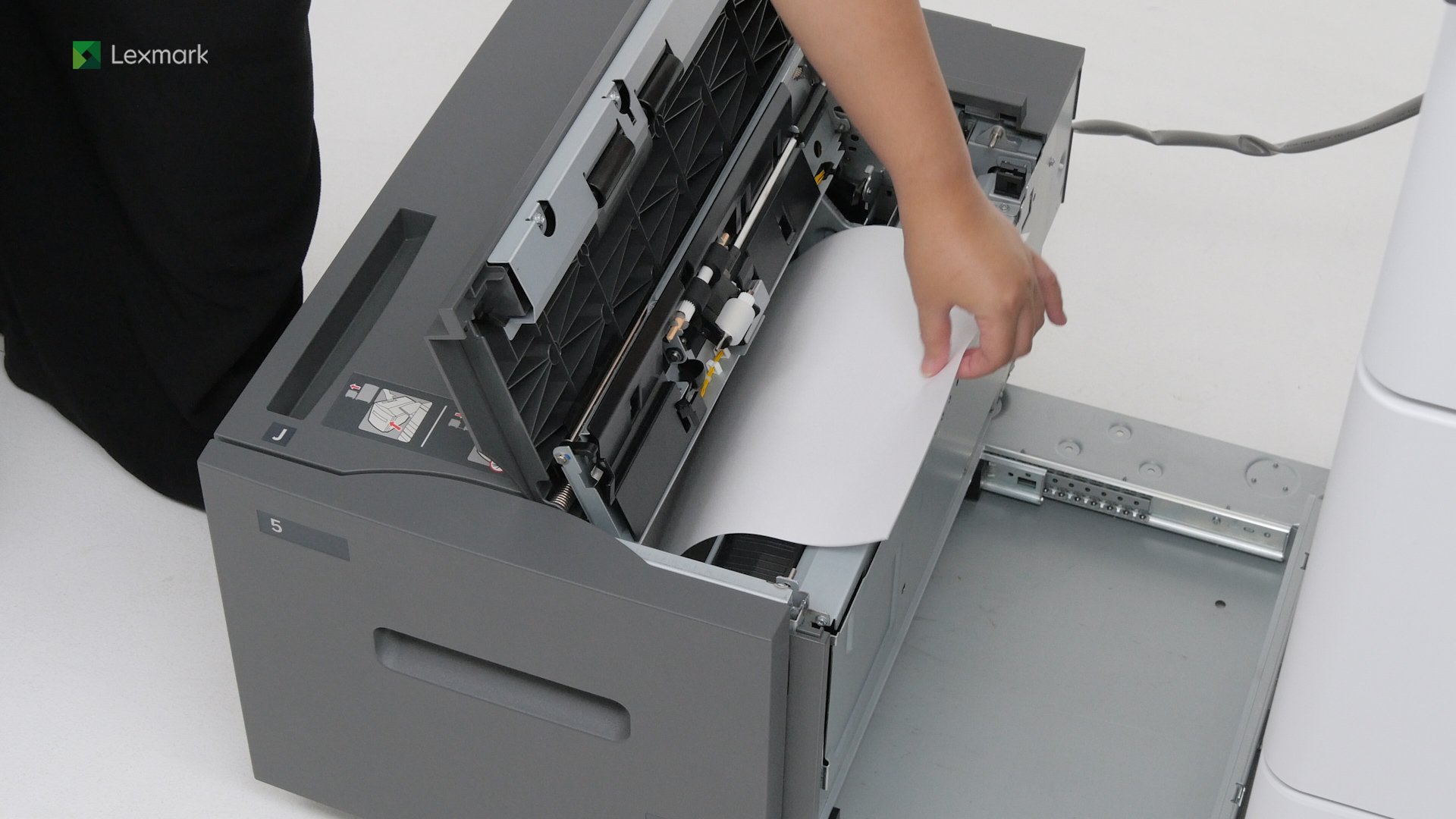
For reliable printing results, use these instructions to load paper properly into the 2000-sheet tray.
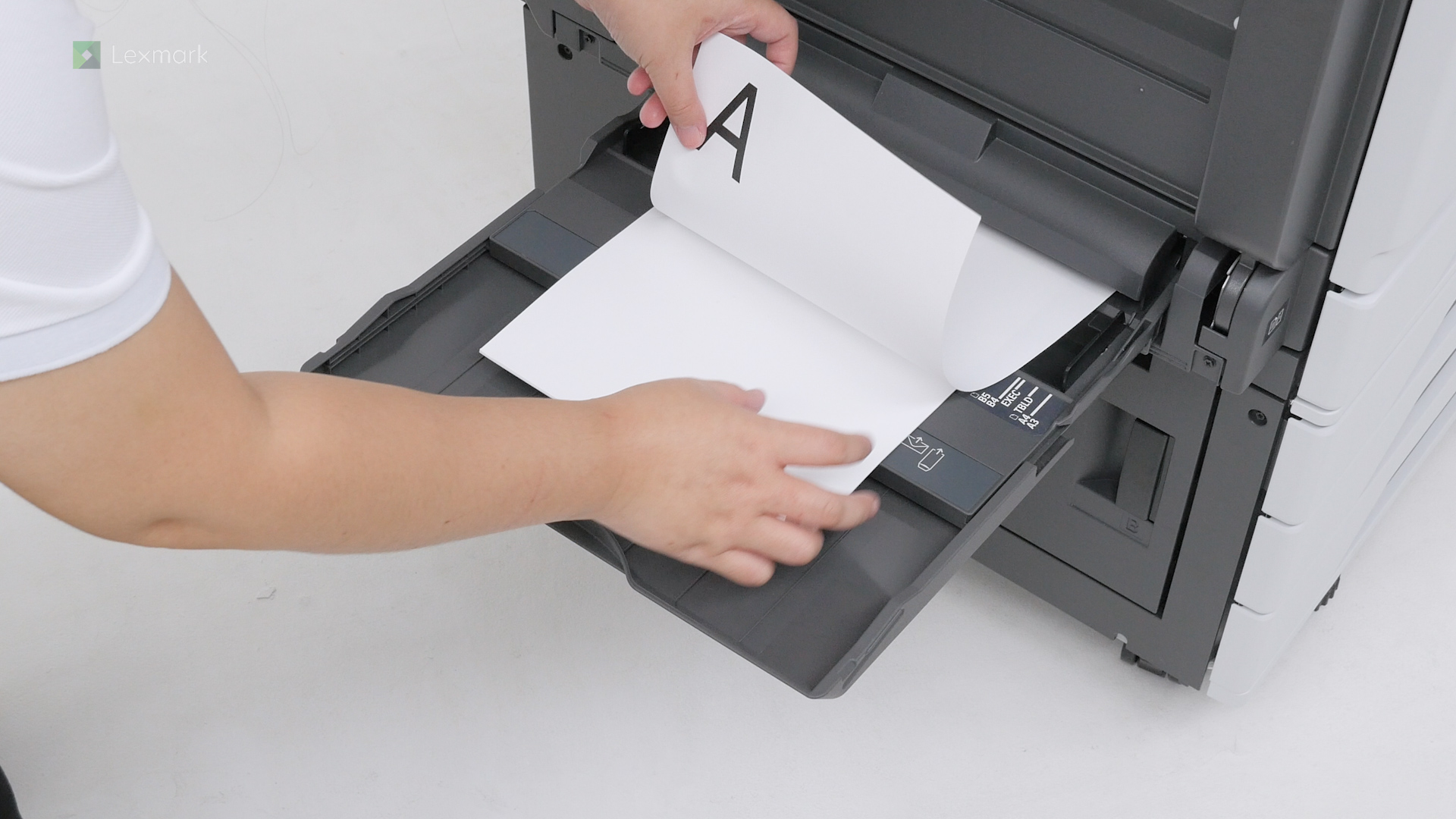
Learn the correct way of loading paper into the multipurpose feeder.
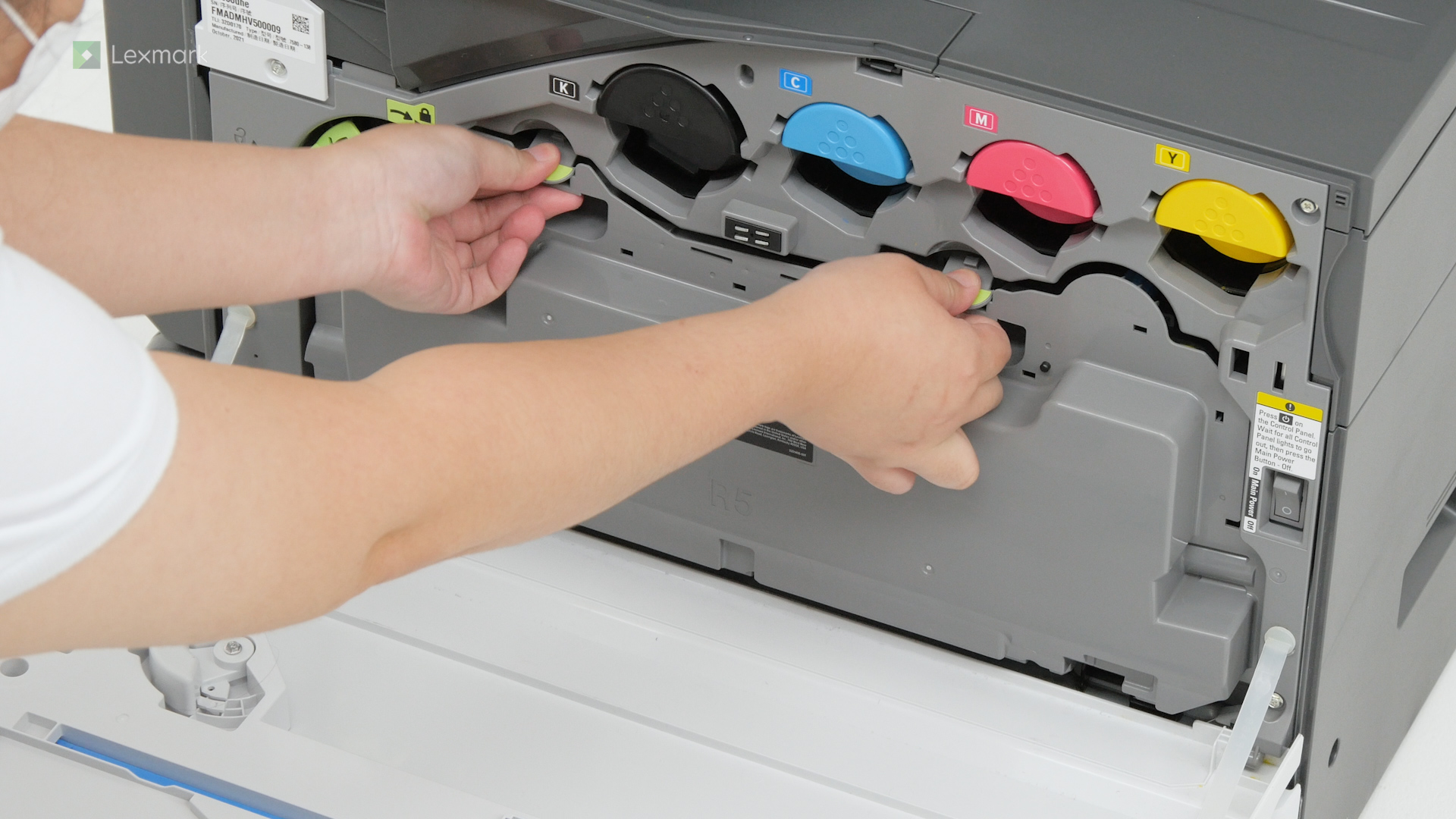
Prevent excess toner powder from falling into the printer. Change the waste toner bottle when it is full.
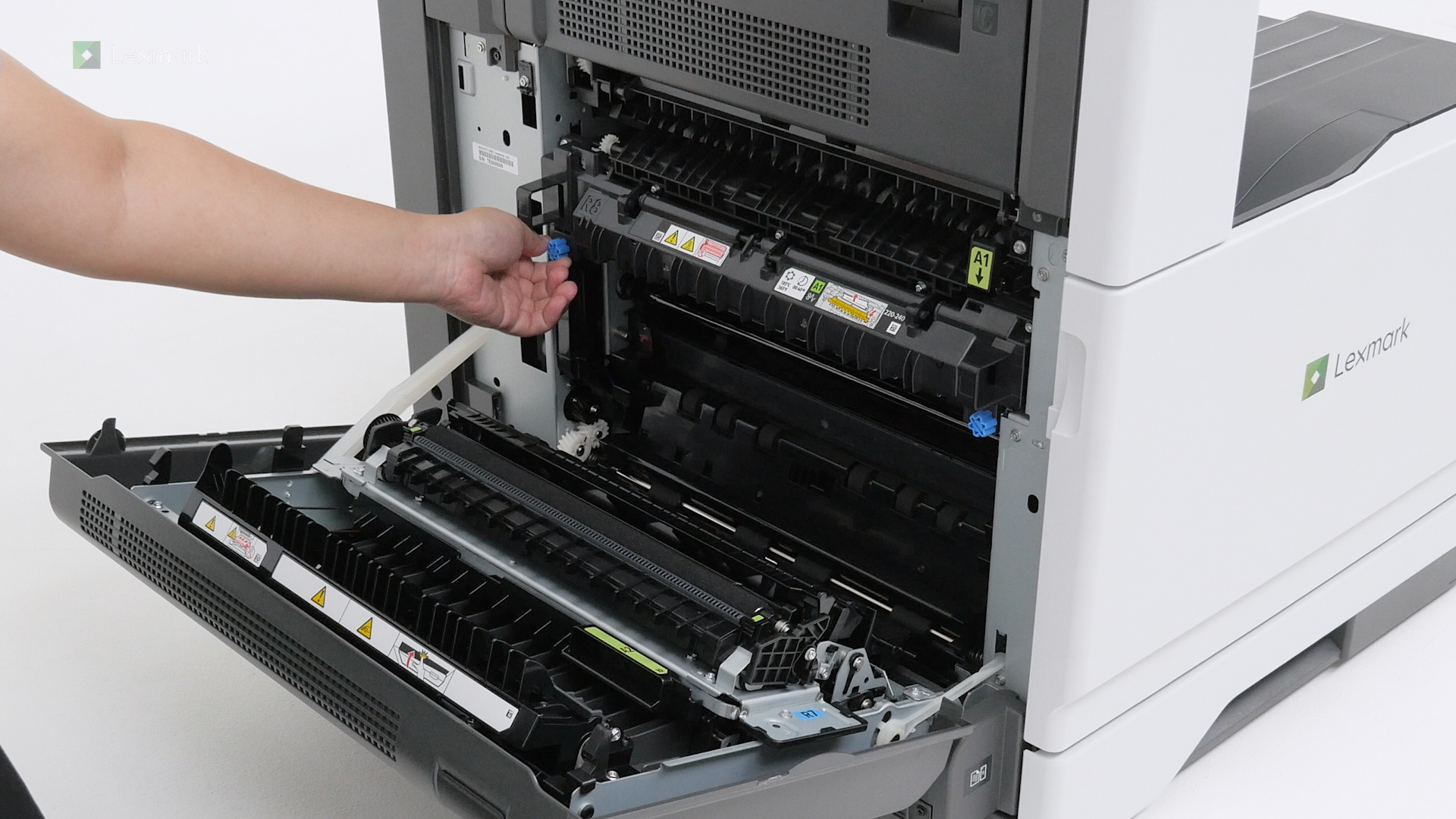
Learn how to remove the fuser when you are installing a new one.
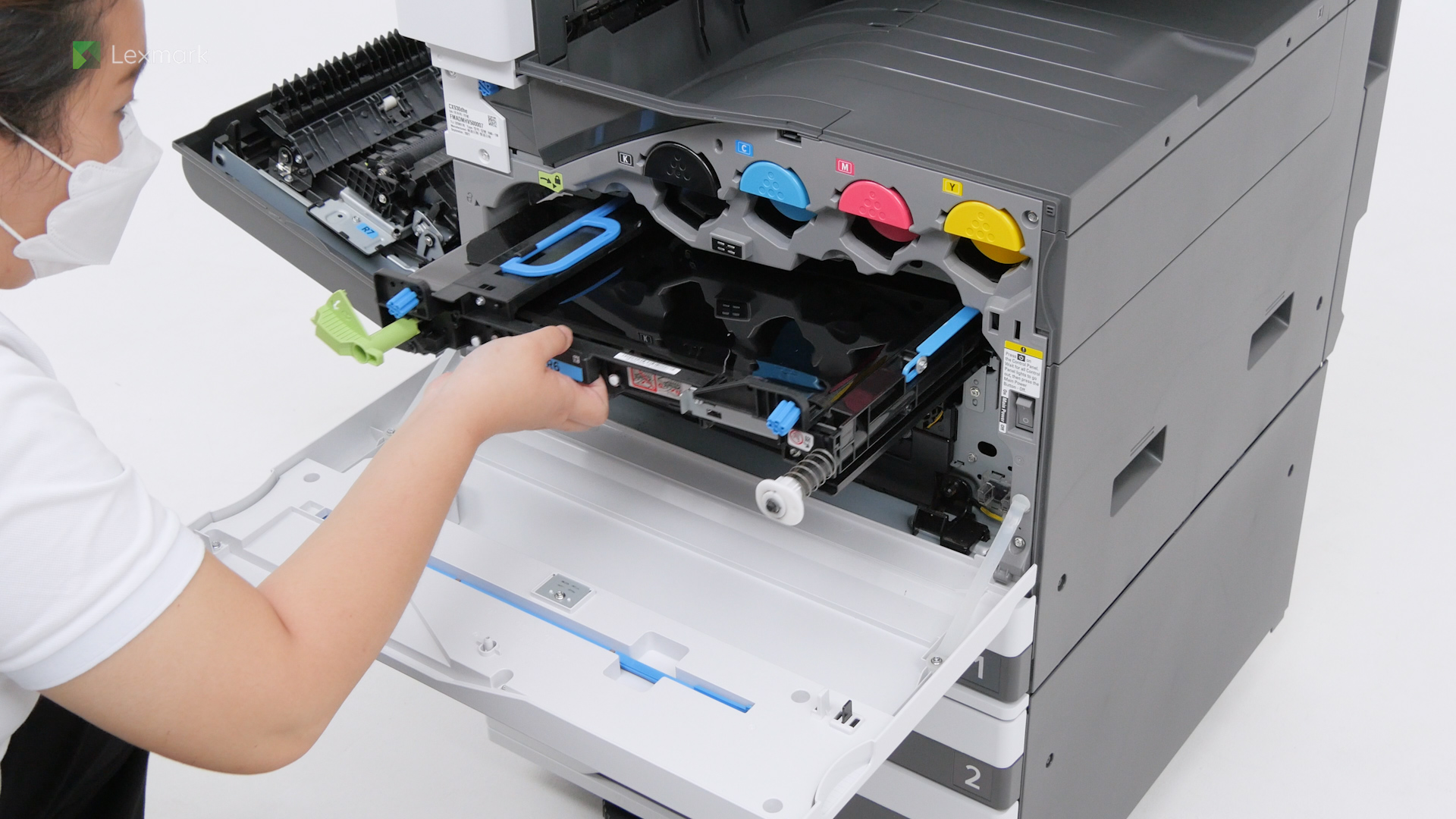
Change the transfer module when you start seeing low-quality images on your prints.
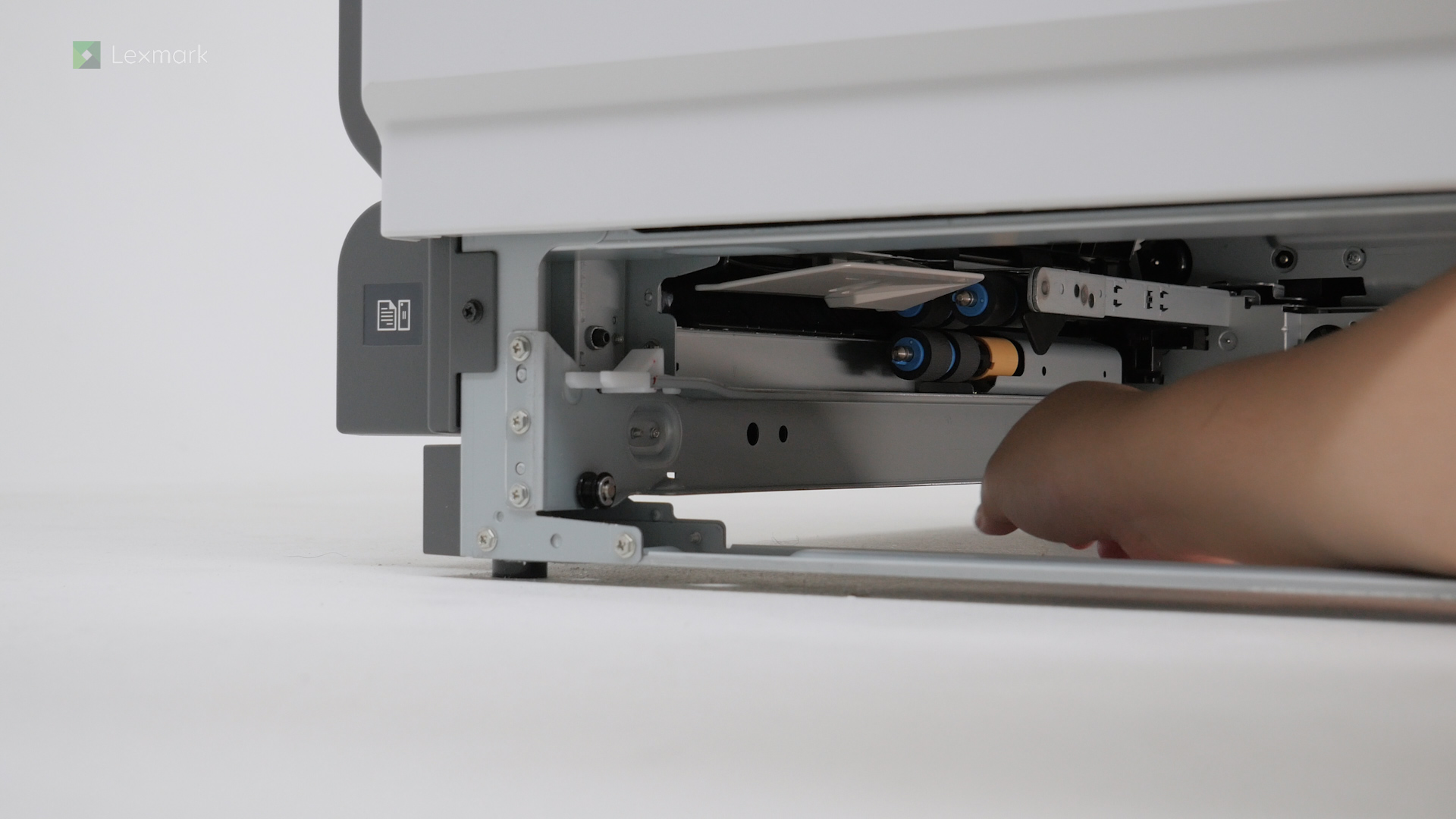
Changing the tray roller kit can help prevent paper feed problems from happening again.
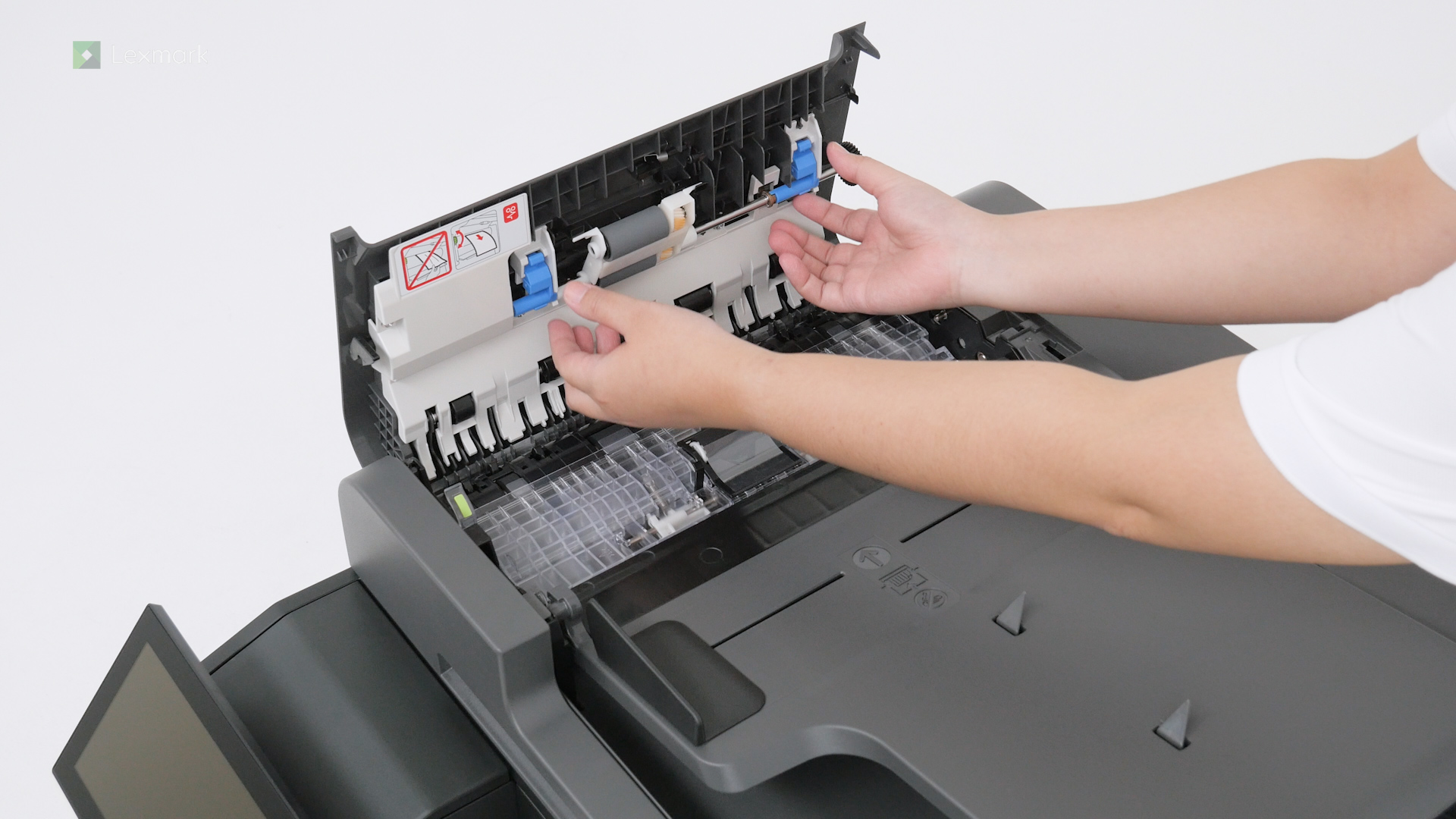
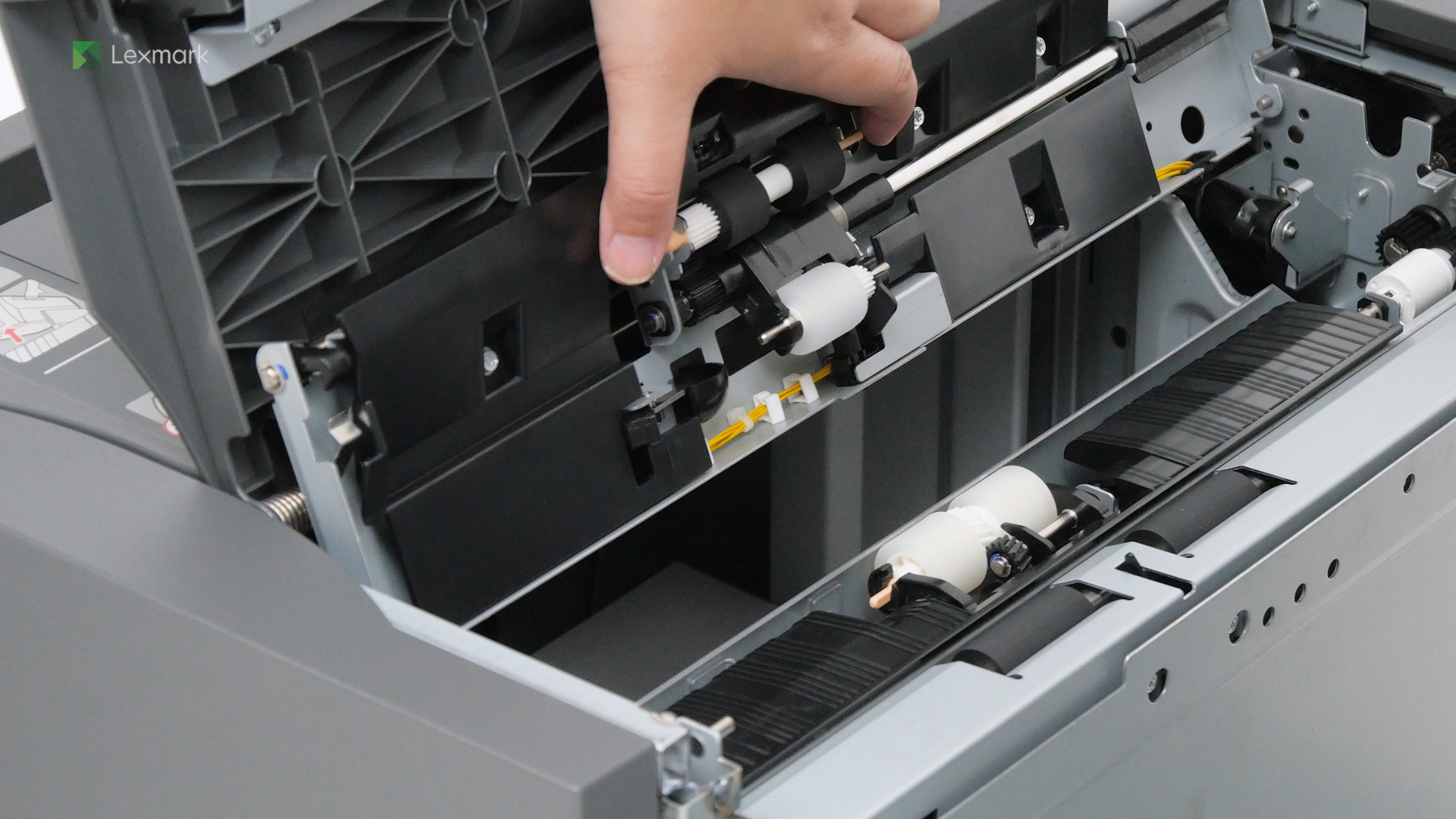
Change the ADF roller kit regularly to prevent paper jams and paper feed problems.
Change the roller kit for the 2000-sheet tray regularly to prevent jams and other paper feed problems.
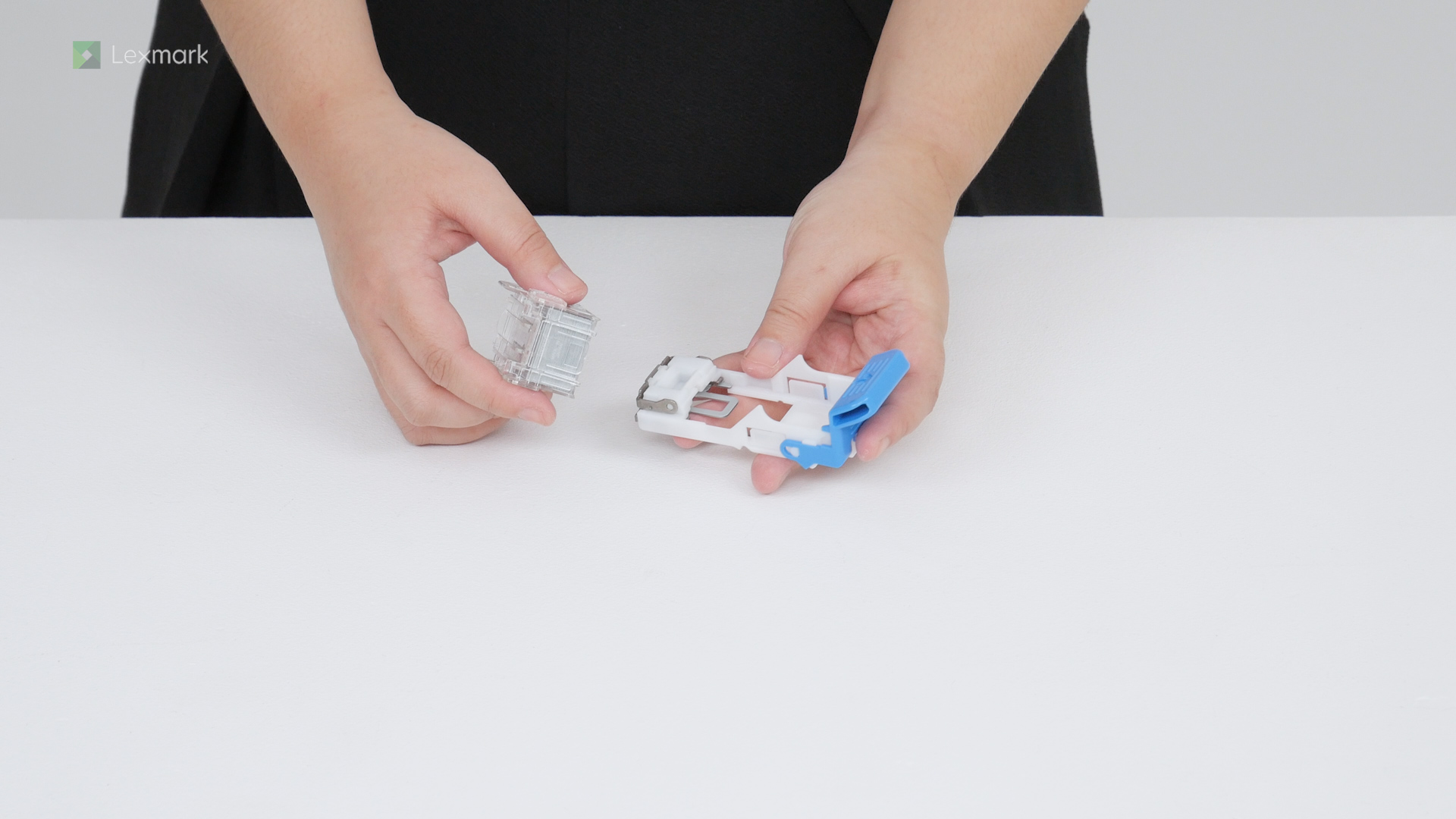
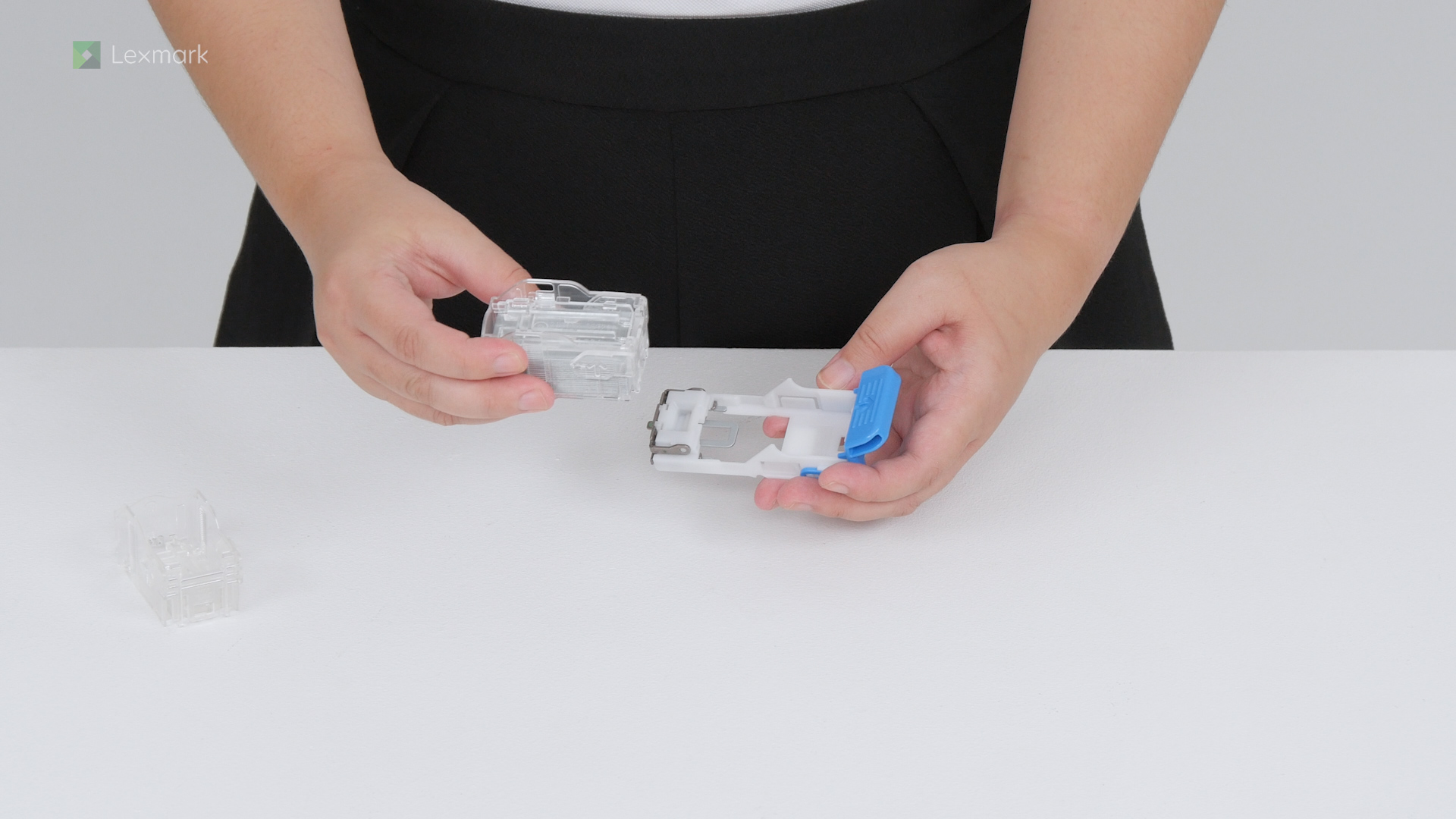
Replace the used staple cartridge holder in the staple finisher, staple, hole punch finisher, or booklet finisher to continue the automatic stapling of your documents.
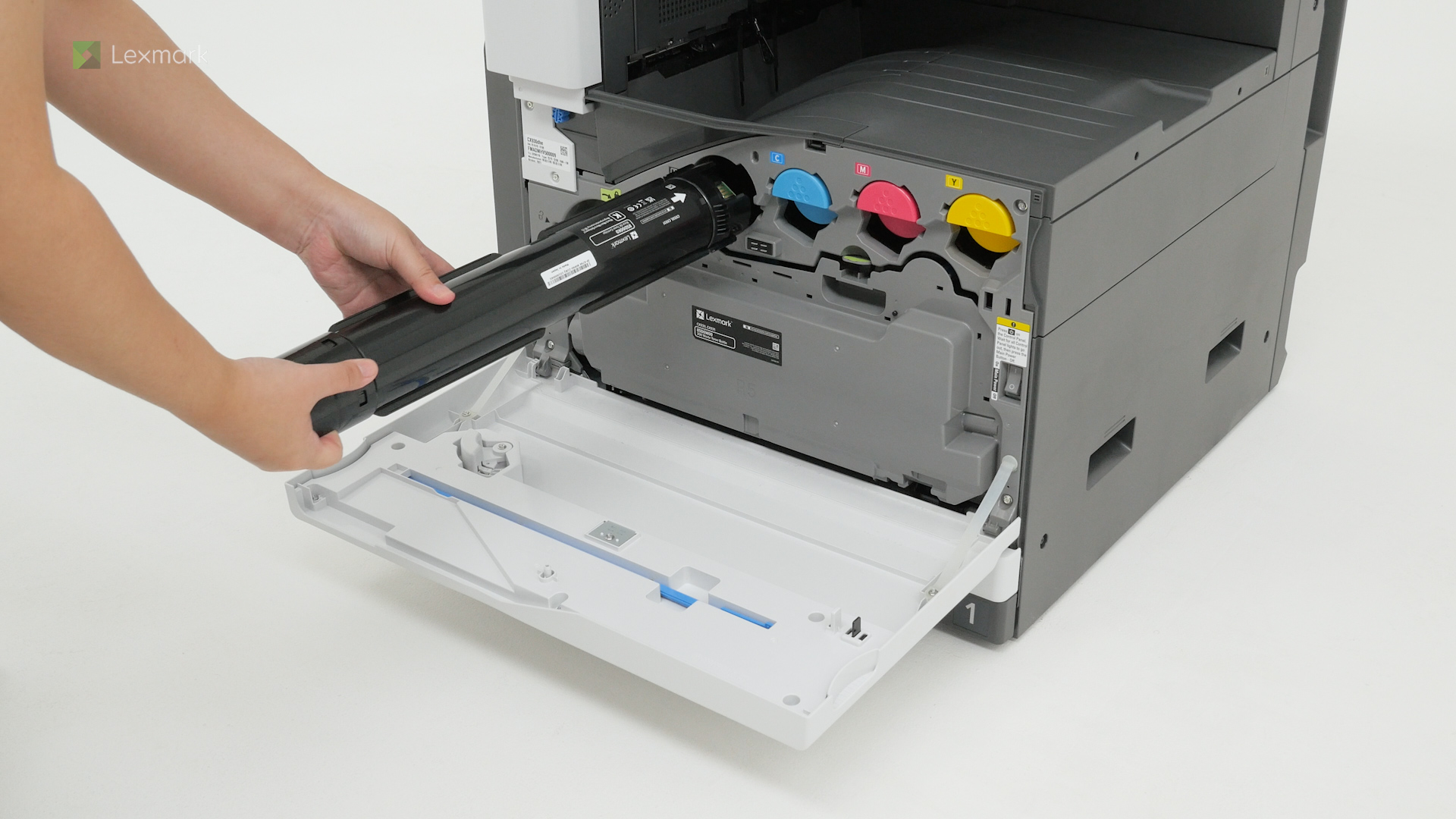
Install a new toner cartridge when you continue to see faded prints.
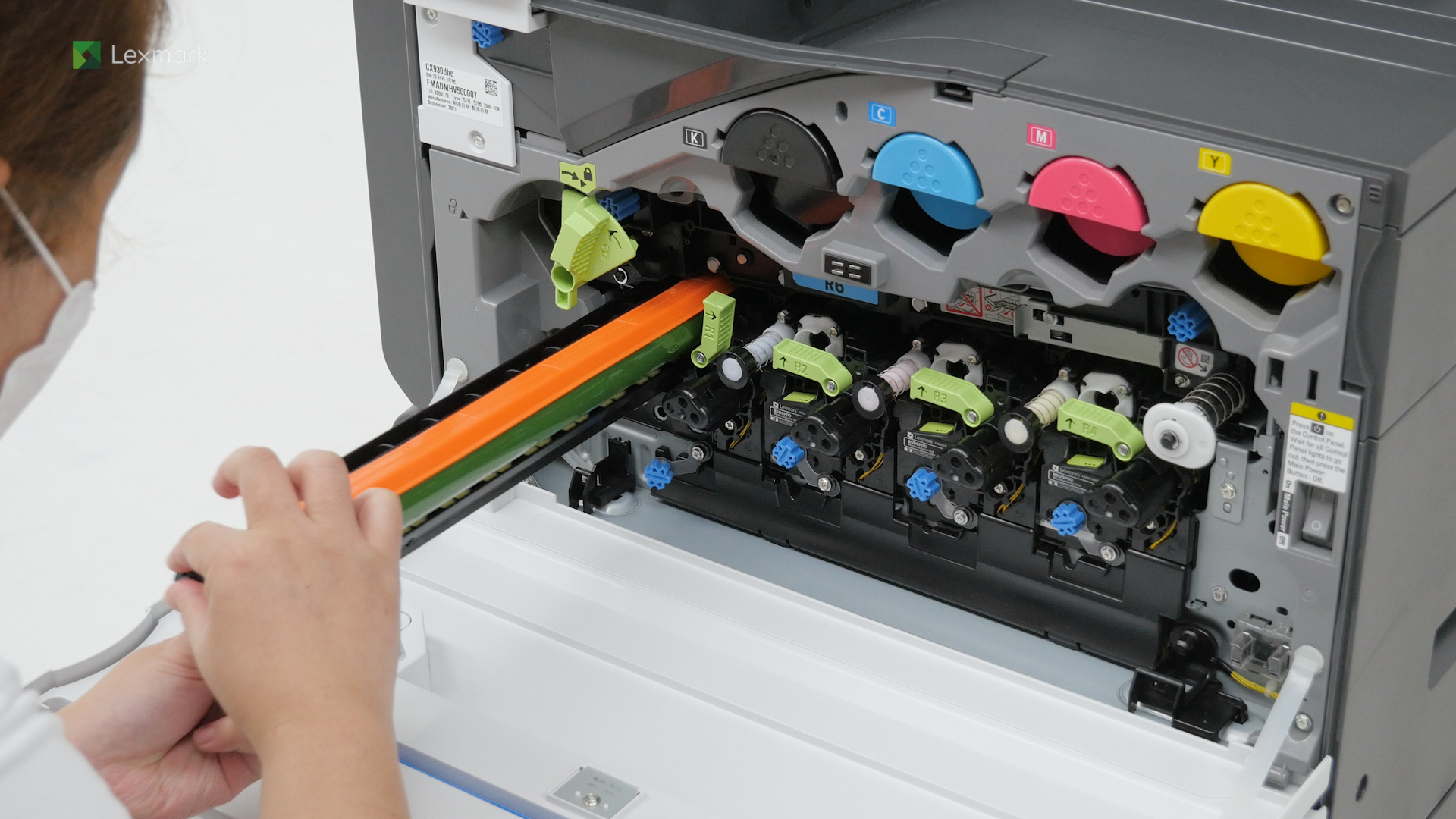
Install a new photoconductor unit when you continue to see faded prints.
Replace the empty staple cartridge in the finisher to continue the automatic stapling of your documents.
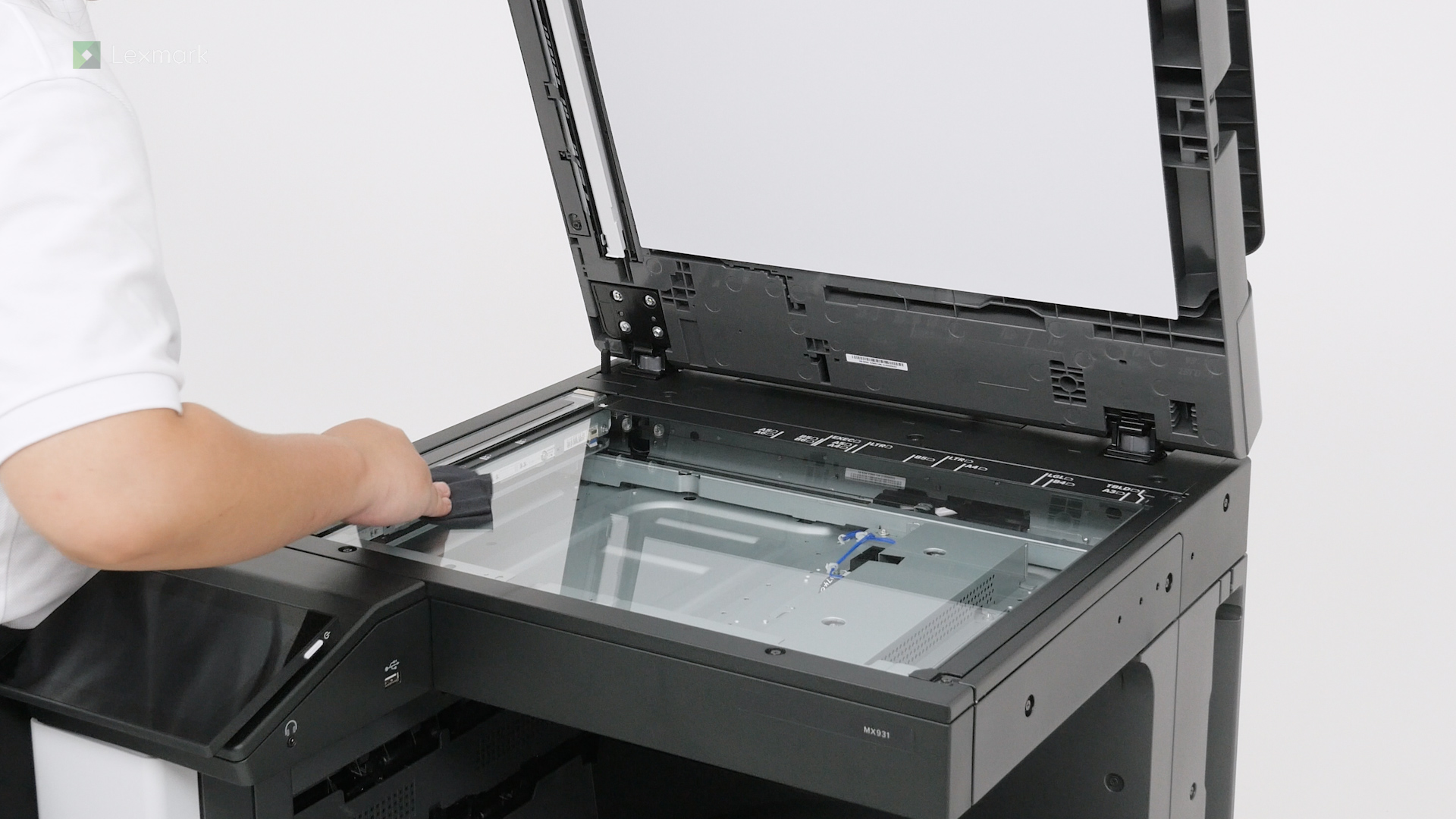
Clean your scanner periodically to avoid getting blurry and faded scanned images or text.
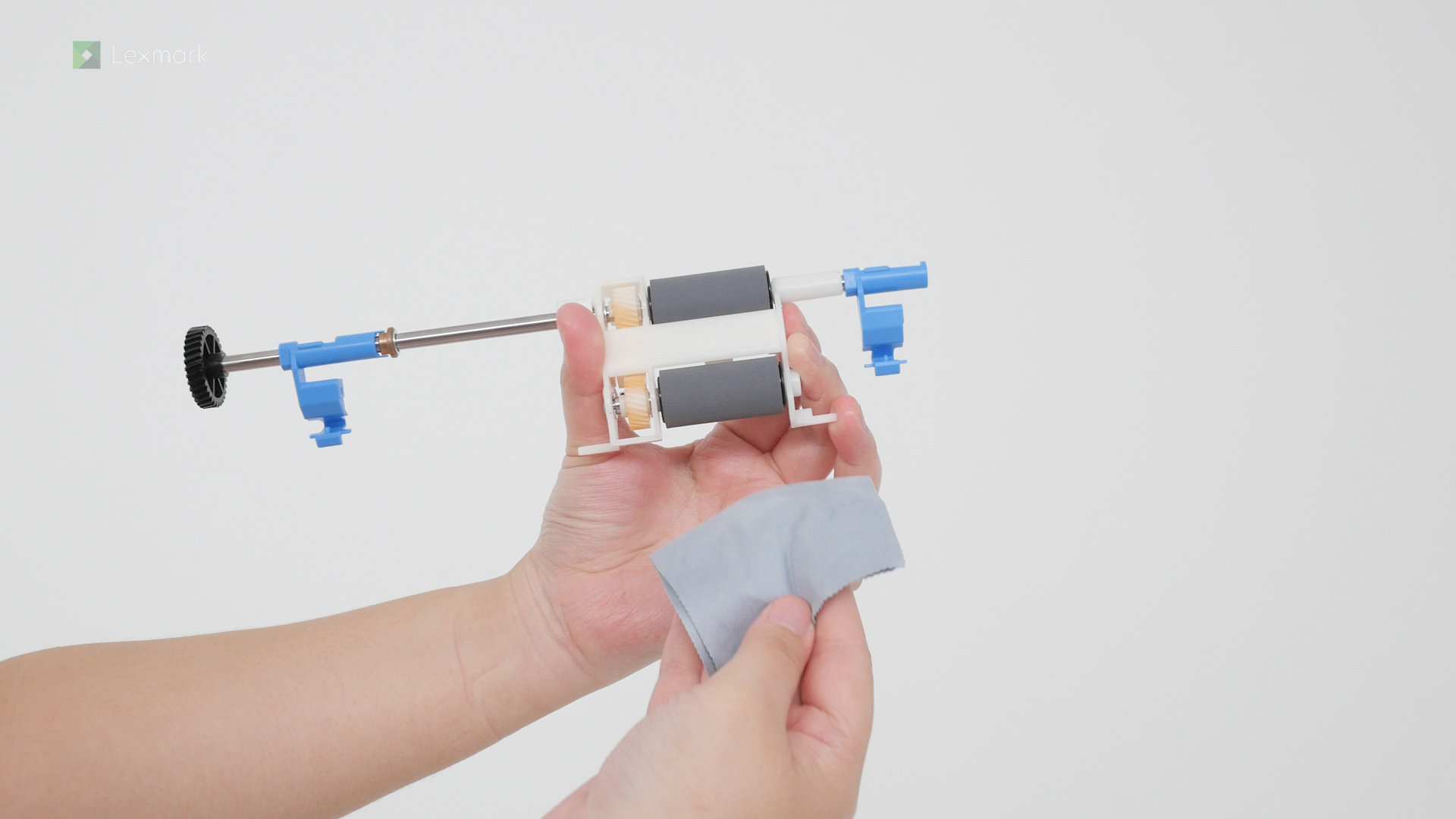
Clean the ADF roller kit regularly to prevent jams and other paper feed problems.
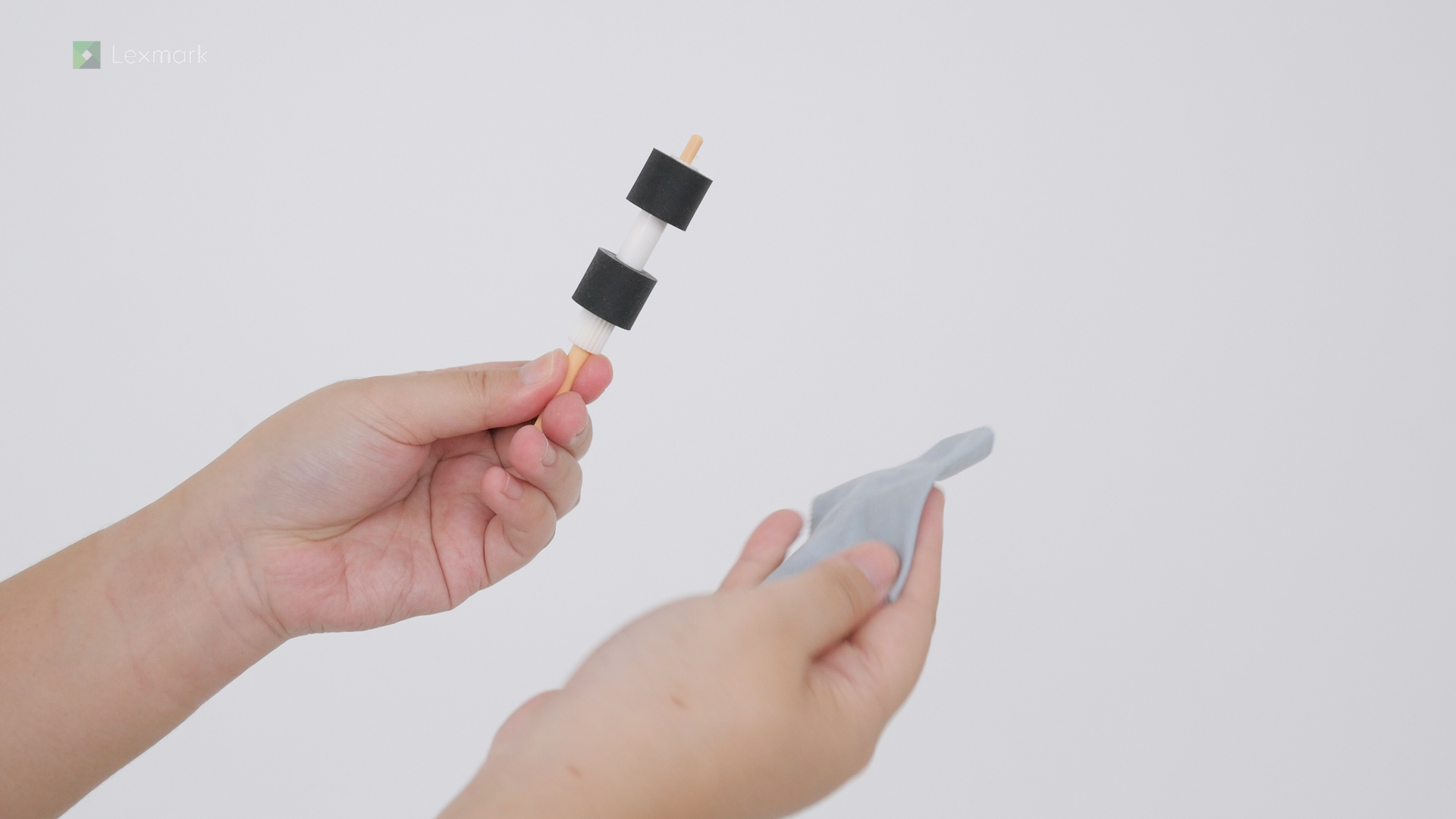
Clean the roller kit of the 2000-sheet tray regularly to prevent paper feed problems.
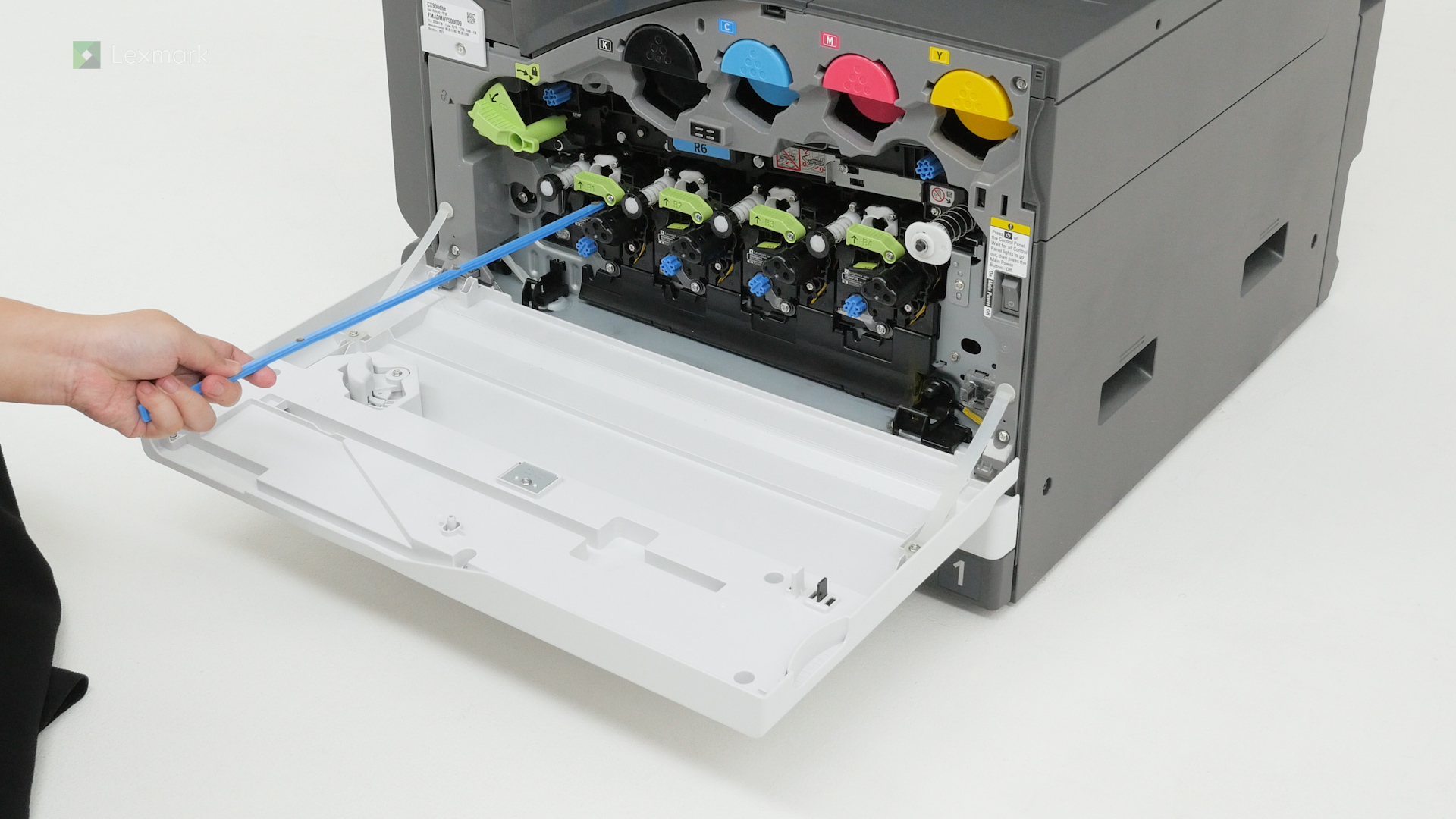
Clean the printhead lenses regularly to avoid streaks and lines in your prints.
Cleaning the tray roller kit regularly can help prevent paper feed problems from happening again.
Remove paper that is stuck in the standard tray to continue printing.
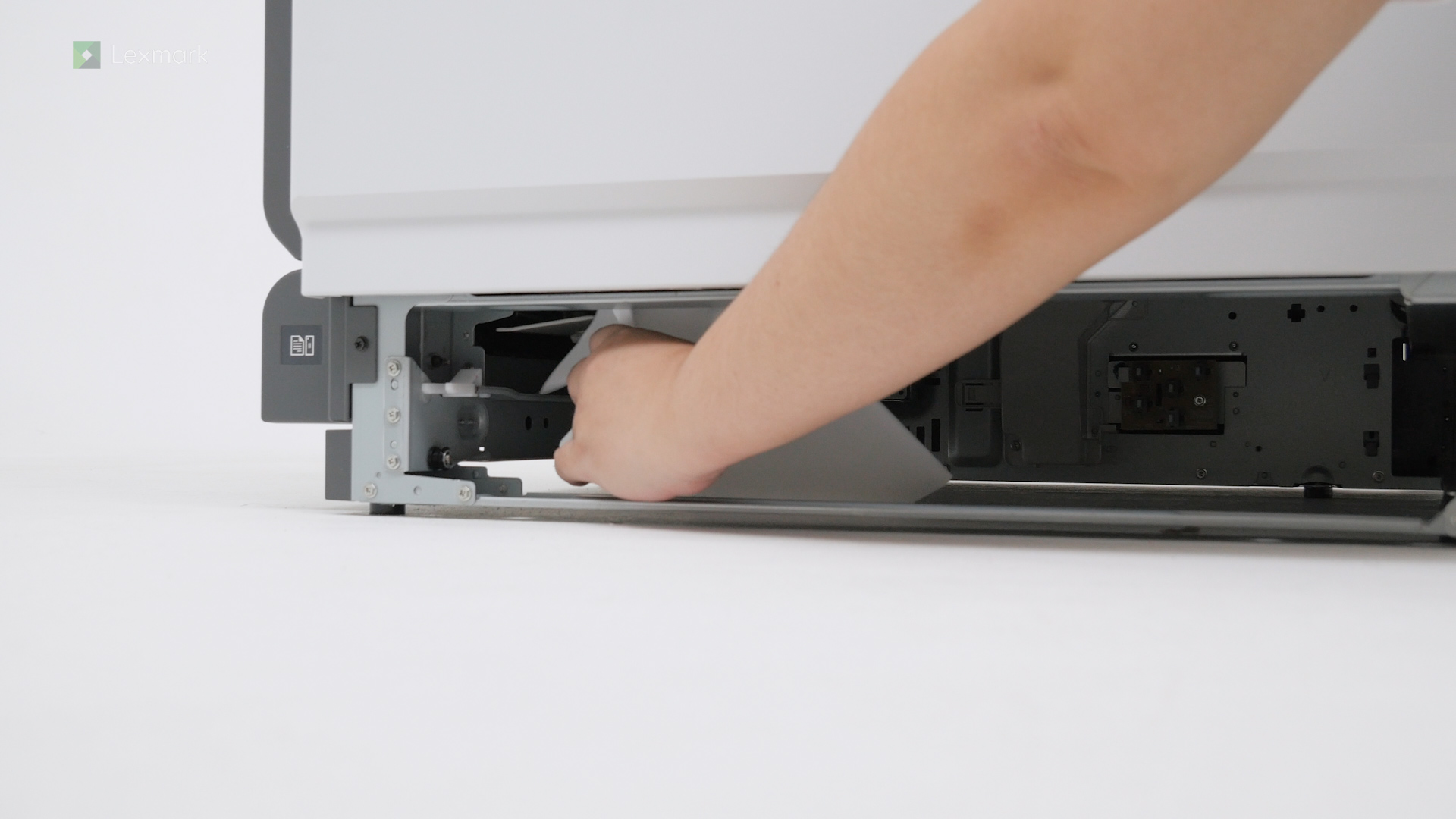
Remove paper that is stuck in door B to continue printing.
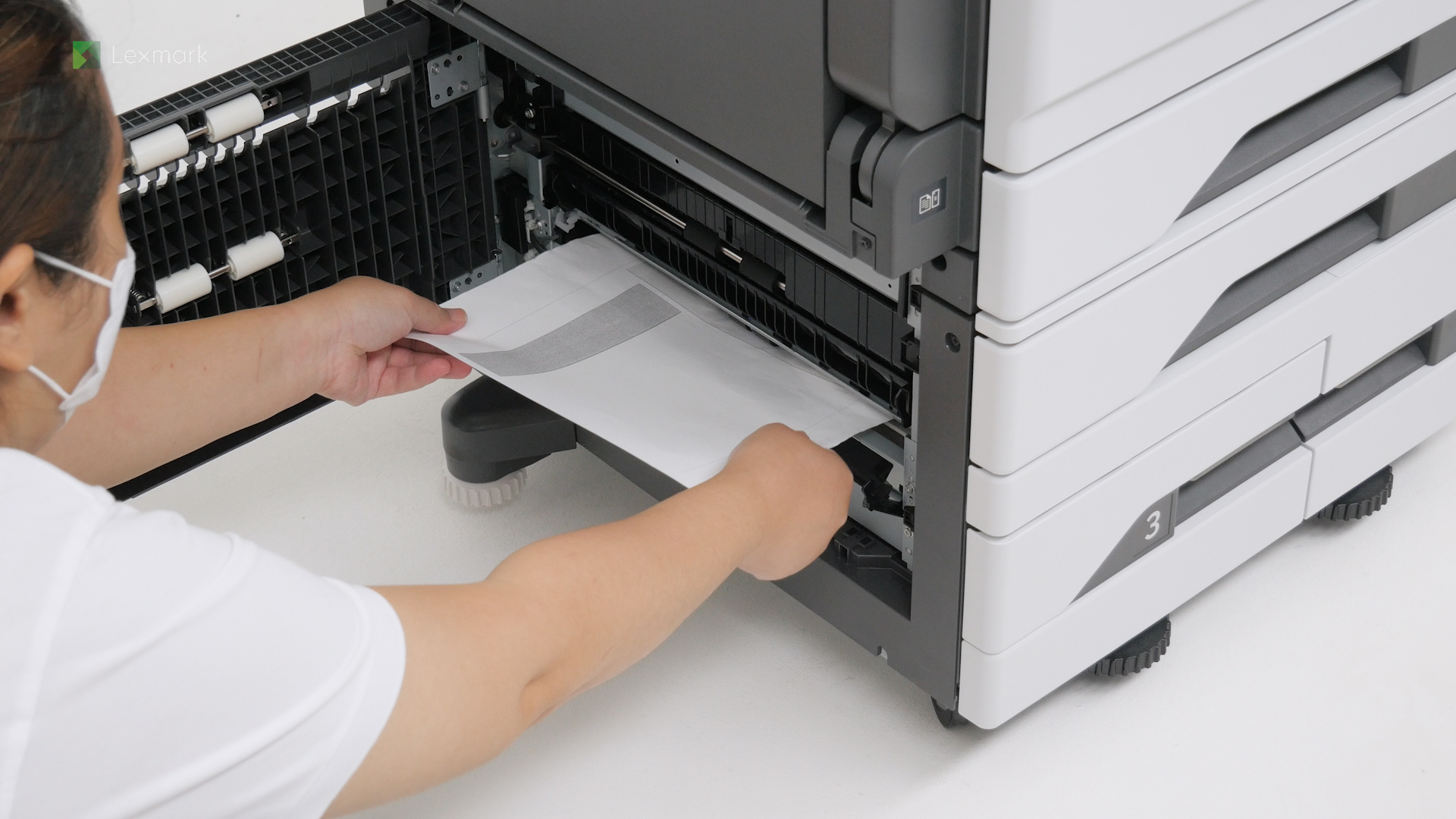
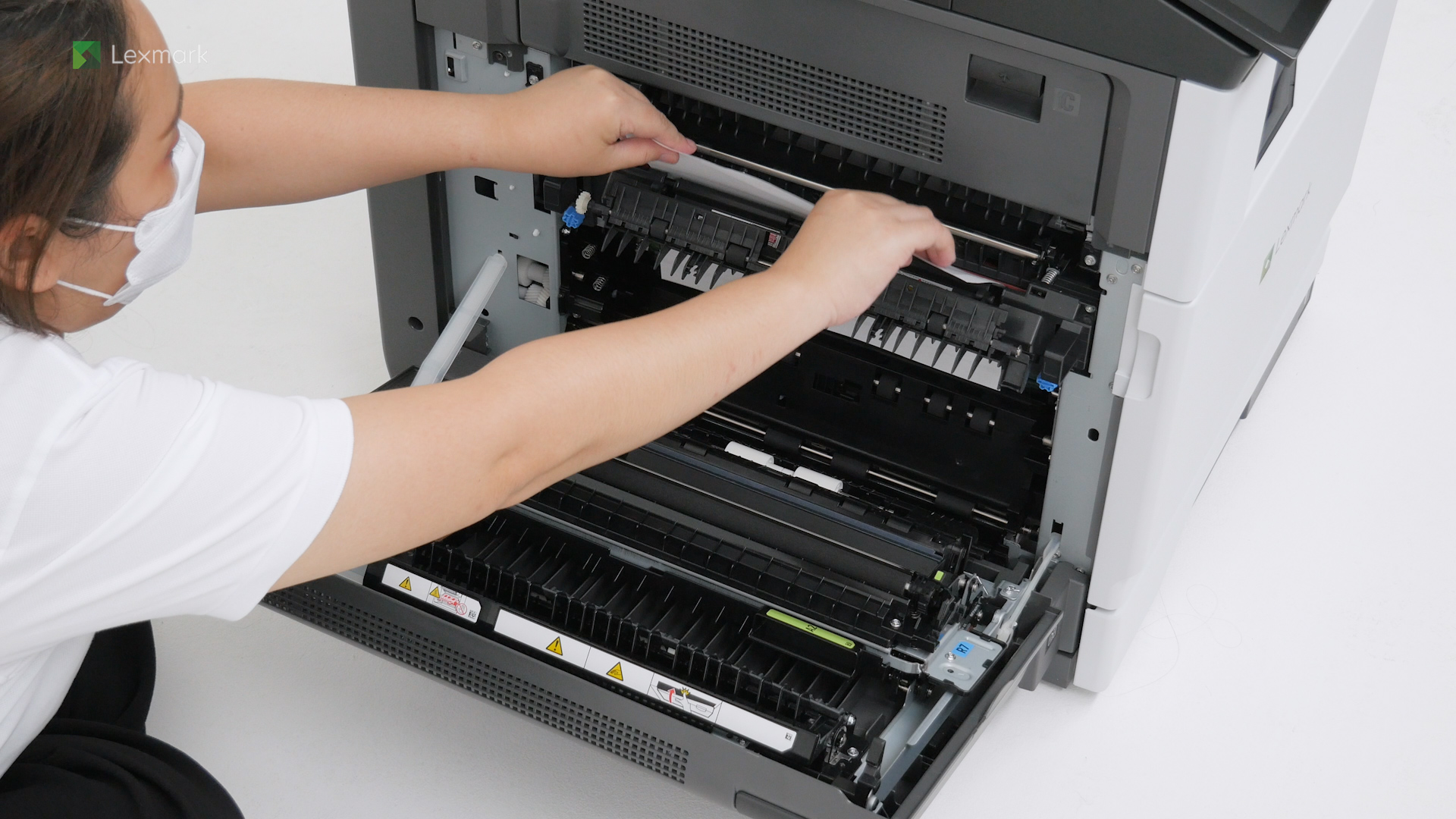
Remove paper that is stuck in doors A and C to continue printing.
Remove paper that is stuck in the 2520-sheet tandem tray to continue printing.
Remove paper that is stuck in the 2000-sheet tray to continue printing.
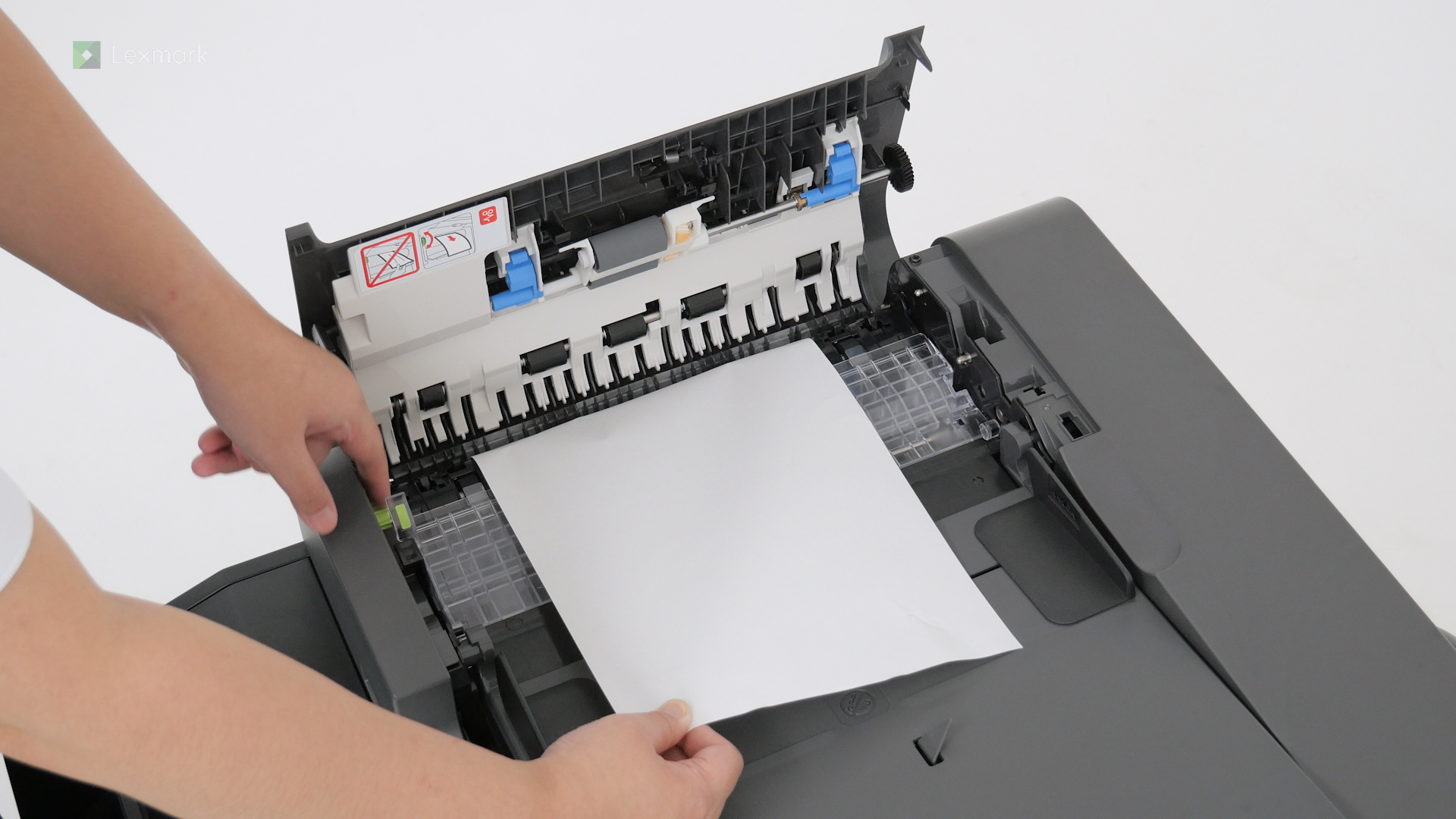
Remove the paper that is stuck in the automatic document feeder to continue scanning.
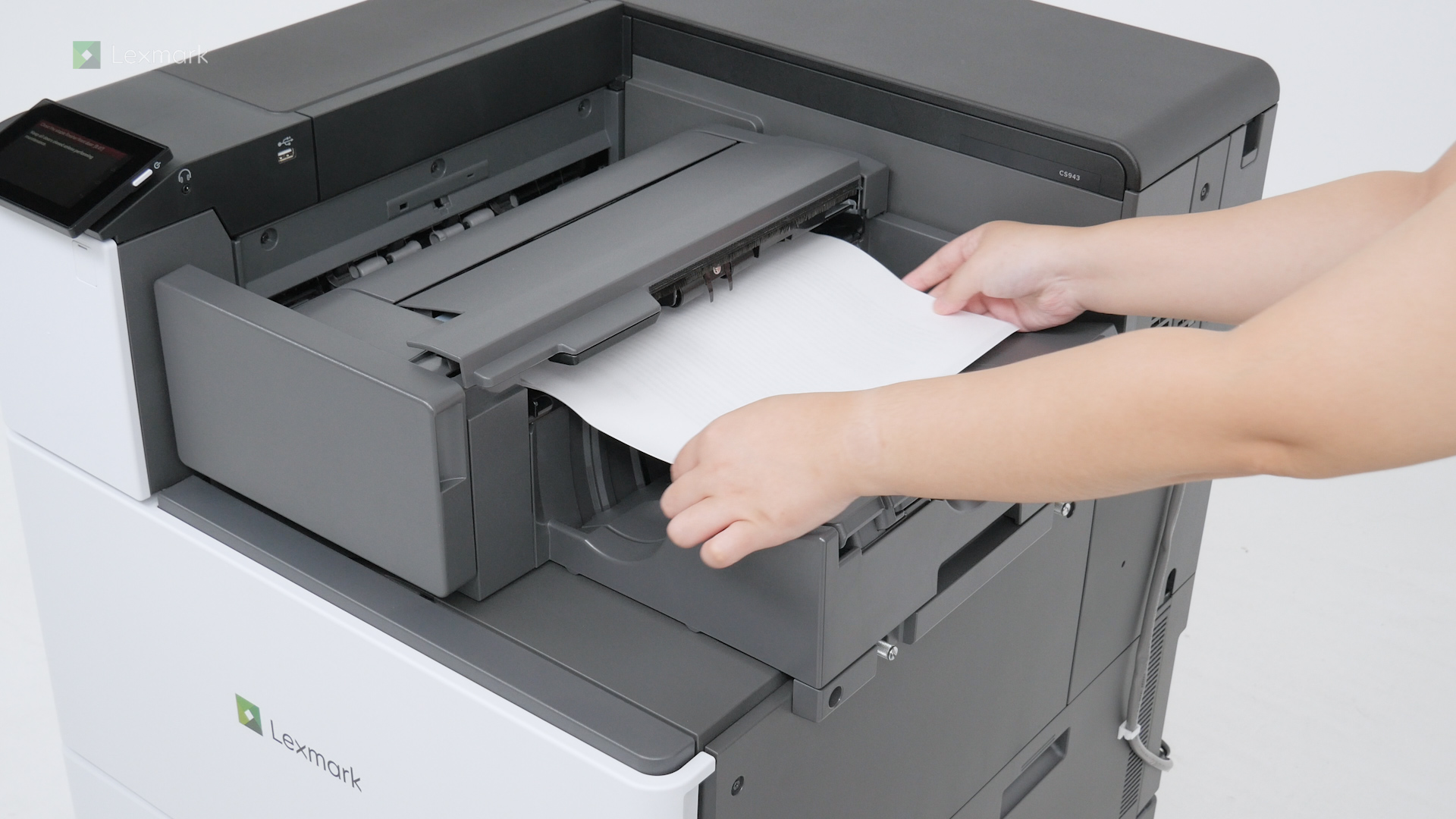
Remove paper that is stuck in the staple finisher to continue stapling and printing.
Remove the jammed paper in the staple, hole punch finisher to continue binding, stapling, and printing.