Artículo de asistencia para Lexmark X654DE
Operator panel is blank or black
What you will see
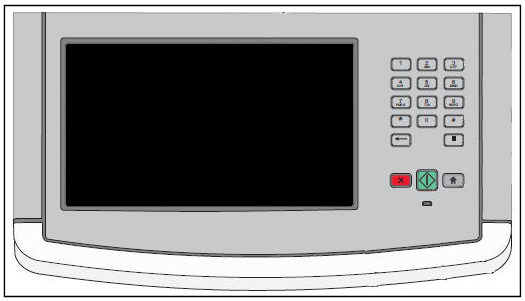
The touch screen display does not power on (light up). See an example in the illustration below.
Recommended actions
| Step | Action |
| 1 | The touch screen display may be in 'sleep' mode. Lightly touch the display and see if the display panel lights up. |
| 2 | If the display does not respond, press the Copy (  Note: If the printer attempts to make a copy, updating the Universal Integrated Circuit Card (UICC) code may correct the issue. The touch screen display does not respond or light up after 'Sleep' mode for instructions. |
| 3 | If the printer does not respond, power off the printer. Allow the printer to sit powered off for 10 to 20 seconds. Note: Do not power the printer off and on too quickly. Doing so can cause a power issue with the display panel and create this type of issue. |
| 4 | After ten seconds or more, power the printer on again. See whether the display panel powers on correctly.
|
| 5 | If powering the printer off and on does not correct the issue, see if the display is readable at all.
|
Check for failure of the power supply
| Step | Action |
| 1 | Power the printer off. Wait 10 to 20 seconds, then power the printer back on. The motors within the printer should turn within the first minute after the printer is powered on. If this occurs, the power supply is working. If the printer is getting power, but the touch screen display still fails to light up, there is a likely a failure of the display panel or one of its connecting cables. This will require a service action to correct the issue. For additional assistance, please contact Lexmark Technical Support or a local authorized service center. |
| 2 | If the printer remains silent, look for any LED lights that are on.
If you see the network communication light or any other lights on the printer lit, the power supply is working. If the power supply is working, but the touch screen display still fails to light up, there is a likely a failure of the display panel or one of its connecting cables. This will require a service action to correct the issue. For additional assistance, please contact Lexmark Technical Support or a local authorized service center. |
| 3 | If no lights on the printer are lit and the printer makes no noises at all on power up, verify the power source.
|
| 4 | If you confirm that the power source is good, the power supply on the printer may be failing. This will require a service action to correct the issue. For additional assistance, please contact Lexmark Technical Support or a local authorized service center. |
Check and Adjust the LCD Brightness setting
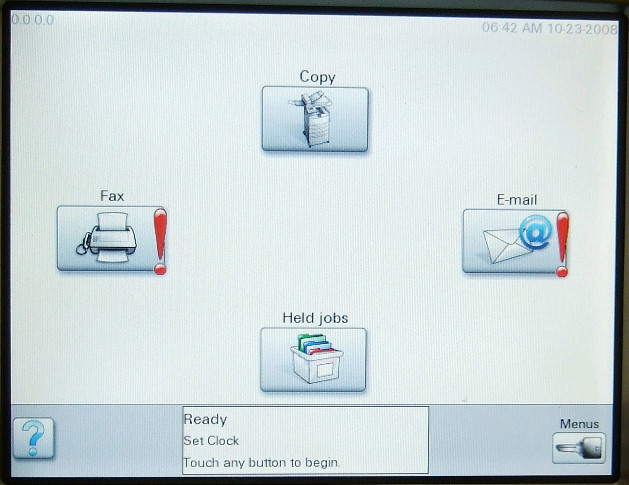
If the display is readable, but very dim, it is possible that the screen brightness has been set too low. To check this setting, perform the following:
| Step | Action |
| 1 | At the 'Ready' screen, press the Menus (  |
| 2 | Press  |
| 3 | Press |
| 4 | Look for Screen Brightness. If Screen Brightness is not showing, press  |
| 5 | The current value for Screen Brightness will be displayed. The number should be somewhere between 20 and 100.
Note: As a last resort before service, you can try resetting the printer back to its factory defaults. This will reset all user settings on the printer. To do this, follow the steps outlined in the next table. |

| Step | Action |
| 1 | At the 'Ready' screen, press the Menus ( |
| 2 | Press |
| 3 | Press |
| 4 | Look for Factory Defaults. If Factory Defaults is not showing, press |
| 5 | 'Do not Restore' should now display. Press  If the display panel remains dark after this, please contact Lexmark Technical Support for further assistance. |
LEGACY ID: TE256
Calificar este artículo
Agradecemos sus opiniones. Las utilizamos para identificar el contenido que debe actualizarse para mejorar su precisión o utilidad.
¡Gracias por su colaboración!