Support article for Lexmark X463
Using LDAP or Directory Services in the configuration of Scan to Network destination shortcuts
Overview
This article details how and when to use directory services for the Scan to Network (SNF*) destination shortcut.
*Scan to Network Folder
Why Directory Services (LDAP Look-Up) in Scan to Network (SNF)?
LDAP Look-Up was added to allow administrators the ability to provide only part of the path to the share in the address field. This allows the remaining URL/UNC address field to be populated with values acquired by the LDAP server.
To summarize, LDAP Look-Up is useful if:
- Multiple users are using this application.
- You want scanned documents to go into each user's home directory folder.
- The path to that folder resides on the LDAP server.
- LDAP server remains the same for all users; however, the share name for each user may be different.
Notes:
- The MFP must be able to connect to the LDAP server and at least one of the three or four fields is required to complete configuration of the destination shortcut.
- LDAP configuration can be performed via Settings > Network/Ports > Address Book Setup.
Warning—Potential Damage: Some values are required in the "Address" field when scanning to home directory. This value depends on the firmware level and/or SNF version.
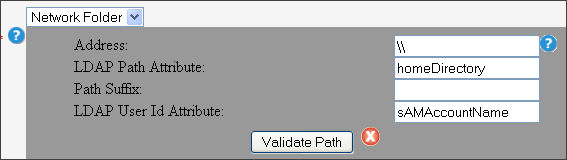
- For firmware or SNF versions prior to EC4.1 or v4.5.14 respectively, use \\ ; which is usually replaced by the value in the LDAP Path Attribute.
- For EC4.1 firmware or SNF v4.5.14 or later, use %u ; which is also replaced by the value in the LDAP Path Attribute.However, %u can be part of a longerstring in the Address field; e.g., \\<serveraddress>\<sharedfolder>\%u, and the LDAP Path Attribute could be a userID. Thus, \\<serveraddress>\<sharedfolder>\%u gets replaced by \\<serveraddress>\<sharedfolder>\<userID>. Click here for an illustration.
Note: In most cases, the LDAP Path Attribute is the HomeDirectory where the value is \\<myserver>\<myfolder>. Thus, \\ gets replaced by \\<myserver>\<myfolder>. Click here for an illustration.


Sample Values and Explanations
| Scan to Network Value and Example | Example User entry value |
|---|---|
Address IP address is for the share and not necessarily the LDAP server. The LDAP server could be in an entirely different location. | \\IP address, e.g., 10.10.10.10 Other values acceptable dependent upon network environment and destination shortcut configuration method:
|
LDAP Path Attribute The attribute "Path" for each user on LDAP server, and its affiliated value (e.g., test), provides the application with an actual path to that user's share on the recipient server. Note: The LDAP administrator may set a different share folder value for the attribute "path"; e.g., test, test1, test2 | "Path" attribute with value of "test"(sharename) |
Path Suffix LDAP configuration of different folder for each user would be required. | A "scan" folder setting appended to share directory folder. |
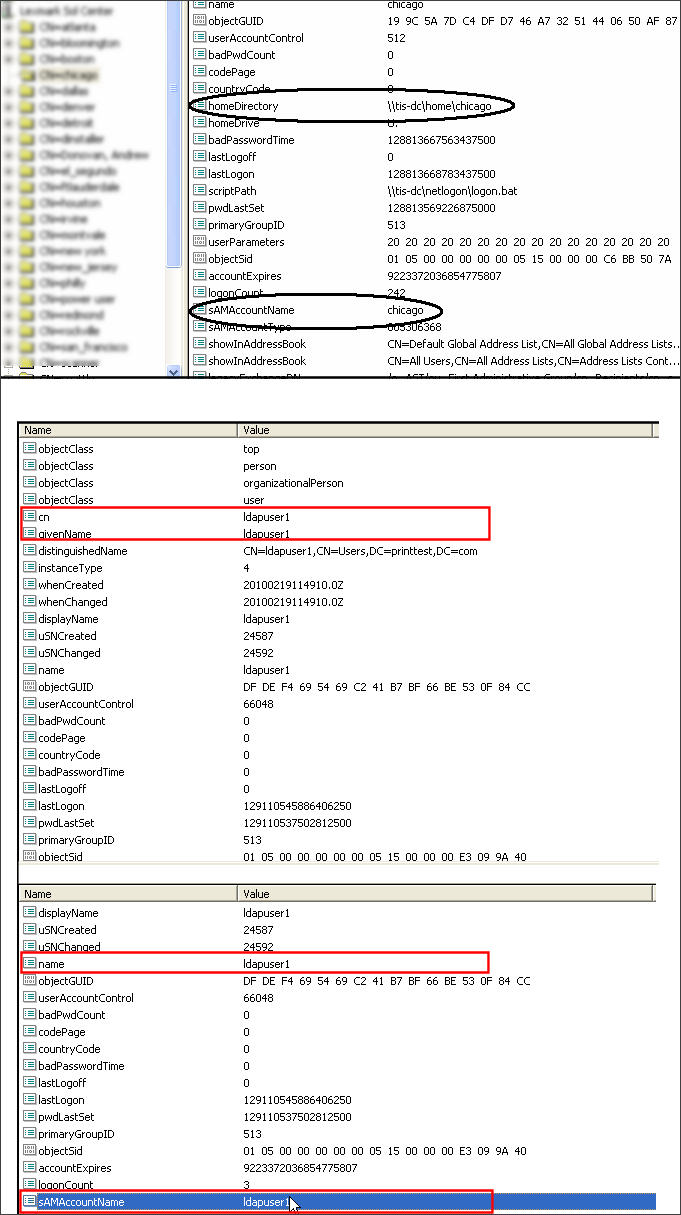
LDAP User Id Attribute Note: Lexmark does not provide this information. Important because application will go to the LDAP server and request the value for the "path" attribute for the user. This provides a necessary filter. | uid,cn,sAMAccountName,givenName |
Note: Older versions (ver.1.5) held the LDAP User Id Attribute in a different location. FTP fields are identical with the exception of the port (21) field.
Here's what happens at runtime:
- You select the SNF shortcut.
- SNF queries the LDAP server to look for the attribute "path" and its assigned value. This value becomes the share folder value for the application and is appended to the address field.
- Again, the LDAP server replies back to the application and appends the remaining values to the URL or UNC address field.
- For this example, 10.10.10.10/test/scan is the final destination for scanned image file.
- Address field + value retrieved from "path" + path suffix, or //servername(IP)/sharename/folderfor this example.
SNF LDAP Look-Up Configuration Examples
The configuration examples below include the following:
- Home Directory Configuration
- Static Folder Configuration
SNF Shortcut Configuration using LDAP Server's Home Directory Structure
This example eliminates any address parameters and utilizes only the LDAP Path Attribute and LDAP User Id Attribute to complete the application's address field.
This example uses the LDAP server's "Home Directory" attribute; however, other values may be used depending on individual LDAP configuration preferences. For example, cn, givenname, name or others may be used.
Before you begin
You must first verify the following requirements.
| Requirement and other Notes | Configuration location |
|---|---|
Address Book Setup must be configured and operational. In other words, the MFP must be able to communicate with the LDAP Server. SNF will use the Address Book Setup information for retrieving the required attributes for the address field. | Embedded Web Server (EWS) > Settings (Configuration) > Network/Ports > Address Book Setup |
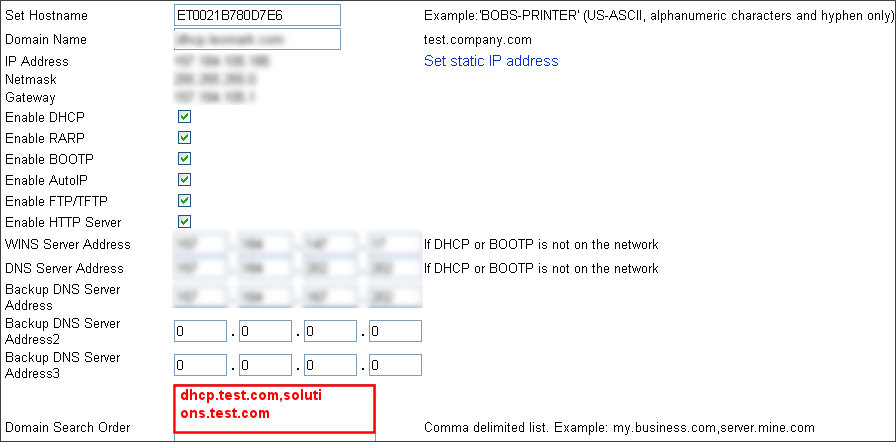
The “Domain Search Order” must be populated with all required domains that will be used in the customer environment. Click here for illustration. | EWS > Settings > TCP/IP |
Softerra™ may help identify these values. Click here for a Softerra screenshot. | LDAP server |
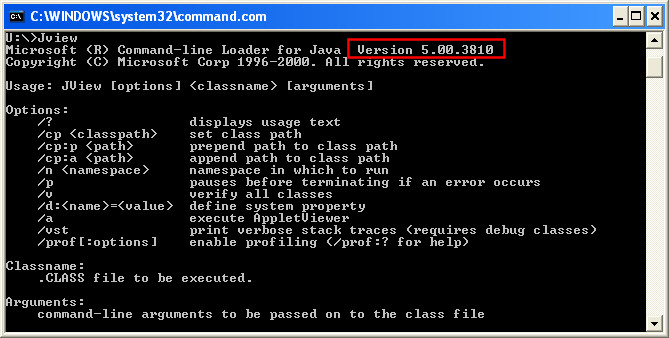
Internet Explorer using Microsoft’s Java VM Click here for an illustration. |
 |
* Applies to MFDs that run SNF version 1.5.x
Destination or Shortcut Setup
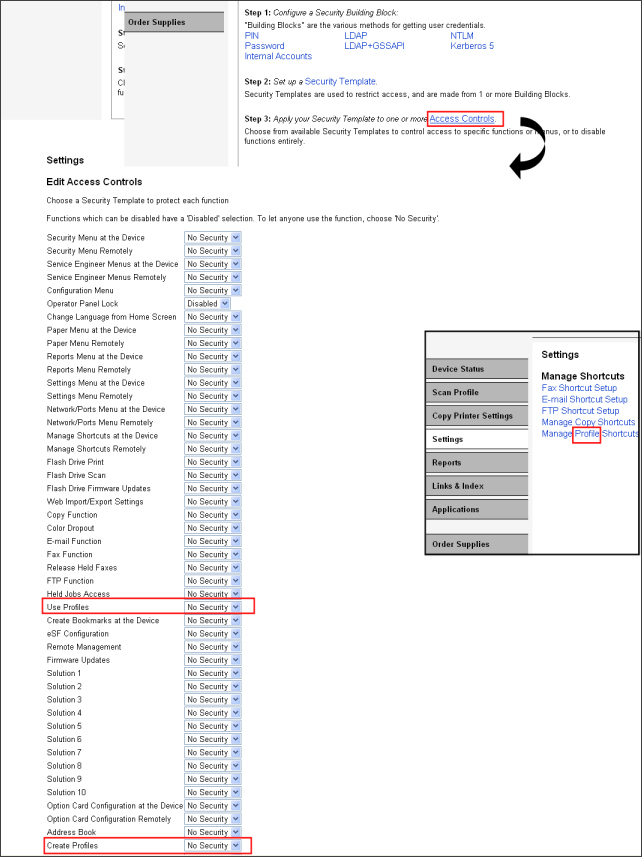
HISTORY NOTE: Past MFPs referred to shortcuts as profiles. In some instances, the term profiles still exists with current MFPs as seen here.
Populate the following fields:
- Name* (Shortcut Name)
- LDAP Path Attribute
- LDAP User ID Attribute
The Path Suffix field is optional and most often will remain blank. This value will depend on whether or not you have satisfied this sub-folder name in the LDAP directory. Otherwise stated, this value will depend on the full UNC path to the share in the "homeDirectory" LDAP attribute.
Network Folder should be selected for Location Type.
Firmware or SNF versions prior to EC4.1 or v4.5.14 has been developed to ignore the “\\” for scan to home directory; while for EC4.1 firmware and SNF v4.5.14 or later, %u is used as a placeholder.
The structure is built in the following manner: value derived from LDAP Path Attribute on LDAP server +(plus) the Path Suffix if available.
Click here for an illustration.
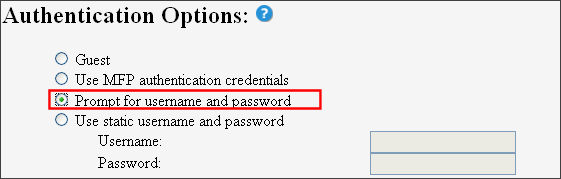
Select Authentication options. Two most often selected in this environment:
If you are not using Access Controls and want to authenticate only when using the SNF profile, then you will select “Prompt for Username and Password”. In most environments, this will be the option selected.
Or, if you are using Access Controls and have assigned a Security Template to the “Use Profiles” Access Control, then you will select “Use MFP authentication credentials”.
Warning—Potential Damage: When you assign a Security Template to the Access Control “Use Profiles”, you will be forced to Authenticate for all profiles on the MFP, such as Remote Copy, Card Copy, etc.
Click here for an illustration.
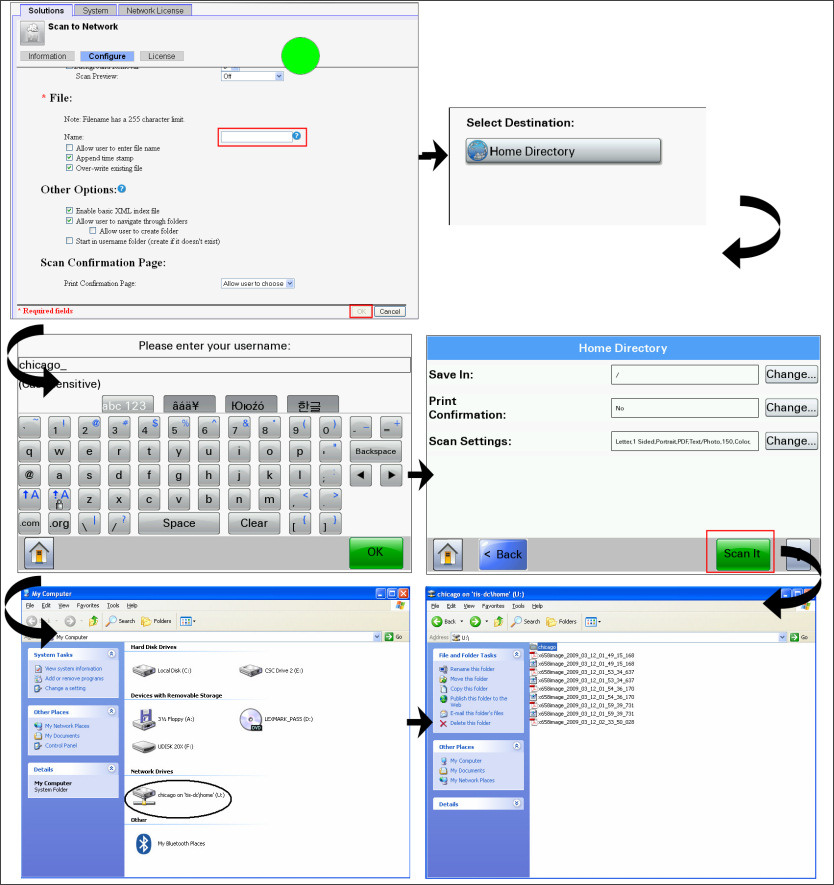
Configure your default scan settings and then enter a default file* name. Click here for an illustration.
Select OK.
Select the shortcut name from the MFP's control panel.
Enter the Username and click OK, and then enter Password and click OK.
Upon successful login, you will see a screen to either make modifications or select Scan It.
SNF Shortcut Configuration with a Static (Authentication) Share
This static file share differs greatly from the above; however, similarities include the following:
- A valid share with applicable read\write permissions to the folder
- Proper security credentials to the static shared folder; e.g., username and password
Procedure
Open the EWS.
Navigate to Settings > Embedded Solutions > Scan to Network.
Click Configure.
Click Add.
Enter your shortcut Name.
Enter the IP address and sharename; e.g., \\10.10.10.10\sharename
Under Authentication Options, enter Static Username and password for this folder.
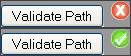
Scroll back up and click on Validate Path. This will check for a valid share, proper security credentials, and correct permissions to the share.
Note: Only applies to Guest or Staticusername(UID) and password authentication types using SNF version 3.2.0. Click here for an illustration of successful validation.
Adjust Scan Settings and uncheck settings that you do not want users.
Provide filename.
Click OK.
Check this article, Creating a destination shortcut for the Scan to Network solution software for a general overview of SNF shortcut creation.
LEGACY ID: FA715
Rate this article
We appreciate your feedback. We use it to identify content which needs to be updated for accuracy or usefulness.
Thank you for your feedback!