Support article for Lexmark W850
Thin (Single Pel) Lines Are Extremely Light or Not Visible
Single-Function: All Color and Mono SFP Devices
Multifunction: All Color and Mono MFP Devices

A printed graphic (chart, spreadsheet, or image) is missing fine lines or its lines are barely visible.
Depending on printer type, driver version and age of the printer, you can enable or adjust
pixel boost,
halftone
or
enhance fine lines.
See
Settings explainedto help determine which driver setting to use.
This setting will only be available with monochrome printer drivers or a universal printer driver (UPD) configured for a monochrome printer.
Open the Printers and Faxes (Devices or Printers) window.
Right-click on the printer object.
Click on Printing Preferences
Click on the Quality tab.
Underneath Pixel boost, select the necessary setting, i.e., Off, Both directions, Vertically, Horizontally, Fonts.
Click on Apply.
Click on OK.
| Older PCL XL custom driver | UPD PCL XL (Configured for monochrome printer) |
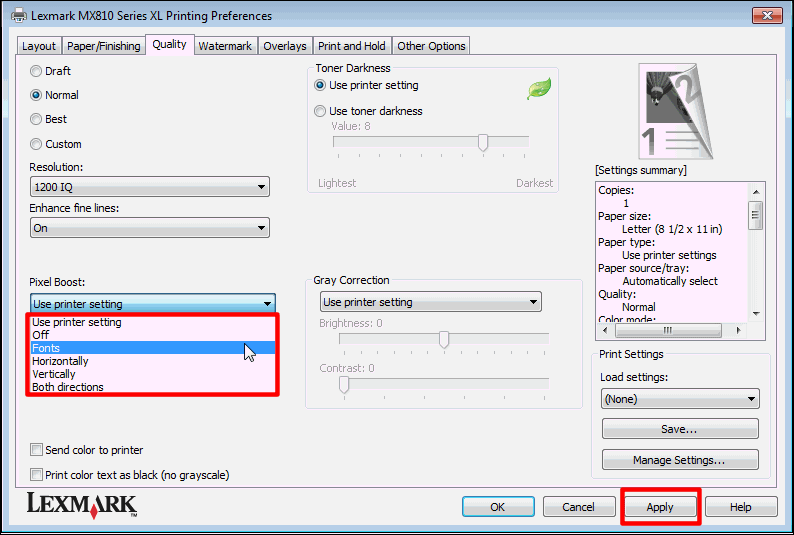 | 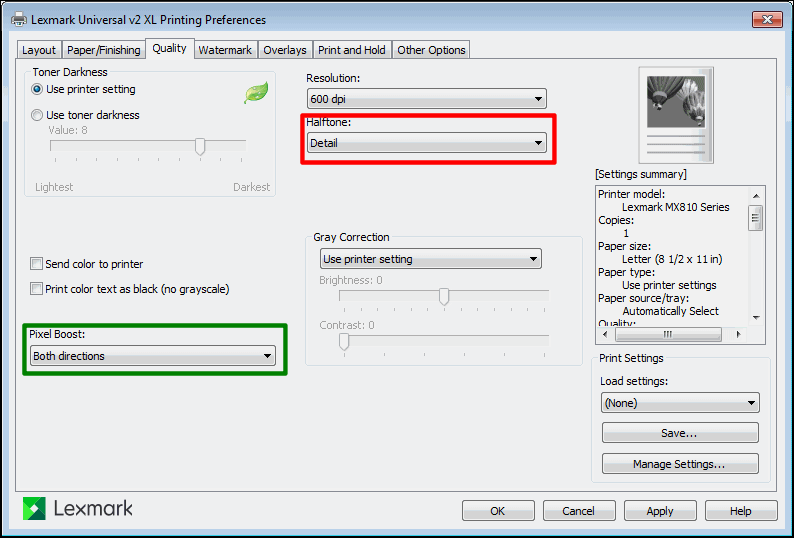
Selection also available in UPD v2PCL5 driver. |
Open the Printers and Faxes (Devices or Printers) window.
Right-click on the printer object.
Click on Printing Preferences.
Click on the driver's Quality tab.
Now in the Halftone setting, select Detail.
Click on Apply.
Click on OK.
UPD PCL XL (Configured for color printer) | UPD PostScript |
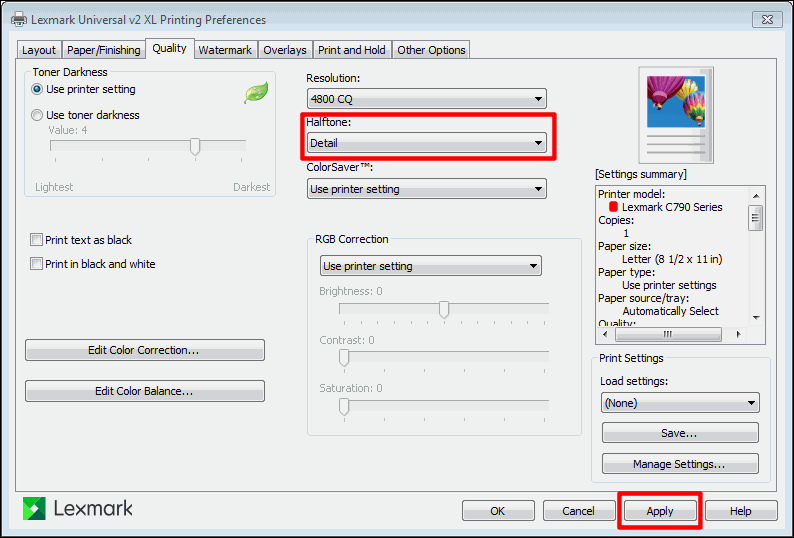
Option also available for UPD v2PCL5 driver. | 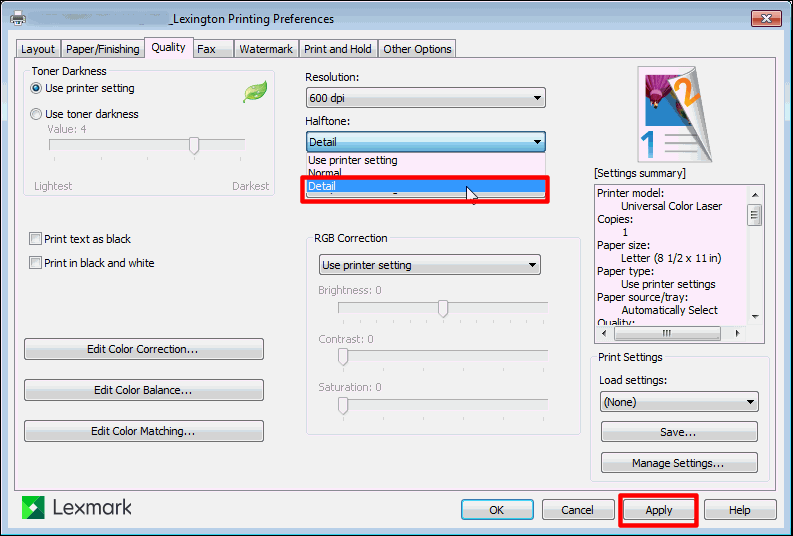 |
Right-click on the printer object.
Click on Printing Preferences.
Click on the driver's Print Quality tab.
Click on More Print Quality Options.
Place a checkmark next to Enhance fine lines.
Click on Apply.
Click on OK.
Open the Printers and Faxes (Devices or Printers) window.
Right-click on the printer object.
Click on Printing Preferences.
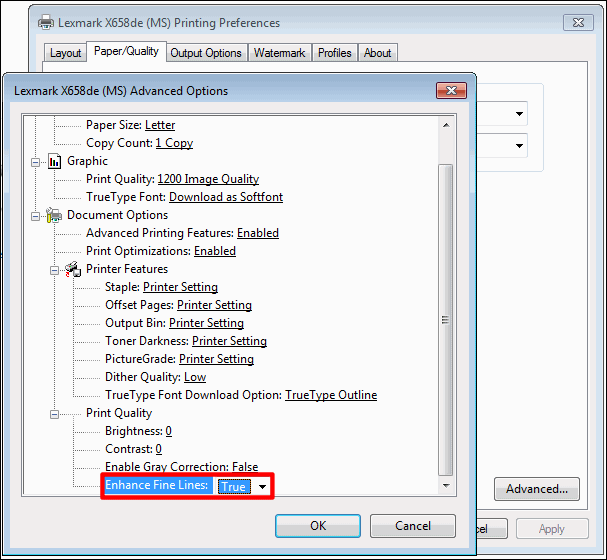
Click on the driver's Paper/Quality tab.
Click on Advanced.
Next to Enhance fines lines, select True.
Click on Apply.
Click on OK.
| Setting | Details |
Pixel Boost (Available only for monochrome printers) |
|
| Halftone |
|
Enhance fine lines (MS) system driver and older driver versions only |
|
Have the following available when calling Lexmark Technical Support;
Printer model(s)
Printer serial number
Software / Solution
LEGACY ID: SO2217
Rate this article
We appreciate your feedback. We use it to identify content which needs to be updated for accuracy or usefulness.
Thank you for your feedback!