Support article for Lexmark T652
200.xx error
Issue description
The printer repeatedly jams paper each time you print, or a Paper Jam message displays on the screen, yet no paper can be found in the printer.
The numeric error code that appears on the printer screen is a type 200 error code. Examples include 200.01, 200.12, 200.49, etc. A type 200 error indicates the printer has registered one or more sheets of paper as having jammed under the toner cartridge.
Solution
To clear the jam message and resume printing, perform the following procedures to locate and remove the jammed pages.
Open the upper-front cover and remove the toner cartridge.
Look into the printer. Remove any jammed sheets of paper that you find there.
- If the print job only consisted of this one page, reinstall the toner cartridge and close the front cover. Press the select button to clear the error, and then try printing again.
- If the print job consisted of more than one page, confirm the entire paper path is clear before printing again. Do the following:
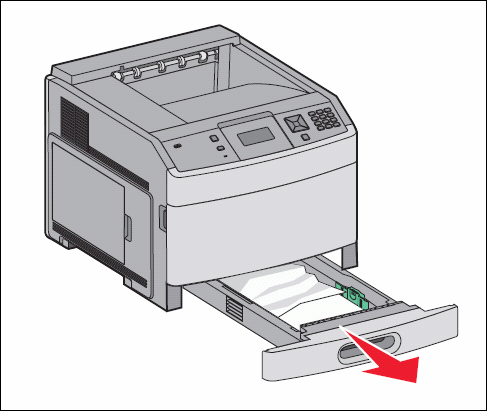
Remove the top paper tray ('Tray 1').
Remove any jammed or partially-fed sheets of paper you find here, then reinstall the tray.
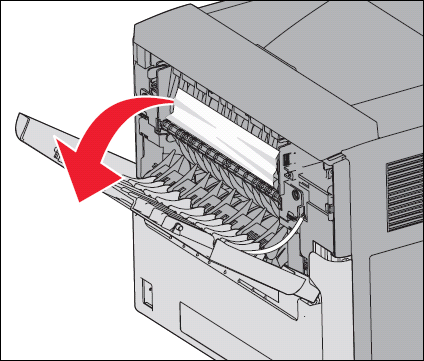
Go around to the back of the machine and open the upper-rear cover. Remove any jammed sheets of paper you find, then close the cover.
Once you have confirmed that the entire paper path is clear, reinstall the toner cartridge and close the front cover.
Press the select button to clear the error, and then try printing again.
- If you cannot locate any jammed paper under the toner cartridge, then check the rest of the printer for any jammed paper. Do the following:
- Remove the top paper tray ('Tray 1') and look for any jammed or partially-fed sheets of paper.
- If you do not find any jammed pages there, reinstall the tray and go around to the back of the machine. Open the upper-rear cover and look there.
- If the entire paper path appears to be clear, close the rear cover and power off the printer. Reinstall the toner cartridge and close the front cover. Power the printer back on. If a 200 error continues on power up, a sensor in the printer may be malfunctioning. This will require a service call to correct the issue. Please contact Lexmark Technical Support for additional information.


If the jamming continues
By carefully selecting print media and loading it properly, you should be able to avoid most paper jams. If the printer continues to display a 200 type paper jam message each time you print, or if it intermittently displays, check the following:
- Are you printing on regular plain bond copy paper? If not, try printing again with plain copy paper. This will eliminate specialty media as part of the cause of the jamming. Certain specialty paper, label stock, and card stock, are more difficult for the printer to feed and therefore more prone to jamming.
- Make sure the paper/print media is properly loaded into the paper tray, including the following:
- Confirm that the paper stack does not pass the 'max fill line' indicator on the tray.
- Confirm that the paper support guides on the tray are set in the correct position. The support guides should lightly rest against the paper stack, preventing the stack from shifting while still not binding the paper.
- Make sure the paper is flat and not curled. Feed issues can occur if the leading edge of the paper stack is curled.
- Do not mix different sizes or types of paper in the same tray.
- If you are printing on both sides of the paper (front and back), try printing single-sided pages. If single-sided pages print properly, check the duplex area of the printer for a jammed sheet of paper.
- If the issue continues after trying all of the suggestions above, or if you cannot find any paper jammed in the printer but continue to receive a Paper Jam error, a service call may be needed to correct the issue. Please contact Lexmark Technical Support for additional information (see below for details).
- The full numeric error code.
- The location of the jammed page in the printer.
- Is the leading edge of the page damaged, or does it appear to be caught on anything?
- Is the jammed page crooked?
- Provide as much information on the paper used as possible; i.e., the paper manufacturer, its brand name, size and weight, and whether it is hole-punched or perforated.
- 200.13 Paper Jams typically occur after clearing a previous jam. The pages are cleared yet one remains staged in the tray. If you press ‘Continue’ or ‘Go’, the page moves over the input sensor and the printer posts the 200.13 error. When this happens, open the printer again and remove the sheet of paper. This should clear the issue and in most cases services will not be required.
Note: For more information on this, please refer to the printer's User's Guide.
Note: When contacting Lexmark Technical Support, or arranging a service call, try to provide as much of the following information as possible:
LEGACY ID: SO4593
Rate this article
We appreciate your feedback. We use it to identify content which needs to be updated for accuracy or usefulness.
Thank you for your feedback!