Support article for Lexmark T650
Paper jams and the printer displays a '201' type 'Paper Jam' error message
Issue description
The printer repeatedly jams paper each time you print, or a Paper Jam message displays on the screen while no paper can be found in the printer.
A 201 error is the type of numeric error code that appears on the screen; i.e., 201.01, 201.14, 201.32, etc. A 201 error indicates the printer has registered one or more sheets of paper as having jammed under the toner cartridge or in the back of the printer.
Solution
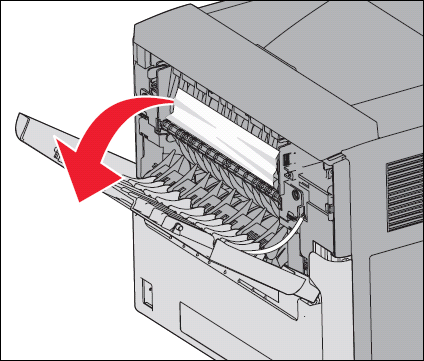
At the back of the machine, open the upper-rear cover.
Remove any jammed sheets of paper, then close the upper-rear cover.
Note: If the jammed page does not remove easily, open the upper-front cover and remove the toner cartridge. This will reduce the pressure on the jammed page and make it easier to remove.
- If the print job consisted of only this one page, press the Check button to clear the error and try printing again.
- If the print job consisted of more than one page, confirm the entire paper path is clear before printing again. Do the following:
Open the lower-rear door. Look into the printer. Remove any jammed paper, then close the cover.
At the front of the machine, open the upper-front cover. Remove the toner cartridge and look into the printer. Remove any jammed paper you find here, then reinstall the toner cartridge and close the cover.
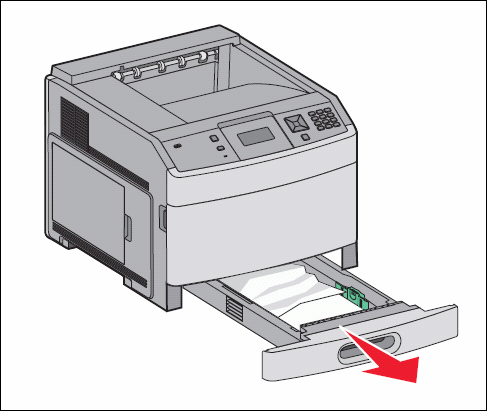
Remove the top paper tray ('Tray 1').
Remove any jammed or partially fed sheets of paper you find here, then reinstall the tray.
Once you have confirmed that the entire paper path is clear, press the Check button to clear the error and try printing again.
- If you cannot locate any jammed paper in the rear of the machine, examine the rest of the printer. Check the locations detailed in the directions located directly above. If the entire paper path appears to be clear, close all covers and power off the printer. Wait ten seconds, then power the printer back on. If the printer comes up to the Ready status, try printing again.



Check the toner cartridge
In some rare cases, a malfunctioning toner cartridge can cause repeating 201 errors to occur. If possible, try replacing the toner cartridge before arranging a service action on the printer.
- If you have a replacement toner cartridge in stock, replace the current cartridge. Try printing on it for a few days and see if the errors return.
- If another toner cartridge is not available, check the existing one for damage. If the housing of the toner cartridge is dented or otherwise damaged, paper can snag on it and jam. To view an example, click here.
- If a spare cartridge is unavailable but you have another printer of the same model, install the toner cartridge from the working printer into this printer as a test.
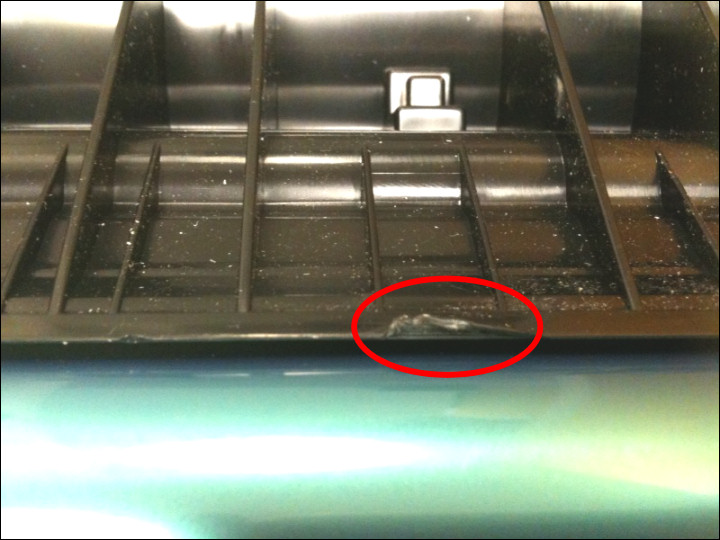
If you discover that the toner cartridge is the cause for these errors, please contact Lexmark Technical Support. The cartridge may be eligible for warranty replacement.
Note: Lexmark does not replace or provide warranty on toner cartridges manufactured by a third party, nor Lexmark cartridges that have been refilled or reworked by any company other than Lexmark. If a third-party cartridge is causing this issue, contact the point of purchase to have the cartridge replaced. If the toner cartridge is a Lexmark cartridge that has been refilled or refurbished by any company other than Lexmark, contact the place where the cartridge was refilled to have it replaced.
Other suggestions
By carefully selecting print media and loading it properly, you should be able to avoid most paper jams. If the printer continues to display a Paper Jam message each time you print, or if the error continues to intermittently occur, check the following.
- Are you printing on regular plain bond copy paper? If not, try printing again with this type of paper. This test will eliminate specialty media as part of the cause of the jamming. Certain specialty paper, label stock, and card stock are more difficult for the printer to feed and therefore more prone to jamming.
- If you are printing on both sides of the paper (front and back), try printing single-sided pages. If they print properly, check the duplex area of the printer for a jammed sheet of paper.
Note: For more information on this, please refer to the printer's
If the issue continues
If the issue continues after trying all of the suggestions above, or if you cannot find any paper jammed in the printer but continue to receive a Paper Jam error, a service call may be needed to correct the issue. Please contact Lexmark Technical Support for additional information.
Note: When contacting Lexmark Technical Support, or arranging a service call, try to provide as much of the following information as possible.
- The full numeric error code
- The location where the jammed page is located
- Is the leading edge of the page damaged, or does it appear to be caught on anything?
- Is the jammed page crooked?
- Provide as much information on the paper used as possible; i.e., the paper manufacturer, its brand name, size and weight, and if it is hole-punched or perforated.
LEGACY ID: SO4785
Rate this article
We appreciate your feedback. We use it to identify content which needs to be updated for accuracy or usefulness.
Thank you for your feedback!