Support article for Lexmark MX826
Setting up Lexmark Mobile Direct Printing with NFC
Issue description
Lexmark Mobile Direct Print provides you with another printing method that does not require a USB or traditional network connection to the printer.
Before you begin
Lexmark Mobile Direct with NFC tag is an alternative method for transferring data from an Android™ mobile device to the printer. Lexmark Mobile Direct uses near field communications technology (NFC) and requires the following:
- An NFC-equipped Android device that supports Wi-Fi peer-to-peer specification or Wi-Fi Direct®.*
- A supported MS, CS, MX, XM, CX, XC Series Lexmark printers equipped with:
- MarkNet N8350 or N8352 wireless network adapter
- An attached NFC** tag
*An important consideration to be able to support simultaneous connections to both an infrastructure wireless network and a Lexmark Mobile Direct connection. ** The Lexmark MarkNet N8352 and Lexmark MarkNet N8350 wireless print servers now include an NFC tag.
Primary NFC requirements
- Enabled Mobile direct printing on the printer. If you do not see this feature, check your printer's firmware level to make sure you are at .P439 or higher. Click here for reference.
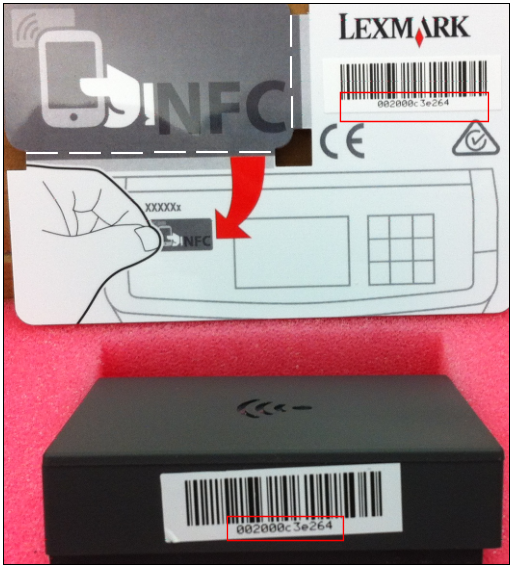
- Attach NFC tag. Retain the breakaway portion of the card for its 12-digit MAC address value. This programmed value allows data transfer between your mobile device, printer tag, and MarkNet N8350/N8352.
- Enable NFC. If the feature is not available, check your version of Android by navigating to Settings>About phone/About tablet.
- Download and install Lexmark Mobile Print. Download the latest version of Lexmark Mobile Print from the Google® Play store.
Enable Lexmark Mobile Direct
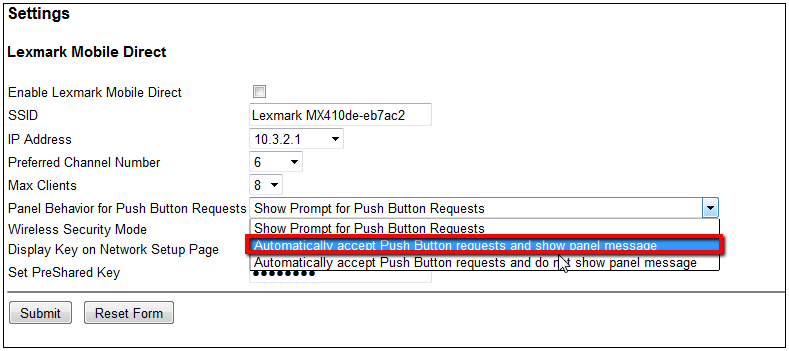
Open your web browser application and enter your printer's IP address into the address field; i.e., 192.168.0.100.
Navigate to this location: Settings > Network/Ports > Lexmark Mobile Direct.
Place a check next to Enable Lexmark mobile Direct.
For best results, it is suggested that “automatically accept push button requests” turned on.
Click Submit.

Attach the NFC tag to the printer
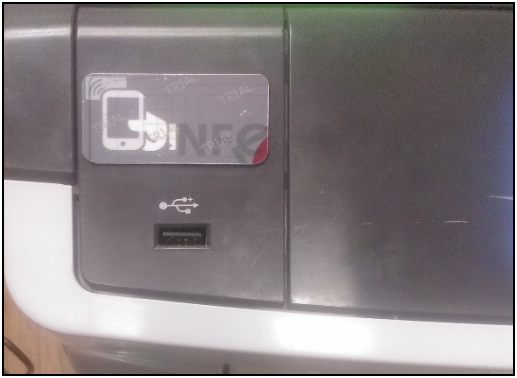
- Attach the tag to a favorable position on the printer and keep the remaining breakaway portion of the card for its 12-digit MAC address. This address is programmed into both tag and MarkNet adapter and is required for the Lexmark Mobile app to communicate with the tag and MarkNet adapter. You can refer your Android documentation for more information about Wi-Fi Peer-to-Peer/Wi-Fi Direct support.
- Make sure that tag is installed in a location away from badge readers or metal that might interfere with NFC operation. Click here for an illustration.
Enable NFC on the Android device
Navigate to this location: Settings > Wireless & Networks Settings > More...
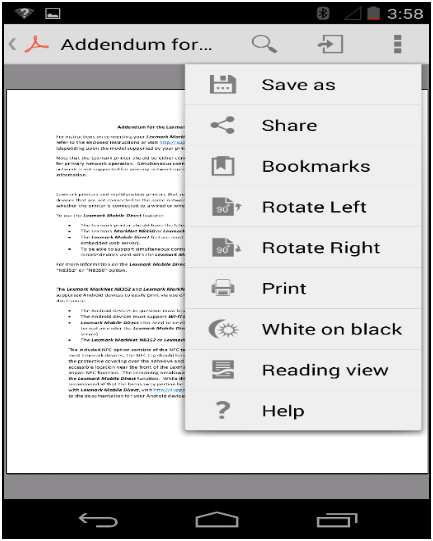
Place a check next to NFC. Click here for an illustration.

Download and install the Lexmark Mobile Printing app
Open the Google Play Store app.
Locate the Lexmark Mobile Printing app. Make sure you have the latest version of the app.
Touch Install or the app’s price.
Touch Accept after reviewing the app's permissions.
Solution
Initiating a Job (PDF Example)
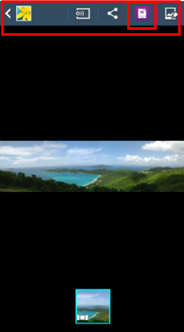
From your Android device, share the PDF or image file you want to print with the Lexmark Mobile Printing App.
Select Share, Share via, or you may see the Lexmark Mobile Printing icon at the top of your phone's frequent links.
Select Lexmark Mobile Printing from the list of options.
You will see this prompt and you should notice the NFC image in the upper-left corner of the screen. Touch the device to the printer's NFC tag.
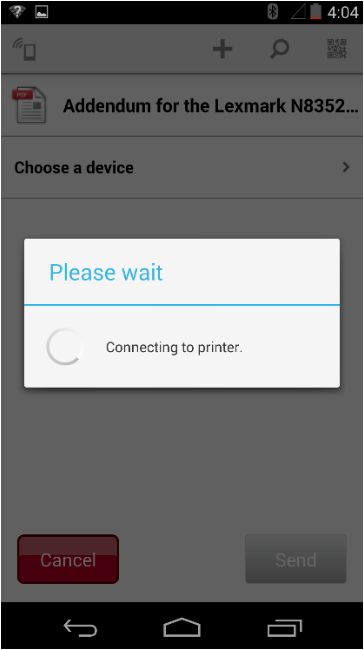
Now touch your mobile device with NFC to the Lexmark NFC tag. When the tag is read, you should get the following indication from the app . You do not need to hold the Android device to the tag after this screen is displayed.
Note: You may get prompted to accept the Lexmark Mobile Direct connection on the printer/MFP control panel as seen here.
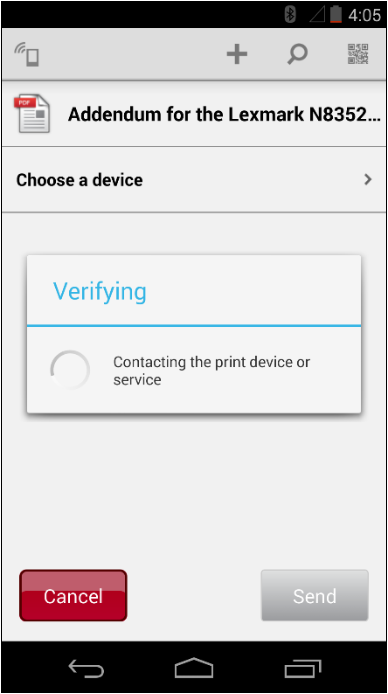
Observation: Lexmark Mobile Direct will attempt to establish a wireless peer-to-peer connection. If this is successful, you will see this screen.
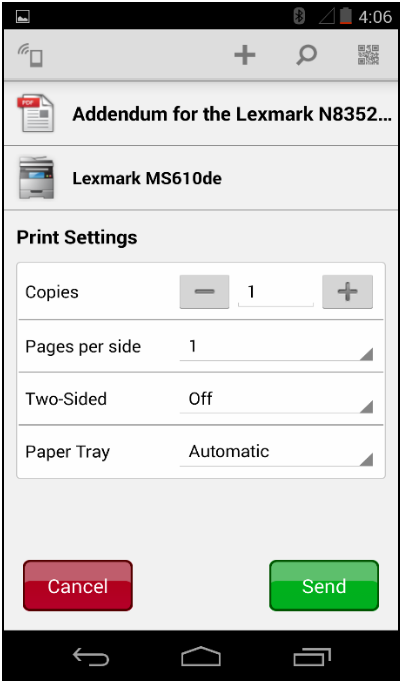
After verification, you will see this screen. Adjust settings as needed, and then click Send to print your document.


LEGACY ID: HO3943
Rate this article
We appreciate your feedback. We use it to identify content which needs to be updated for accuracy or usefulness.
Thank you for your feedback!