1. Support
  2. Printers
  3. Lexmark MB2236
  4. Setting up Gmail SMTP server

Support article for Lexmark MB2236

Setting up Gmail SMTP server

Issue description

Unable to send an email using the Gmail SMTP Server and multiple errors like -7 or invalid credentials appear in the logs.

Solution

Setting up Gmail SMTP server with App Password

Note:  2FA (2 Factor Authentication) does not work with \ the SMTP server setup for Lexmark devices.

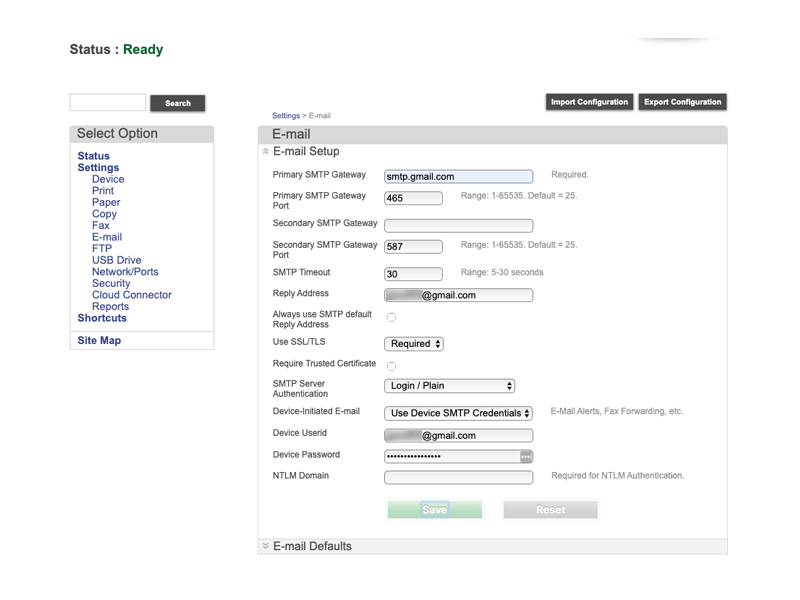
Make sure to use the following settings in the Email Setup of the Printer.

  • SMTP Gateway: smtp.gmail.com
  • Primary SMTP Port: 465
  • Secondary SMTP Gateway: leave it blank.
  • Secondary SMTP Gateway port: 587
  • SMTP Timeout: 30
  • Use SSL/TLS: Required
  • Require Trusted Certificate: Uncheck (this option is checked by default)
  • SMTP Server Authentication: Login/Plain
  • User-Initiated Email: Use Device SMTP Credentials
  • Device User ID: End users email address for Gmail
  • Password: Follow the instructions found here to create an App Password for the printer. Click here to see sample image.

LEGACY ID: SO8869

Rate this article

We appreciate your feedback. We use it to identify content which needs to be updated for accuracy or usefulness.

Thank you for your feedback!