Support article for Lexmark E460
Paper Jams with a "233" Paper Jam Error When Printing on Both Front and Back (Duplexing) of the Paper on a Lexmark E260, E360, or E460 Series Printer
What you will see
The paper jams when you try to print on both the front and back sides of the page (duplex printing). Each time, the printer will display a 233 type numeric error.
Recommended actions
The first action is to locate and remove the jammed paper.
NOTE: There may be more than one page jammed in the printer. Make sure to check/clear the entire paper path.
| Step | Action | Image |
| 1 | Remove the standard paper tray (Tray 1) from the printer. | 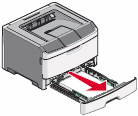 |
| 2 | Look into the area where the paper tray was and locate a green tab. Push down on the green tab; this should lower a green plastic guide. | 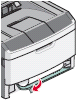 |
| 3 | Look for any jammed sheets of paper stuck behind the guide. If there is any paper jammed in this area, carefully remove it. | 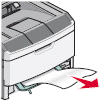 |
| 4 | Open the front door. | 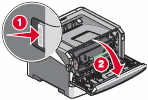 |
| 5 | Go to the back of the printer and open the rear access door. | 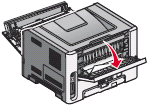 |
| 6 | Look for any jammed sheets of paper. If there is any paper jammed in this area, carefully remove it. | 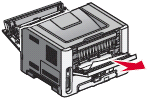 |
| 7 | Close the rear door. | |
| 8 | Close the front door. | |
| 9 | Reinsert the paper tray. | |
| 10 | Press the  |
Additional suggestions
- Make sure you are loading the paper into the tray correctly. The side and rear paper guides on the tray should be resting lightly against the edges of the paper but not putting pressure on the paper.
- Make sure the standard paper tray (Tray 1) is not overloaded.
- Make sure the rear door is closed completely and stays fully latched.
- If the paper is stopping above Tray 1 (behind the duplex guide mentioned in step 2 in the table above), check the position of the green plastic duplex guide. If this guide is not properly seated, repeated paper jams can occur here. To check the position of the guide, you will need to follow the steps in the table below.
Step Action 1 Power off the printer. 2 Open the front cover and remove the print unit assembly (toner cartridge and photoconductor). 3 Remove the standard paper tray (Tray 1). 4 Carefully place the printer on its side. 5 See the area highlighted in the photo below. Make sure the guide is snapped in all the way. If not, try to snap the guide back into place. 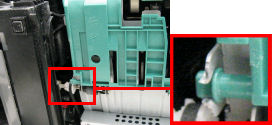
6 If you are able to snap the guide back into place, set the printer back on its base. Reinstall the paper tray and the print unit assembly. Power on the printer and try printing again. 7 If the issue persists after you have tried all of these suggestions, service may be required to correct the issue. For assistance in setting up service, please contact Lexmark Technical Support or a local authorized service provider.
Contacting Lexmark Technical Support
If you have questions about any of the above steps or if you require assistance in setting up warranty service, please contact Lexmark Technical Support.Be prepared to describe the problem you are experiencing and any troubleshooting steps you have already taken to find a solution. You will also need the printer's model type and serial number (SN). This information can be found on one of two labels, one located on the inside of the front cover of the printer, the other on the back of the printer. for further details.Please call from near the printer in case the technician on the phone asks you to perform a troubleshooting task on the printer.
LEGACY ID:SO4544
Notes:
Infoprint 1811 ----------------------------------------------------------------------------- Infoprint 1812 ----------------------------------------------------------------------------- Infoprint 1822
Rate this article
We appreciate your feedback. We use it to identify content which needs to be updated for accuracy or usefulness.
Thank you for your feedback!