Support article for Lexmark CS331
Printing on Chrome OS Devices
Overview
This article provides the procedures for printing on Chromebook using Lexmark printers that connect to Wi-Fi or a wired network. Currently, Chromebooks don't support Bluetooth printing.
Note: A USB cable can also be used to connect to a Lexmark printer from the Chromebook. When using a cable, a notification appears. Follow the onscreen instructions. If the printer is directly connected to the Chromebook, it is not necessary for the printer to be connected to the Wi‑Fi.
Setting up the printer
Turn on the printer and connect it to a network. If you need help, go to the Information Center , search for the Lexmark product, click Go then type "
wireless " on the search bar and select the first option.Note: You can use a USB cable to connect your printer to your Chromebook. When you use a cable, the printer doesn’t need to be connected to Wi-Fi after it’s set up.
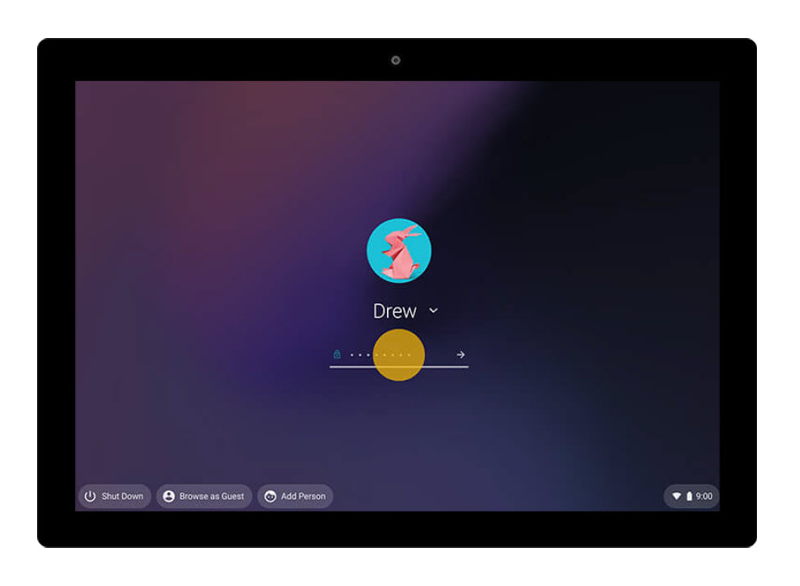
Turn On the Chromebook and sign in, then connect it to the same network as the printer.
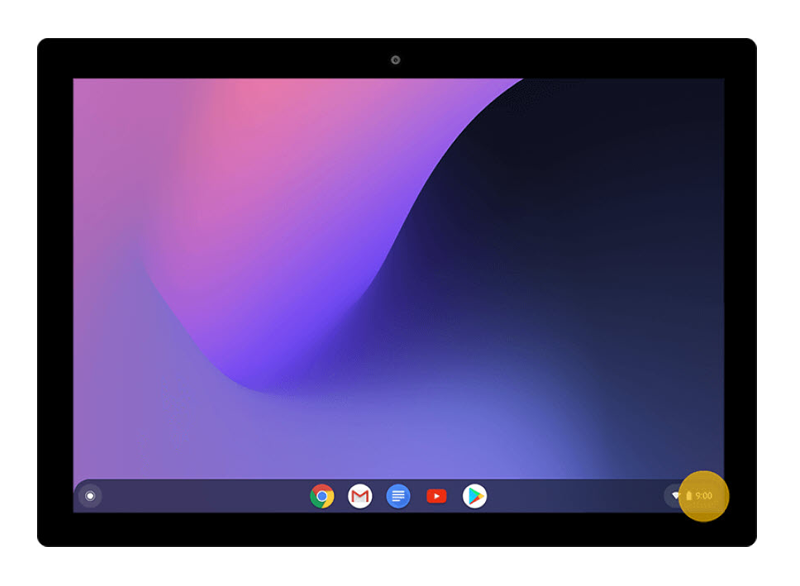
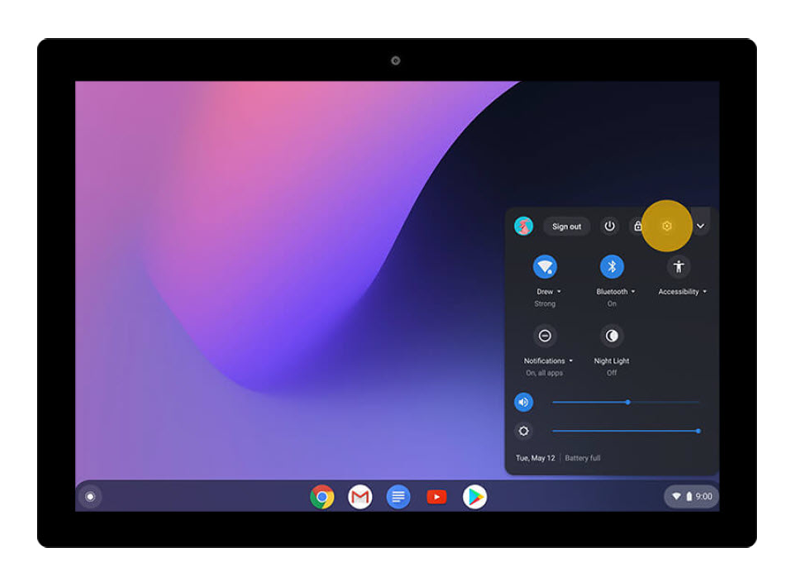
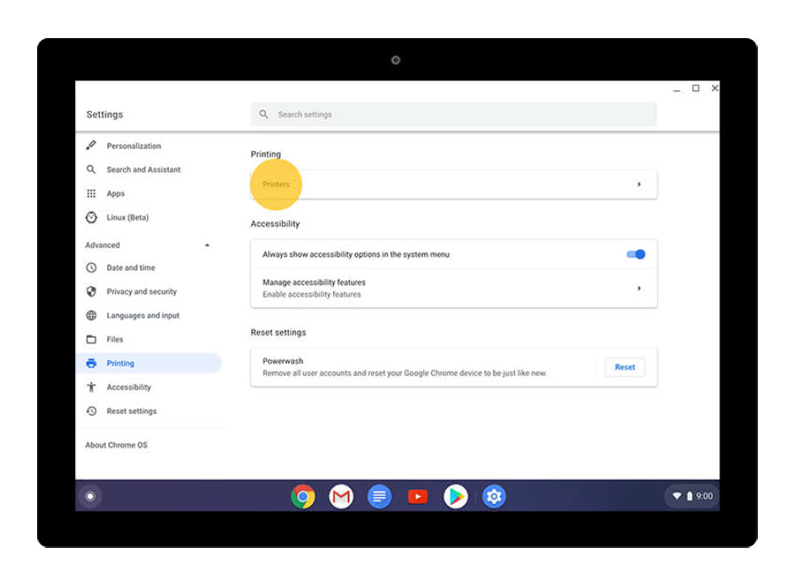
At the bottom right, select the "time”.
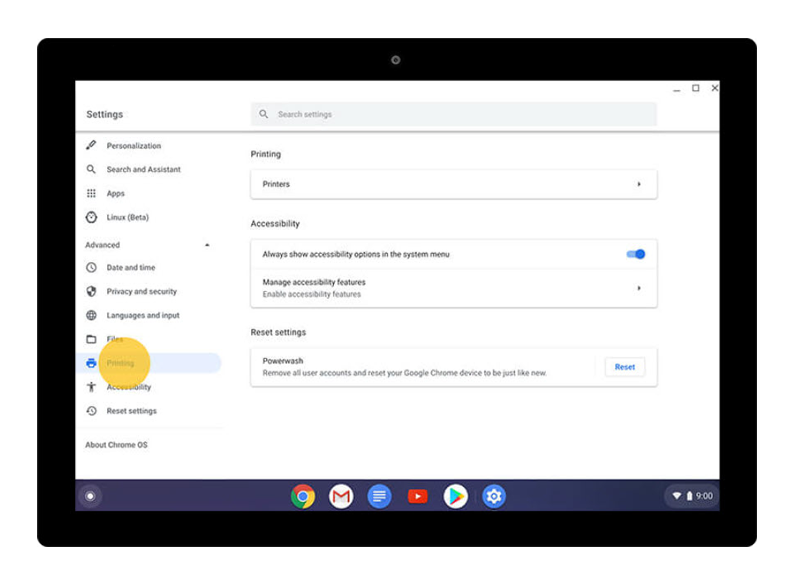
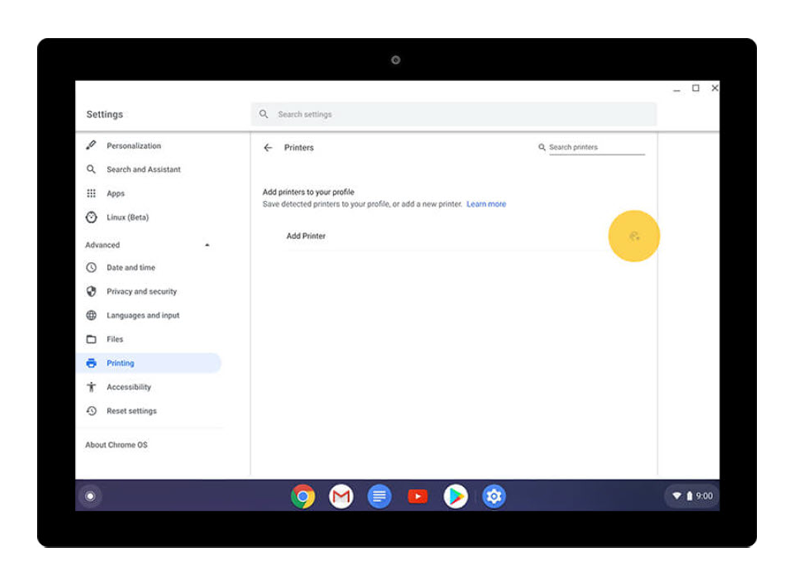
In the Printing section, select "Printers”.
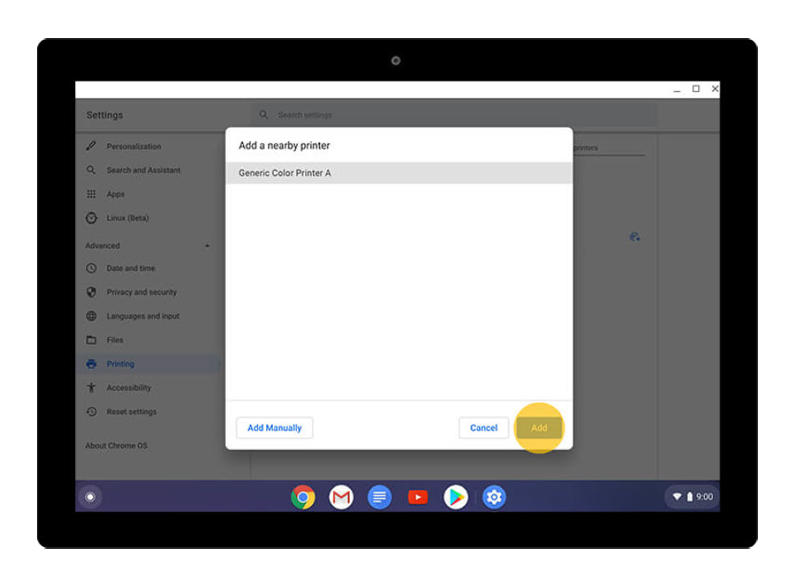
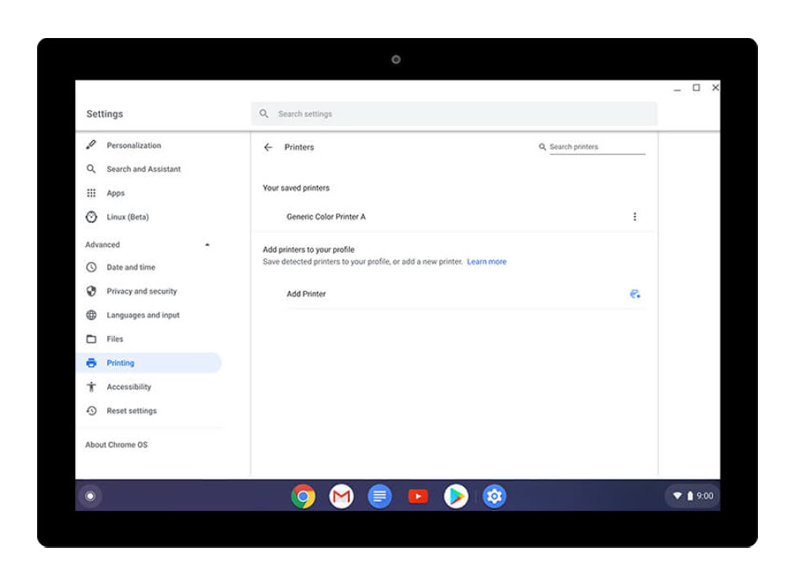
Choose the Lexmark printer from the list, then select "Add”.
Any document, page or image can now be printed from the Chromebook, as seen here.

Printing a page
Turn on the printer and connect it to a network. If you need help, go to the Information Center , search for the Lexmark product, click Go then type "
wireless " on the search bar and select the first option.Note: You can use a USB cable to connect your printer to your Chromebook. When you use a cable, the printer doesn’t need to be connected to Wi-Fi after it’s set up.
Open the page, document, or image to be printed.
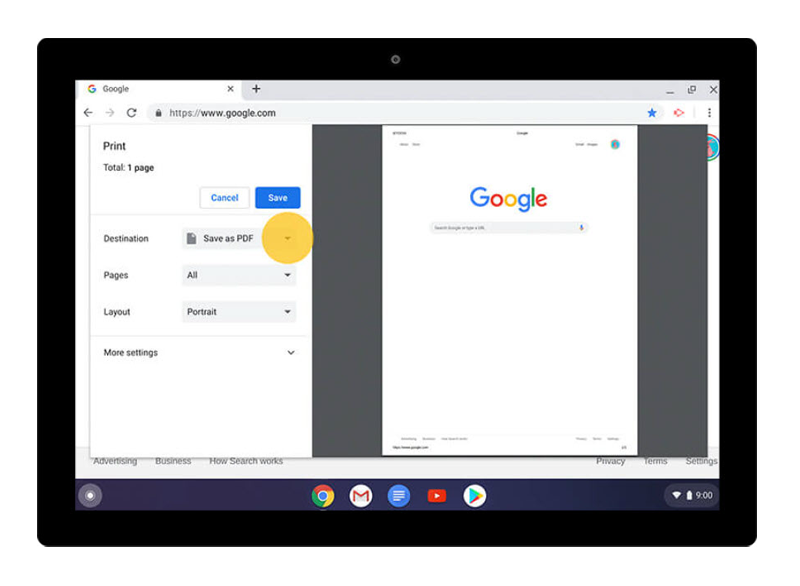
Press "Ctrl + P" to print the page, image, or document you’re viewing.
Select the down arrow on the left, next to Destination.
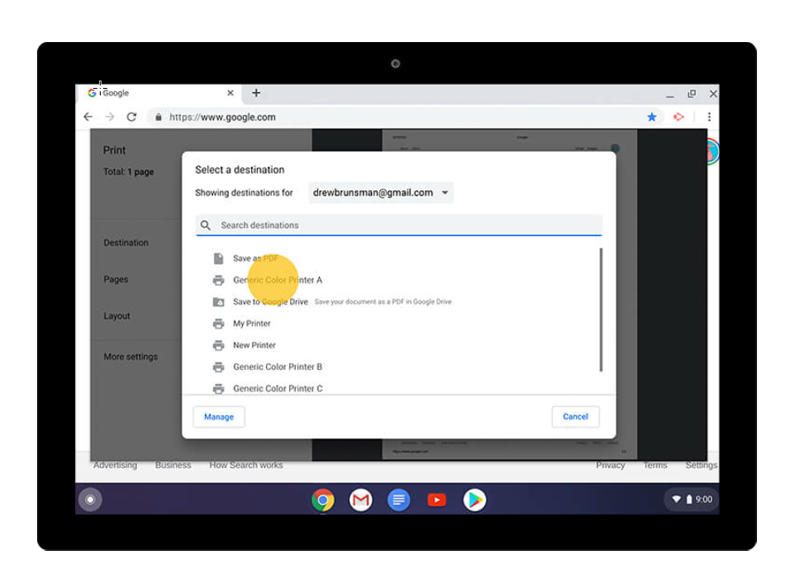
Select "See more...” as seen here.
Choose the Lexmark printer that was connected to the network.
Note: Some printers will automatically show up on this list. If the printer does not appear on the list, select "Manage”. For more information, please refer to the Setting up the Printer section of this article.
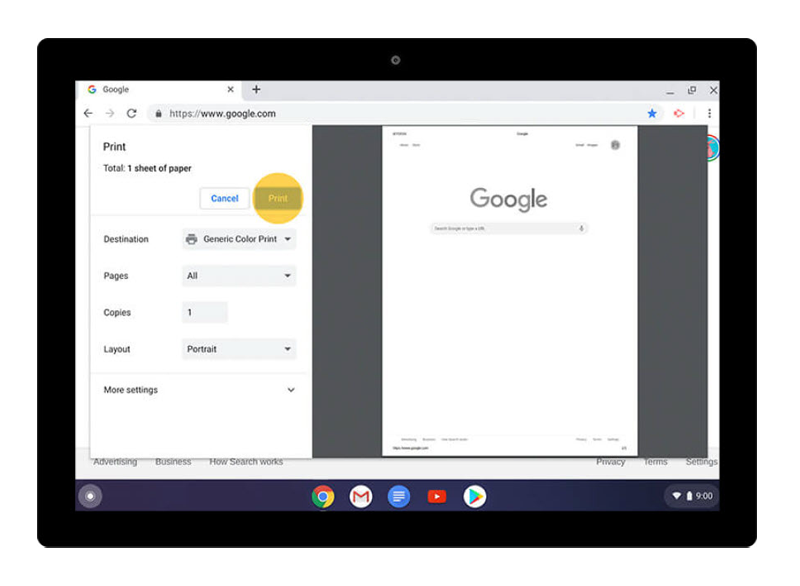
The document, page or image should now be printed from the Chromebook, as seen here.


Additional information
For additional queries or concerns related to Chrome OS, please refer to the following resources:
LEGACY ID: HO4145
Rate this article
We appreciate your feedback. We use it to identify content which needs to be updated for accuracy or usefulness.
Thank you for your feedback!