Support article for Lexmark C925
'34 Improper Media' Error Message on the Lexmark C925 and X925 Series Printers
Overview
A 34 Incorrect Media message indicates the sensors in the printer detect a mismatch in the length of the print media from the length registered by the paper-size guides in one or more of the paper trays. This error can appear when:

NOTE: This is the most common cause of this error.
NOTE: In addition to plain paper, various sizes and types of paper and specialty media can be used for printing. For more information on recommended paper types, please refer to the
Recommended actions
| Steps | Action | Image |
| 1 | Select Continue to clear the message and continue printing. Did the error message return? Yes: Continue to Step 2.No: Resend the print job to the printer. If the page prints, the printer is functioning correctly.
| No Image |
| 2 | Pull the tray out of the printer and look to see if any paper is in the tray. If the specified tray is low or out of paper, then please reload the tray with the specified paper type and size.
| 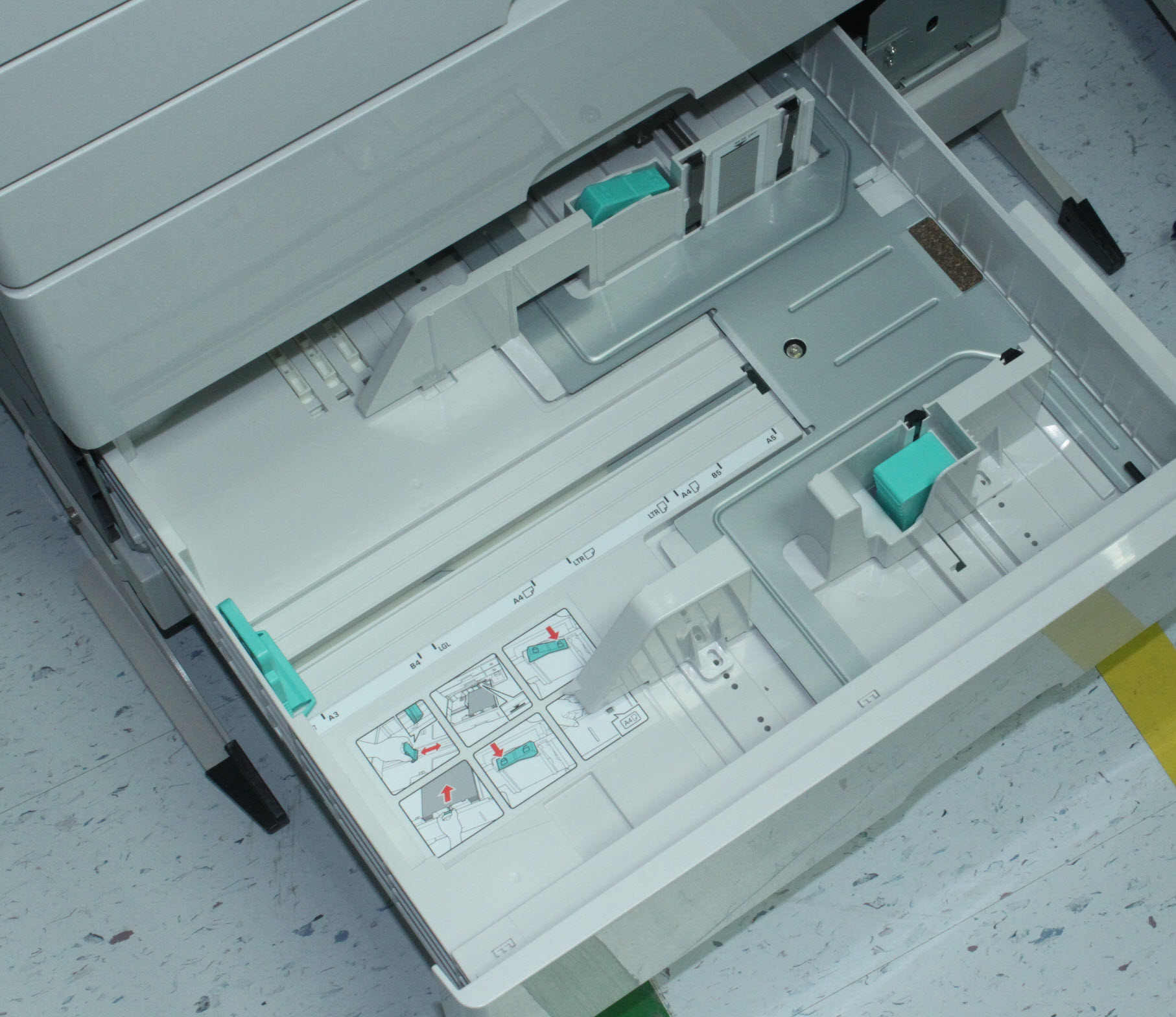 |
| 3 | Once paper is loaded into the tray, check the tray length and width guides to ensure the paper is properly fitted. (See red in right-hand image).
| 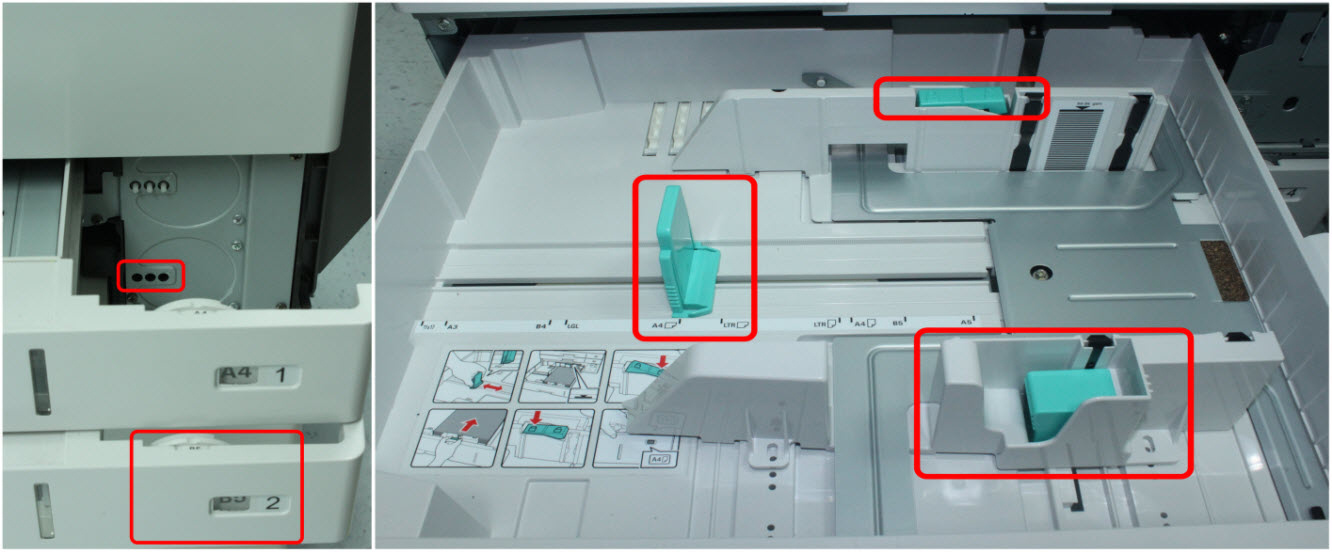 |
| 4 | Ensure the print job is requesting the correct size of paper. Resend the print job to the printer. Did the error message return? Yes: Continue to Step 5.No: If the page prints, the printer is functioning correctly.
| No Image |
| 5 | Using the printer operator panel, verify that the size and type of paper loaded in the paper tray matches the Paper Size and Type settings in the Paper Menu. (The
| 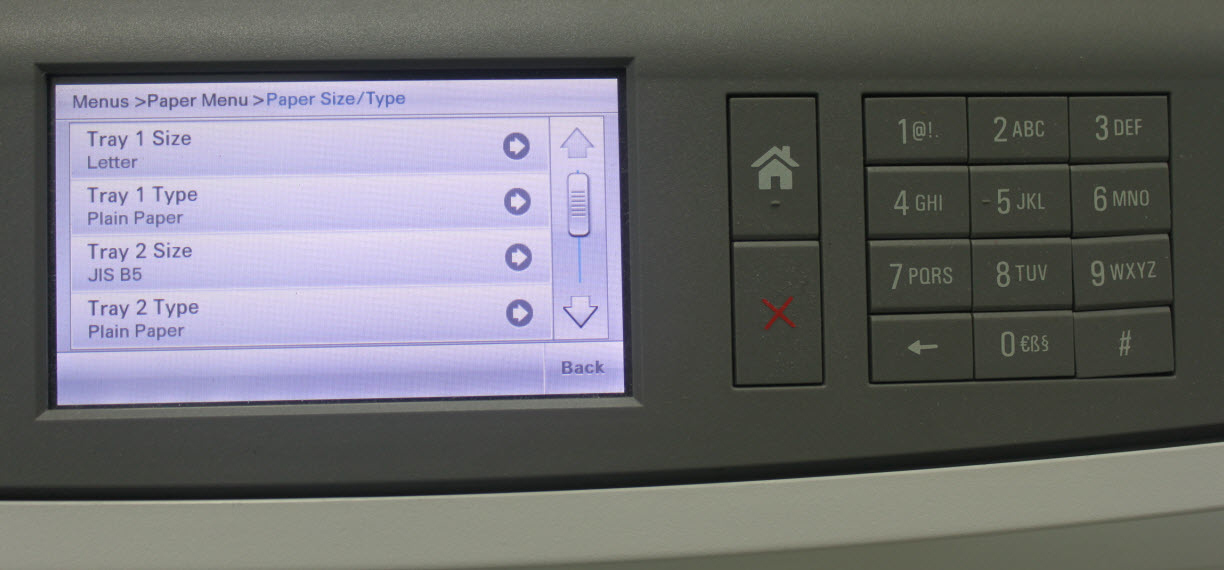 |
| 6 | Resend the print job to the printer. Did the error message return? Yes: Continue to Step 7.No: If the page prints, the printer is functioning correctly. | No Image |
| 7 | Are you printing on regular plain bond copy paper? If not, try printing again with plain copy paper. This will eliminate specialty media as a possible partial cause of the issue. (Certain specialty paper, label stock, and card stock, etc., are more difficult for the printer to feed and therefore more prone to this type of issue.) Resend the print job to the printer. Did the error message return? Yes: If the error persists, a service action may be required in order to correct the issue. For assistance in setting up service, please contact Lexmark Technical Support or a local authorized service provider.No: If the page prints, the printer is functioning correctly. Pay close attention to the printer over the next few days, however, to see if the issue returns. | No Image |
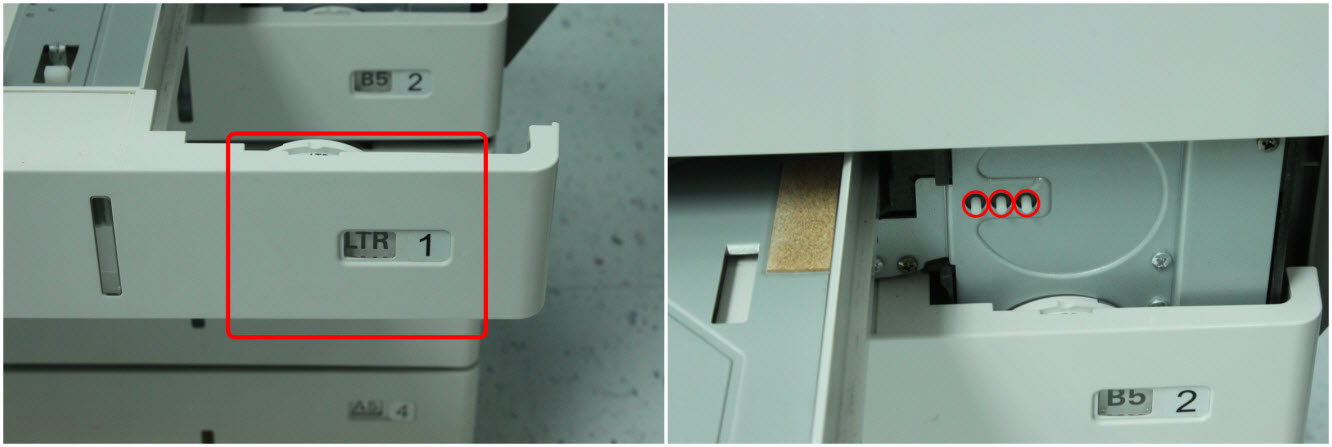
NOTE: If a paper jam is associated with an intermittent error, clear all jammed paper and power cycle the printer. Use the location described in the error or the Show Areas feature on the printer operator panel to help you locate and clear the jam. If you cannot locate any jammed media anywhere inside the printer, a sensor unit may be failing. This will require a service action to correct the issue. For information on arranging repair service, contact Lexmark Technical Support or a local authorized service center in your area.
Still Need Help?
Please contact Lexmark Technical Support if you need additional assistance.
NOTE: When calling for support, you will be asked for your machine/model type and serial number (SN). If you need help locating these,
Please call from near the printer in case the technician on the phone asks you to perform a task involving the printer.
LEGACY ID: SO6300
Rate this article
We appreciate your feedback. We use it to identify content which needs to be updated for accuracy or usefulness.
Thank you for your feedback!