Support article for Lexmark C792
Solid color print or a colored background on printed pages
Issue description
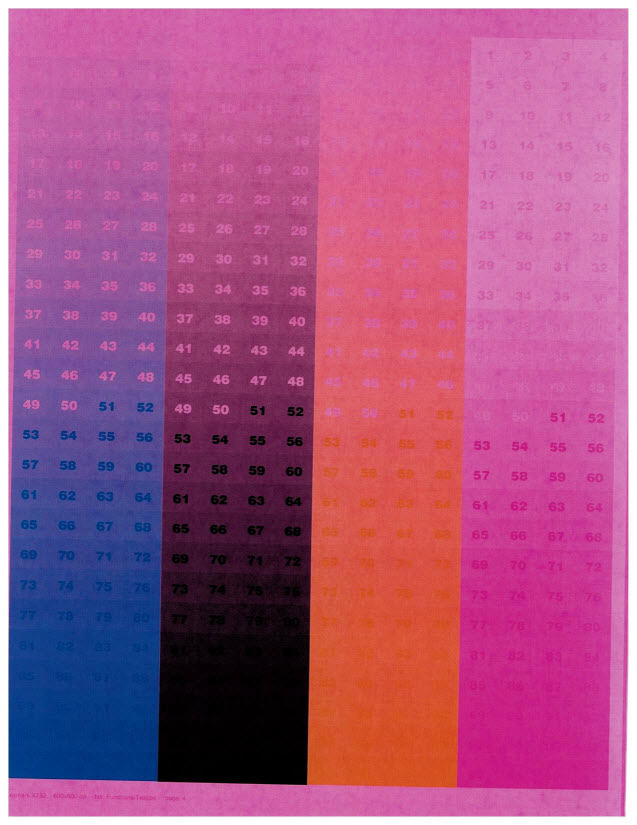
All your printed pages exhibit solid color or colored background that covers the printout. Please refer to the images below that illustrate an example.
Note: Sample images are of black or magenta background, but could also be cyan or yellow.
Print Defect Sample
Black Background
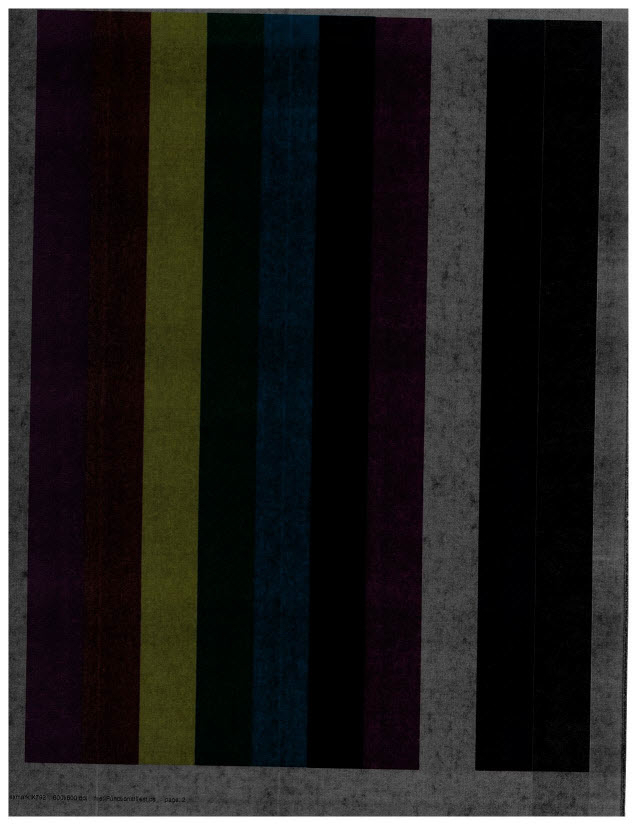 | 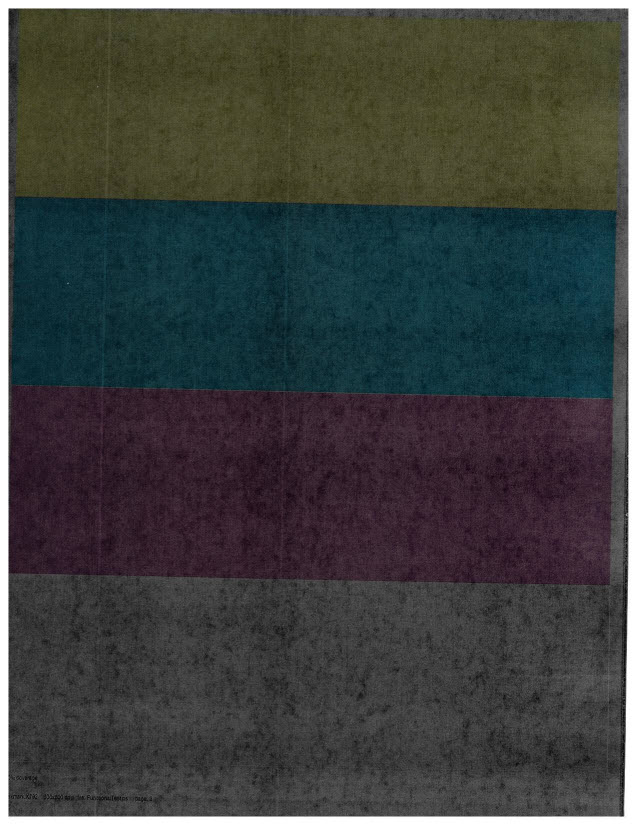 | 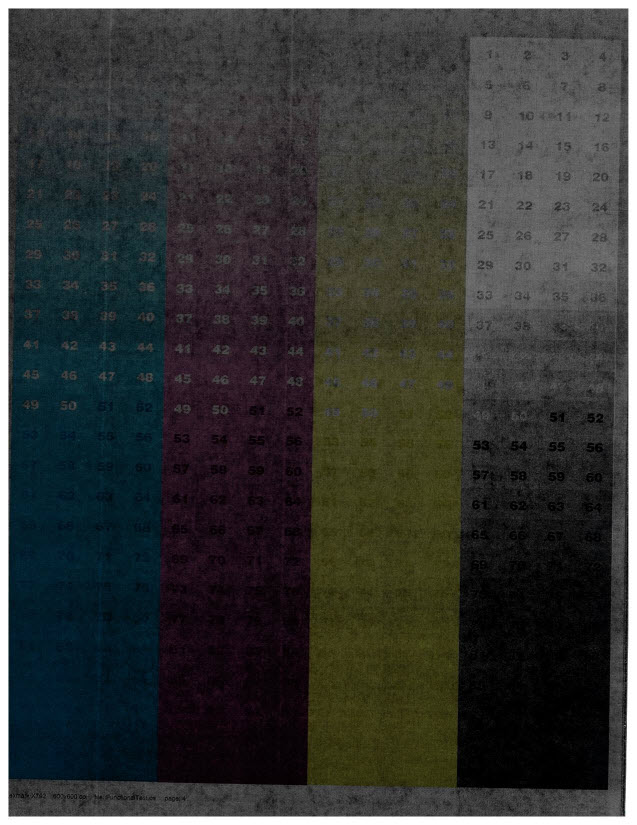 |
Magenta Background
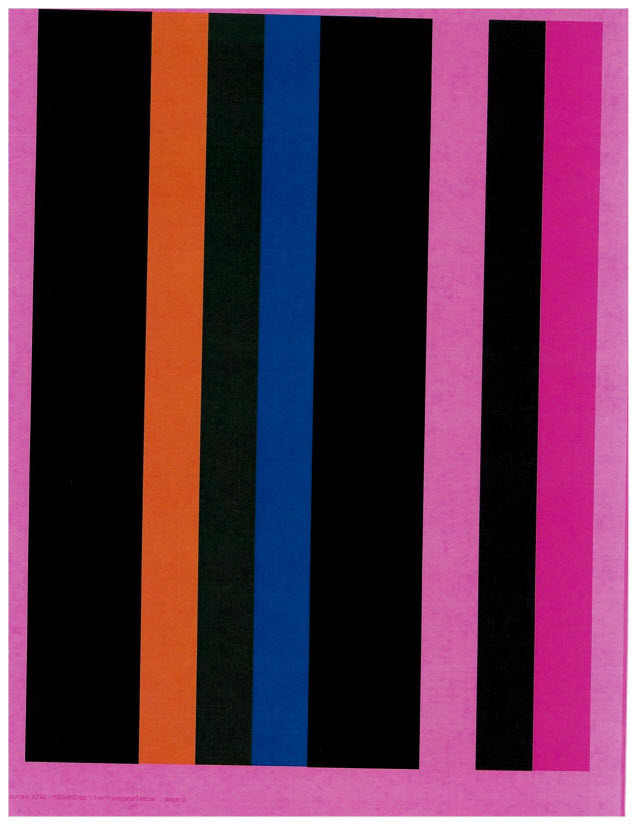 |  |  |
Solution
| Steps | Actions |
|---|---|
1 | For a print quality defect of this type, it is always advisable to print the following:
Note: The User's Guide provides detailed instructions for navigating through the printer menus. |
2 | If all of the consumable supply levels are adequate, replace the affected toner cartridge(s) and print a test page. This is to ensure that the issue is not simply caused by a defective consumable supplies. Note: Should the problem persist or if you cannot replace the cartridge immediately, proceed with the steps below. |
3 | Perform the following as a test. Remove the cartridge of the color that is causing the solid plane on the page. Place a piece of paper over the opening on top of the cartridge as shown in the image below. Then insert the cartridge back into the printer. 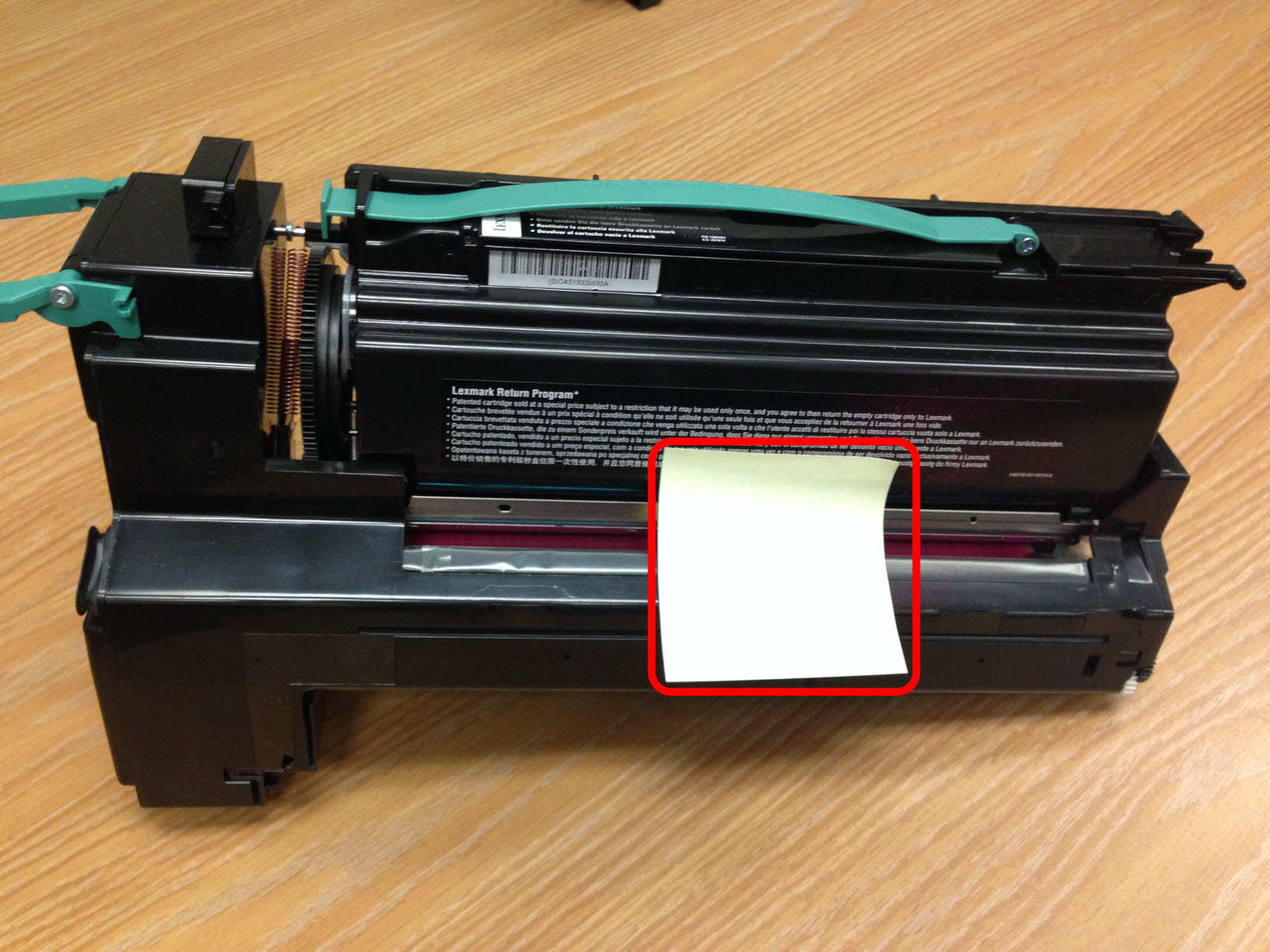 Note: Ensure the paper stays over the cartridge opening. |
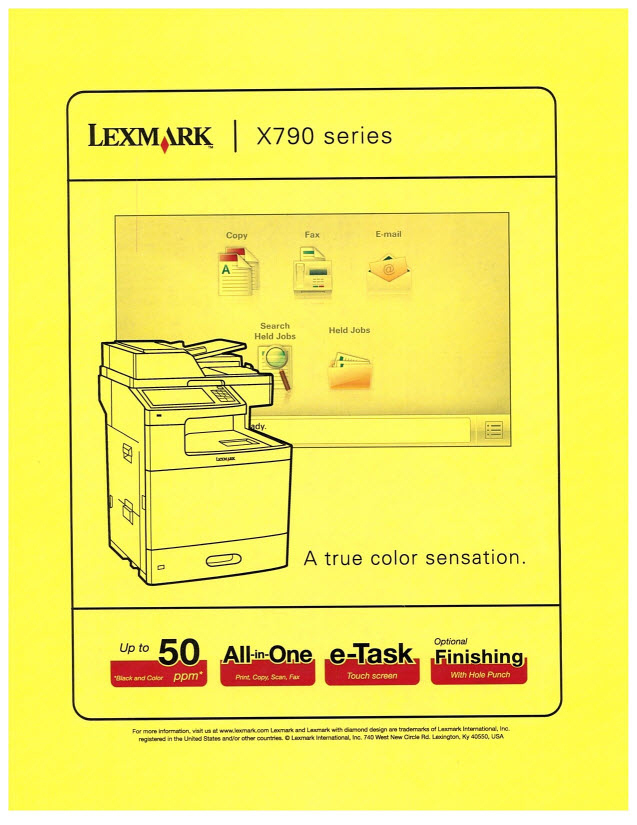
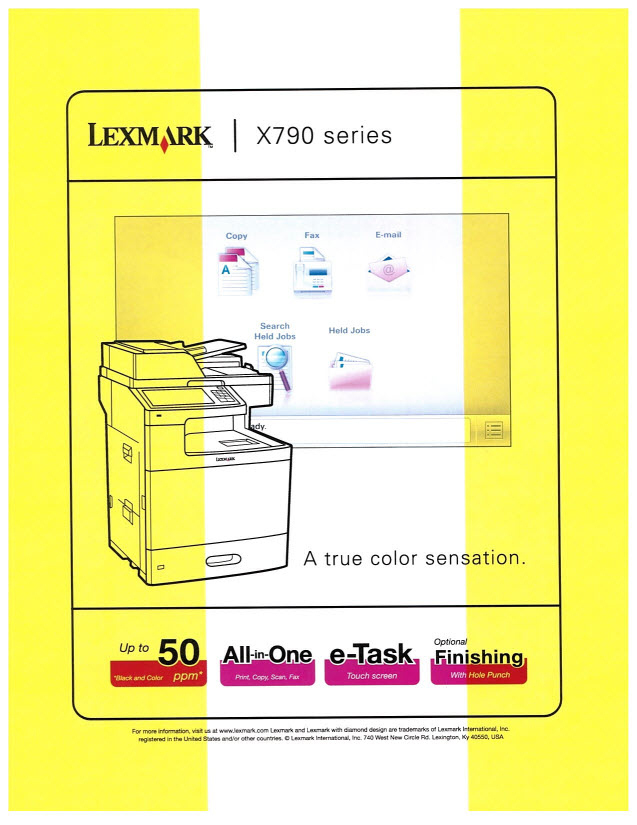
4 | Print the demo pages that are found in the printer's Reports menu and check whether a white streak or void appears where the piece of paper was placed on the cartridge, as shown below. |
5 | Please contact Lexmark Technical Support and provide the result from the test above to our Phone Support Representatives. This issue may require in-depth troubleshooting guidance or a service action to permanently correct the issue. |
LEGACY ID: TE655
Rate this article
We appreciate your feedback. We use it to identify content which needs to be updated for accuracy or usefulness.
Thank you for your feedback!