Support article for Lexmark C792
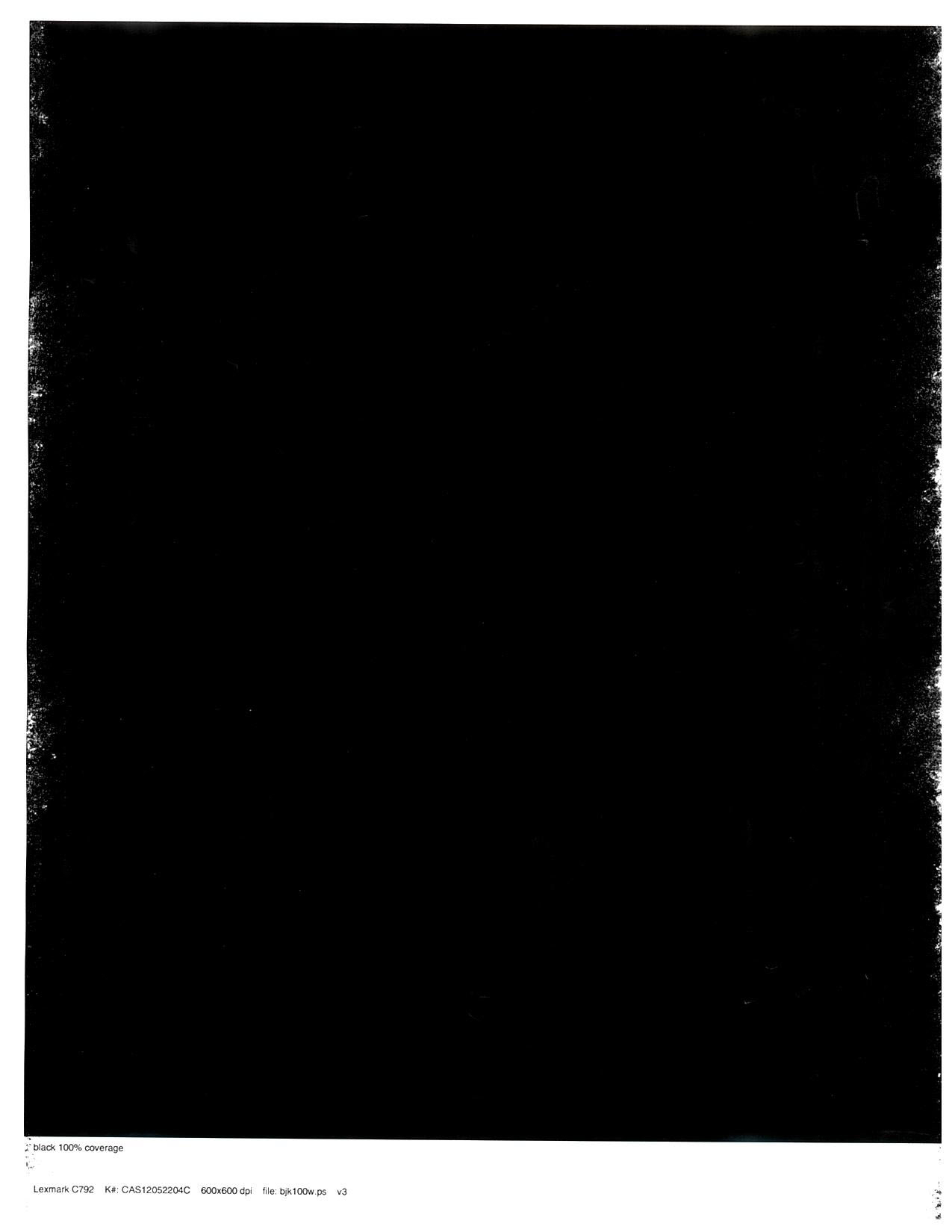
White void (cold offset) on a solid black at the edge of the page
What you will see
The Cold Offset issue, also called 'white gapping', could be described as a white void on a solid black area at the page edge (typically within 12 mm from the edge of paper) when using the "Plain Paper" setting. (Please see the image below for a print sample.) The problem could be a low voltage power line and/or a cold printer fuser. If reseating the toner cartridge or the photo developer does not fix 'white gapping', then the solution is to change the plain paper texture setting to "Rough".
Print Quality Defect Example
Cold Offset
Recommended actions
Ensure that you are printing on printer-supported media. Click here to see the Paper Types, Sizes, and Weights supported by this printer/MFP.
Ensure that the printer/MFP is receiving its appropriate power requirement. Power strips, surge protectors, extension cords and uninterrupted power supplies (UPS) or other voltage limiters may reduce the power needed by the printer/MFP to operate properly. If the printer/MFP is connected via a power strips, surge protectors, extension cords and uninterrupted power supplies (UPS), plug it directly to a wall outlet instead.
Change the printer’s/MFP’s Paper Texture settings to "Rough". To do this, follow the outlined steps below:
For the Lexmark C792 Color Laser Printer
Steps
Action
1
Press the Menu (
) button.
2
Select Paper Menu.
3
Press (
) to scroll down the options to Paper Texture. Select it.
4
Look for the Plain Texture option.
5
Select Rough.
6
Press (
) to submit the changes.
For the Lexmark X792 Multifunction Printer
Steps
Action
1
Press the Menu (
) button.2
Select Paper Menu.
3
Select Paper Texture.
4
Look for the Plain Texture option.
Note: The selection should show the current setting, which by default is Normal. Change this to Rough by pressing the left-hand (
) or right-hand ( ) arrow.
5
Select Rough.
6
Press (
) to submit the changes.
Press the "Home" icon to go back to home screen.
Print a test page to verify whether the issue is fixed.

LEGACY ID:TE451
Technical Service Bulletin | Problem Description | |
Machine Type/Model | Lexmark Models: C792e 5062-210 C792de 5062-230 C792dte 5062-230 C792dhe 5062-235 X792de 7562-436 X792dte X792dtfe X792dtpe X792dtme X792dtse | White Voids or White Gapping through areas of solid black on the Lexmark C792 or X792 Color Laser Printers Solution To eliminate white voids (cold offset) on solid black at the edge of page, adjust the plain paper texture setting to "Rough". Please refer to the directions in the table below to deal with this issue. |
Date Created | 03/23/2012 | |
Last Updated | 03/23/2012 | |
Safety Issue? | No | |
Code Update? | No | |
Engineering Change? | No | |
New Parts? | No | |
Old Parts Status | n/a | |
Voltage: 120/240 | All | |
Serial No. Range | All |
Rate this article
We appreciate your feedback. We use it to identify content which needs to be updated for accuracy or usefulness.
Thank you for your feedback!