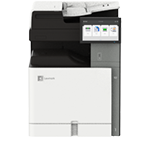
Printer features: Laser, multifunction, color
Lexmark XC9525 Support
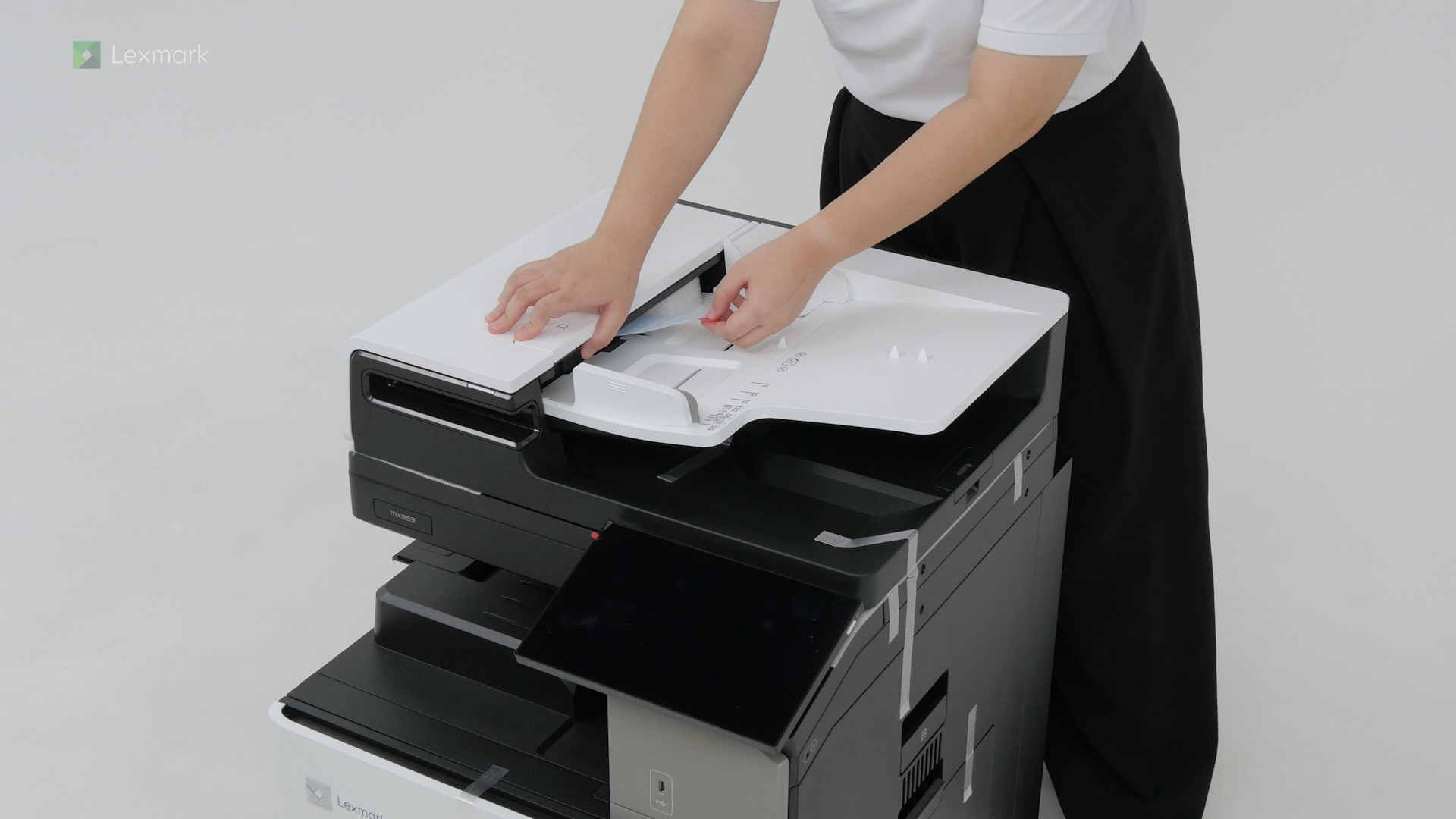
Learn how to set up your new printer.
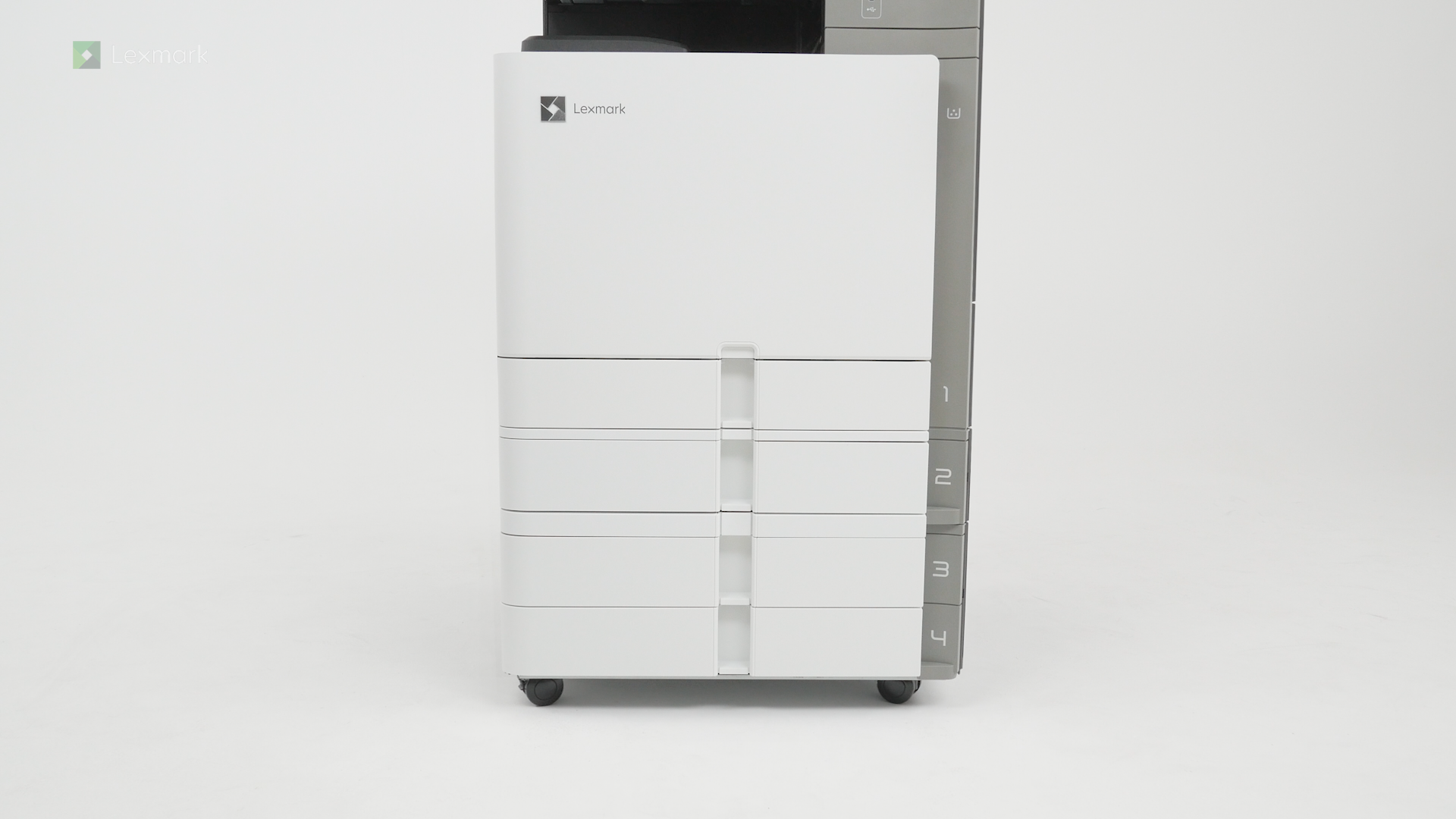
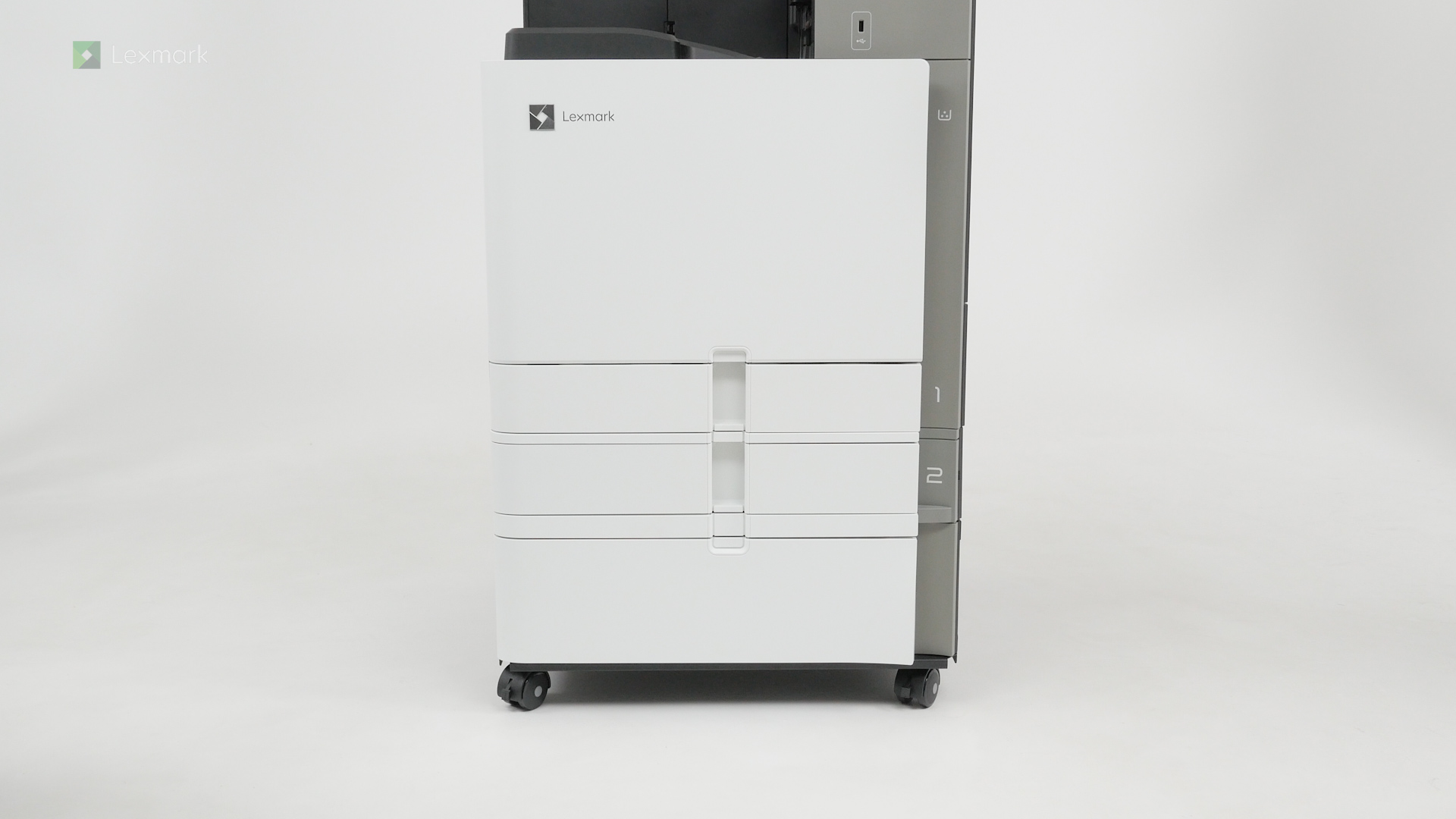
Learn how to set up your new printer with the tray options.
Know which precautions to take and how to position the printer when you are adding optional trays.
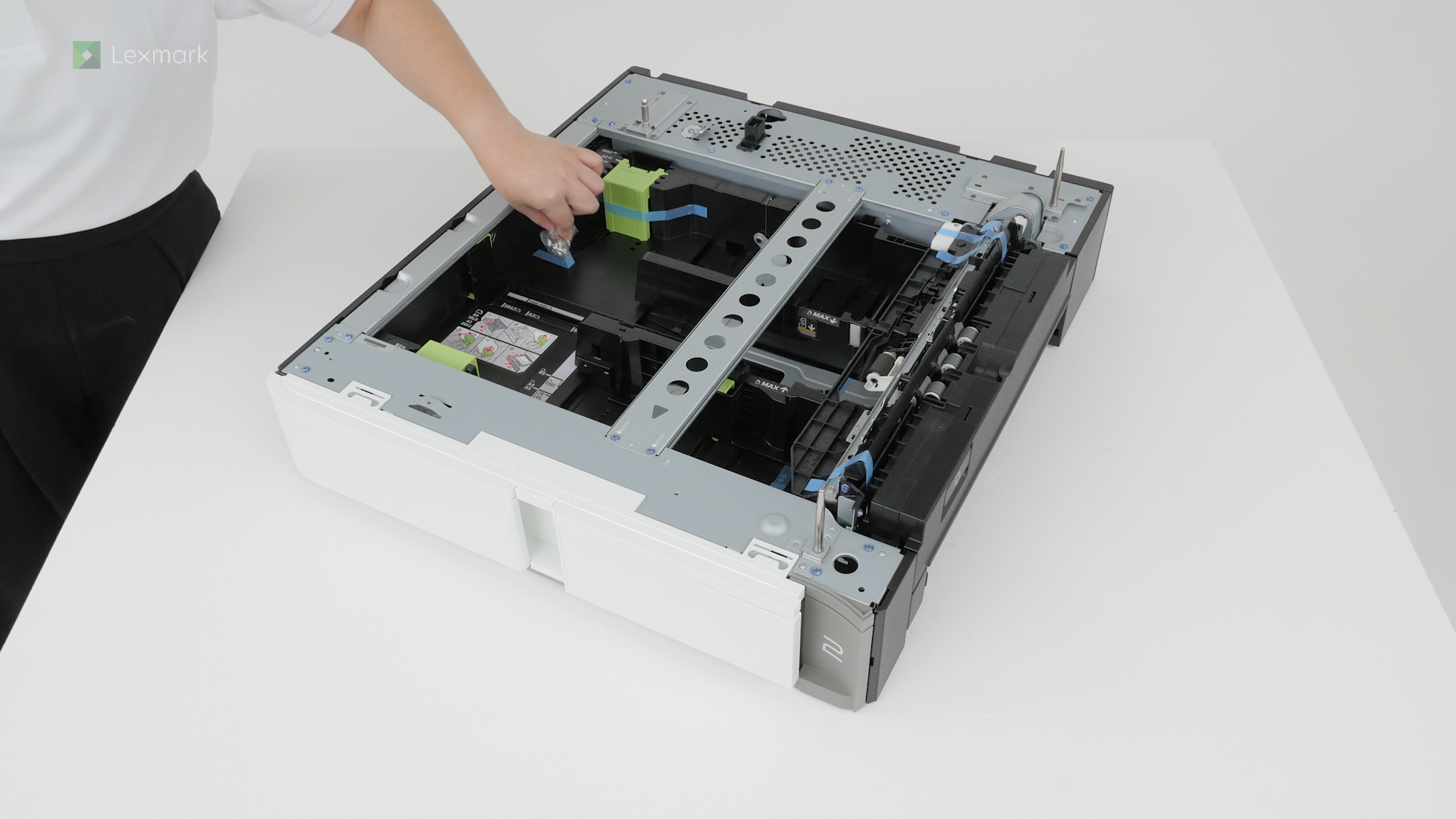
Learn how to install the optional 2 x 550-sheet tray into your printer.
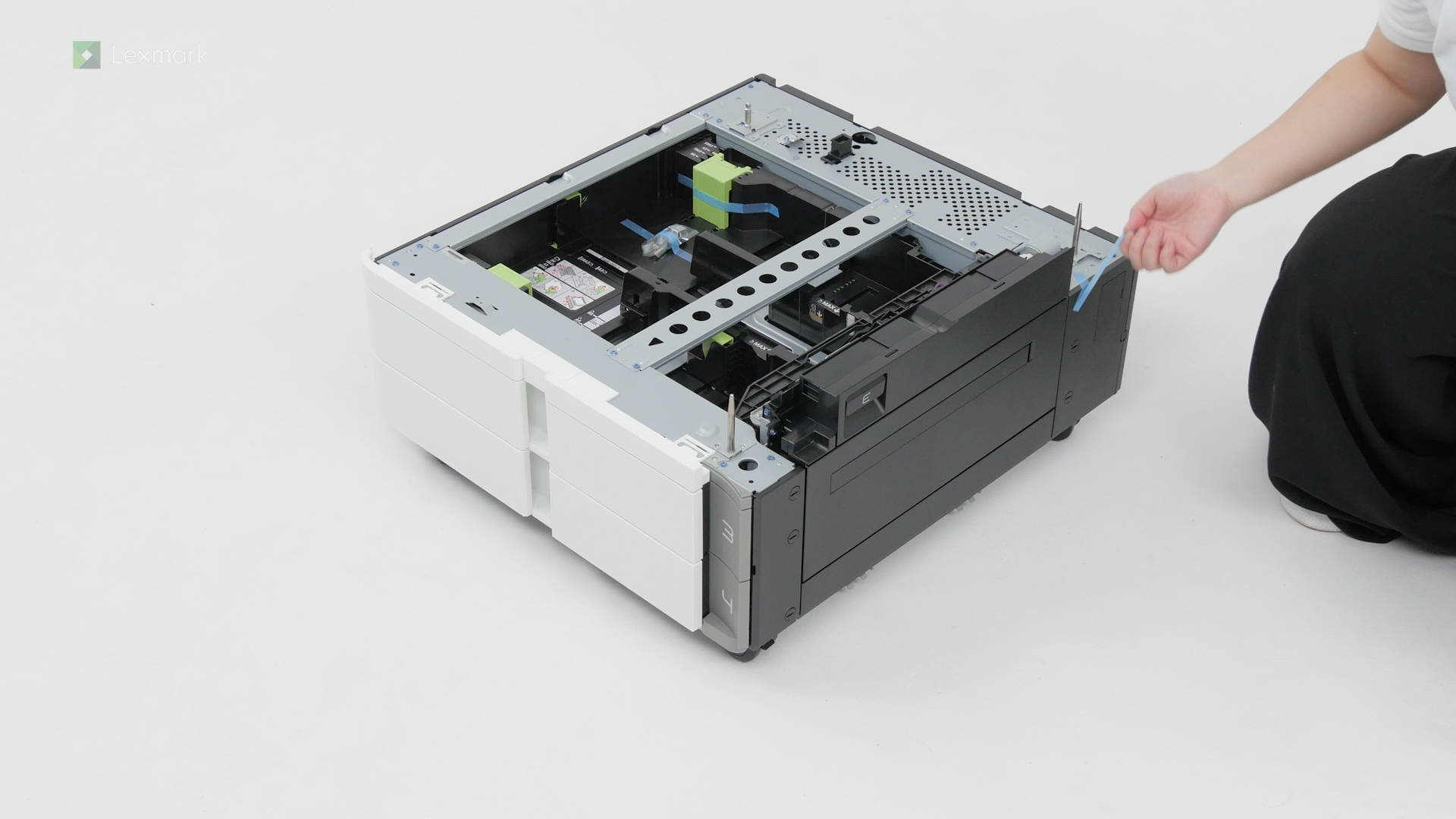
Learn how to install the tandem tray to your printer.
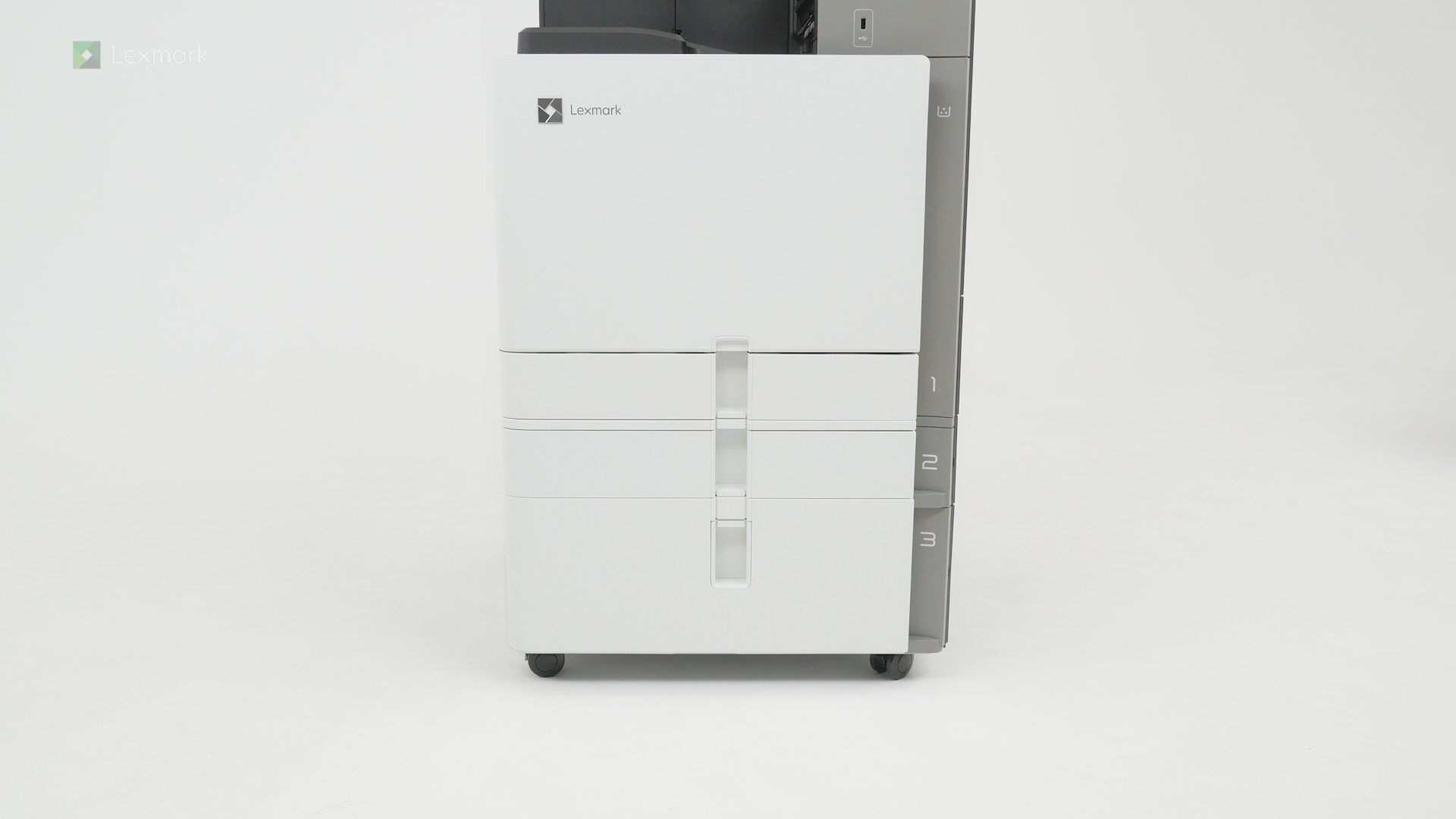
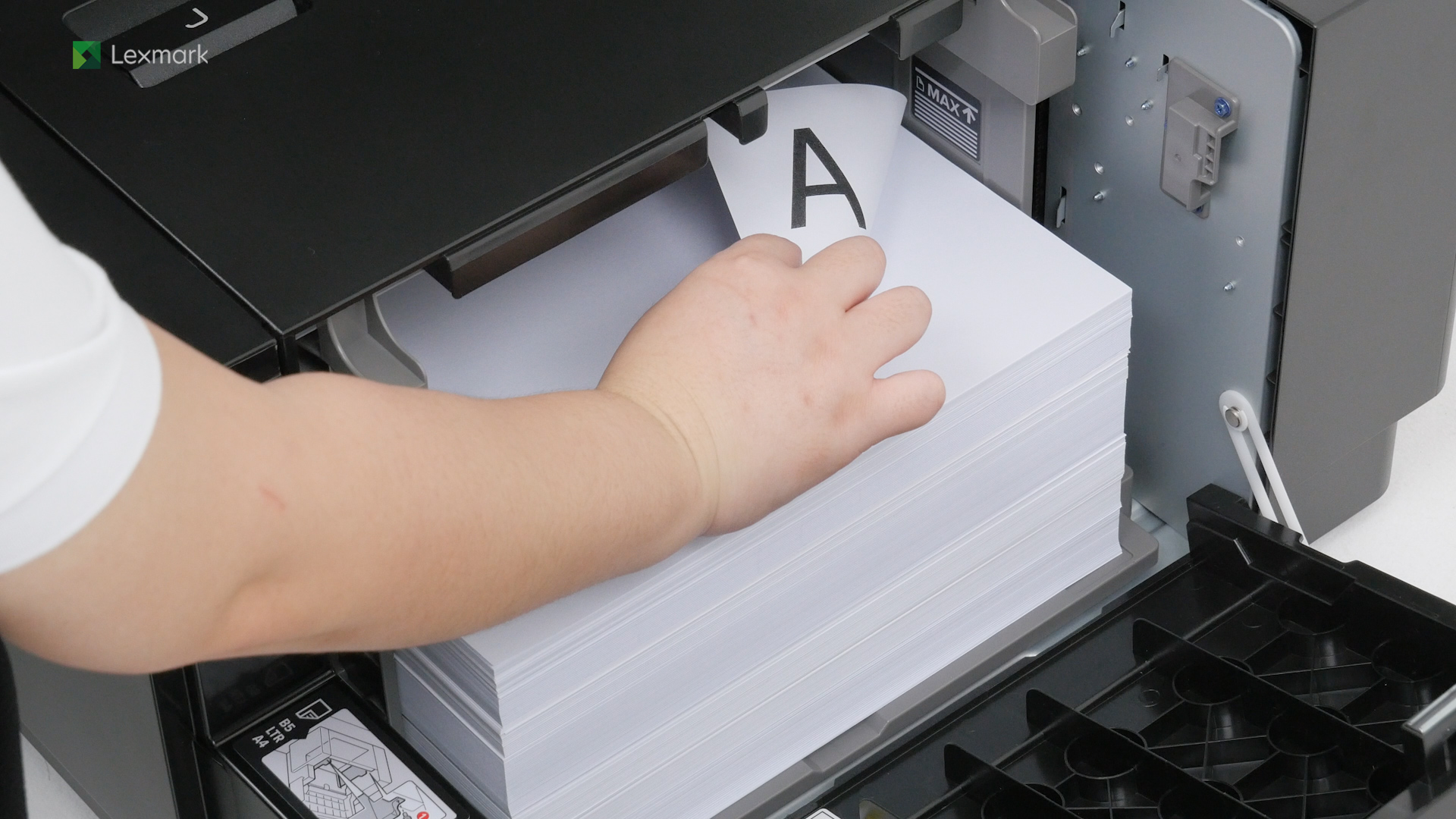
Install the optional 1500-sheet tray to increase the input capacity of your printer.
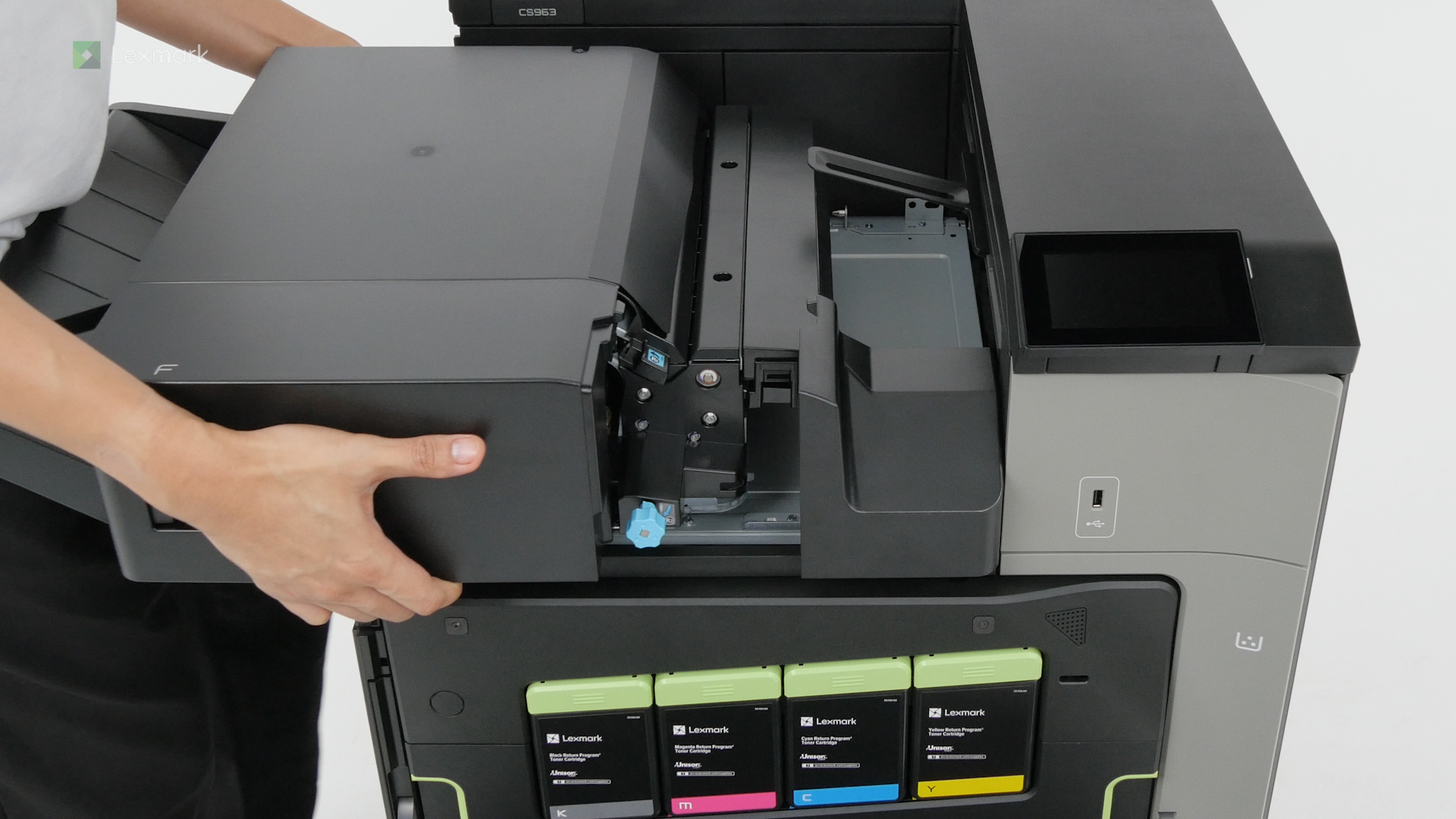
Follow these steps to install the staple finisher and expand your printer capabilities.
Learn how to install the staple finisher and hole punch kit to expand your printer capabilities.
Learn how to install the hole punch kit to expand your printer capabilities.
Learn how to set up the offset stacker to enable your printer to separate print jobs or multiple copies of your document.
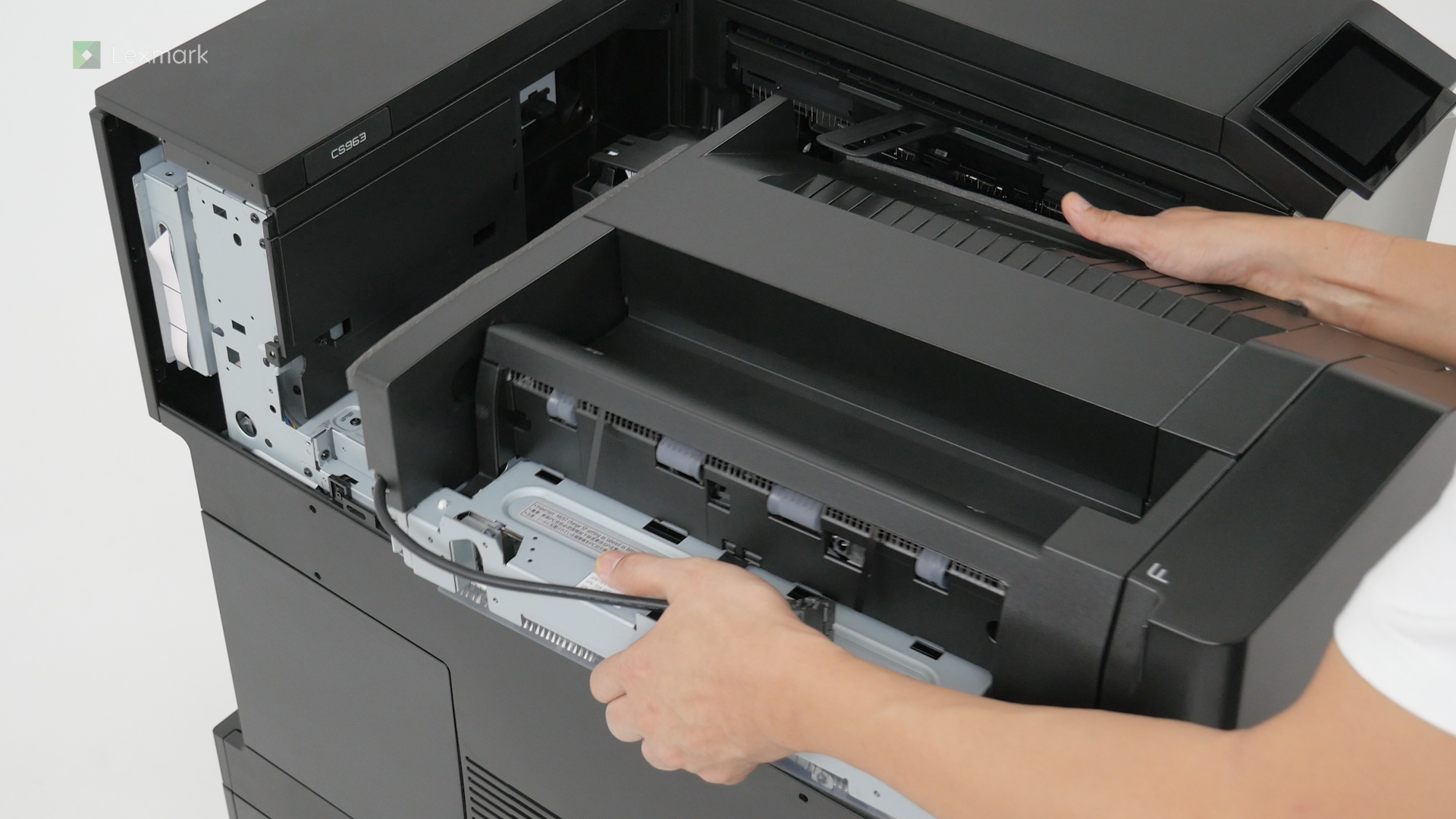
Learn how to install the paper transport properly into your printer.
Learn how to install the paper transport with folding option properly into your printer.
Learn how to install the staple, hole punch finisher or the high-capacity staple finisher properly into your printer.
Learn how to install the booklet finisher properly into your printer.
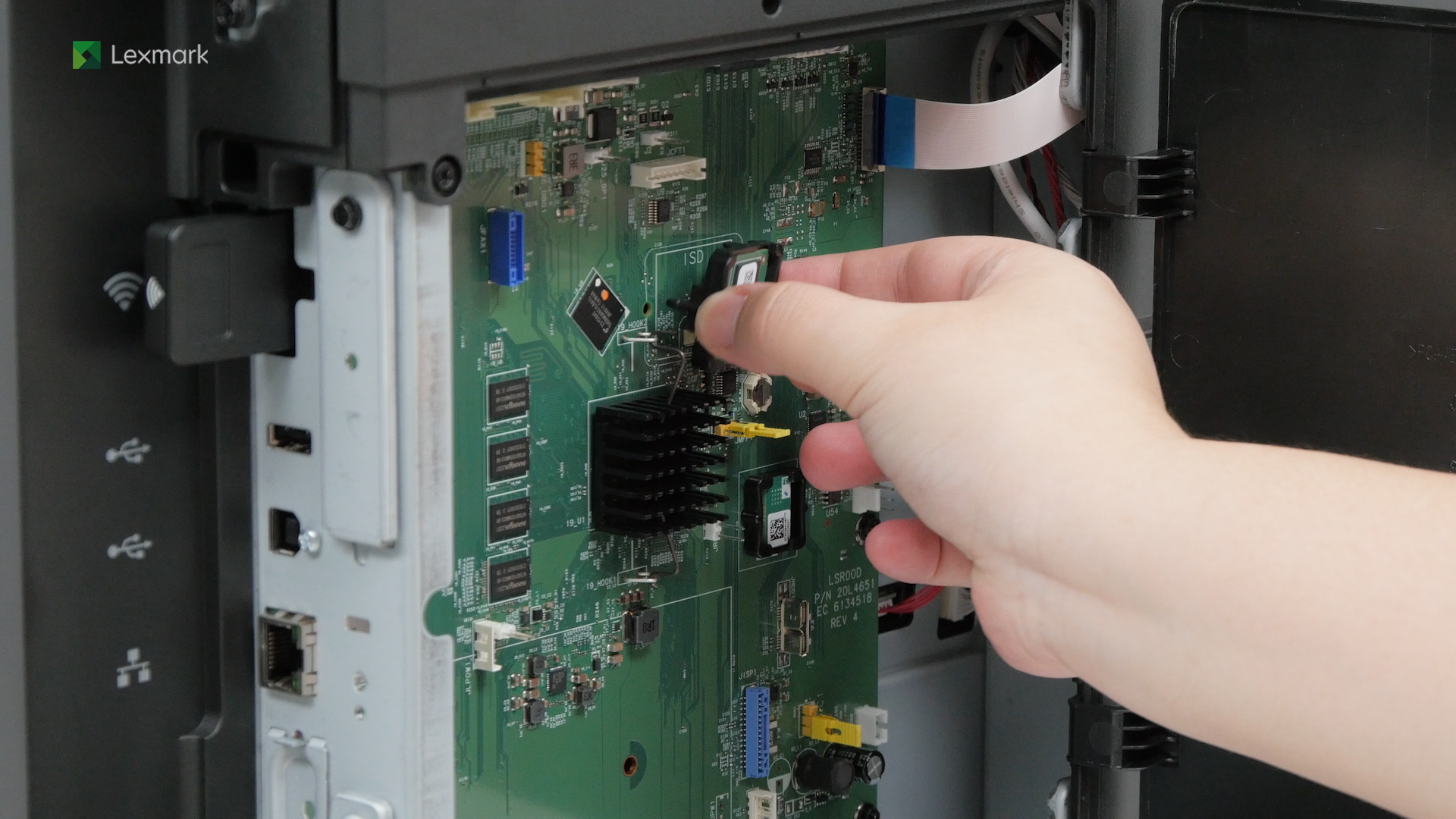
Learn how to install the intelligent storage drive on your printer to enable it to print complex jobs and collate large print jobs.
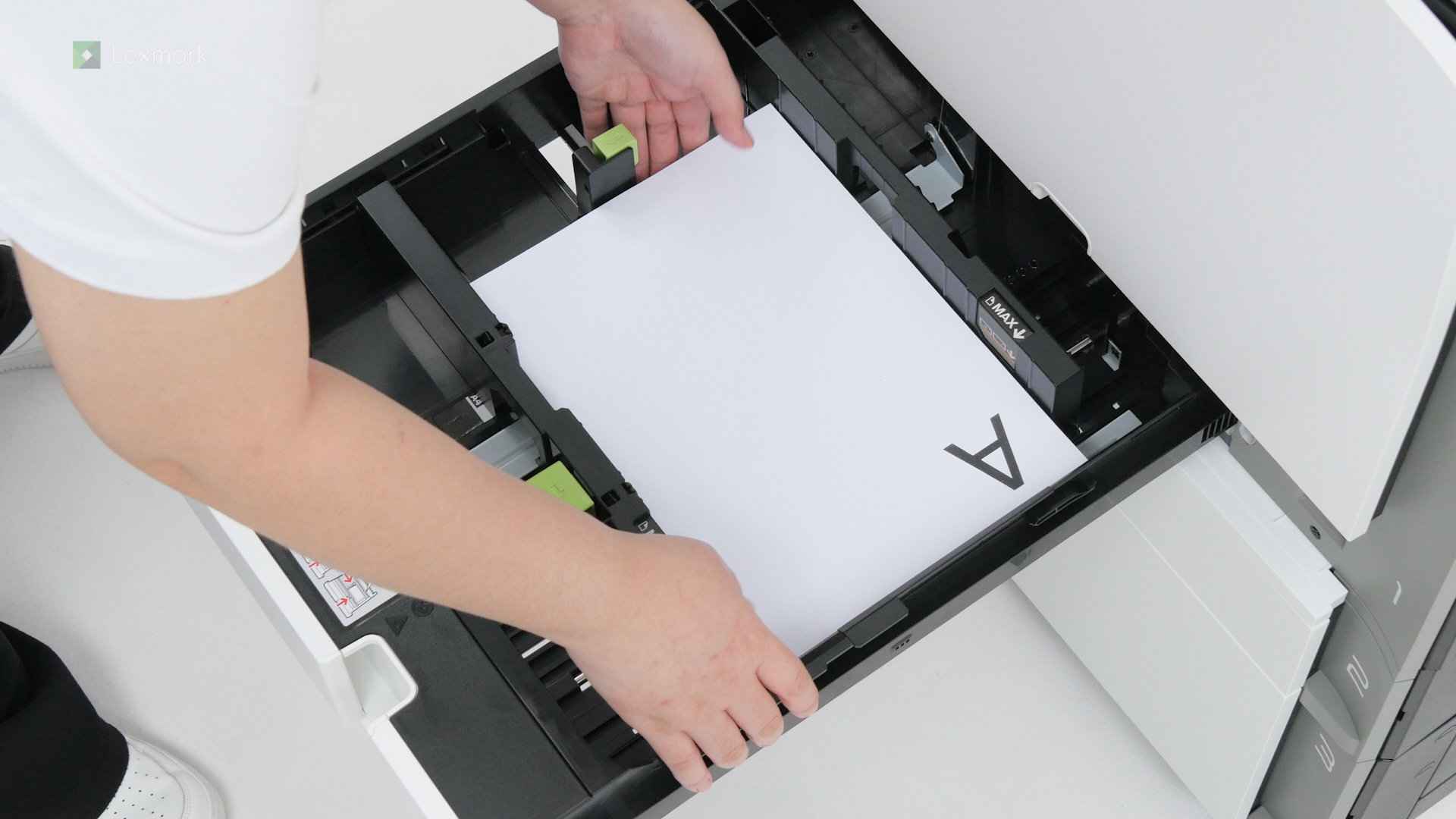
For reliable printing results, use these instructions to load paper properly into the 550-sheet tray.
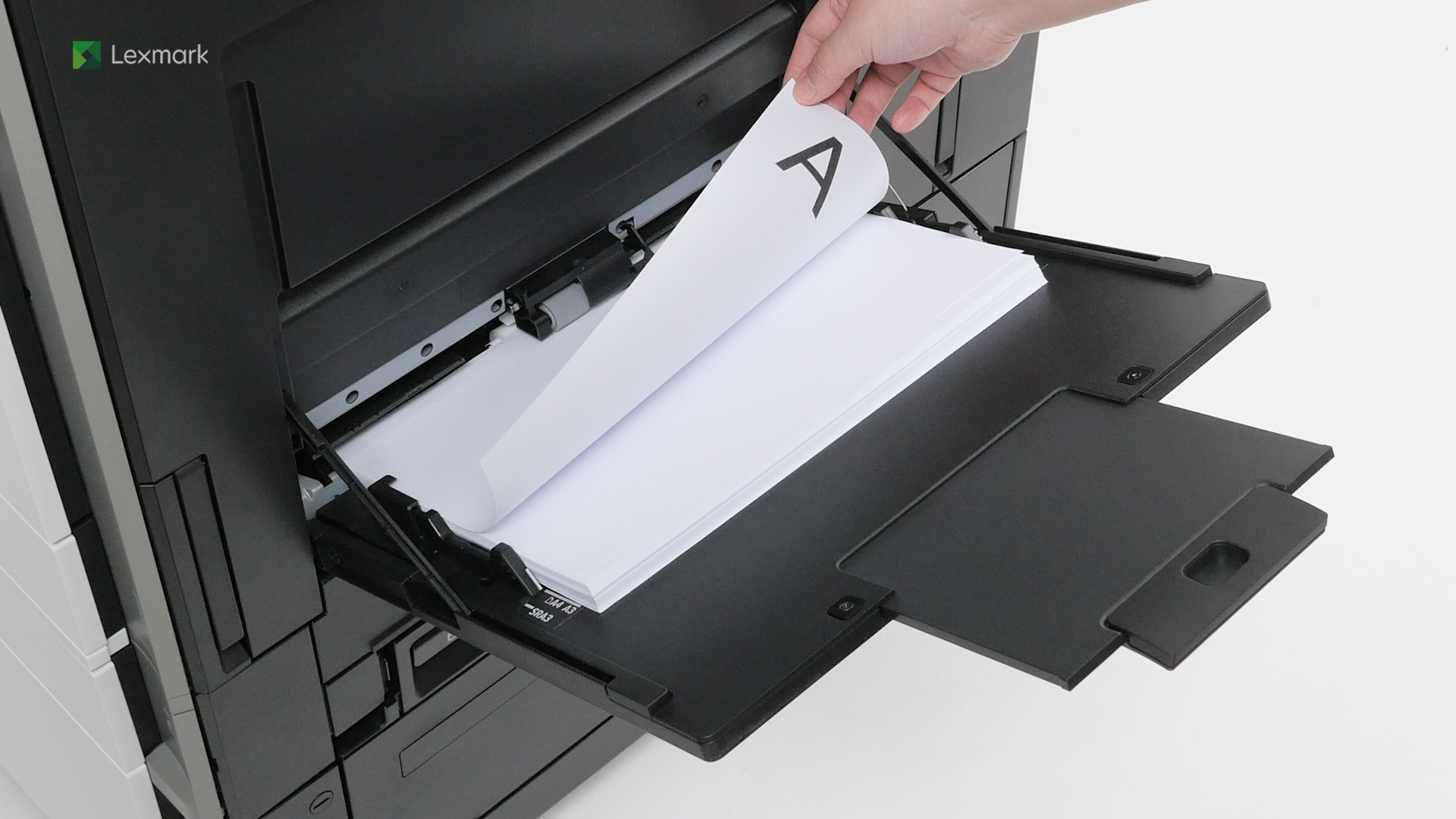
Learn the correct way of loading paper into the multipurpose feeder.
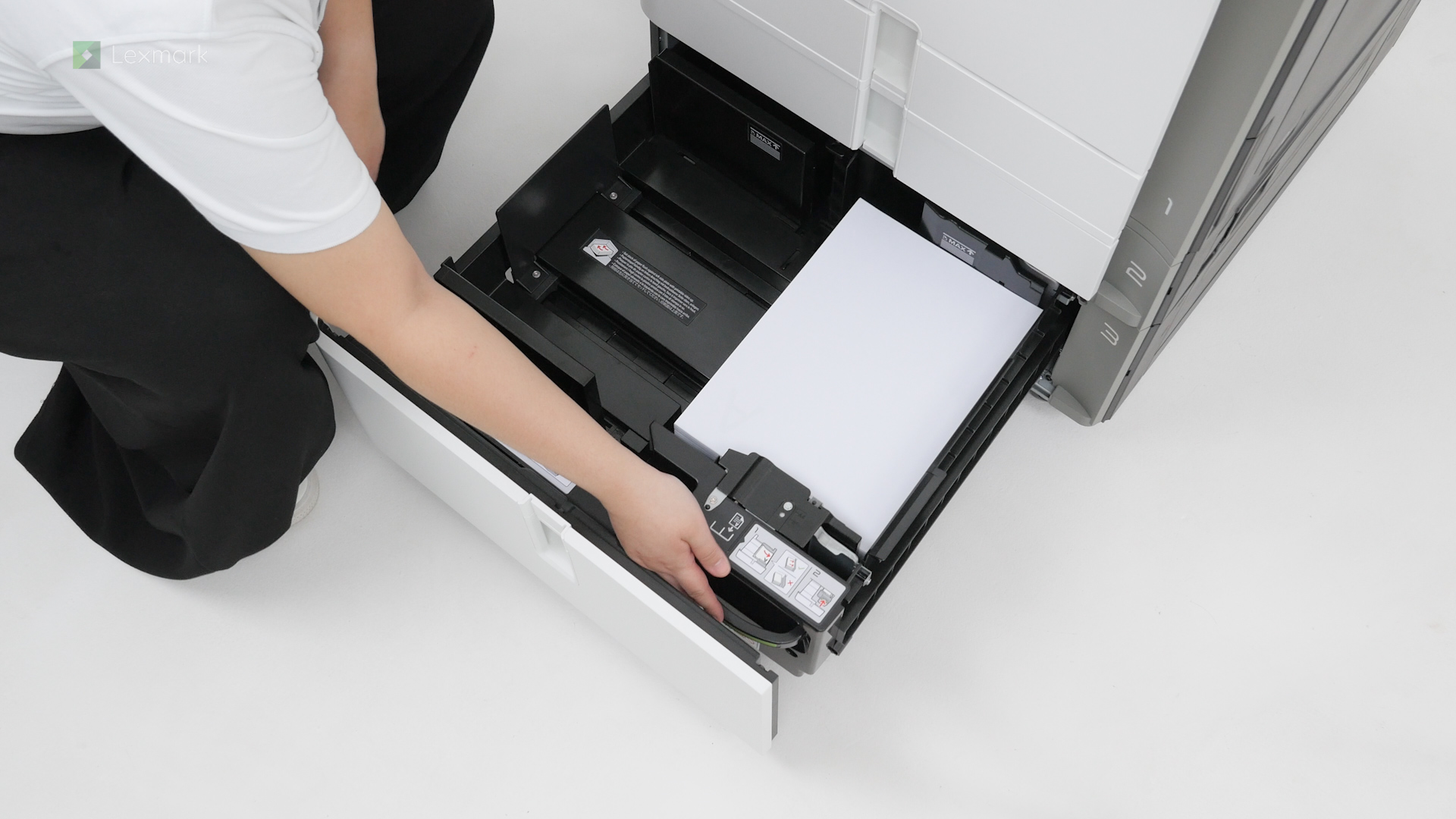
For reliable printing results, use these instructions to load paper properly into the tandem tray.
Learn the correct way of loading paper to avoid paper jam.
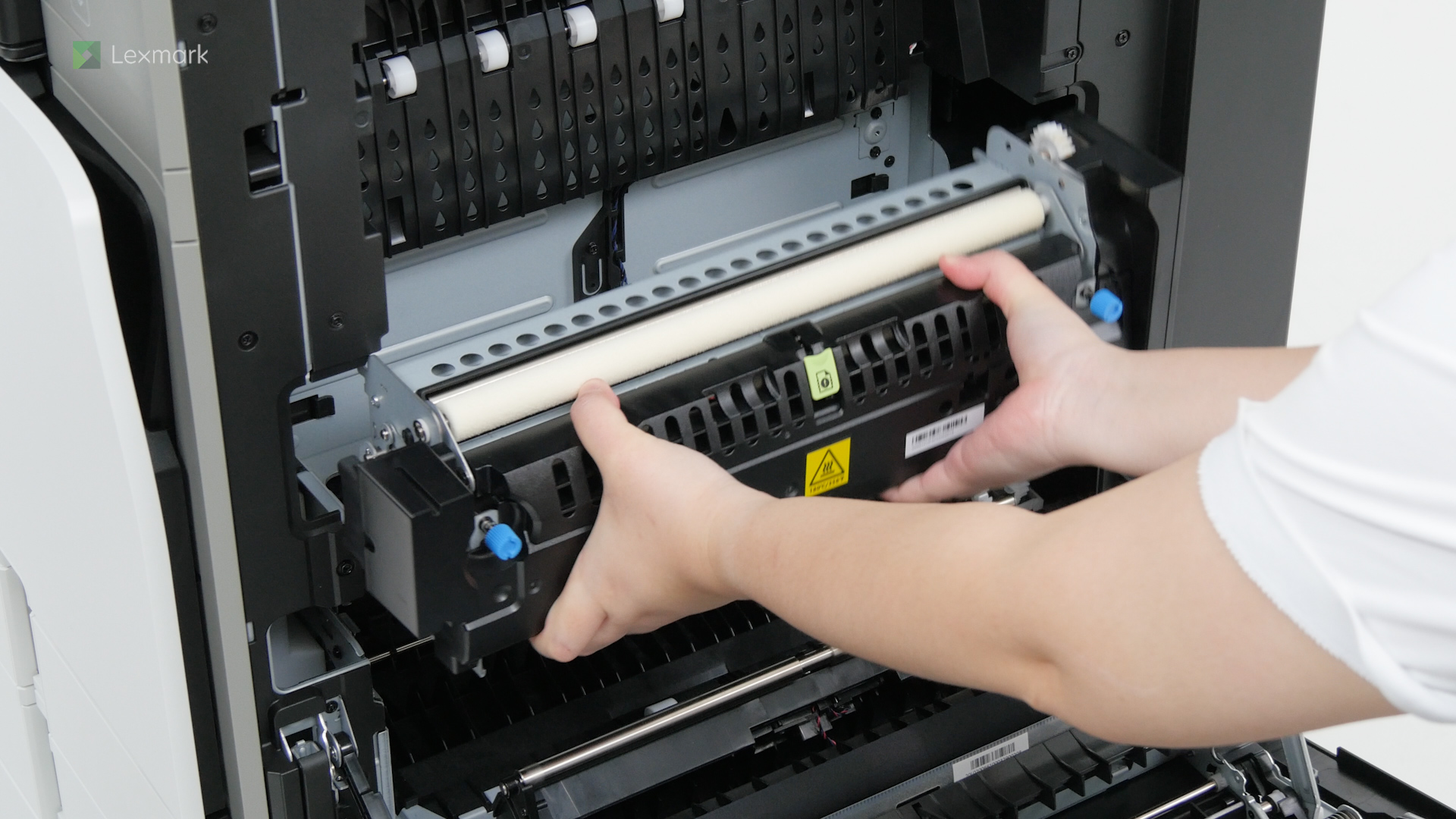
Learn how to remove the fuser when you are installing a new one.
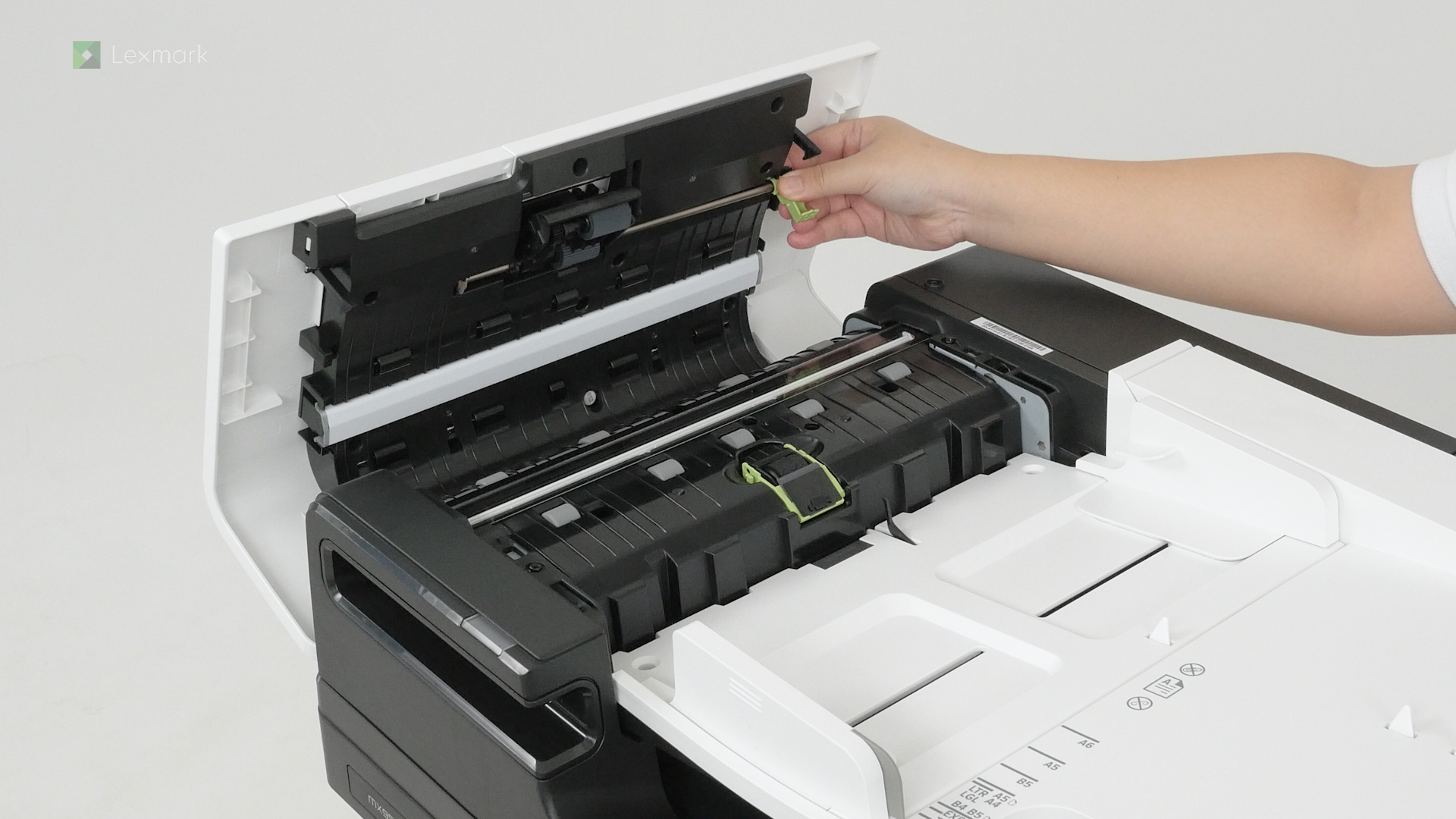
Learn how to replace the ADF roller kit in your printer to avoid paper skewing and misfeeding issues.
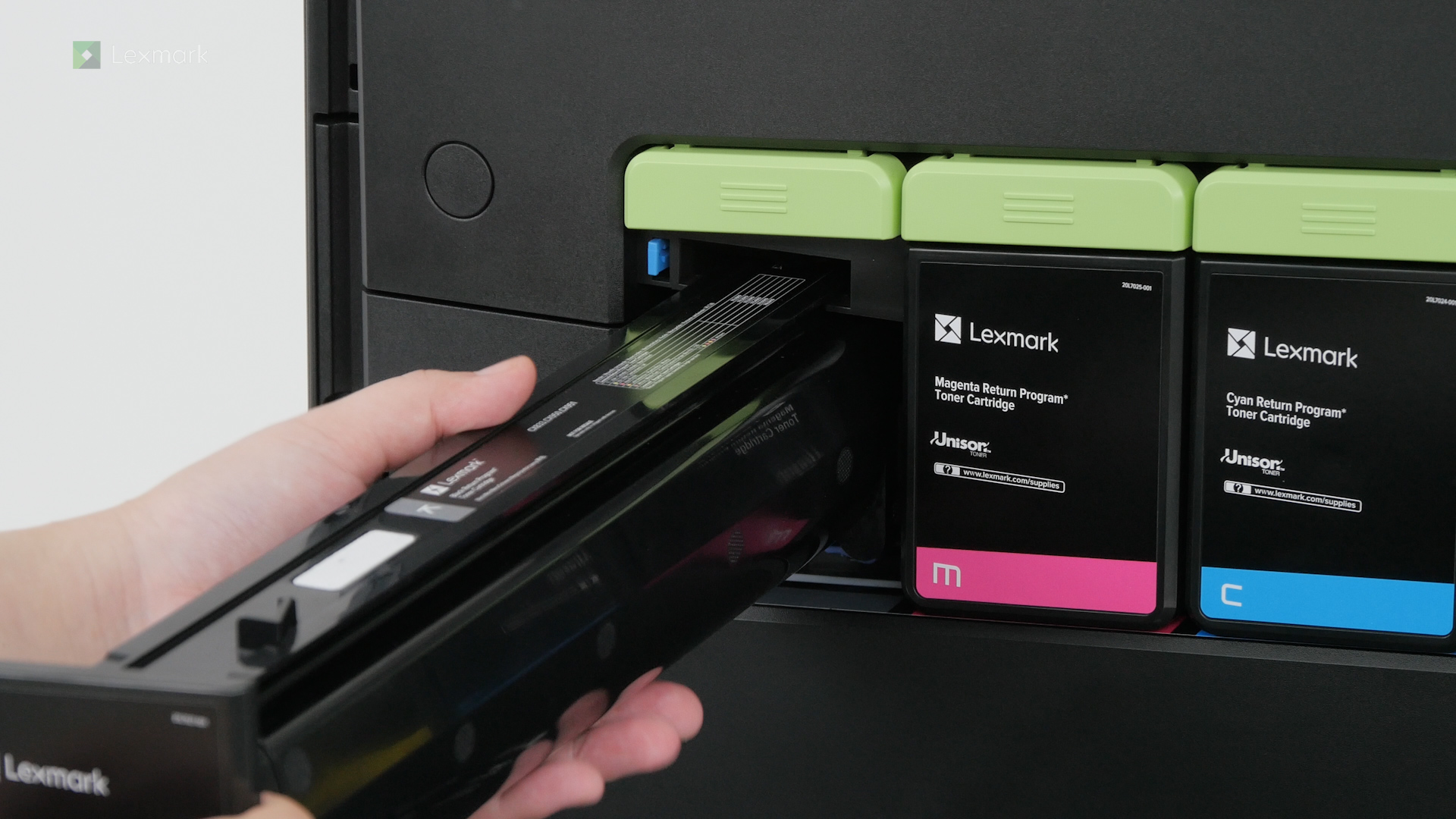
Install a new toner cartridge when the replace cartridge message appears for the affected color.
Learn how to install a replacement black imaging unit on your printer.
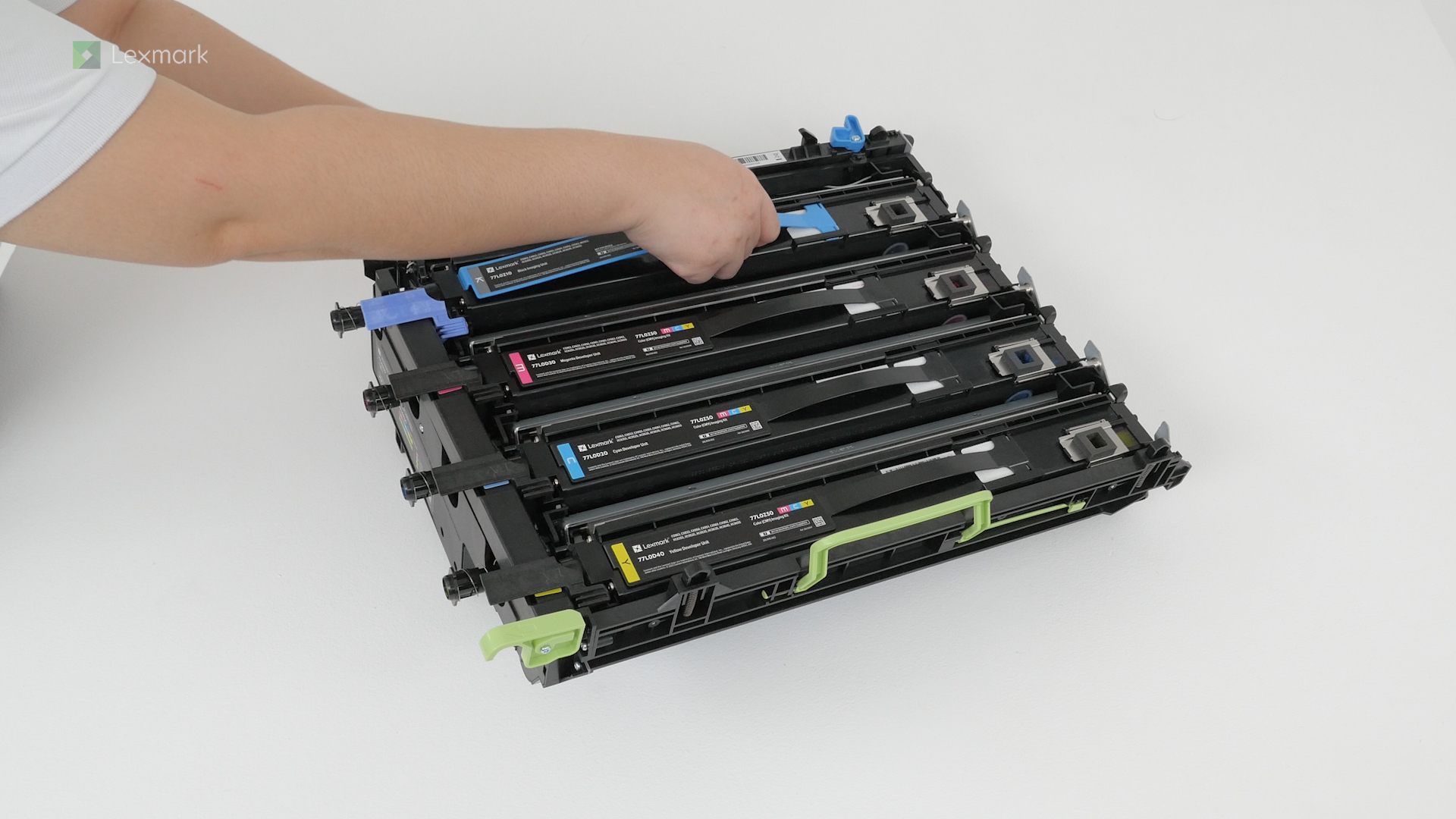
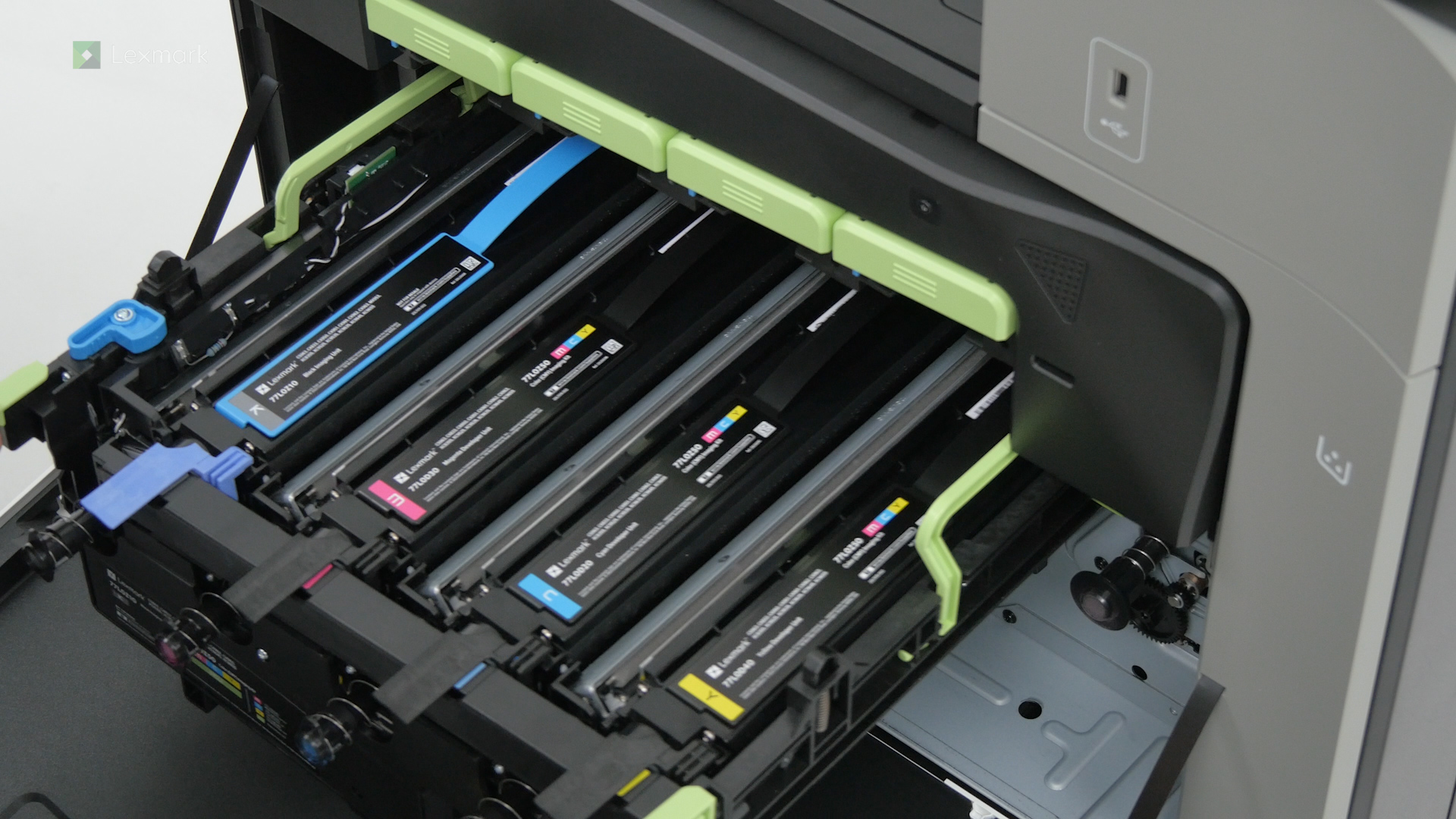
Learn how to replace the color imaging kit in your printer with these simple steps.
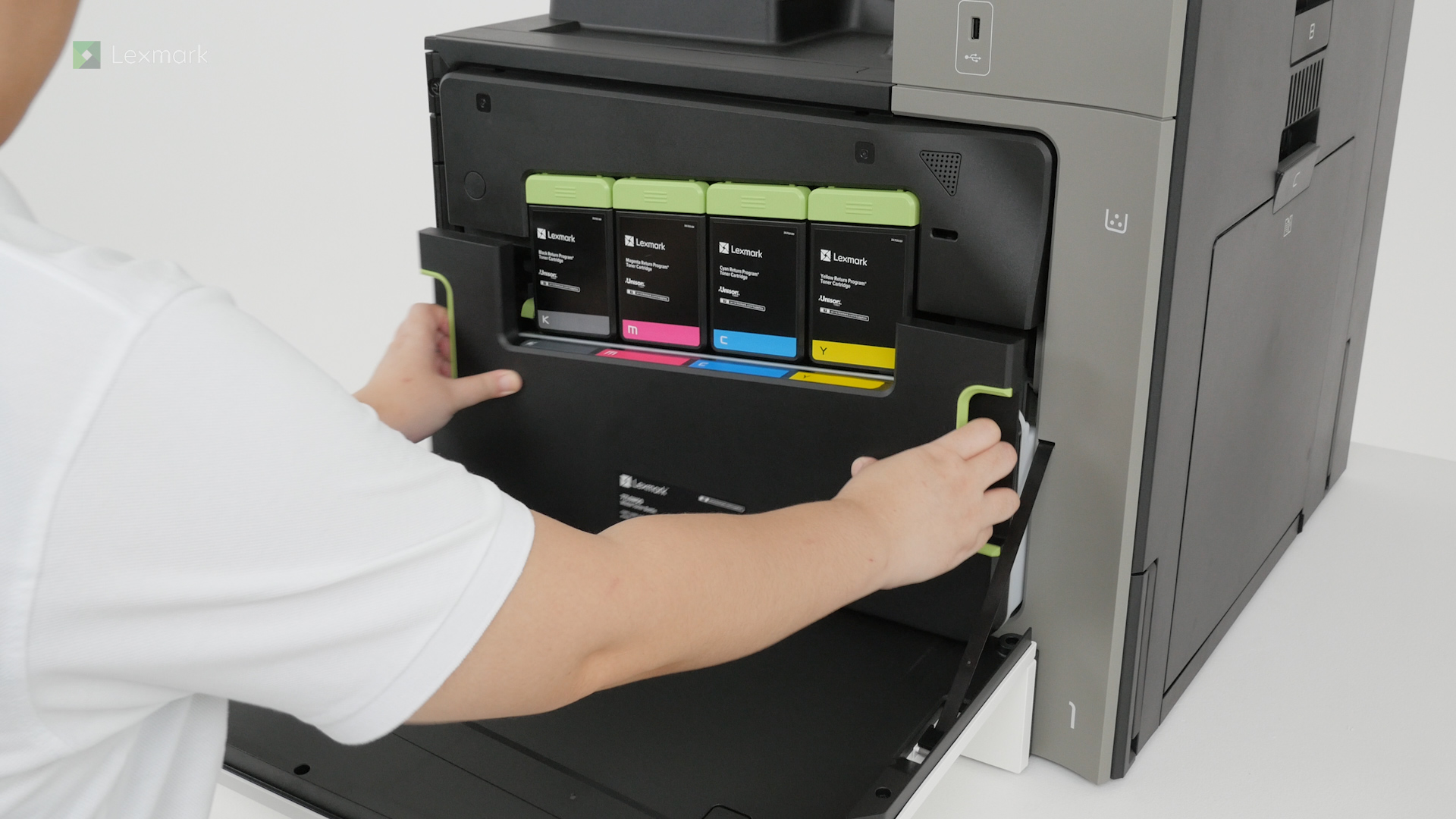
Learn how to replace the waste toner bottle of your printer. Changing the waste toner bottle regularly prevents toner spillage.
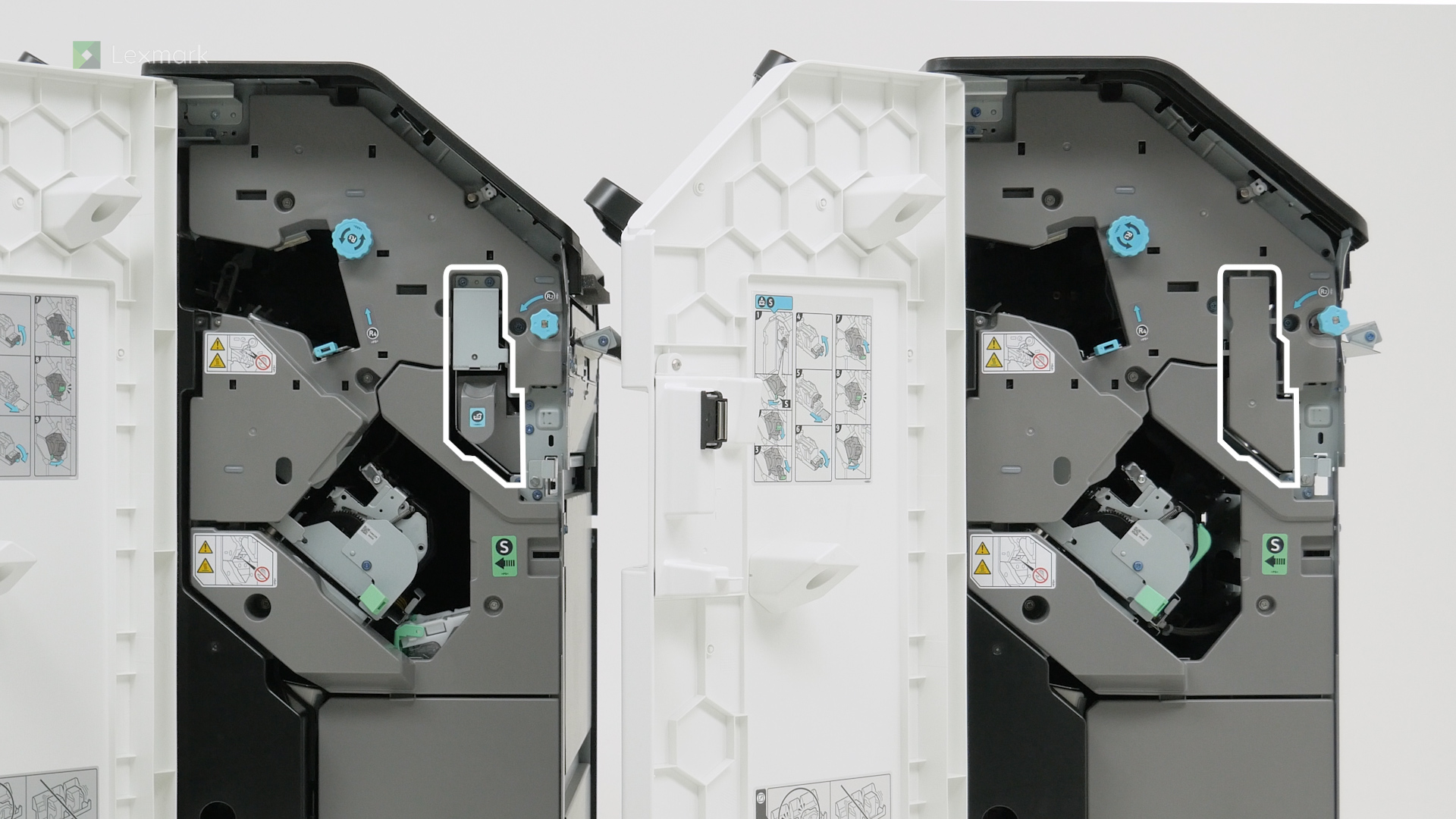
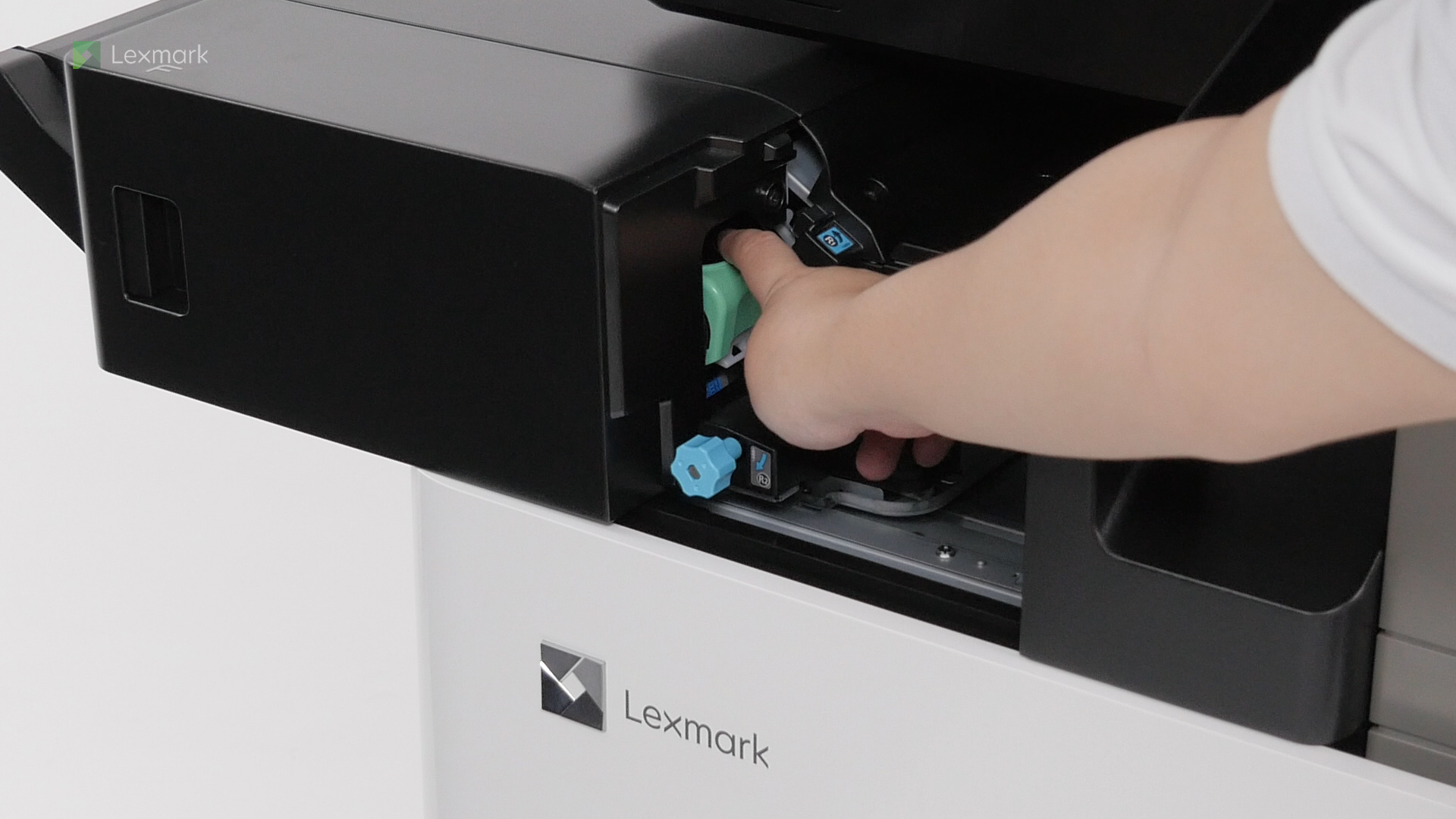
Follow these steps to replace the staple cartridge in the staple finisher to continue stapling your printed outputs.
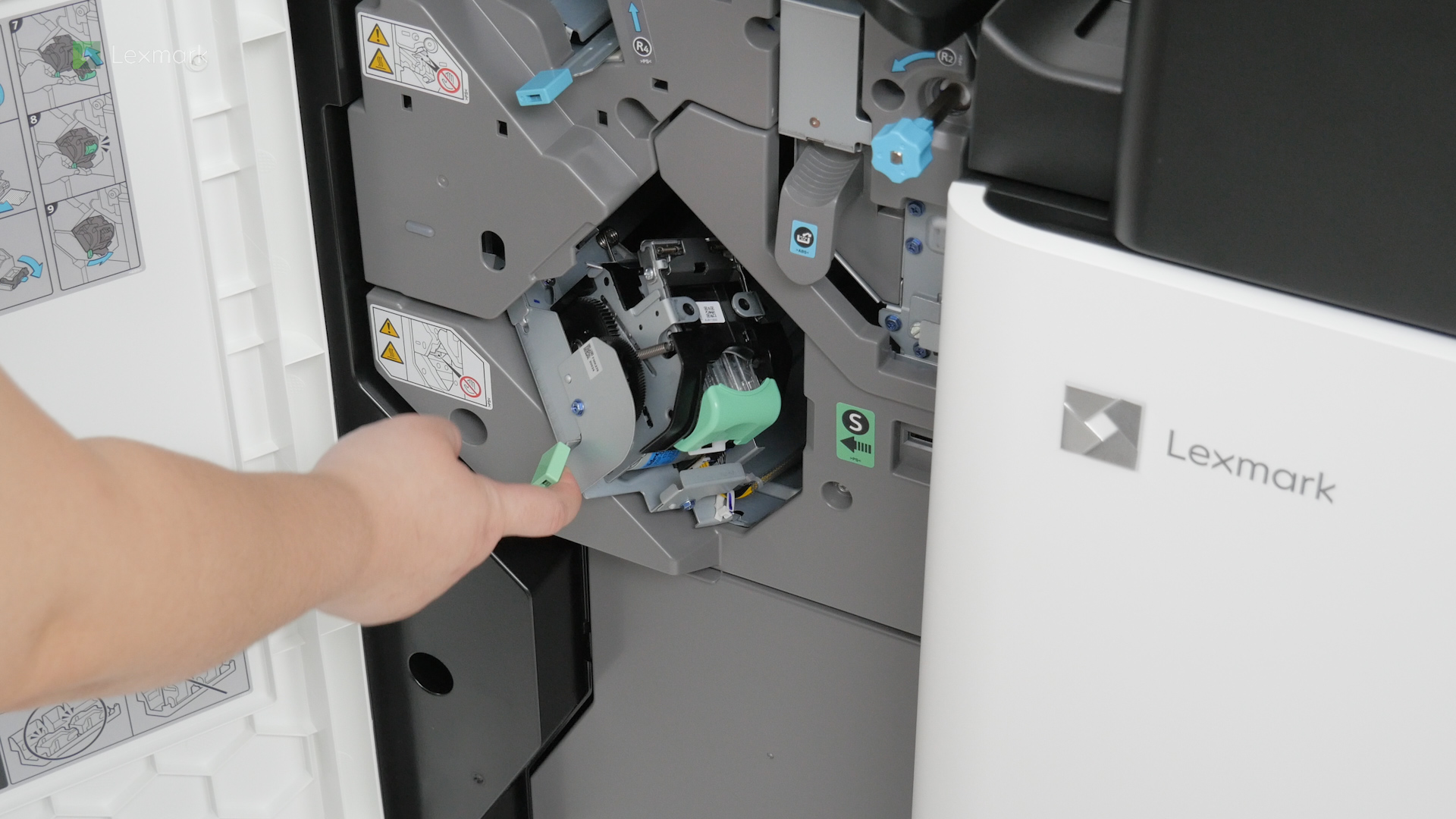
Follow these steps to replace the staple cartridge in the staple, hole punch finisher to let your printer continue stapling the printed outputs.
Follow these steps to replace the staple cartridge in the booklet finisher to continue stapling your printed outputs.
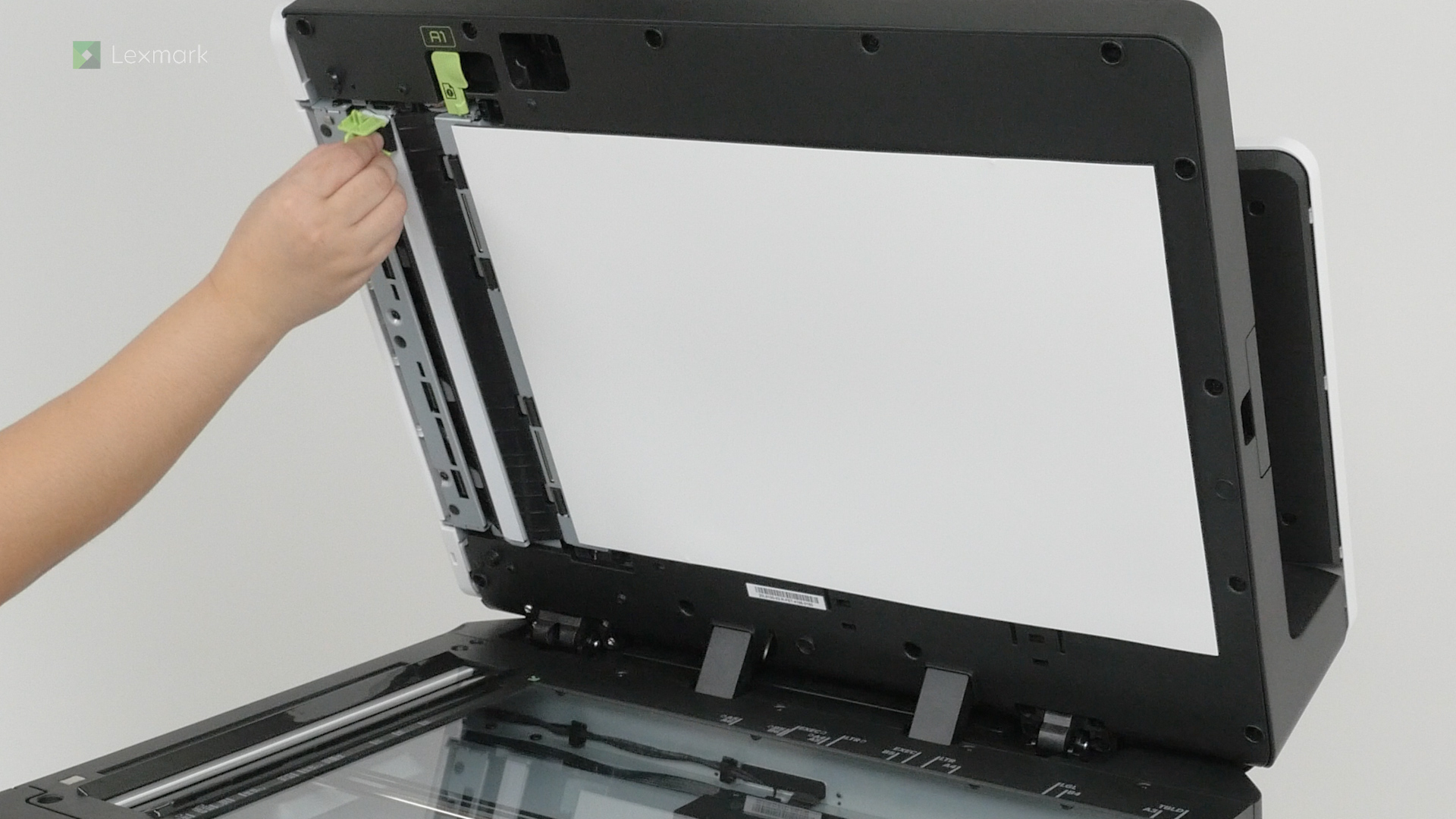
Clean your scanner periodically to avoid getting blurry and faded scanned images or text.
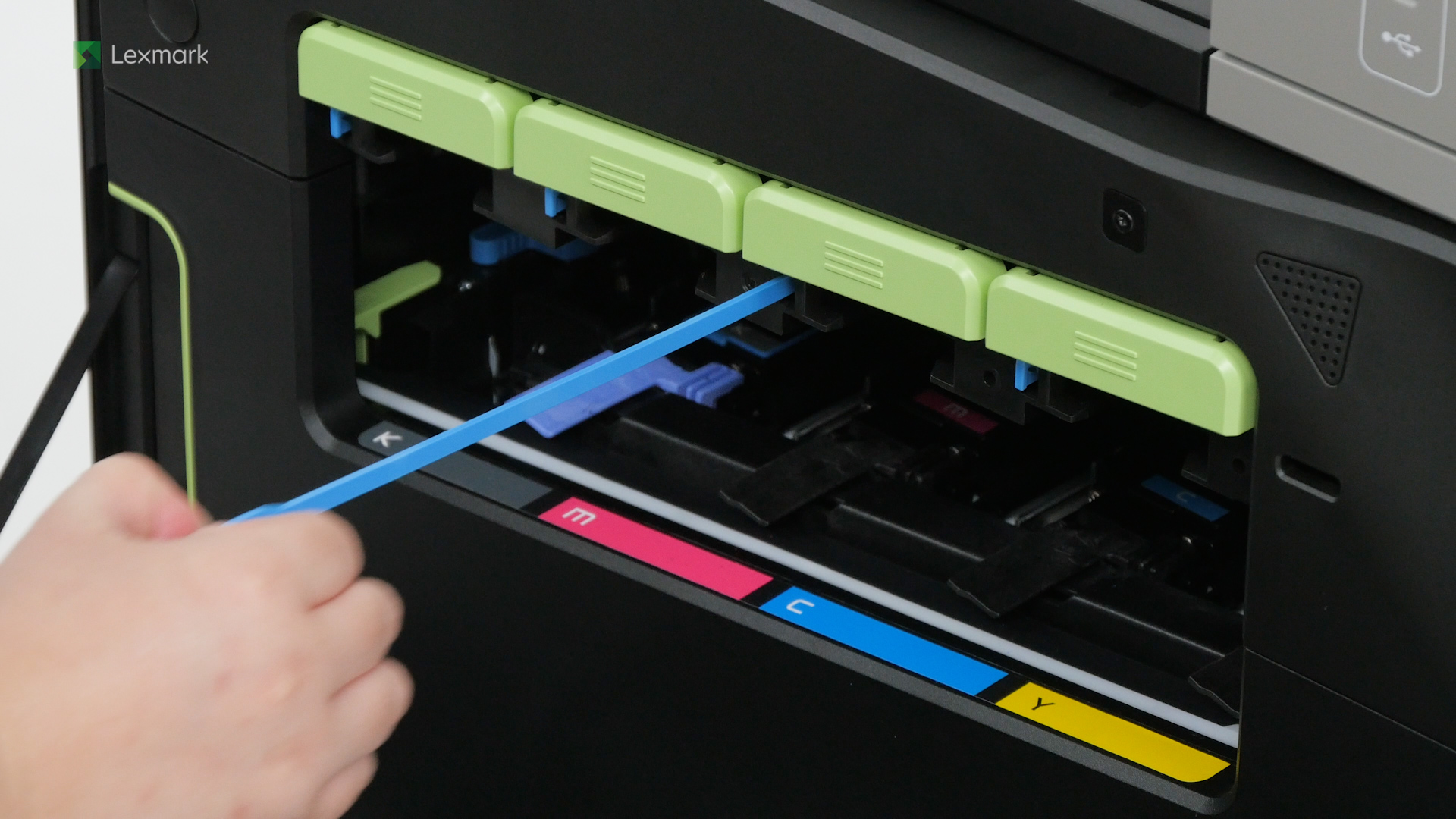
Clean the printhead lenses regularly to avoid streaks and lines in your prints.
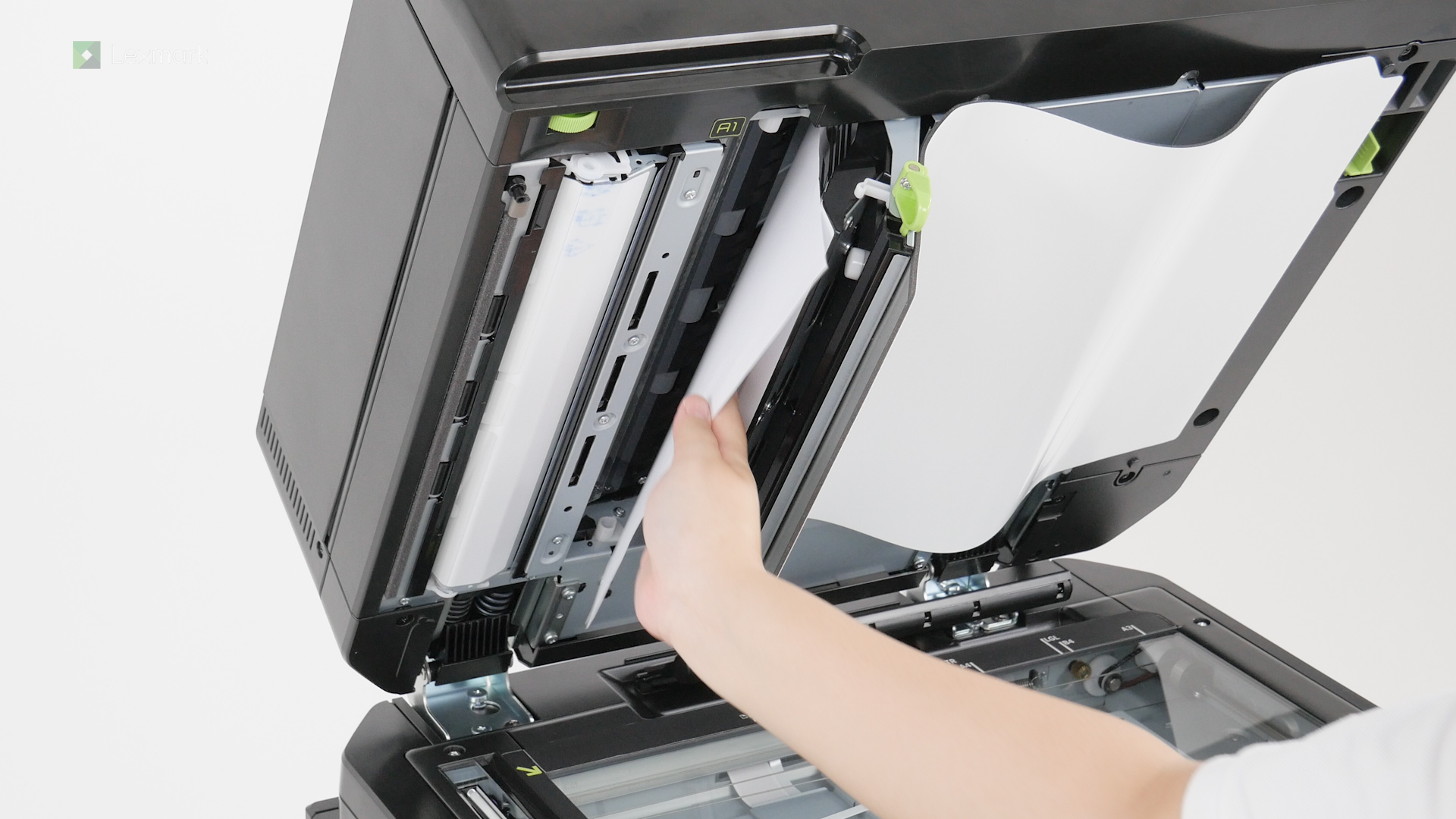
Remove paper that is stuck in the automatic document feeder to continue printing.
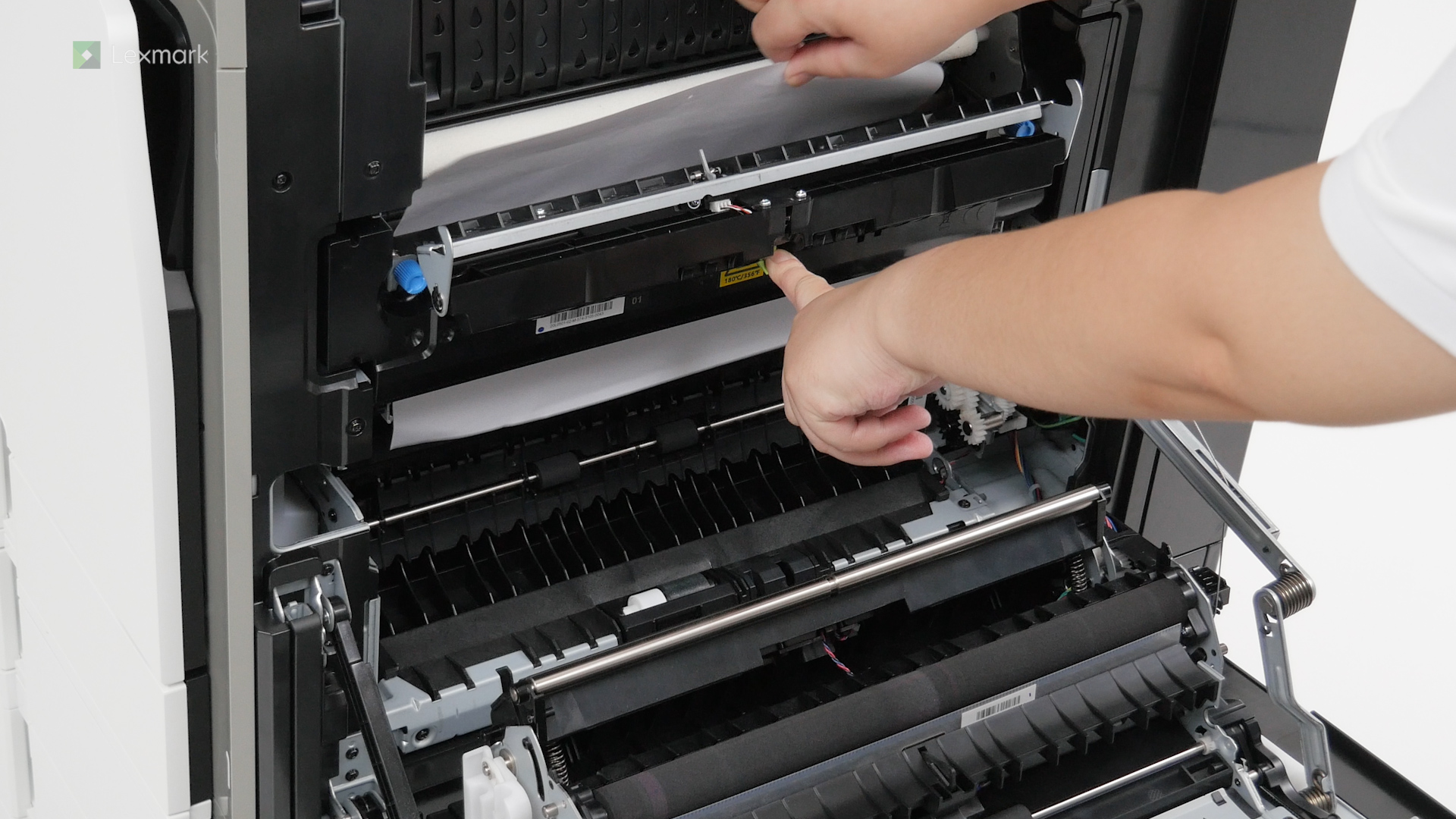
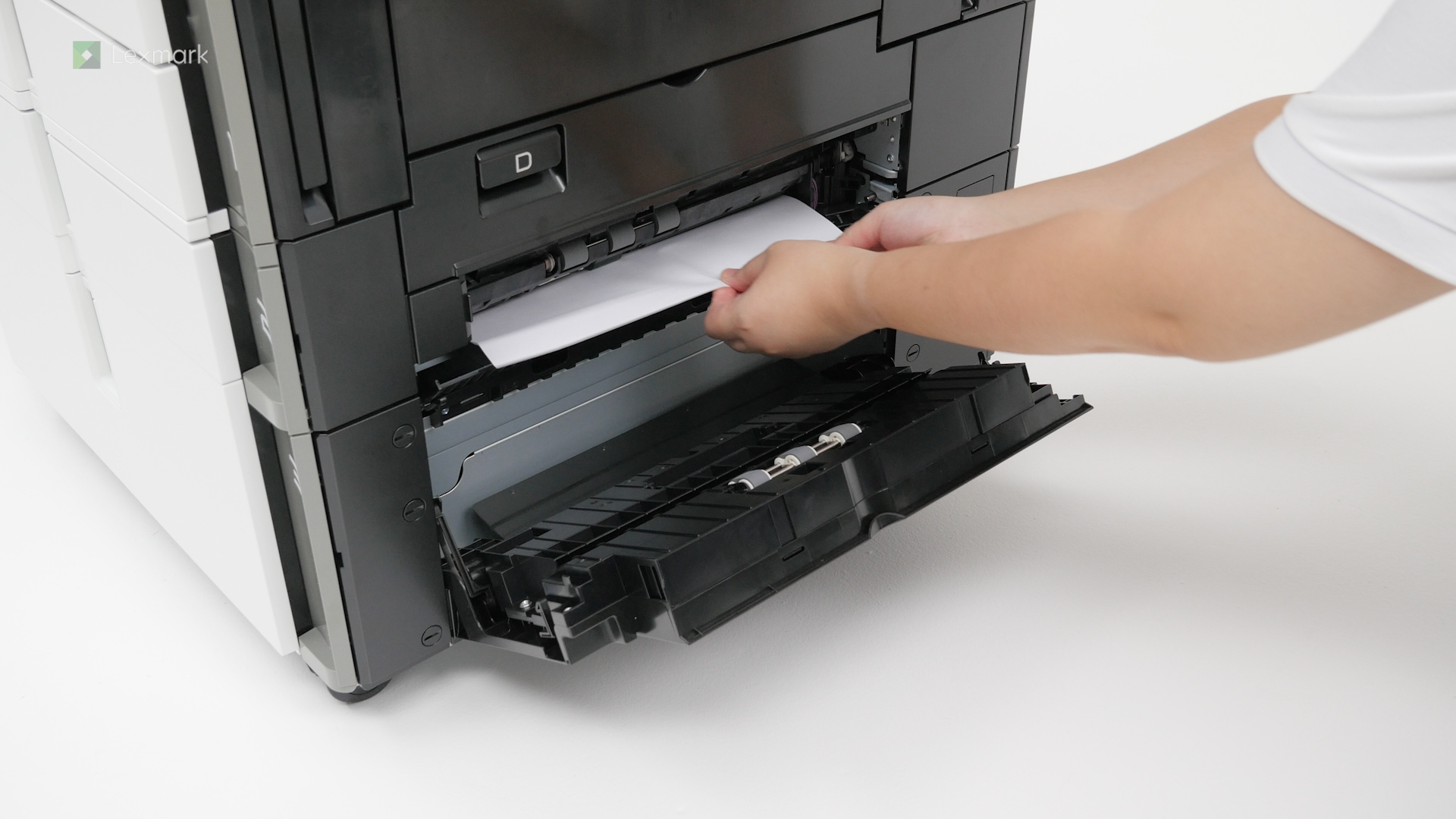
Remove paper that is stuck in the fuser area or duplex unit to continue printing.
Remove paper that is stuck in the standard tray to continue printing.
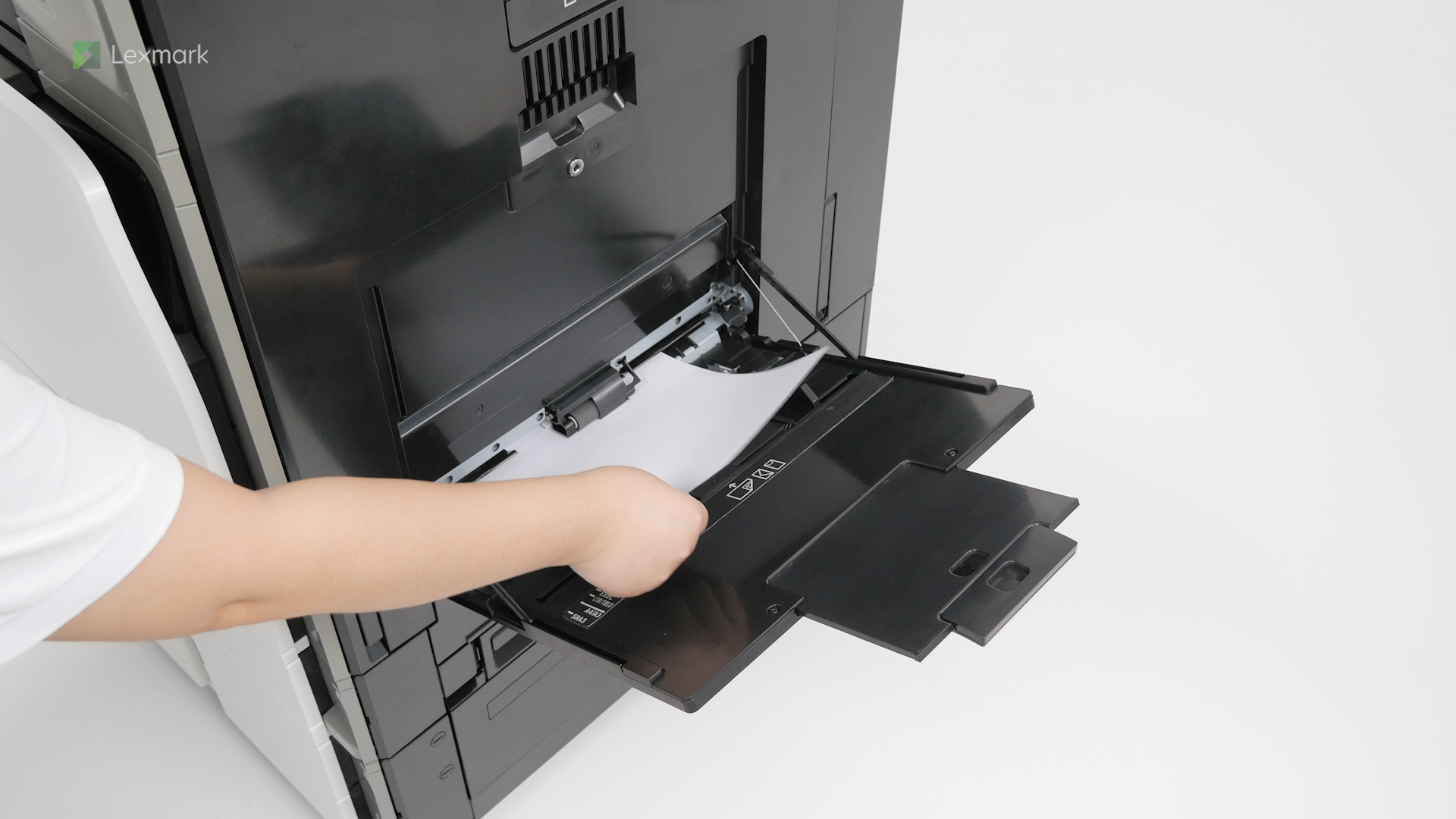
Remove paper that is stuck in the multipurpose feeder to continue printing.
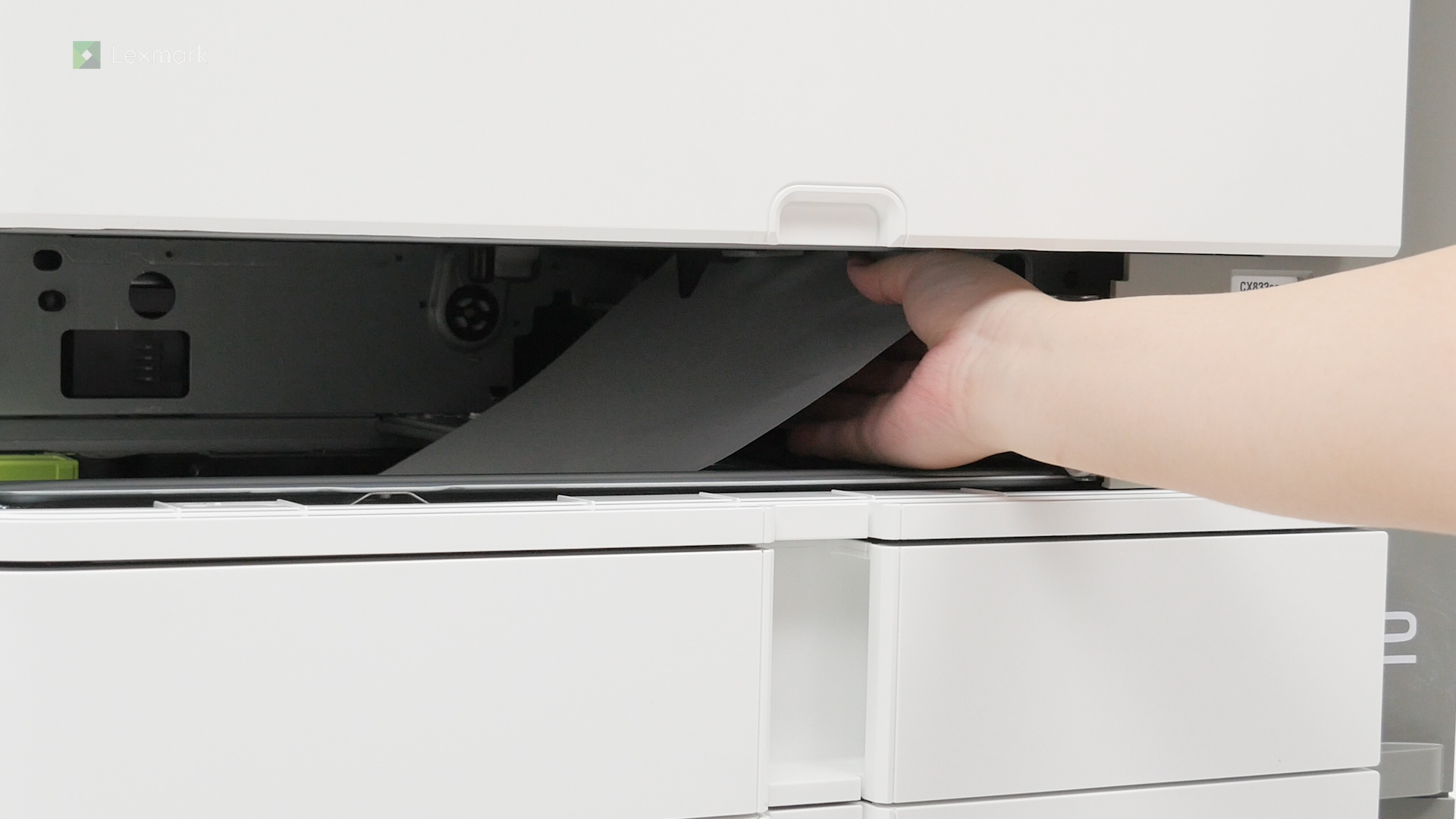
Remove paper that is stuck in trays to continue printing.
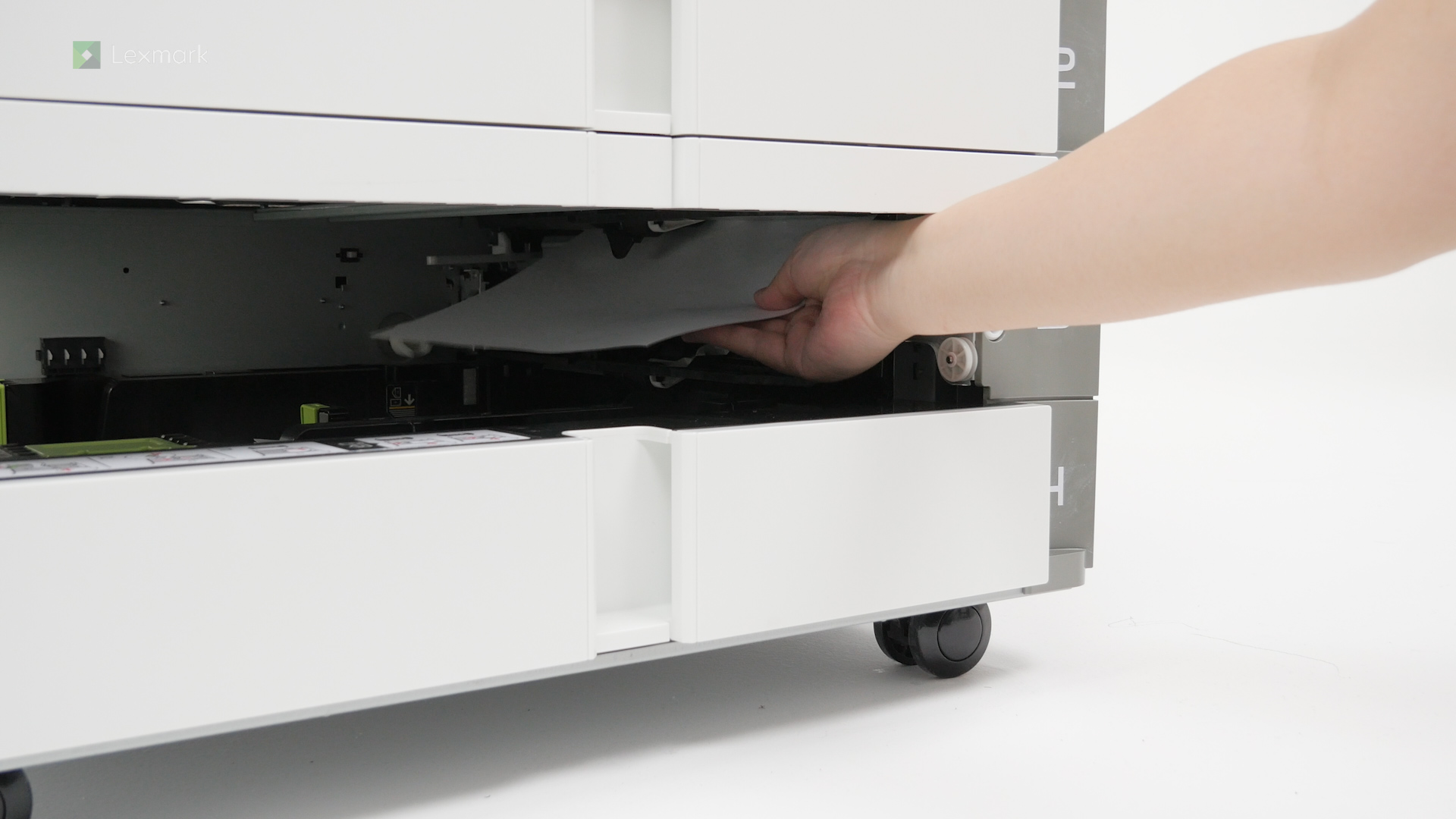
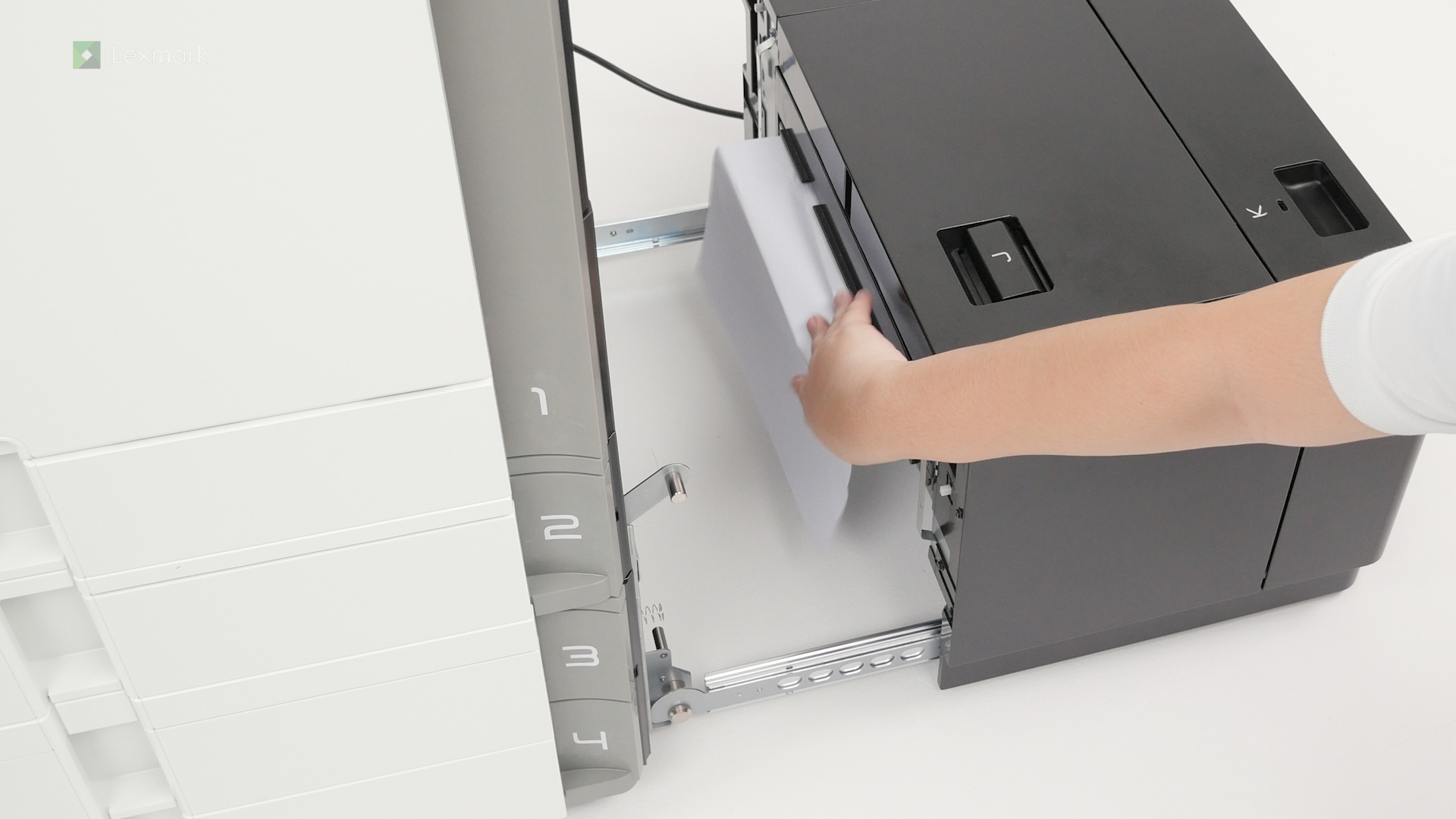
Remove paper that is stuck in the 2000-sheet tray to continue printing.
Remove paper that is stuck in the 2000-sheet tandem tray to continue printing.
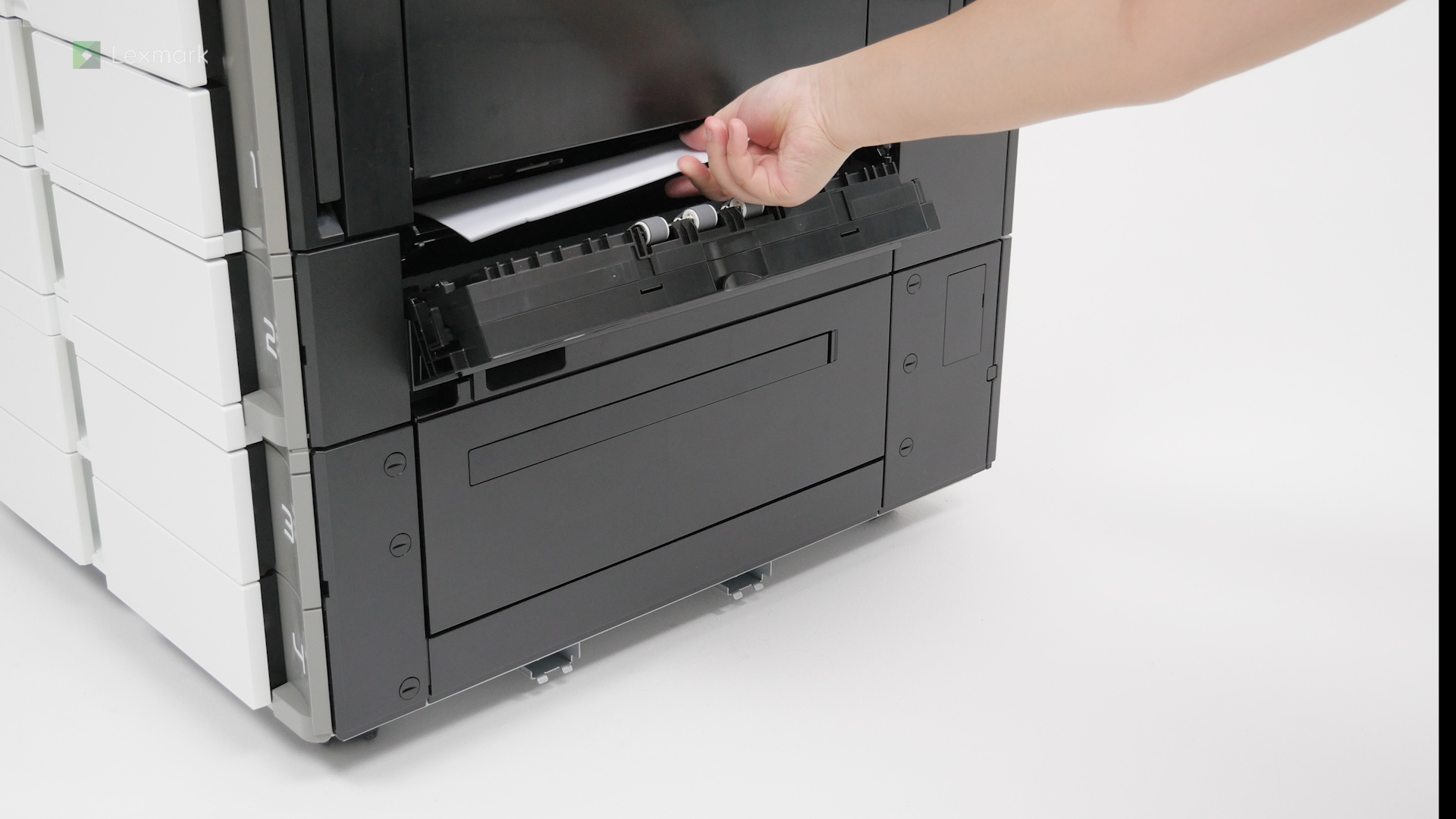
Remove paper that is stuck in the 1500-sheet tray to continue printing.
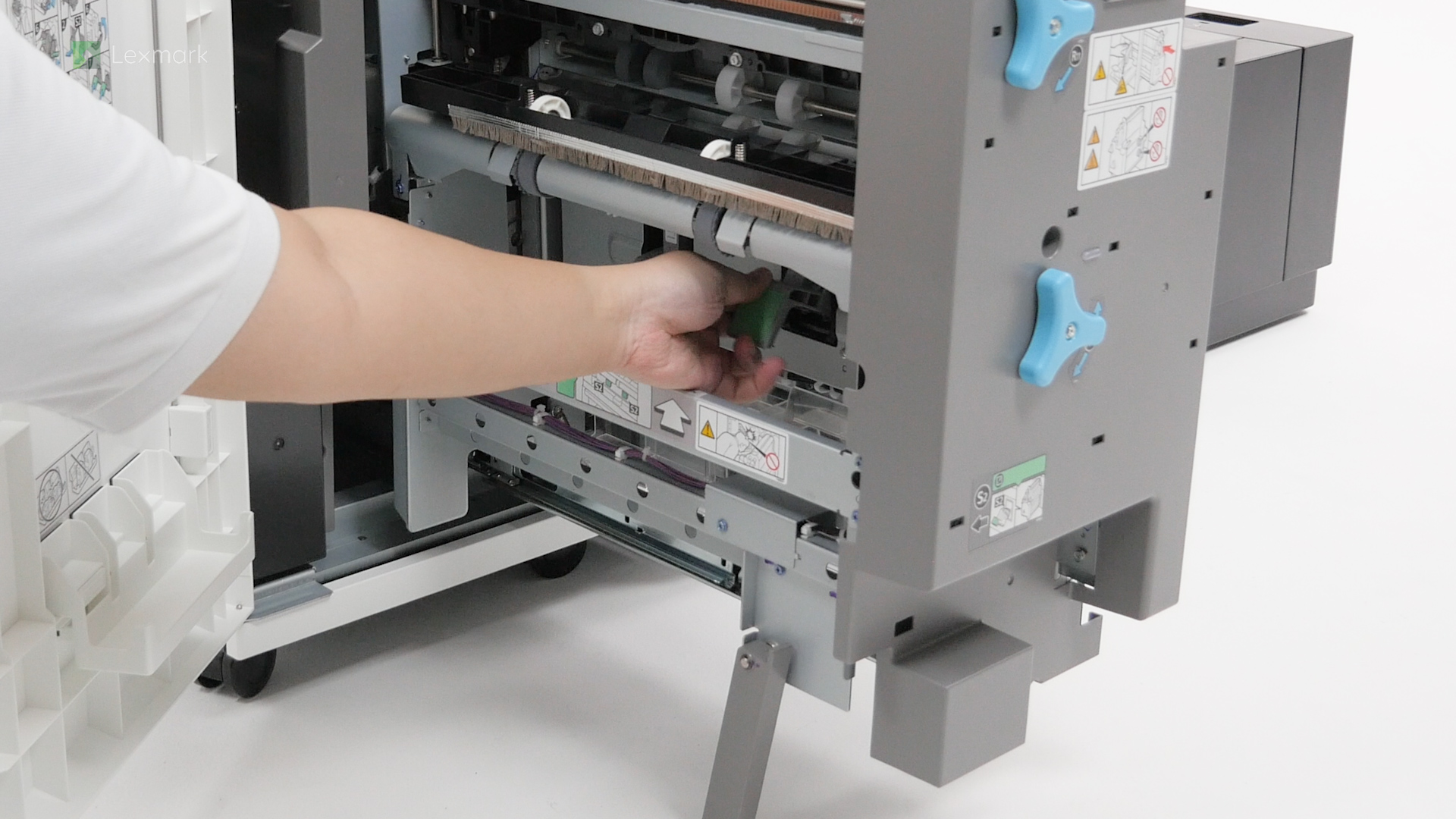
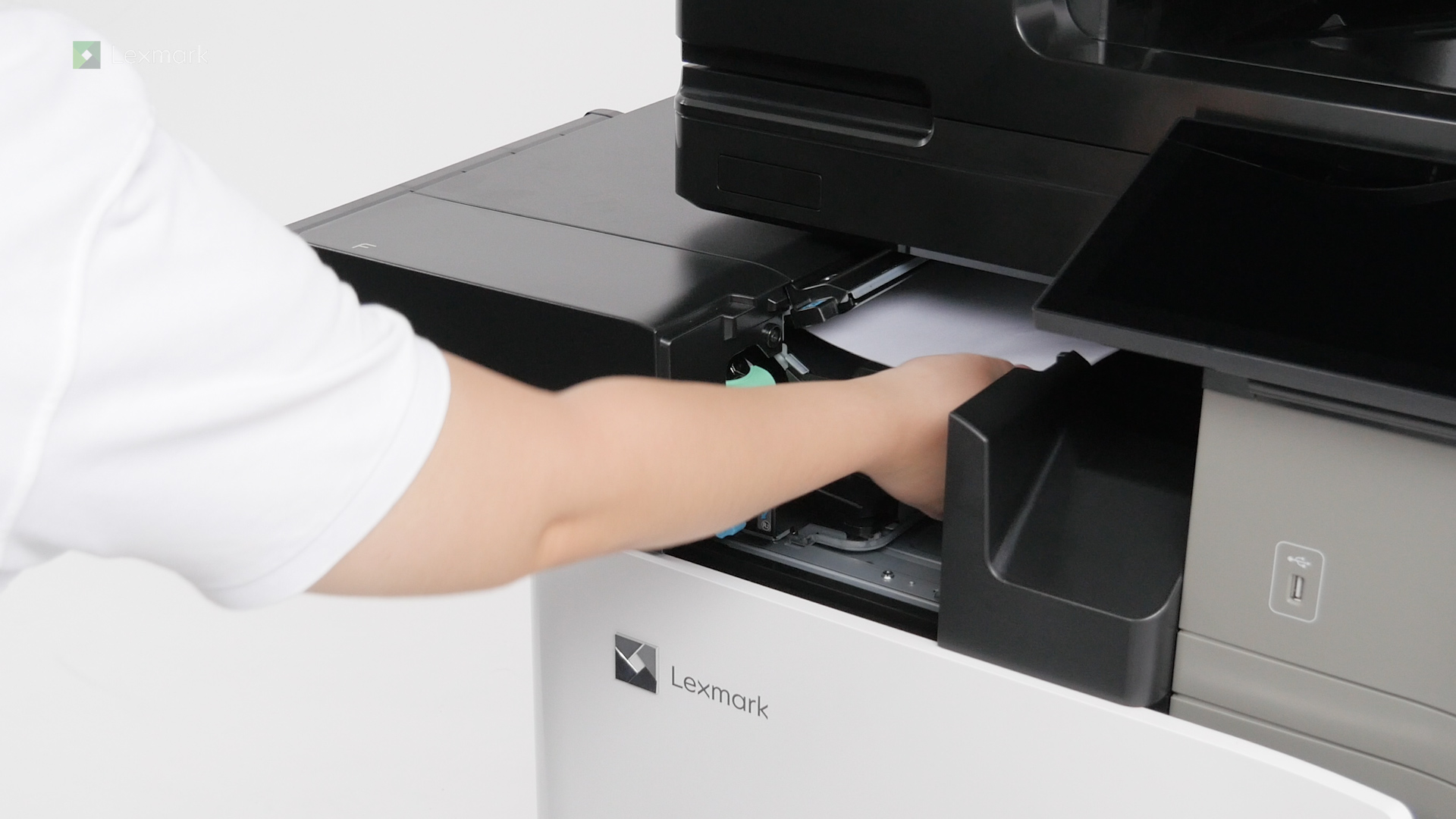
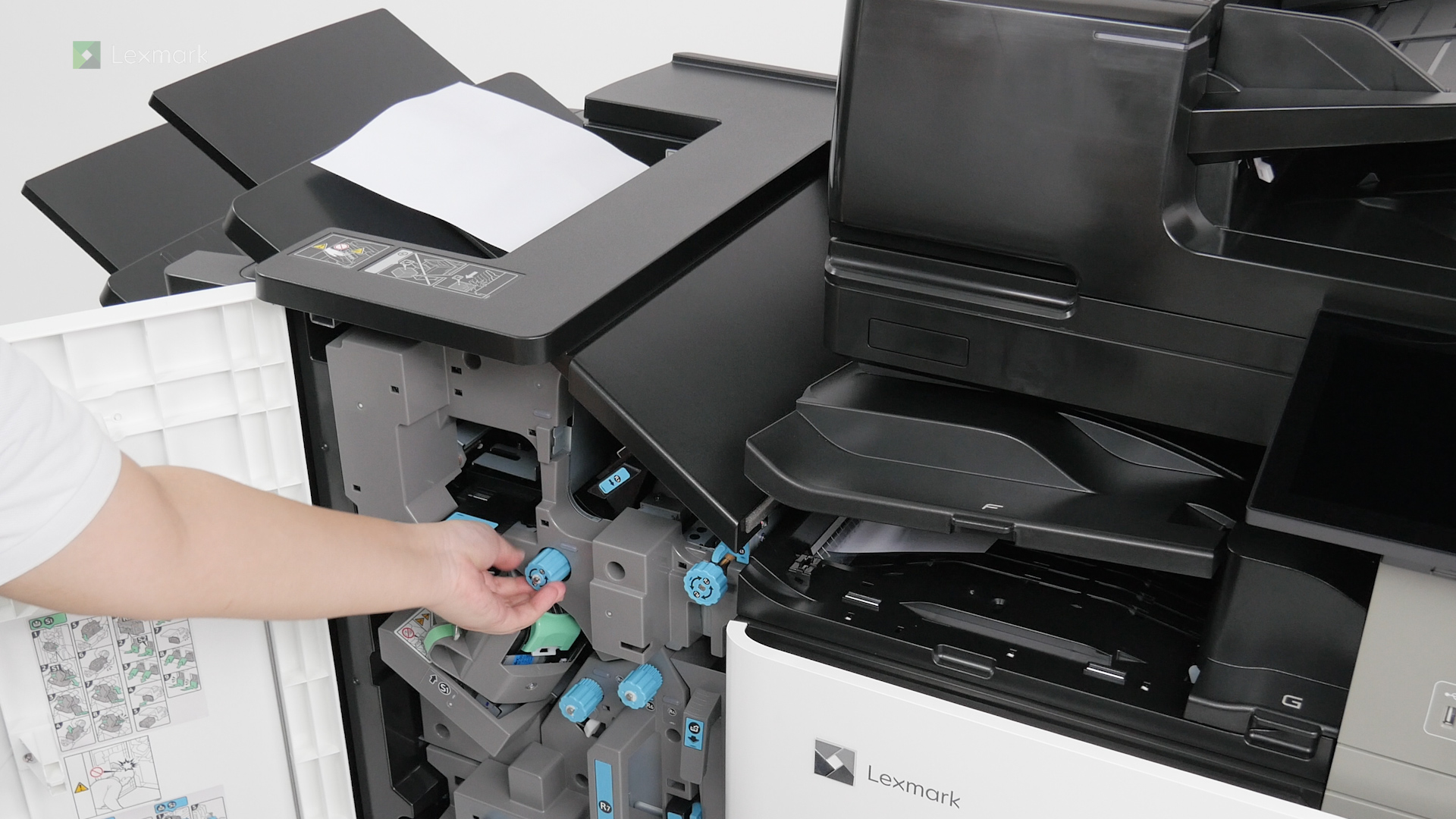
Remove paper that is stuck in the staple finisher to continue stapling and printing.
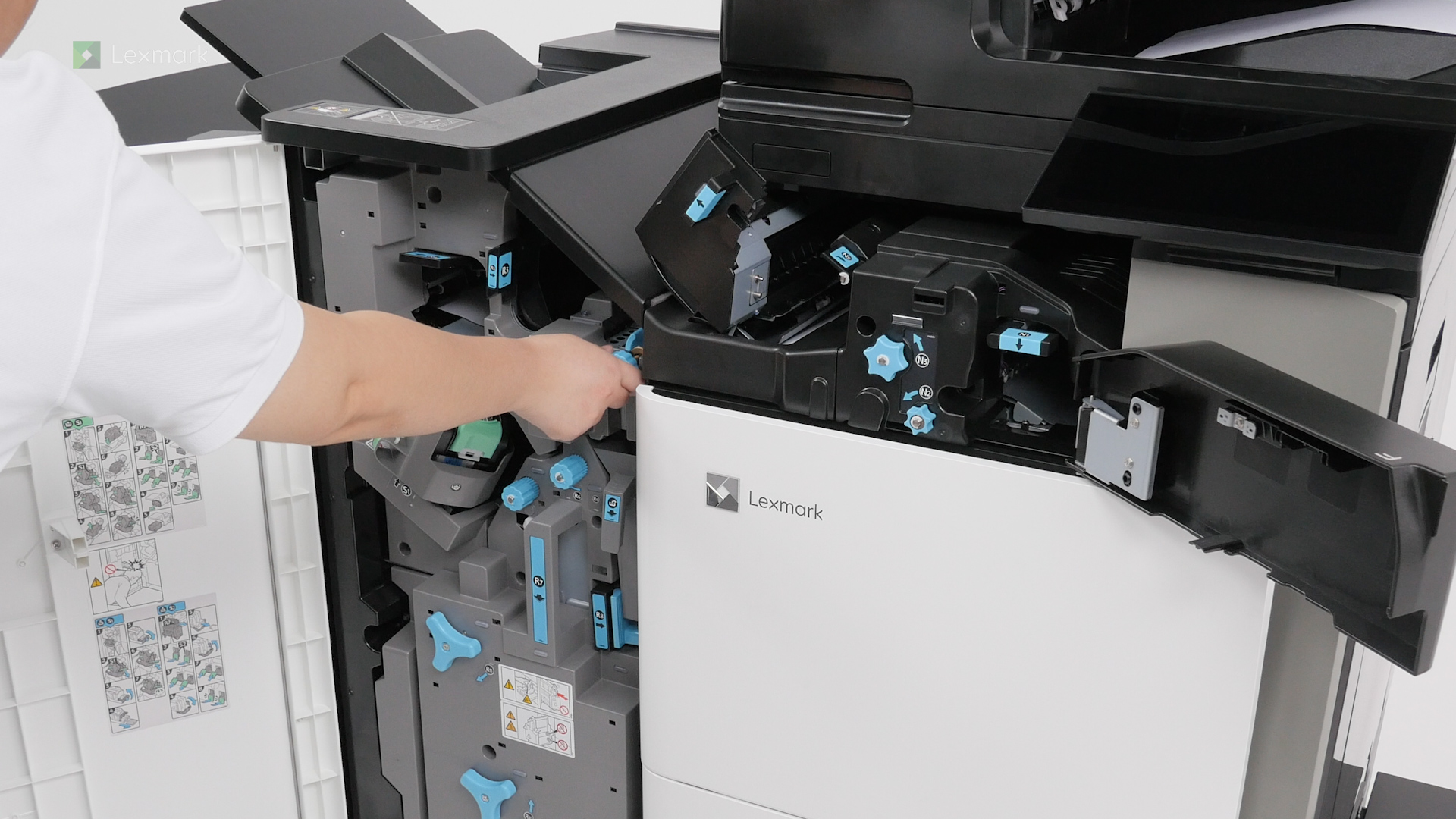
Remove paper jam in the staple finisher with hole punch to continue stapling, punching, and printing.
Remove paper that is stuck in the paper transport with folding option to continue printing.
Remove paper that is stuck in the staple, hole punch finisher and paper transport to continue printing.
Remove paper that is stuck in the staple, hole punch finisher and paper transport with folding option to continue printing.
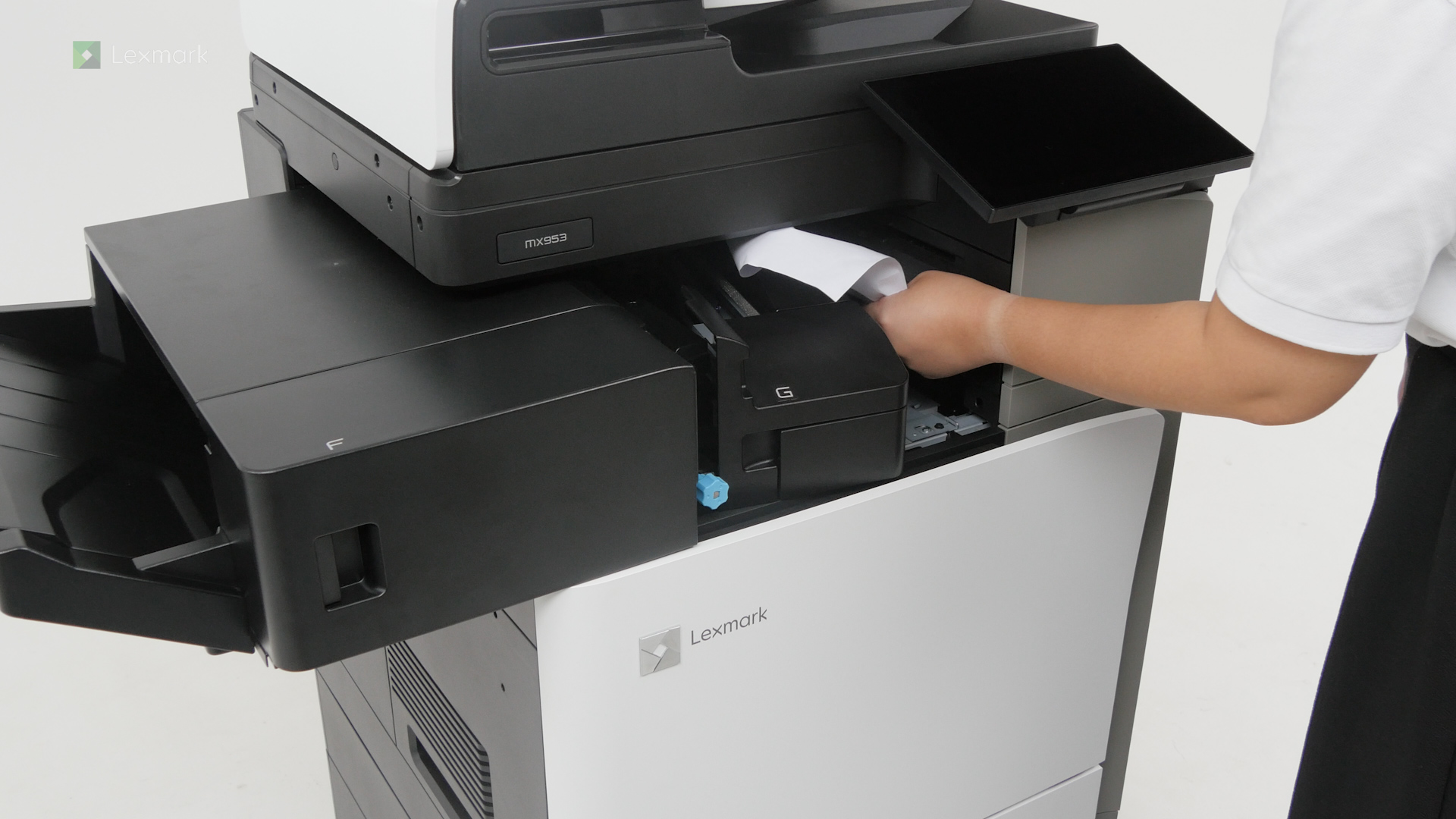
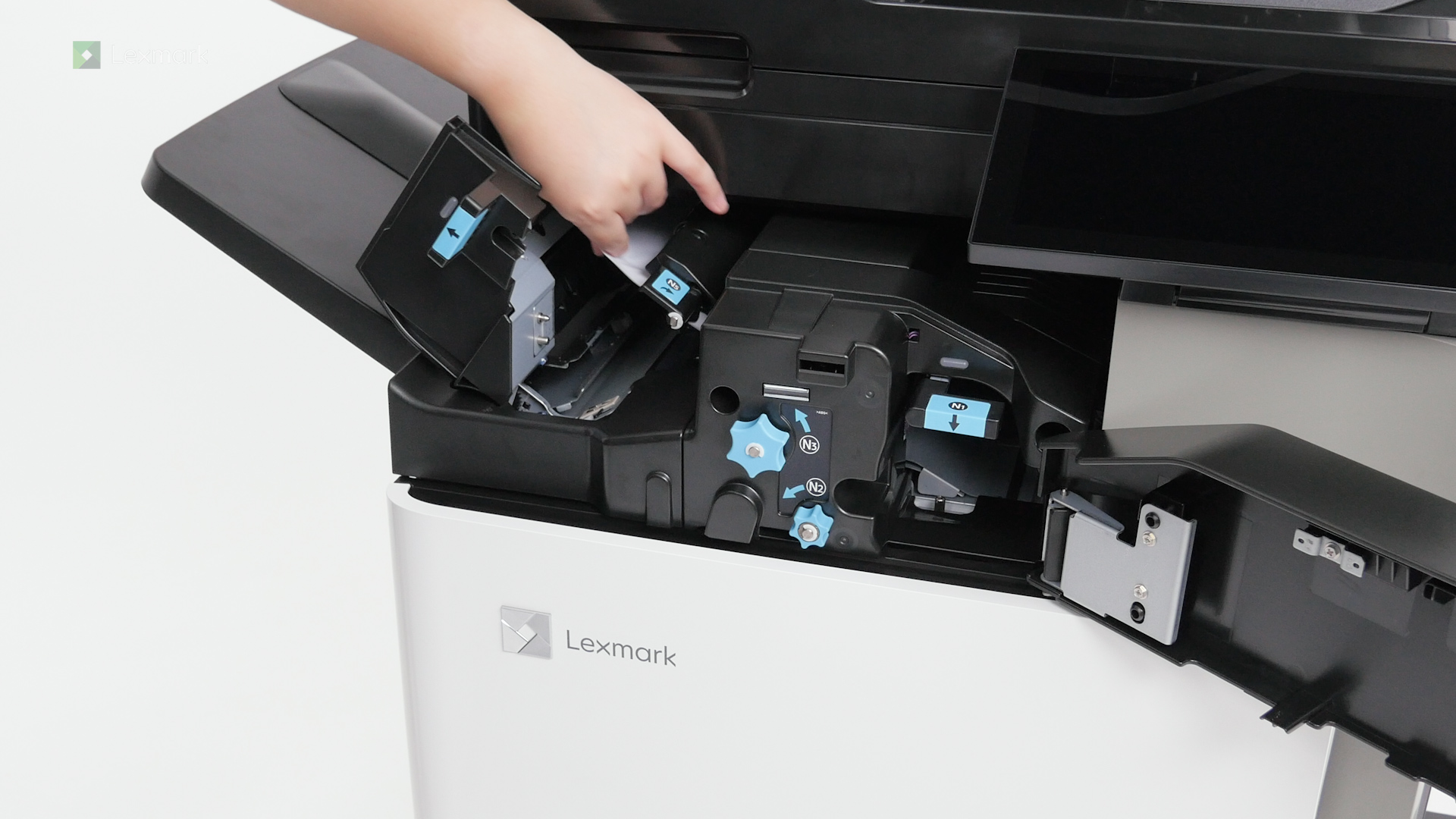
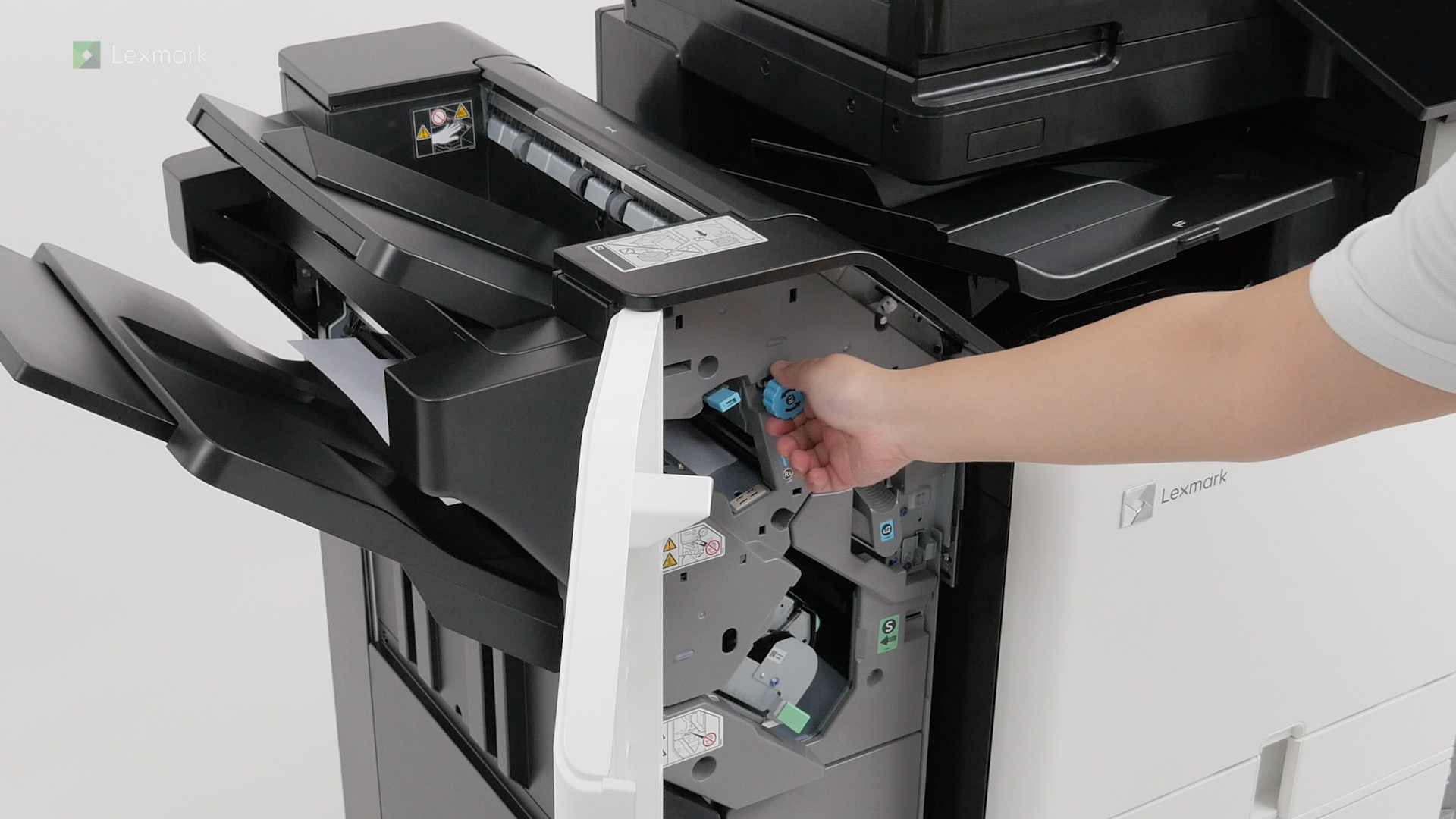
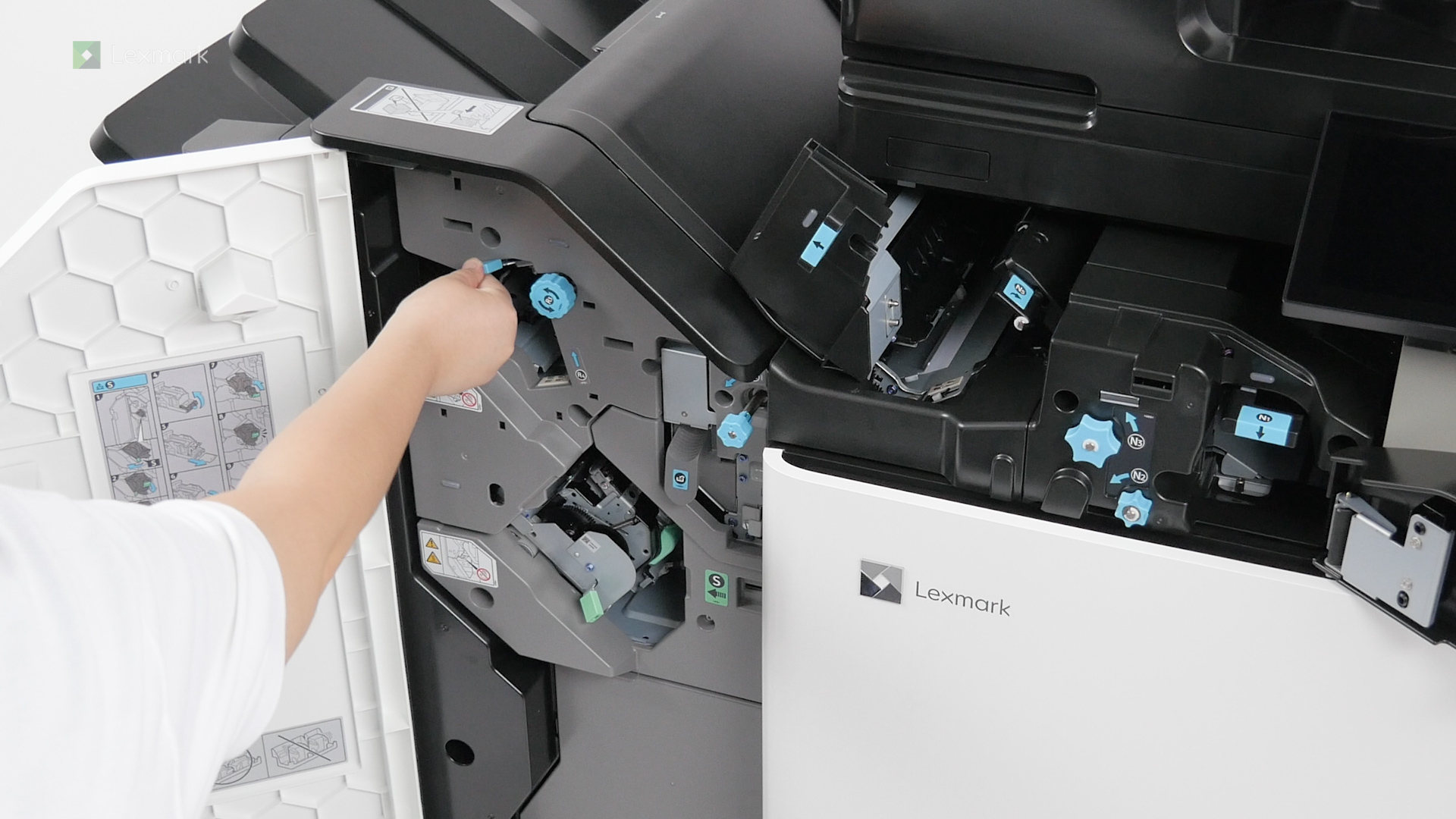
Remove paper that is stuck in the booklet finisher and paper transport to continue printing.
Remove paper that is stuck in the booklet finisher and paper transport with folding option to continue printing.
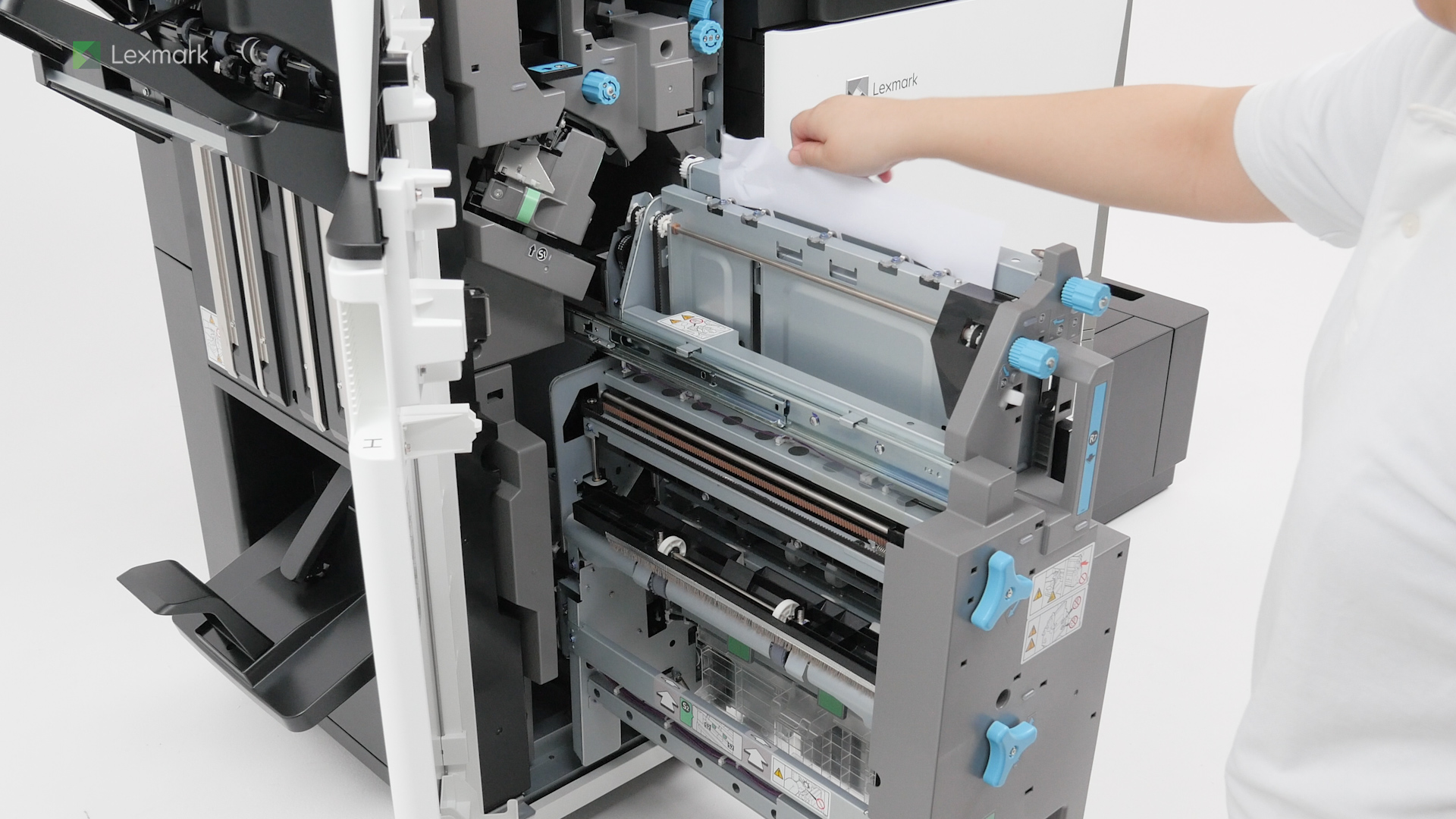
Remove paper that is stuck in the booklet maker to continue printing booklets.
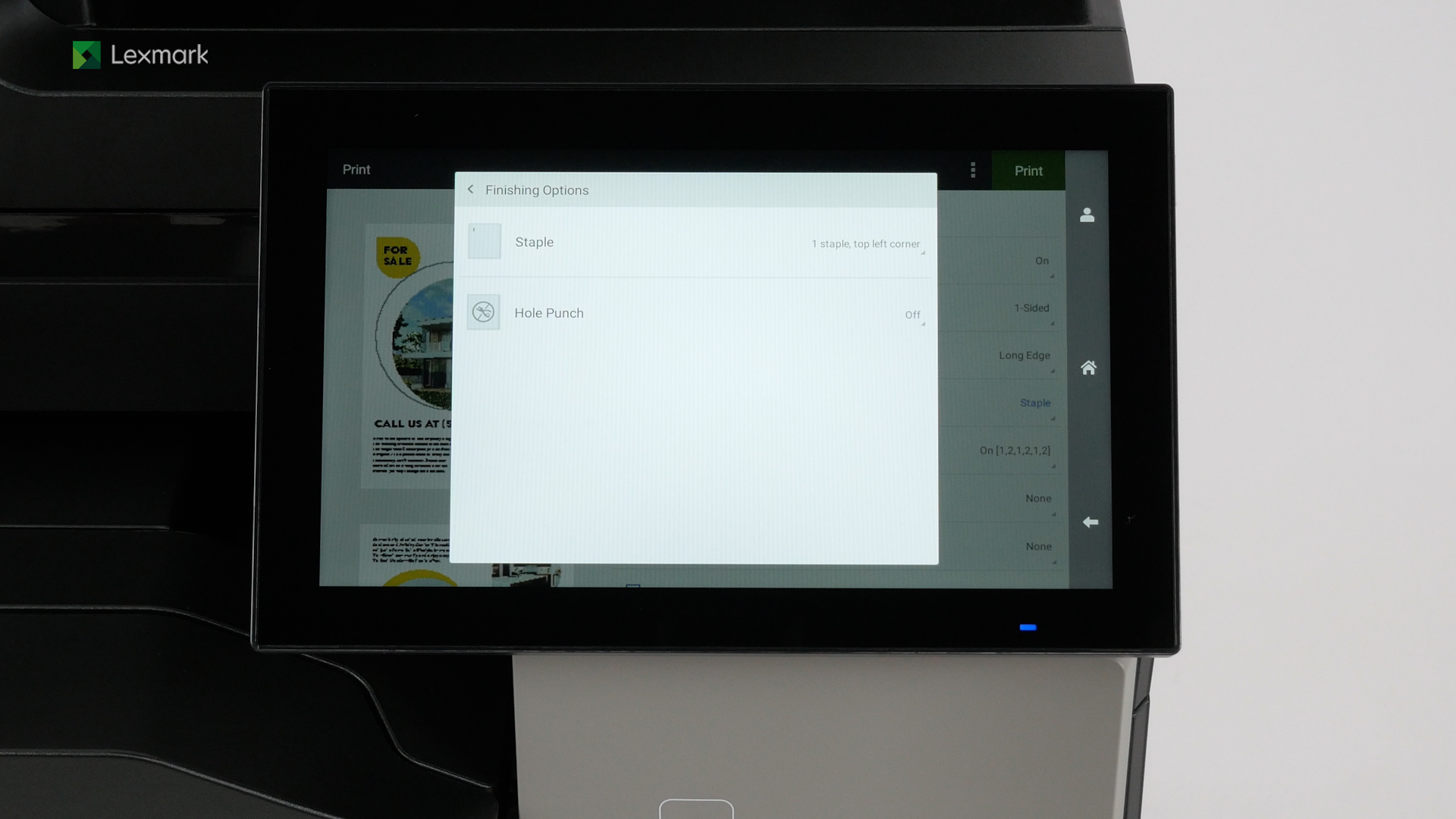
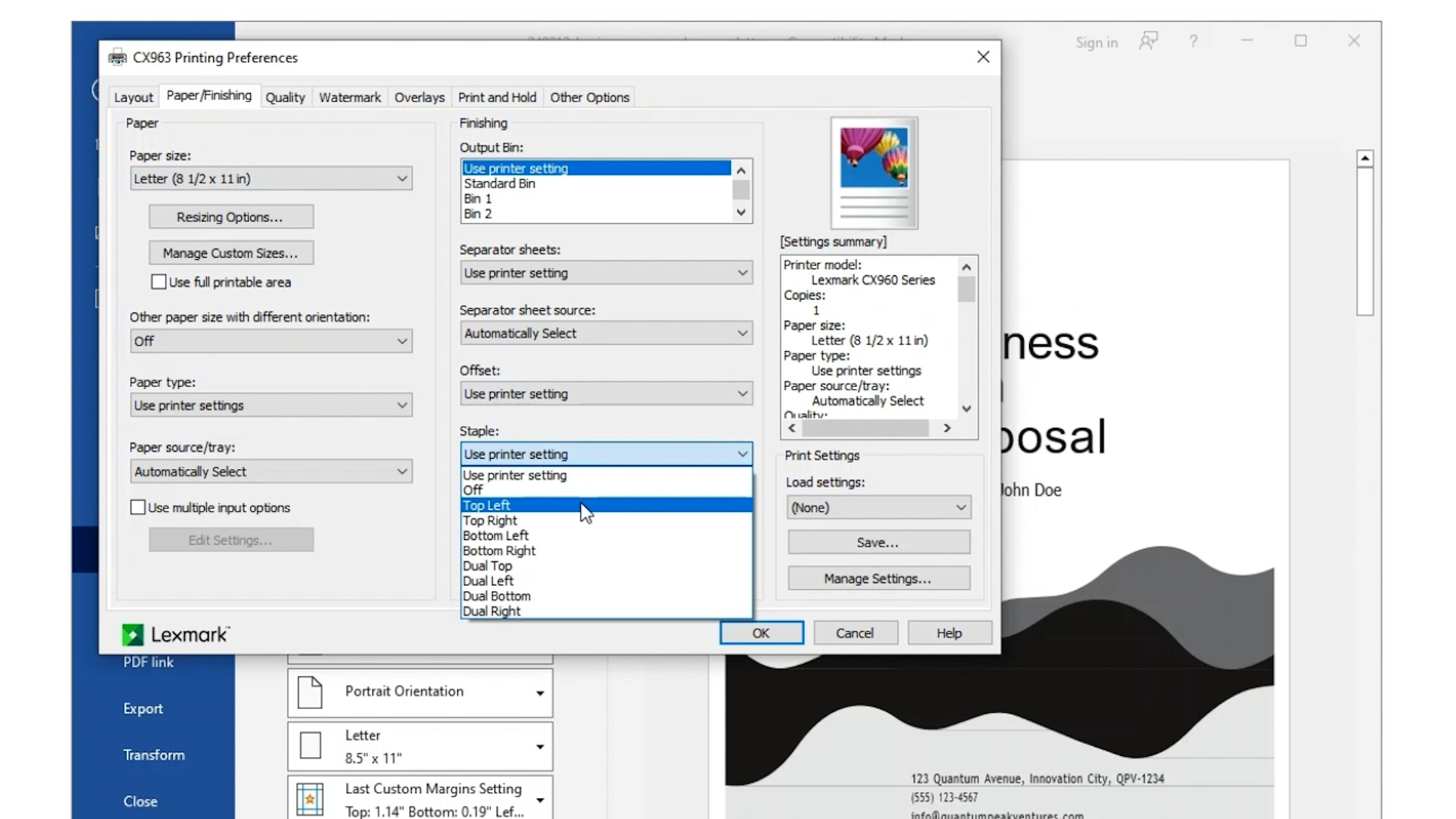
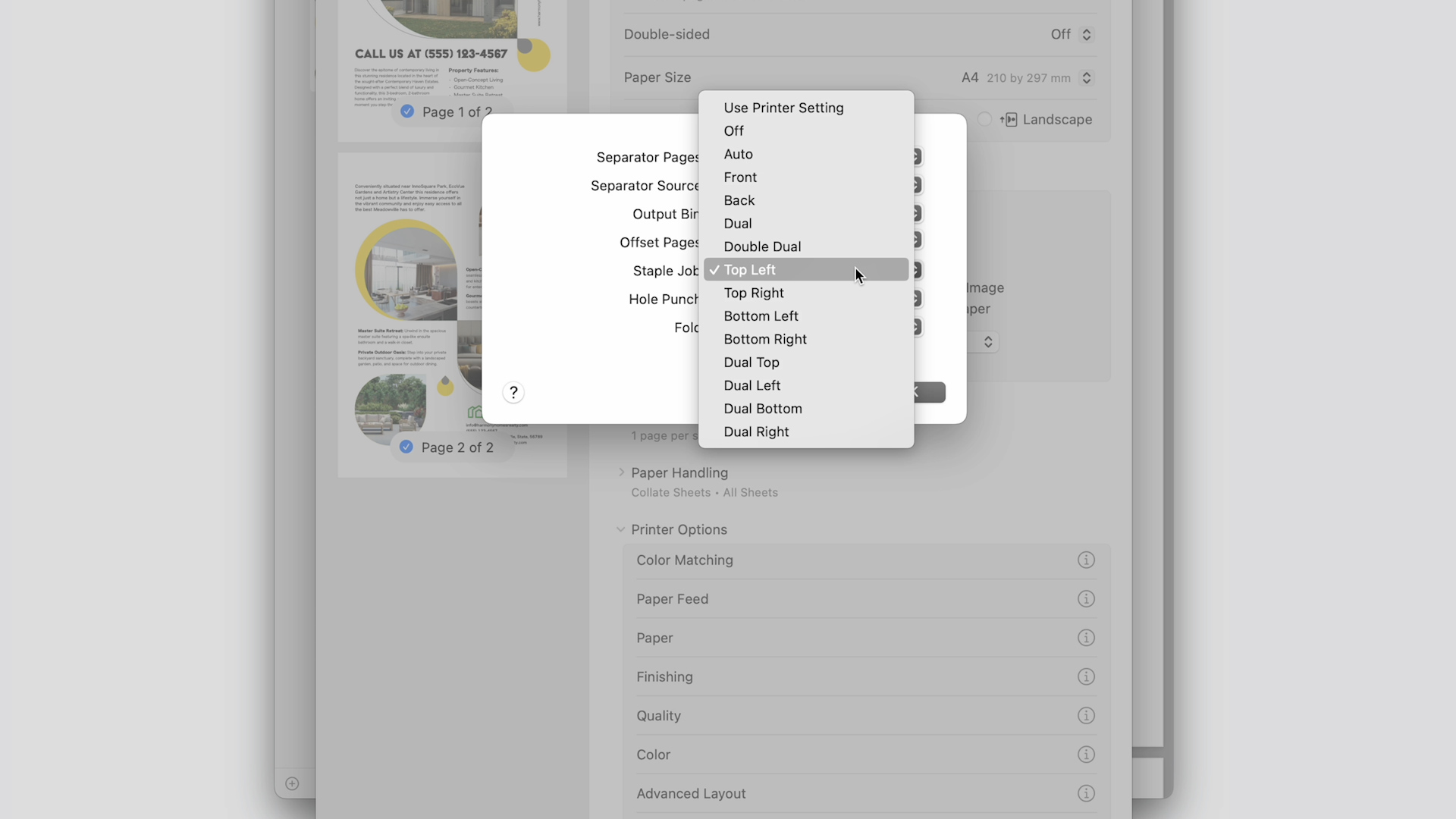
Learn how to use the stapling feature in your printer.
Learn how to use your Windows computer to send stapling jobs to your printer.
Learn how to use your Macintosh computer to send stapling jobs to your printer.
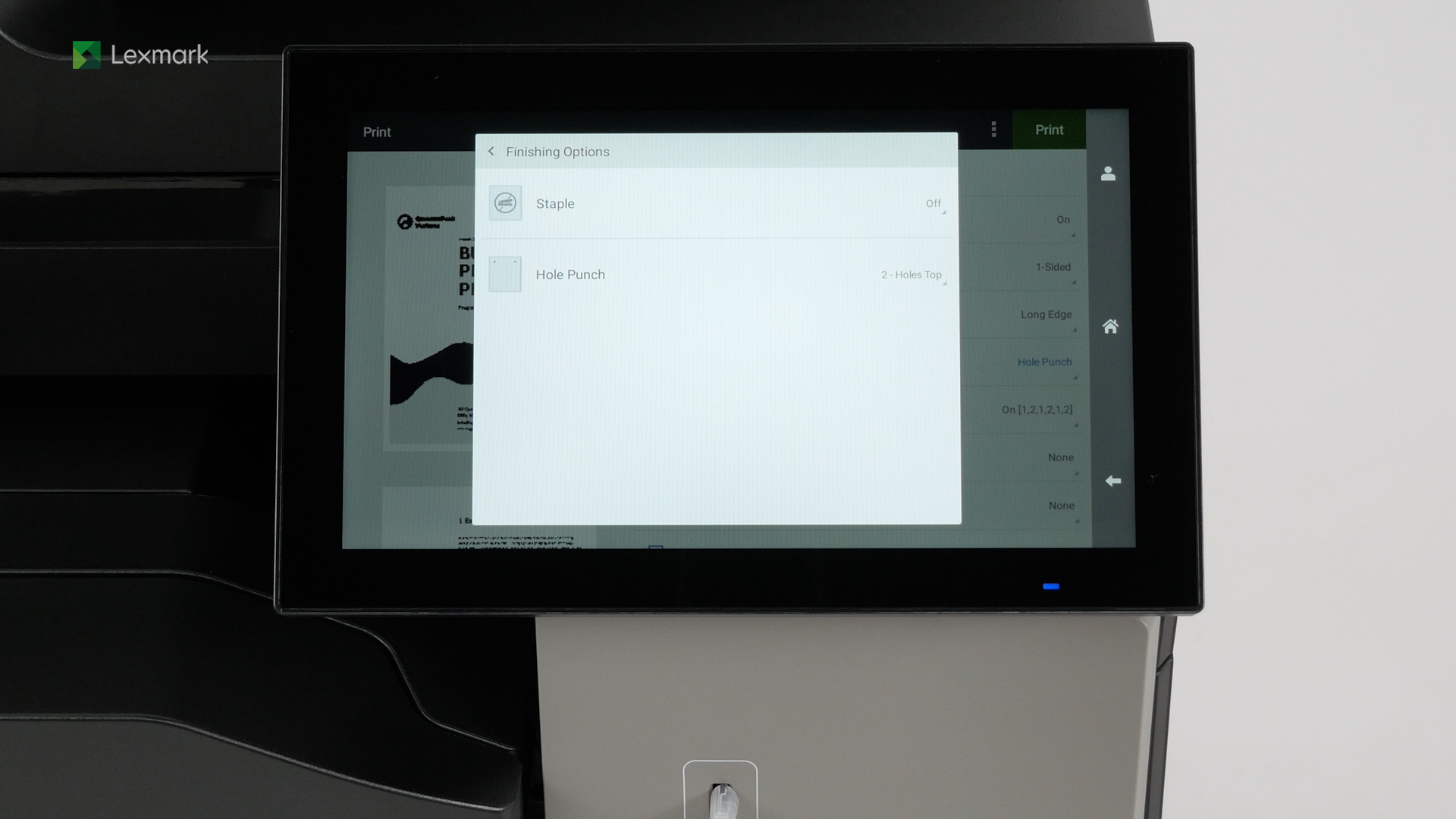
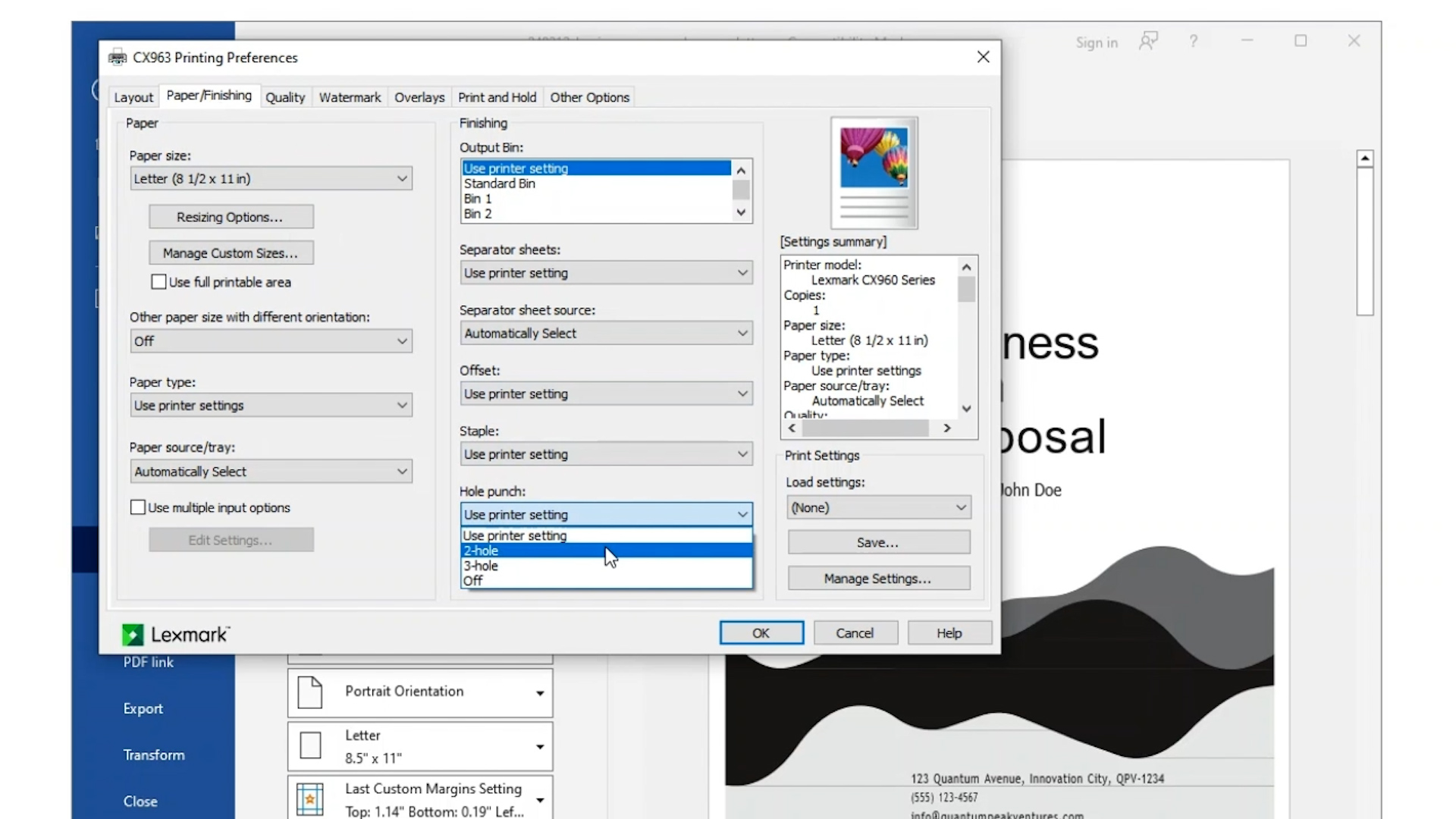
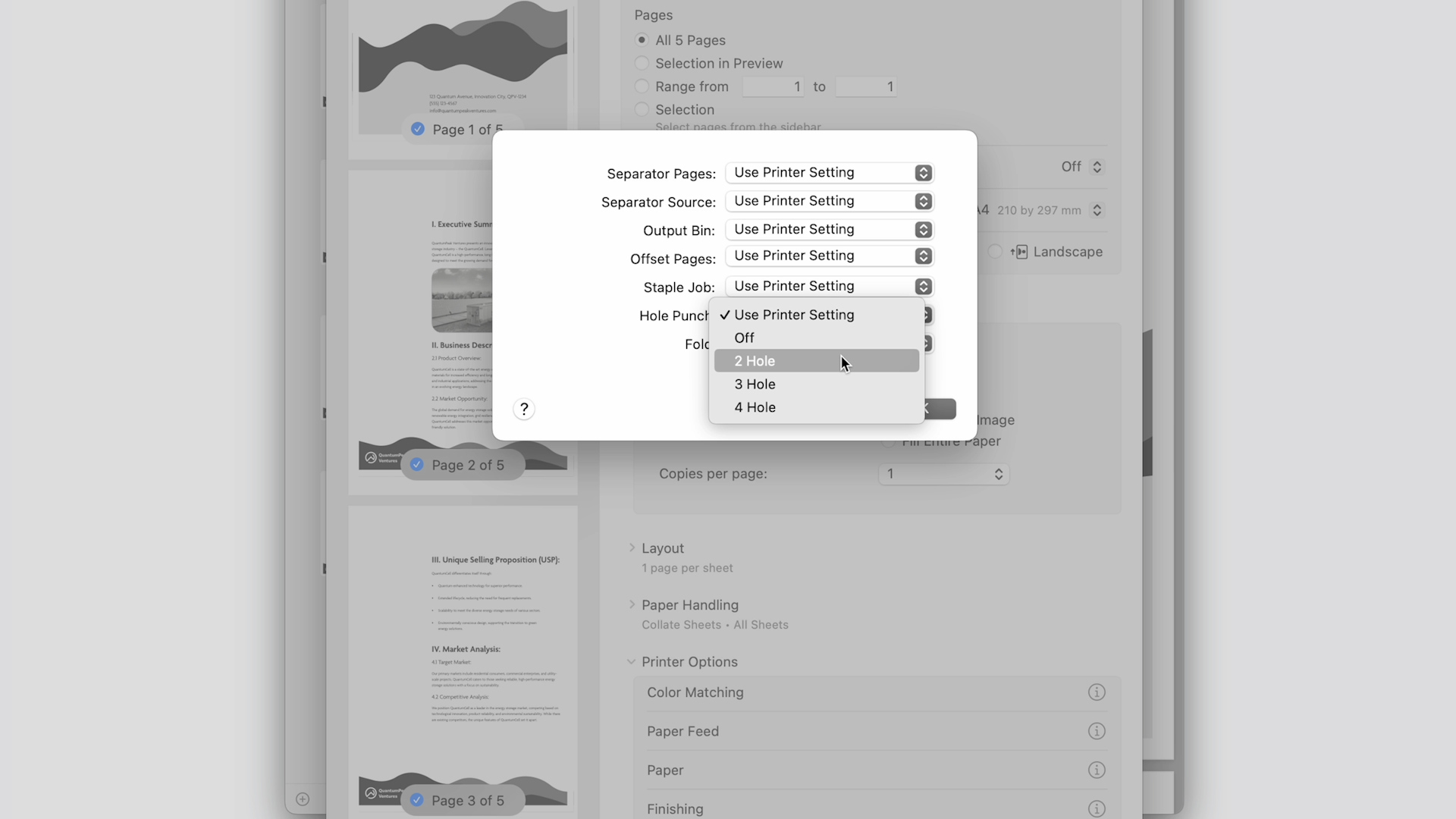
Learn how to use the hole punch feature in your printer.
Learn how to use your Windows computer to send hole punch jobs to your printer.
Learn how to use your Macintosh computer to send hole punch jobs to your printer.
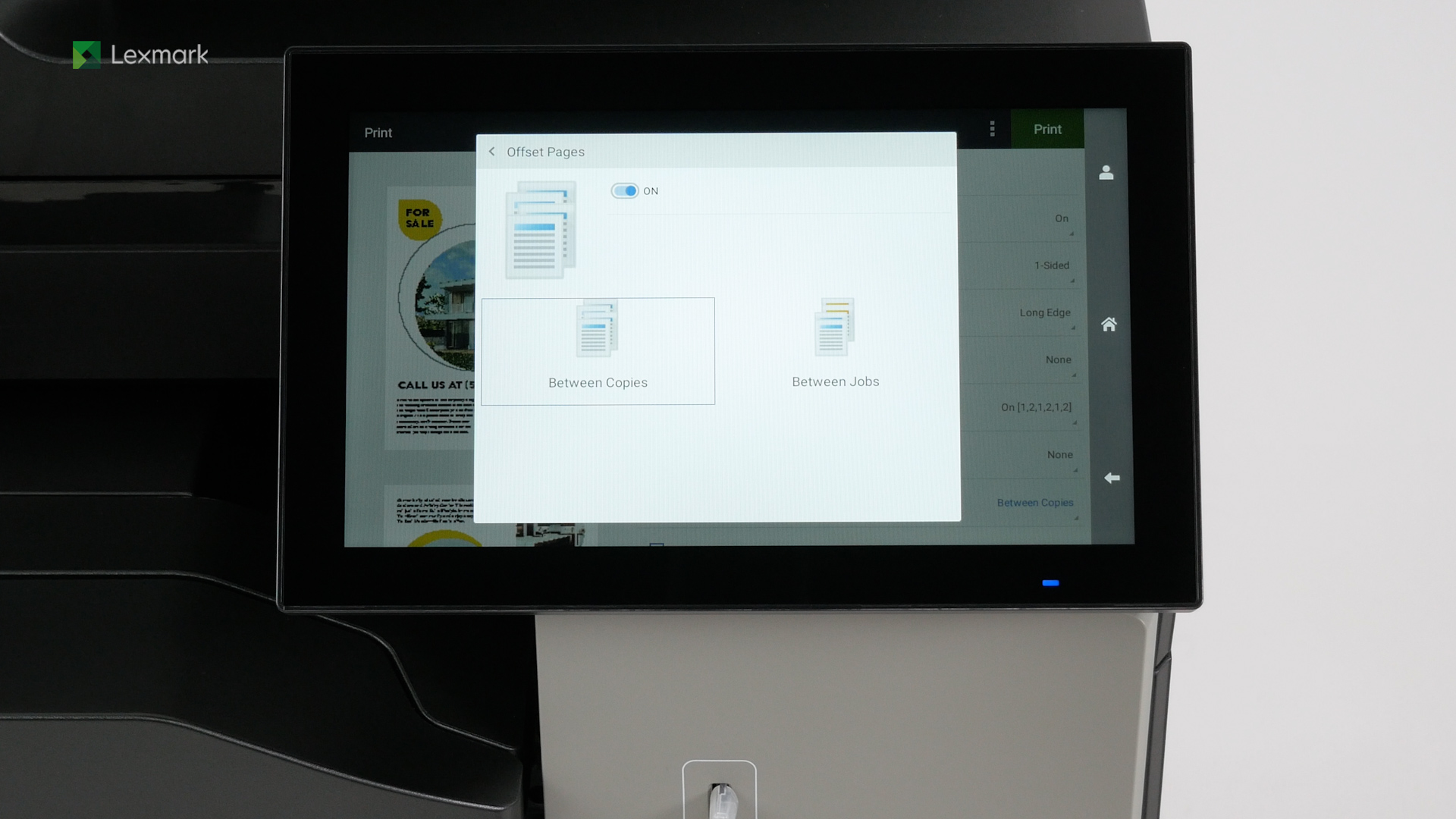
Learn how to use the offset stacking feature in your printer.
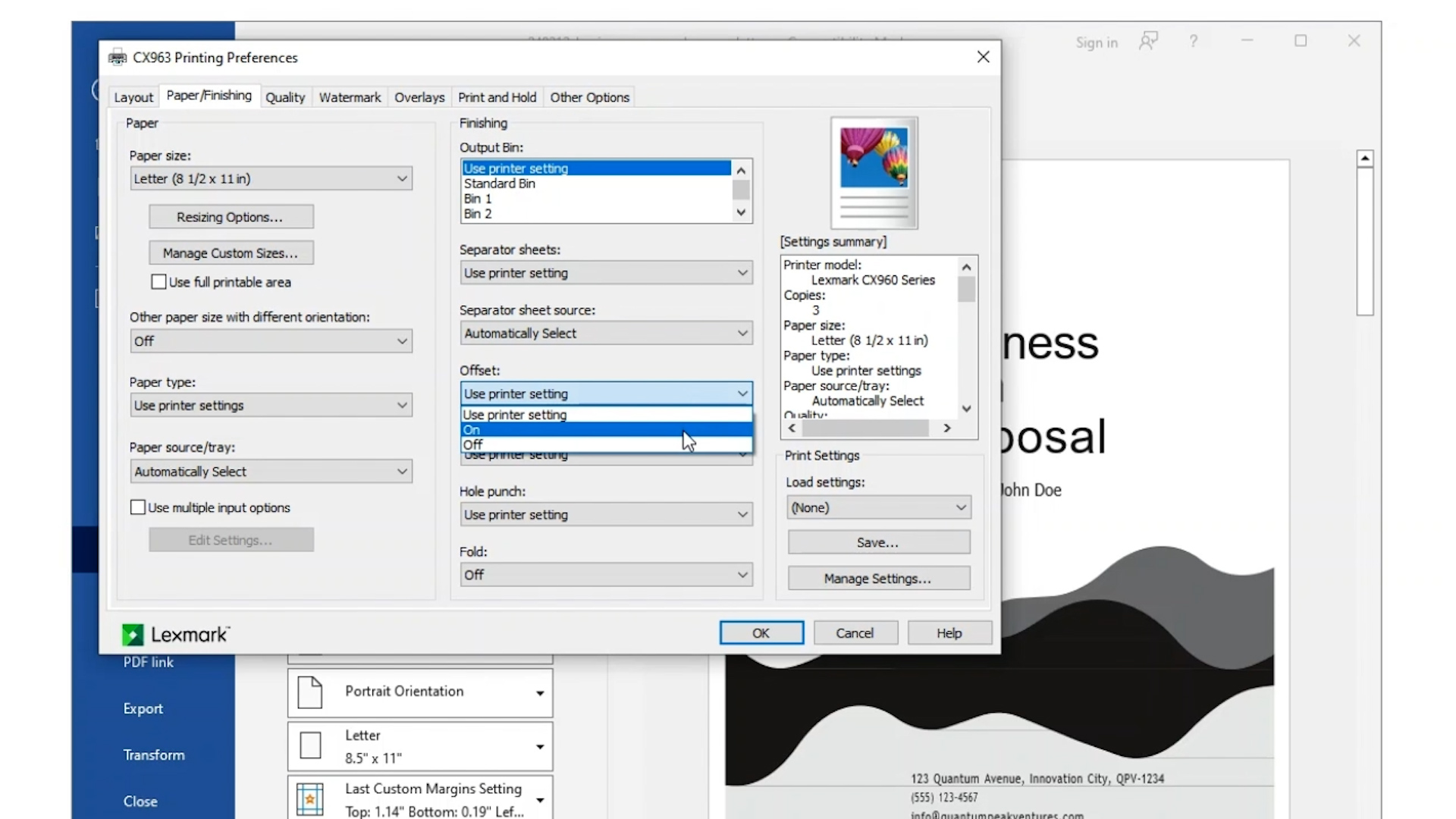
Learn how to use your Windows computer to send offset stacking jobs to your printer.
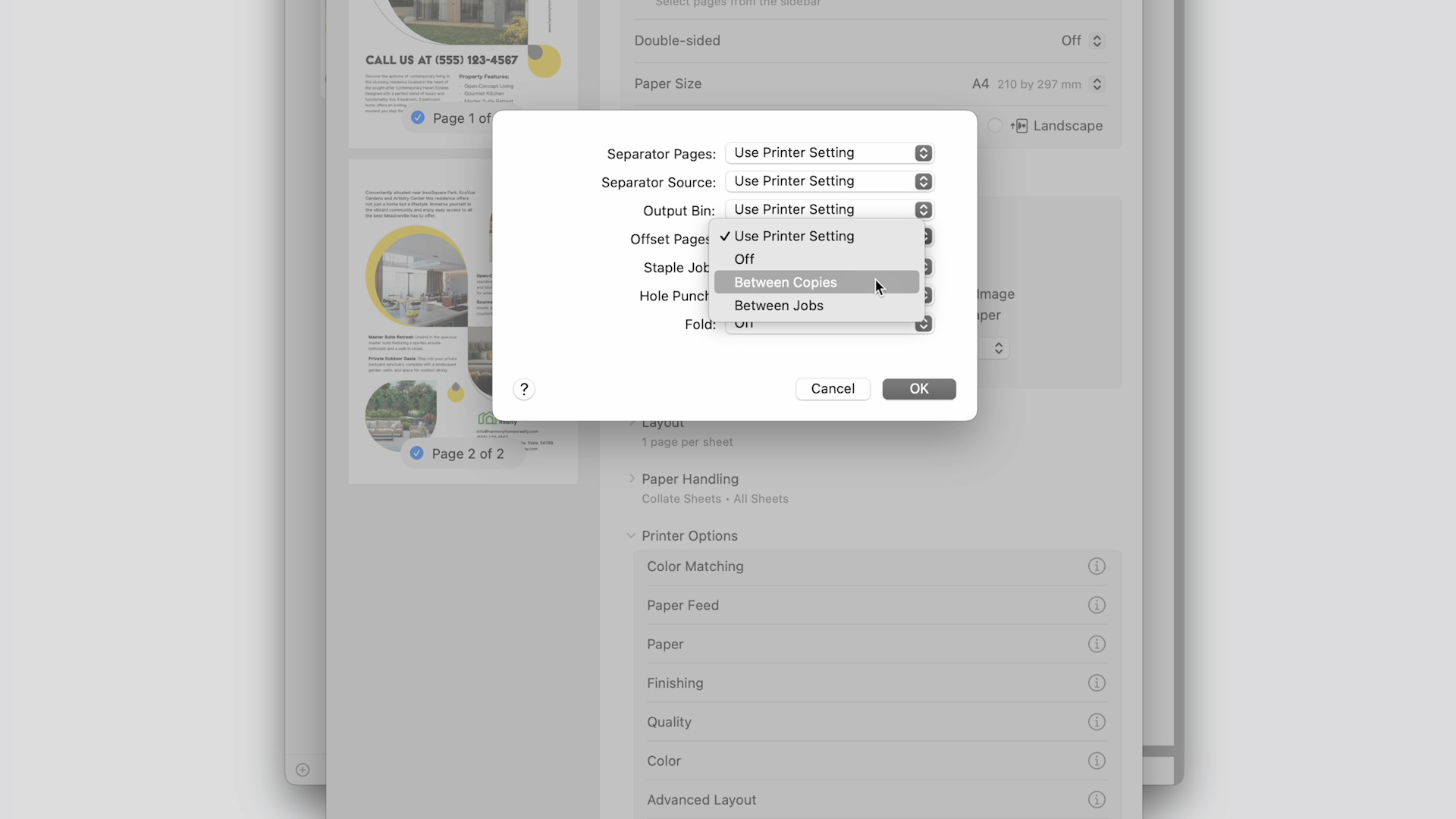
Learn how to use your Macintosh computer to send offset stacking jobs to your printer.
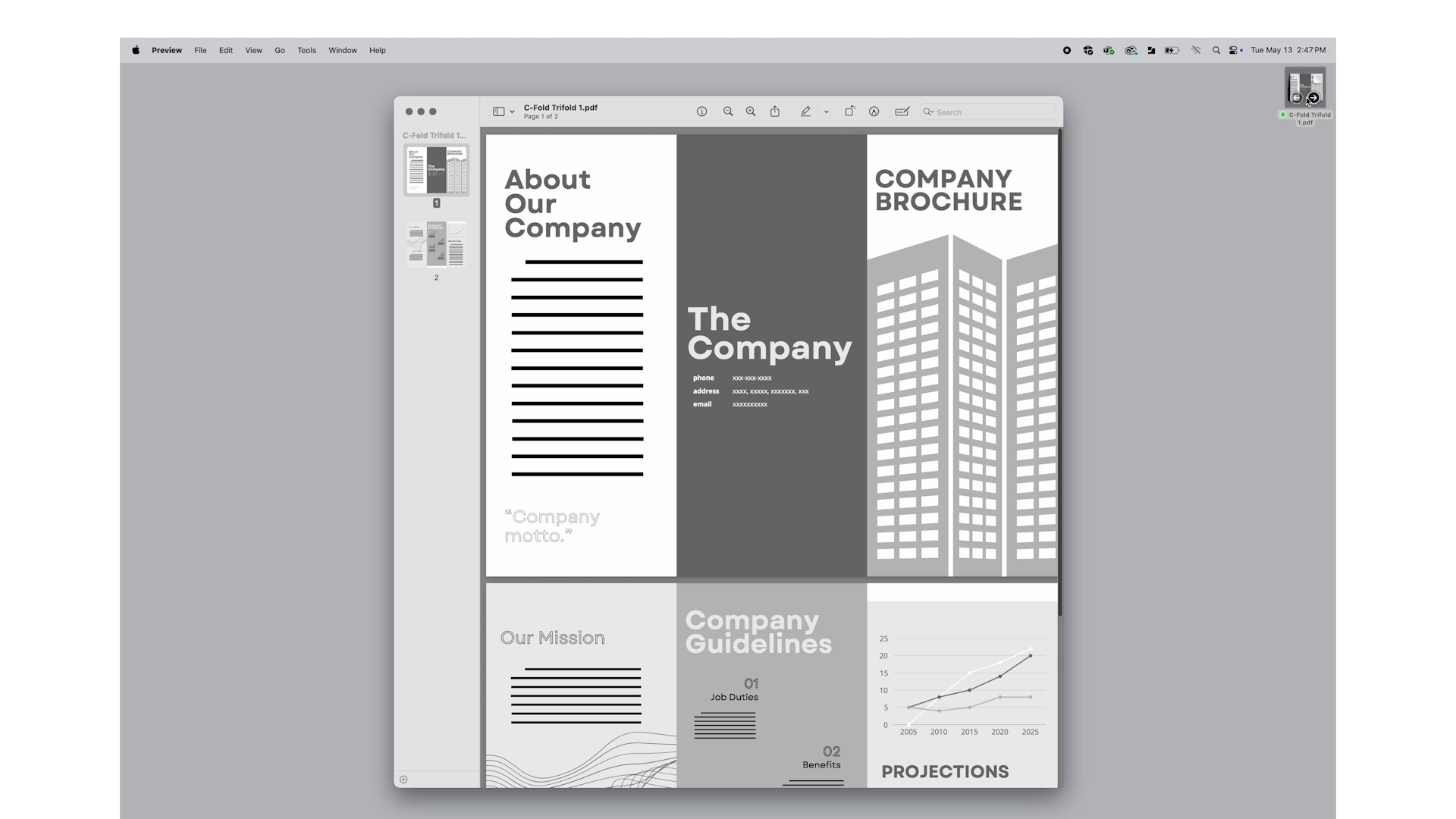
Learn how to use your Macintosh computer to send a C-fold job to your printer.
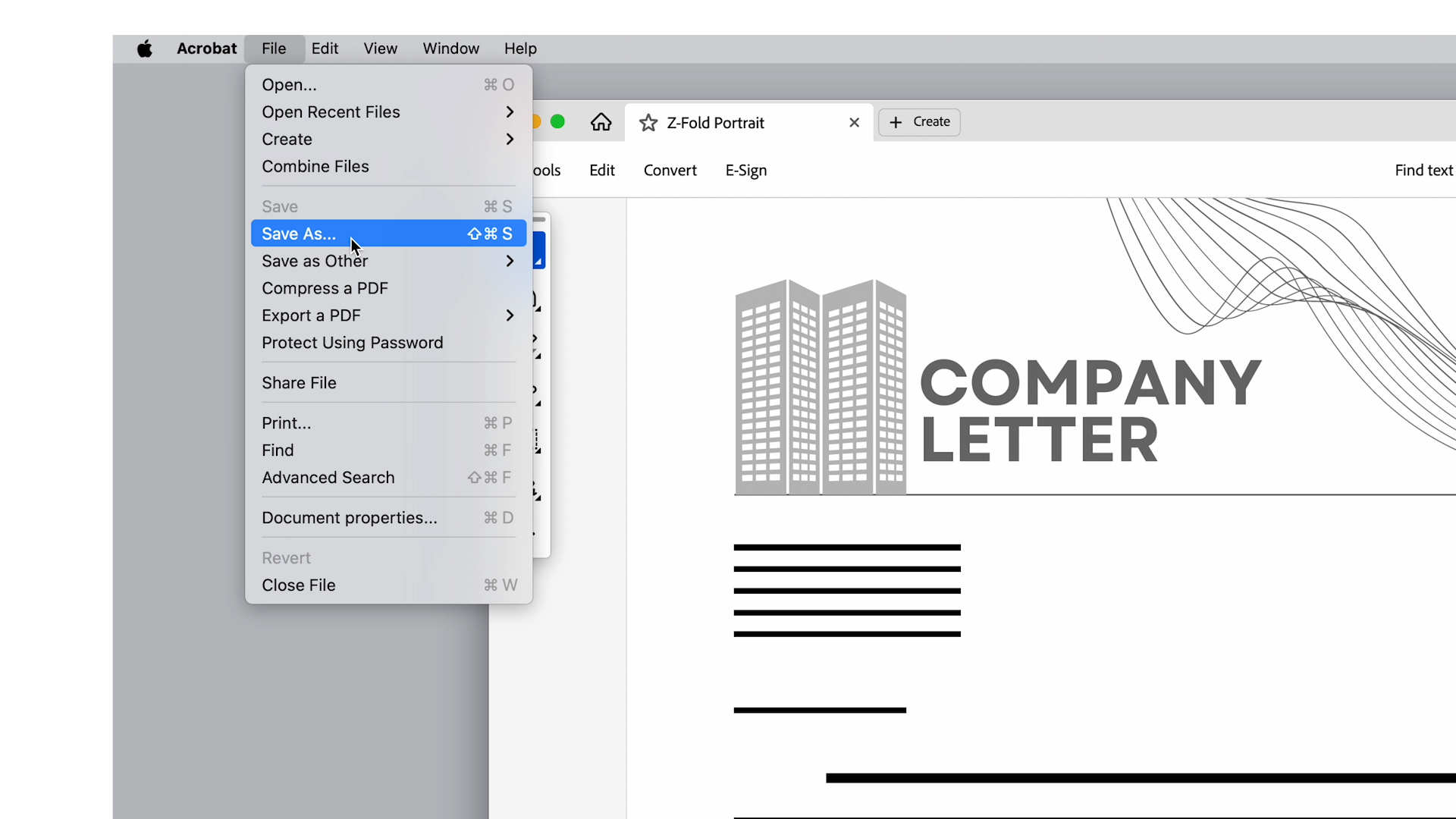
Learn how to use your Macintosh computer to send a Z-fold or Z-fold half sheet job to your printer.
Learn how to use the C-fold feature in your printer.
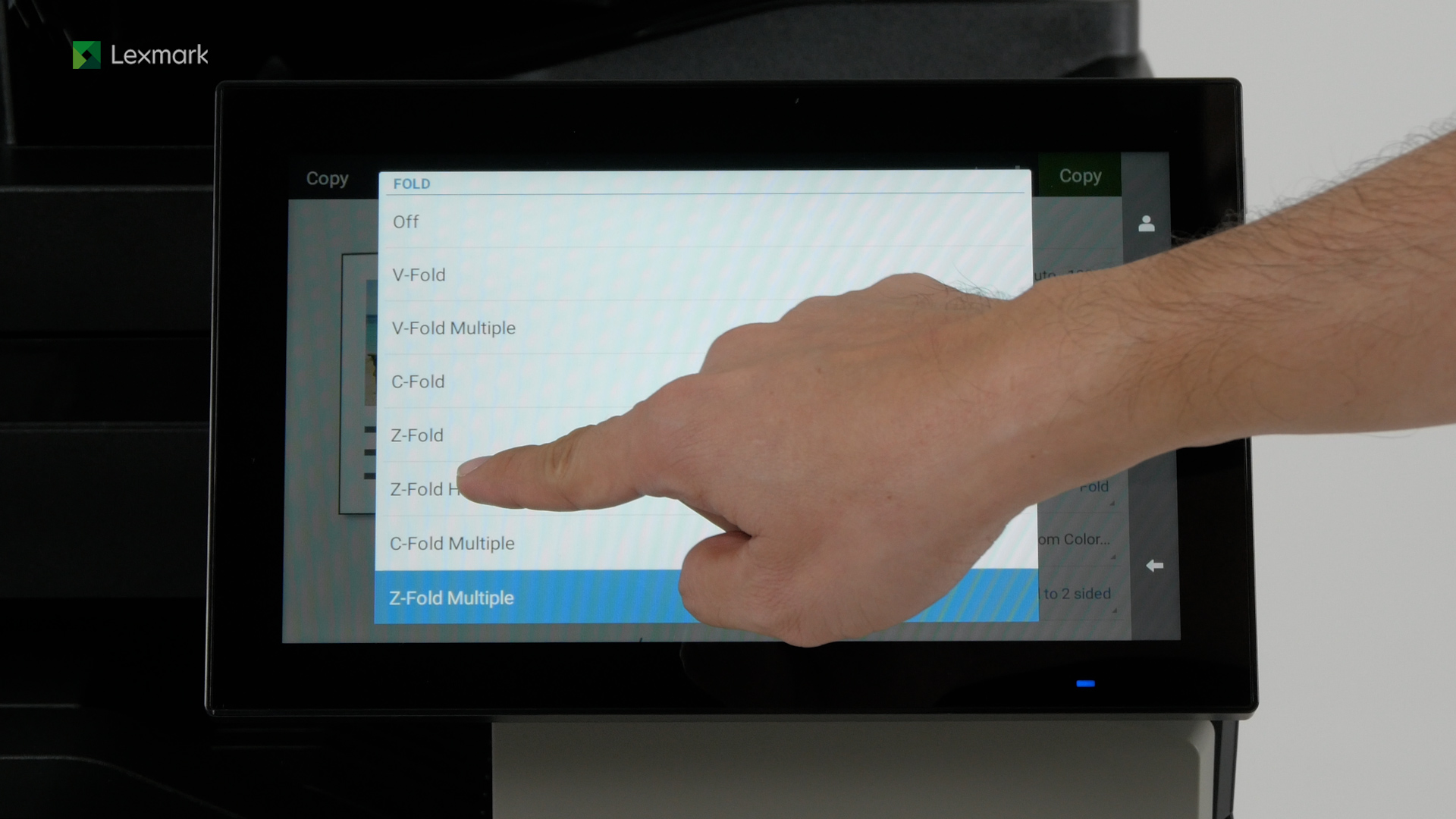
Learn how to use the Z-fold and Z-fold half sheet feature in your printer.
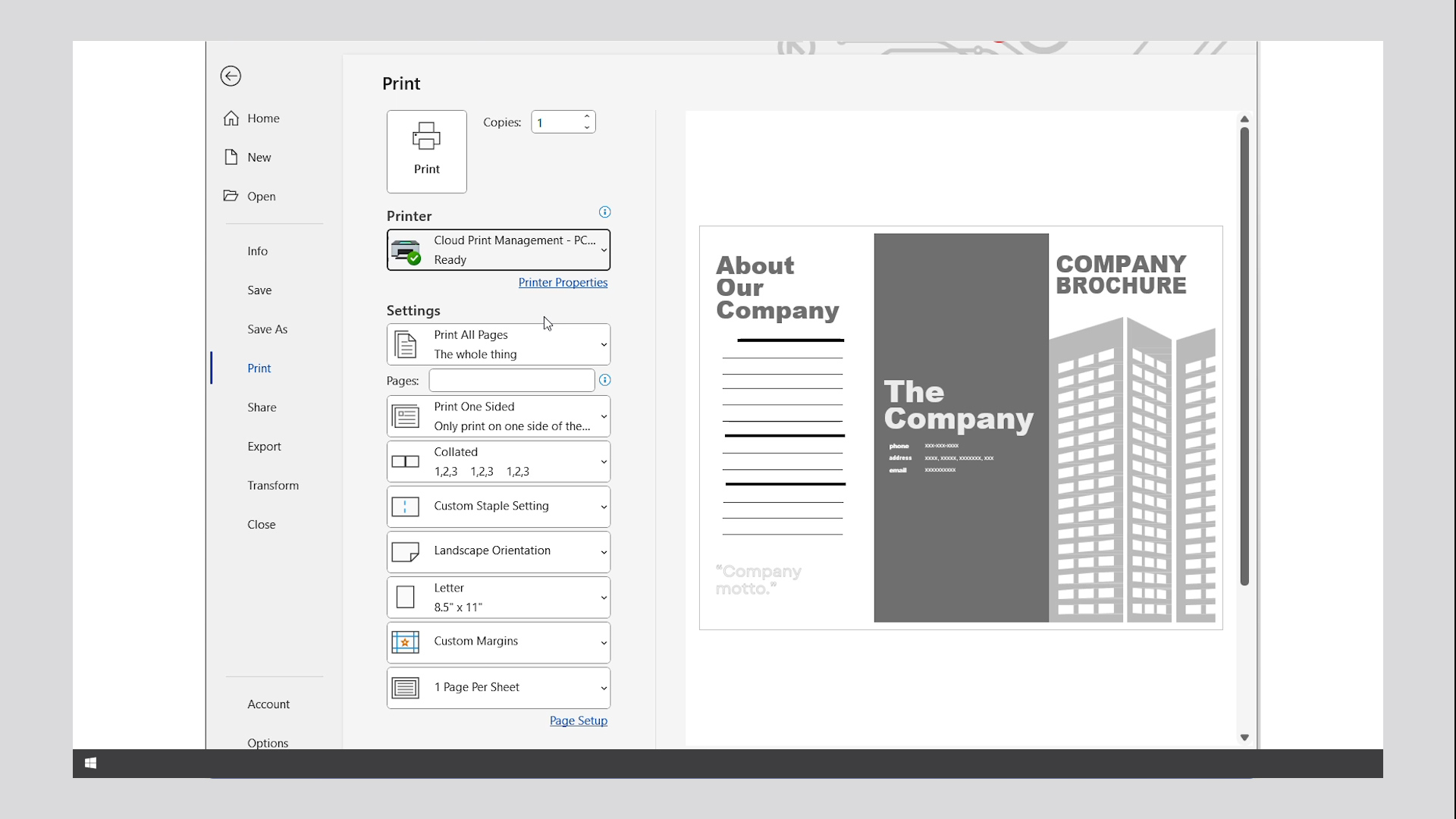
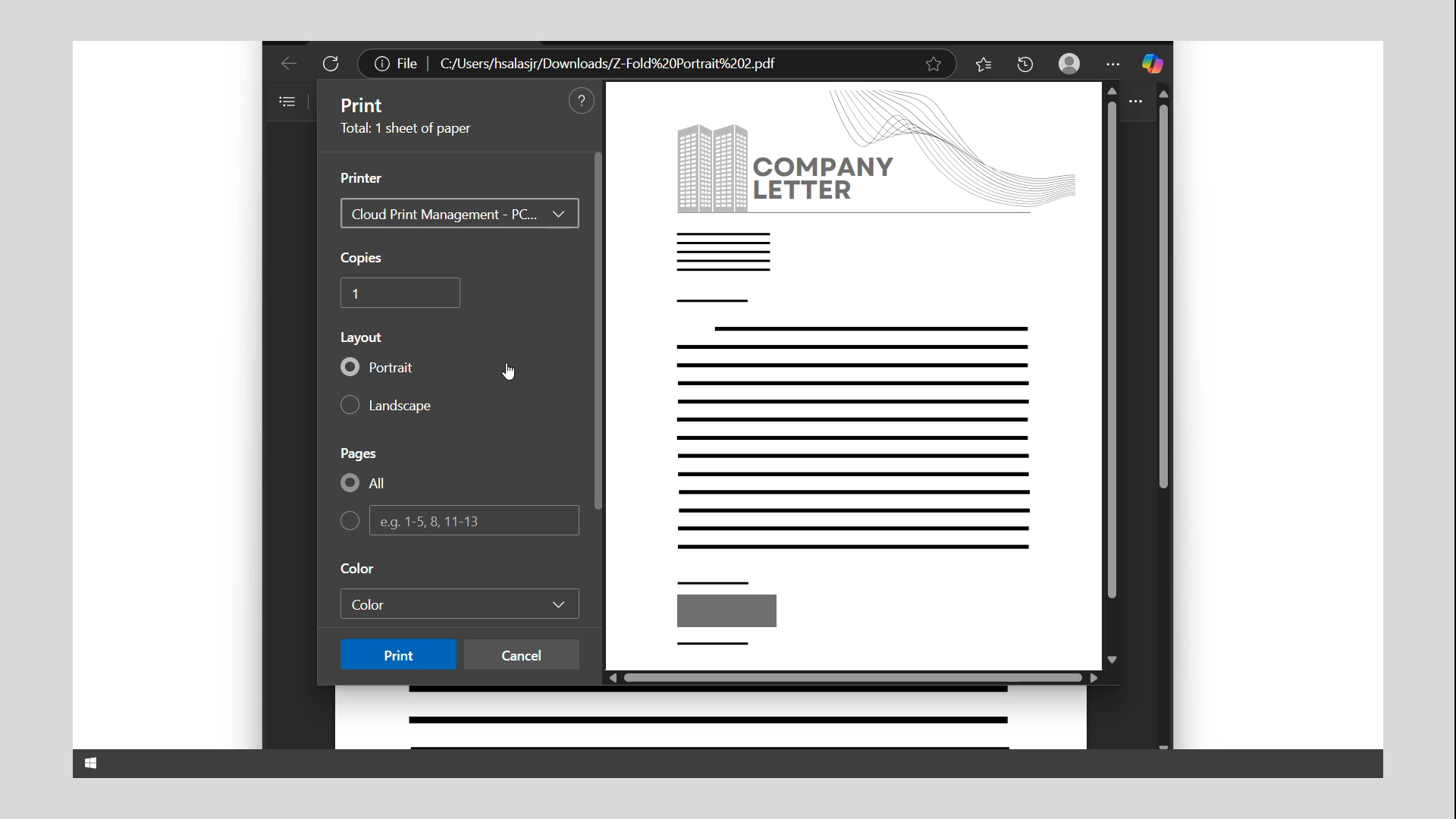
Learn how to use your Windows computer to send a C-fold job to your printer.
Learn how to use your Windows computer to send a Z-fold and Z-fold half sheet job to your printer.
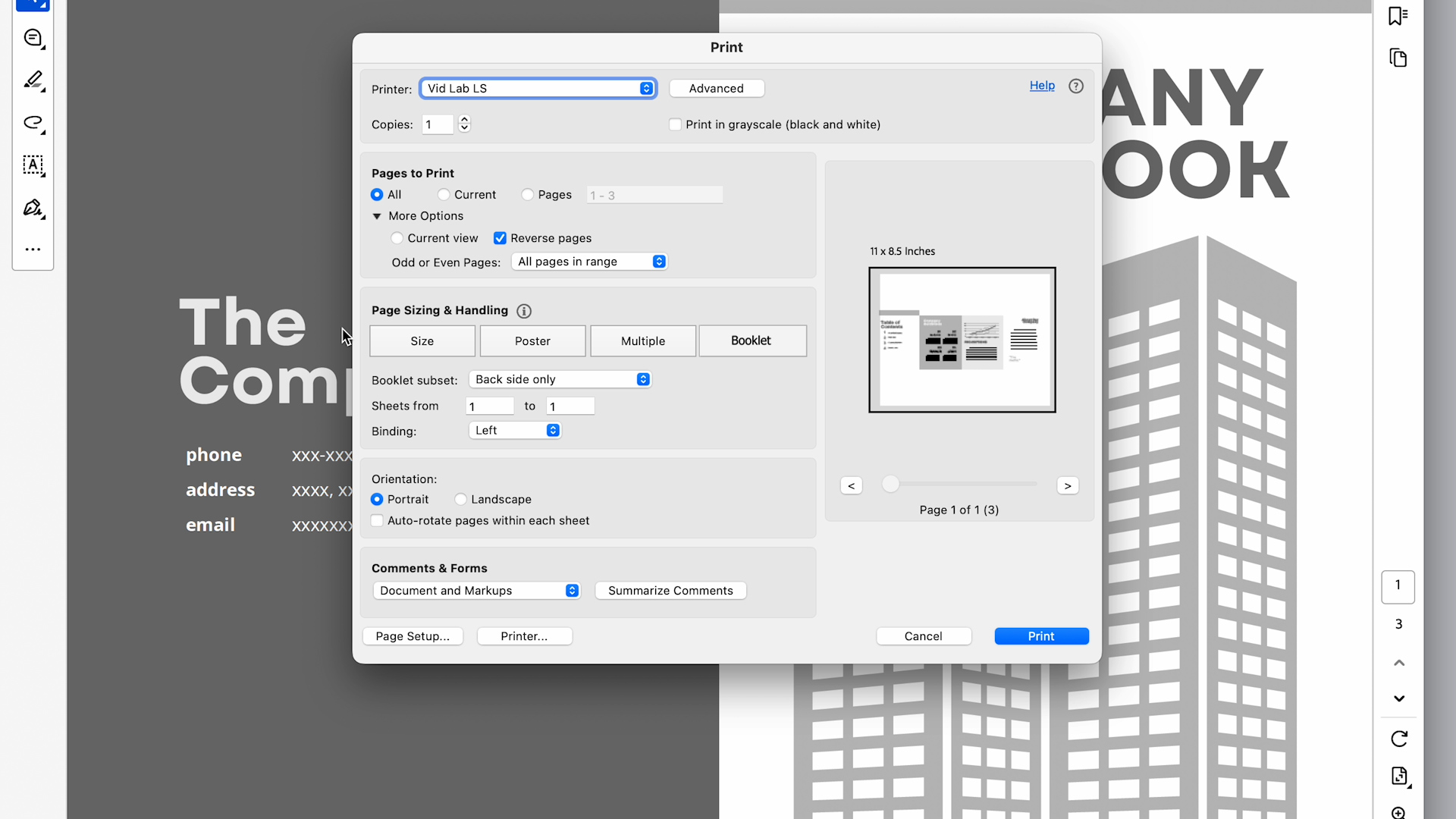
Learn how to use your Macintosh computer to send a booklet spread job to your printer.
Learn how to use the booklet spread feature in your printer.
Learn how to use the booklet format feature in your printer.
Learn how to use your Windows computer to send a booklet spread job to your printer.
Learn how to use your Windows computer to send a booklet format job to your printer.