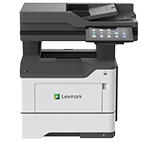
Printer features: Laser, multifunction, black & white
Lexmark MX632 Support
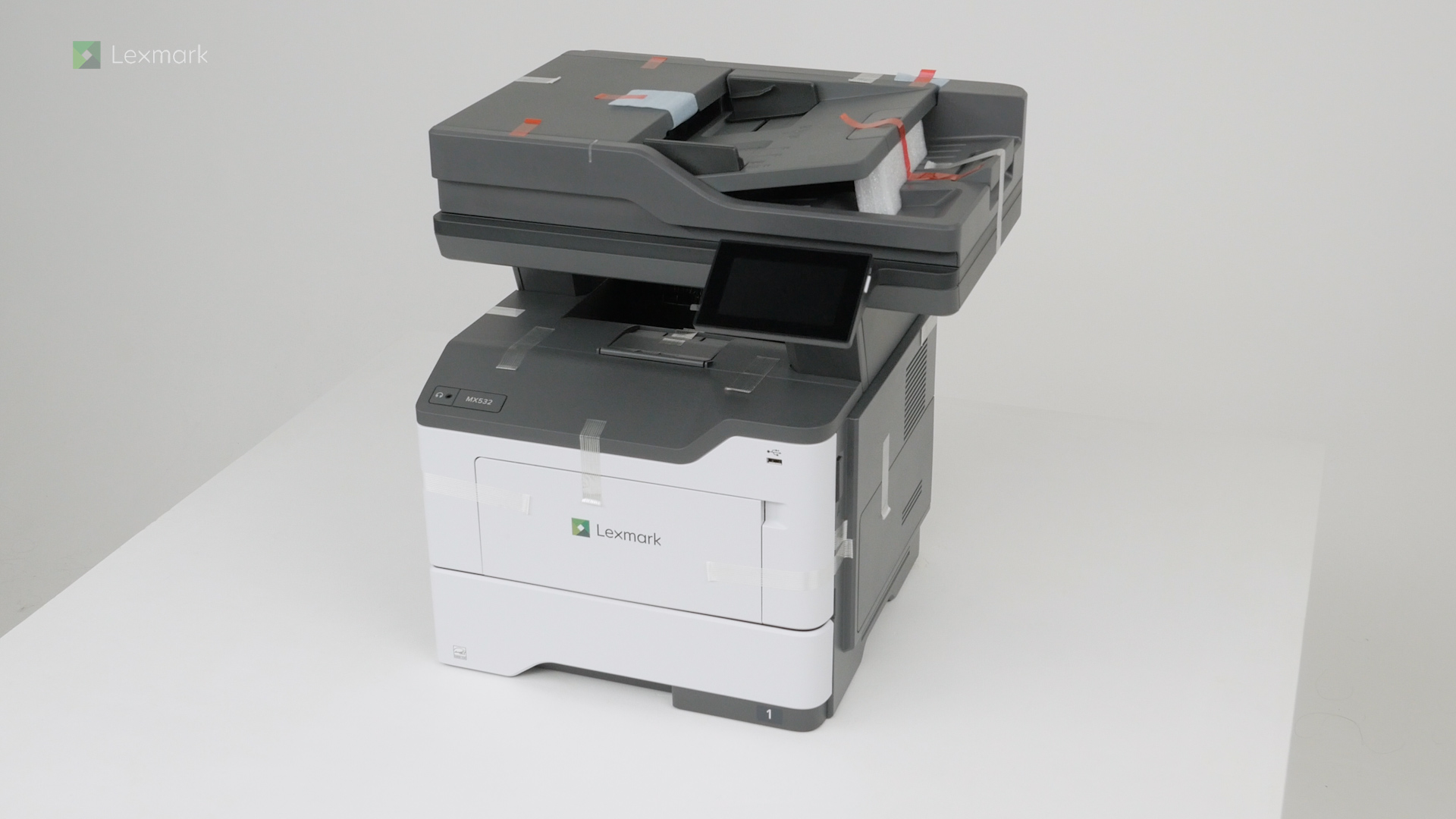
Learn how to set up your new printer.
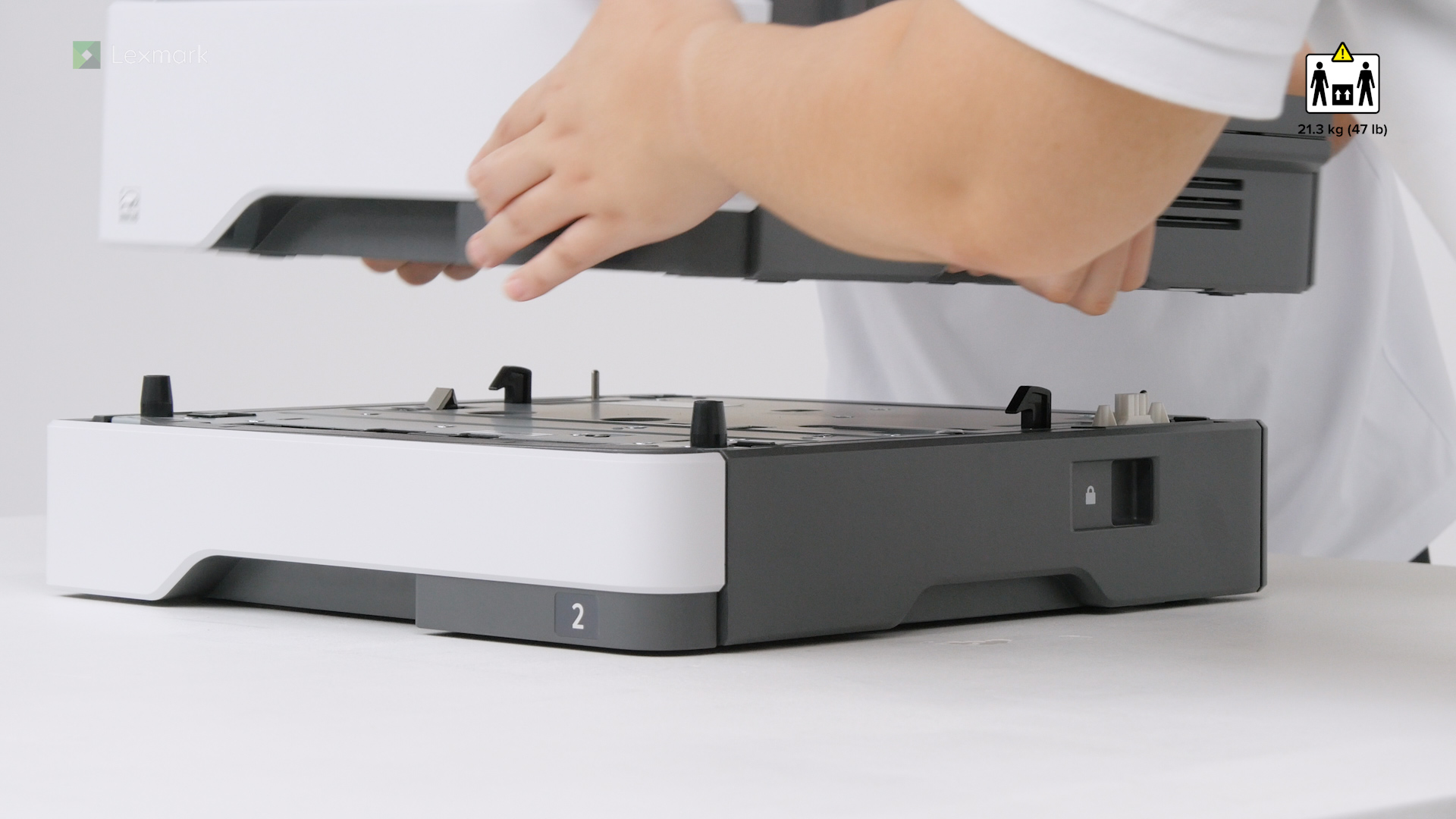
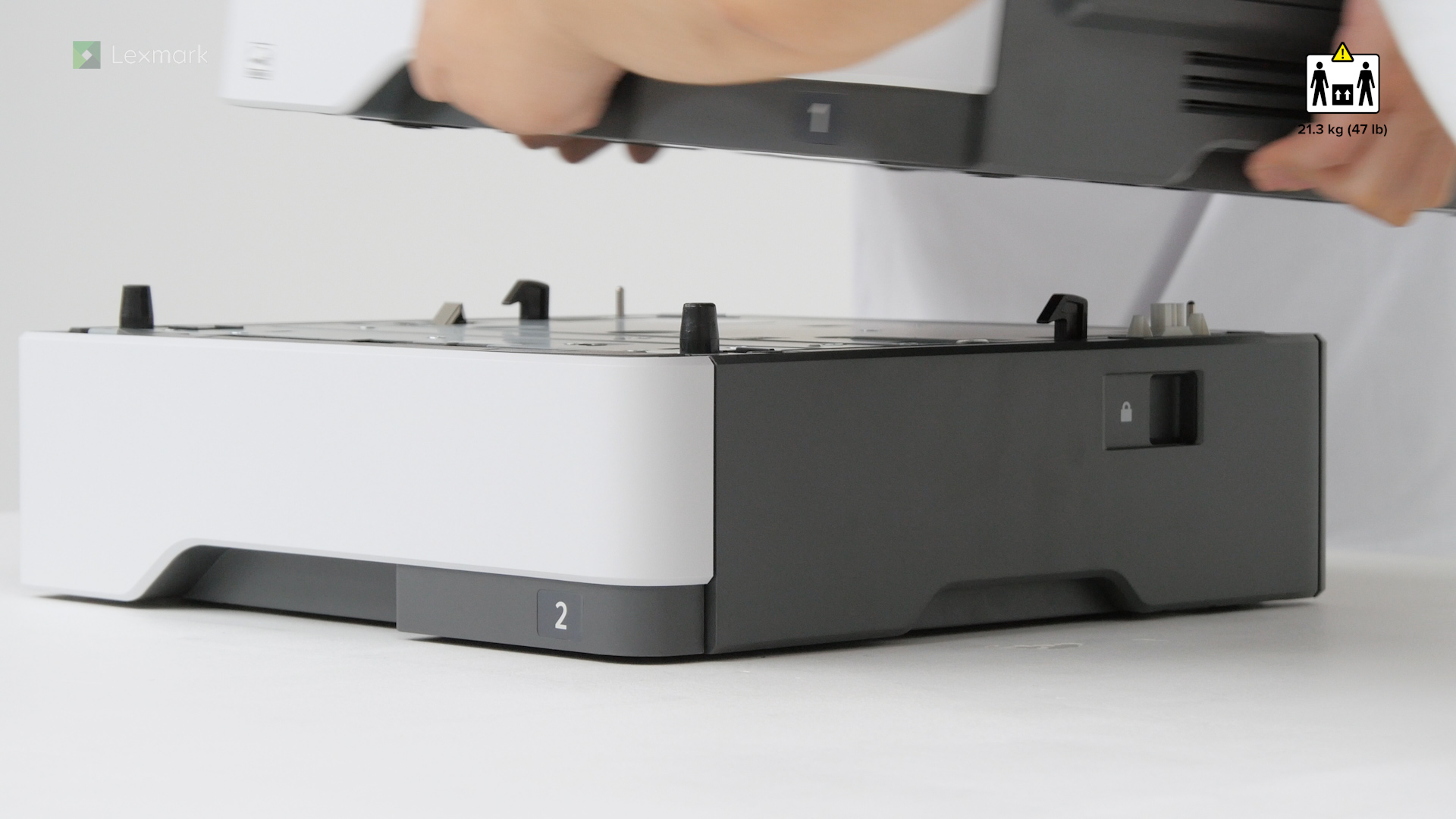
Learn how to add an optional 250-sheet tray into your printer.
Learn how to add an optional 550-sheet tray into your printer.
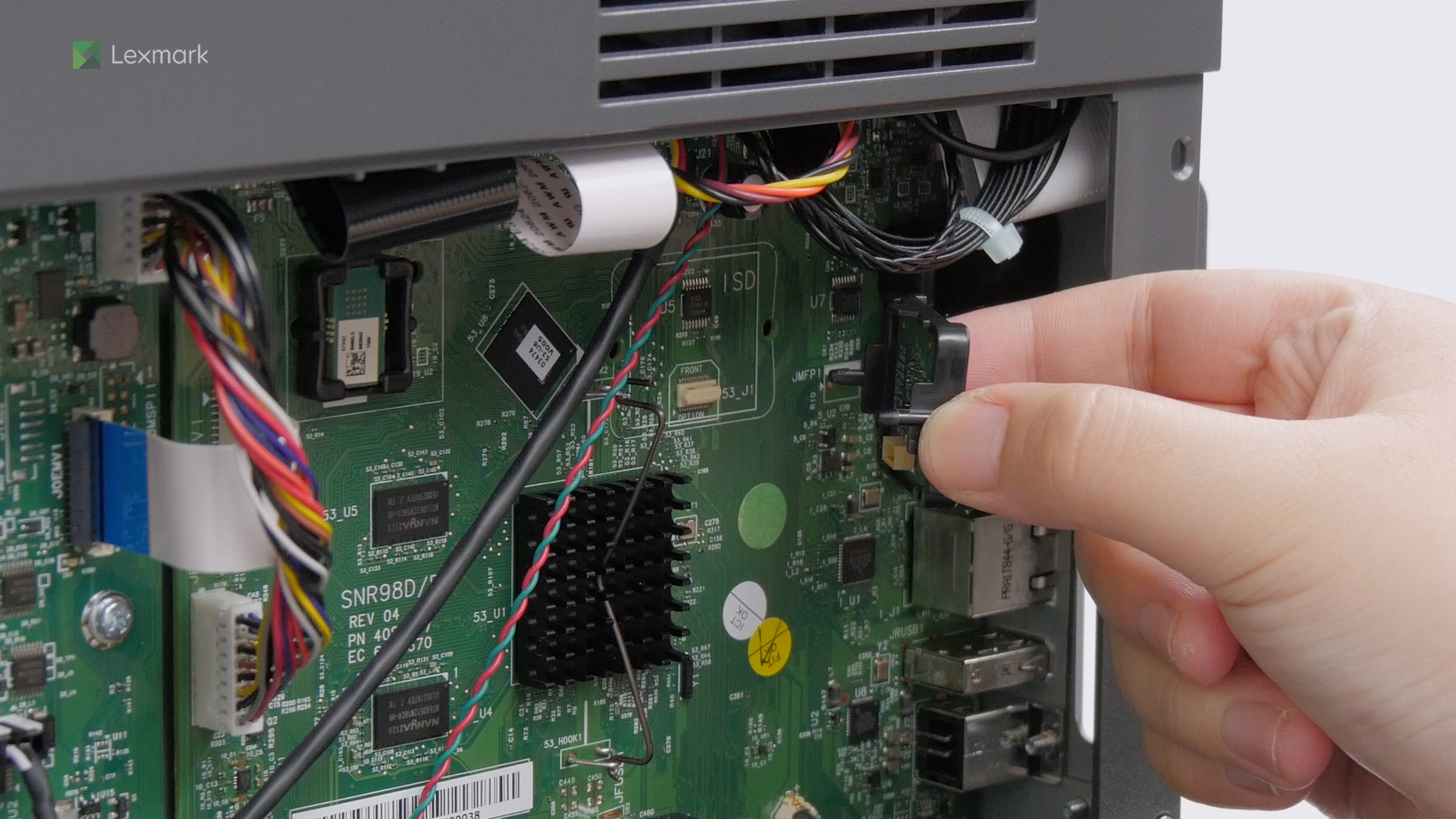
Learn how to install the intelligent storage drive on your printer to enable it to print complex jobs and collate large print jobs.
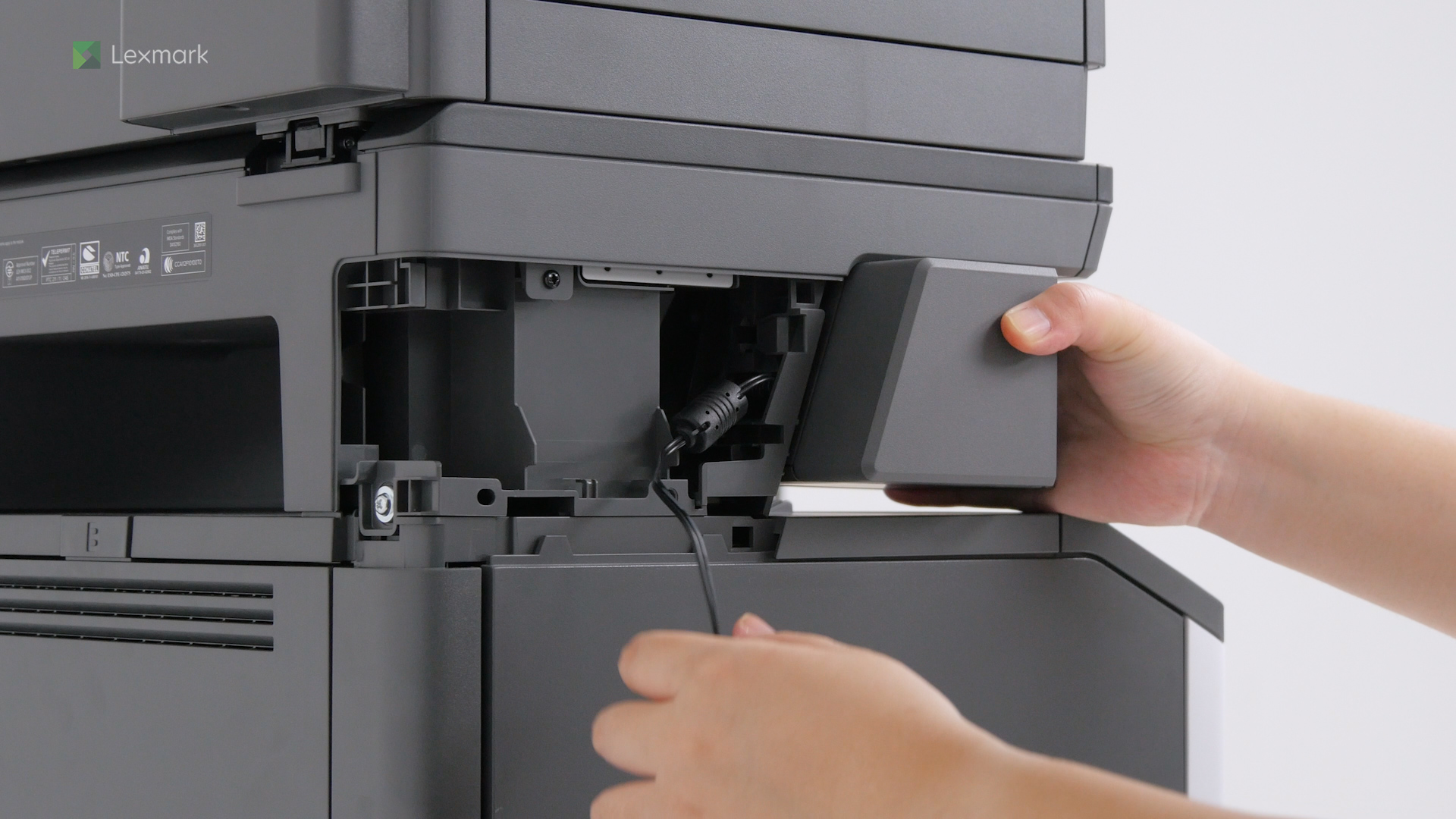
Learn how to install the convenience stapler on your printer.
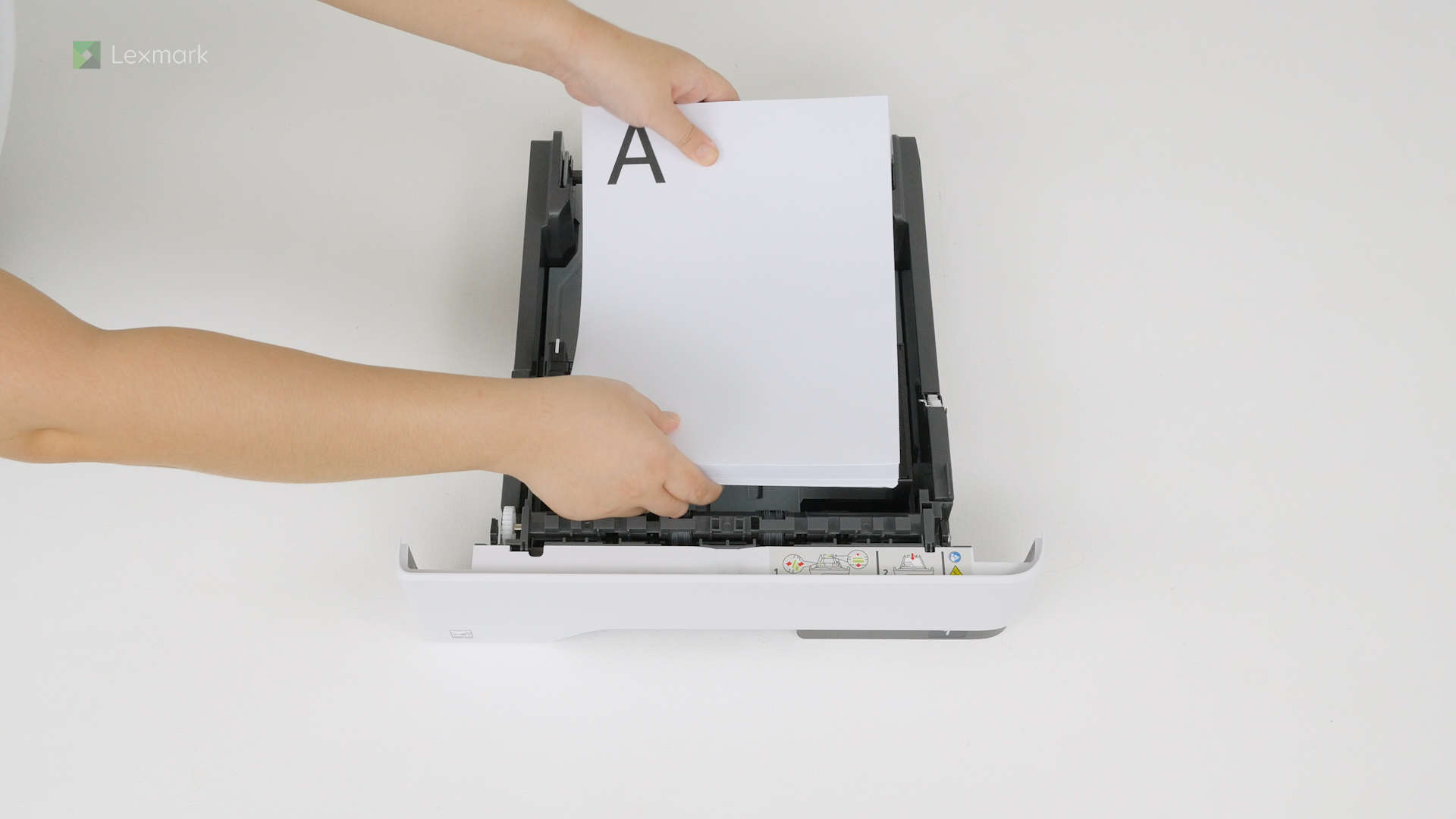
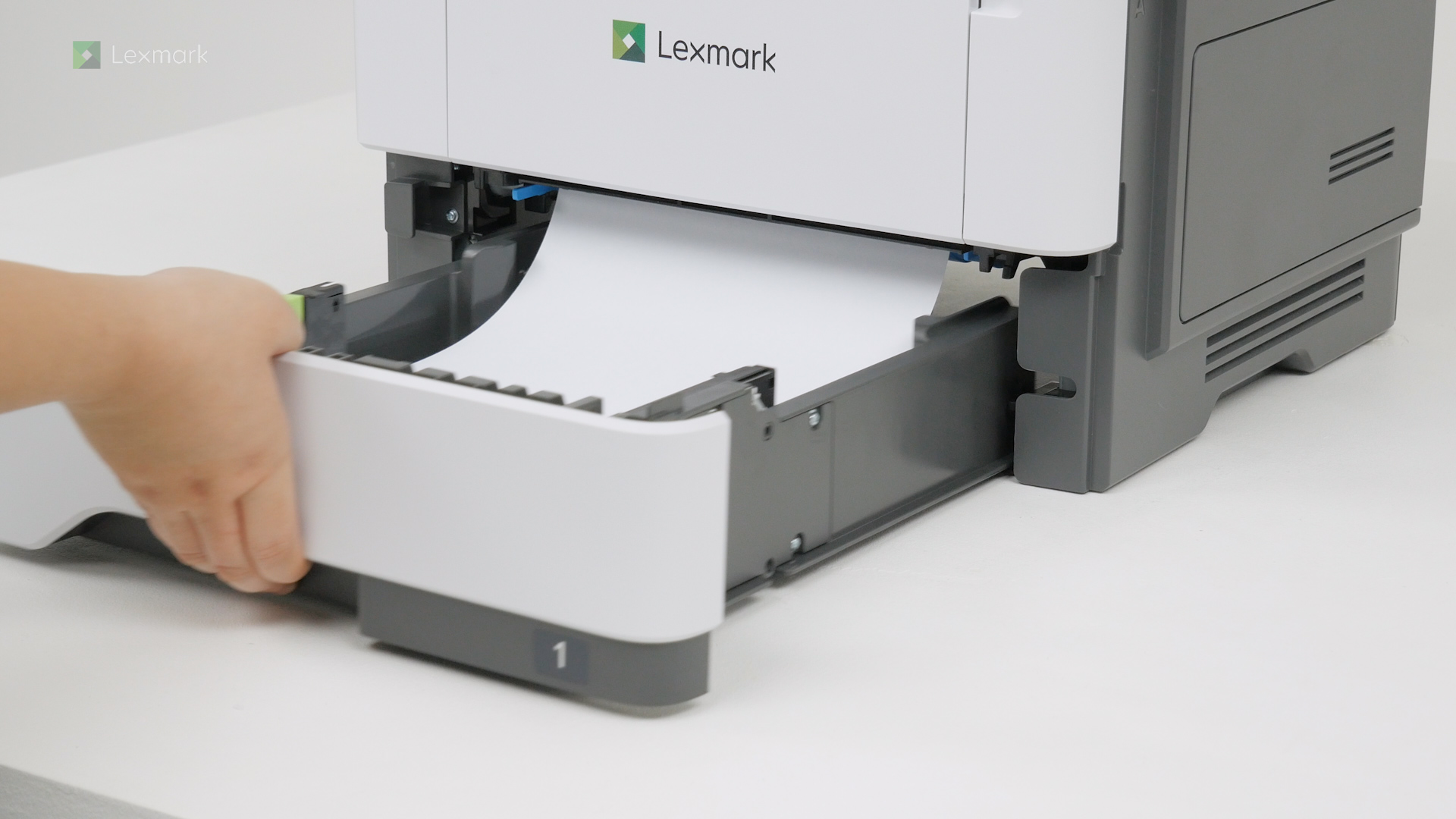
For reliable printing results, use these instructions on how to load paper properly into the tray of your printer.
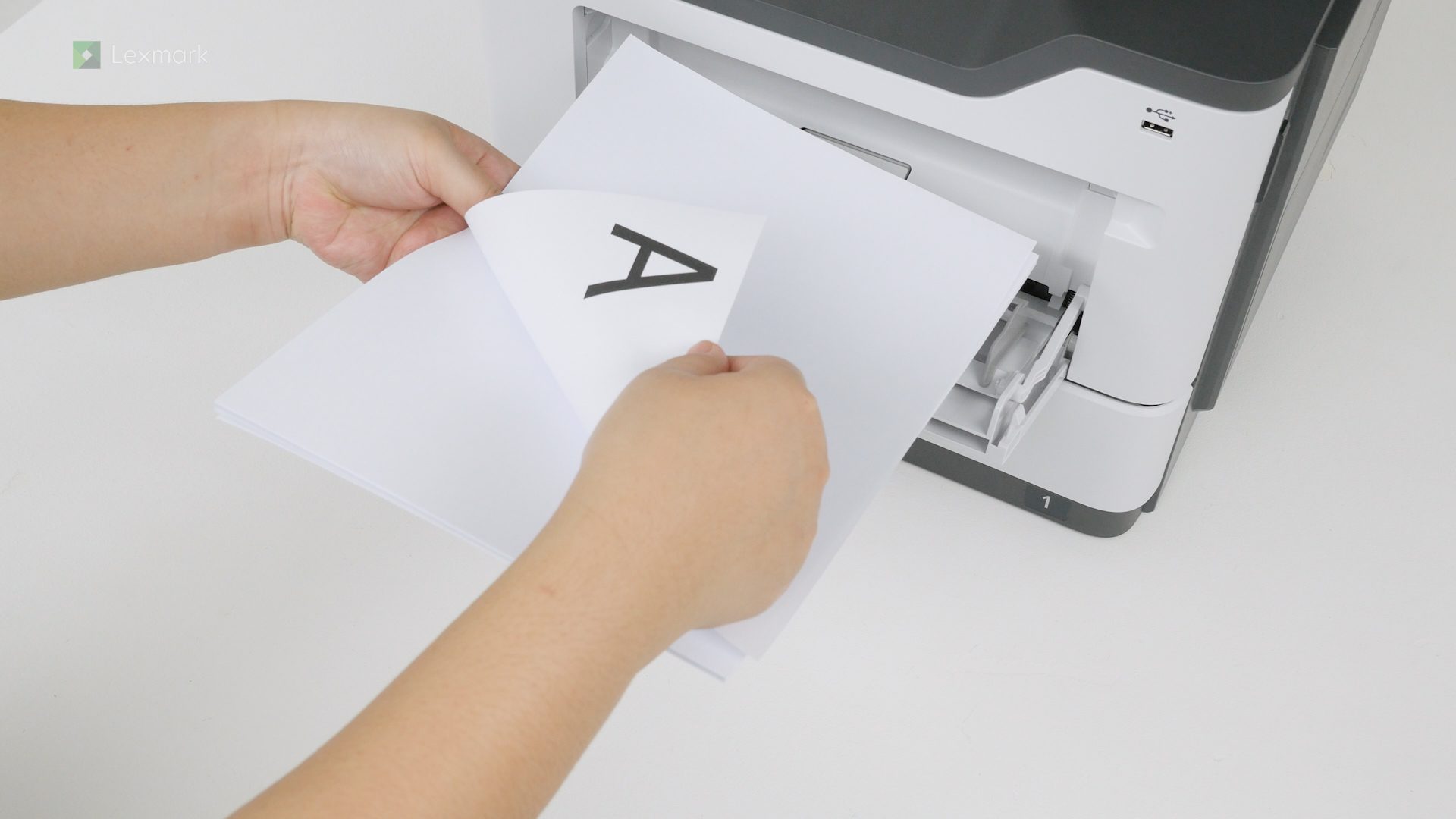
Learn how to load paper and specialty media into the multipurpose feeder to avoid paper feed errors.
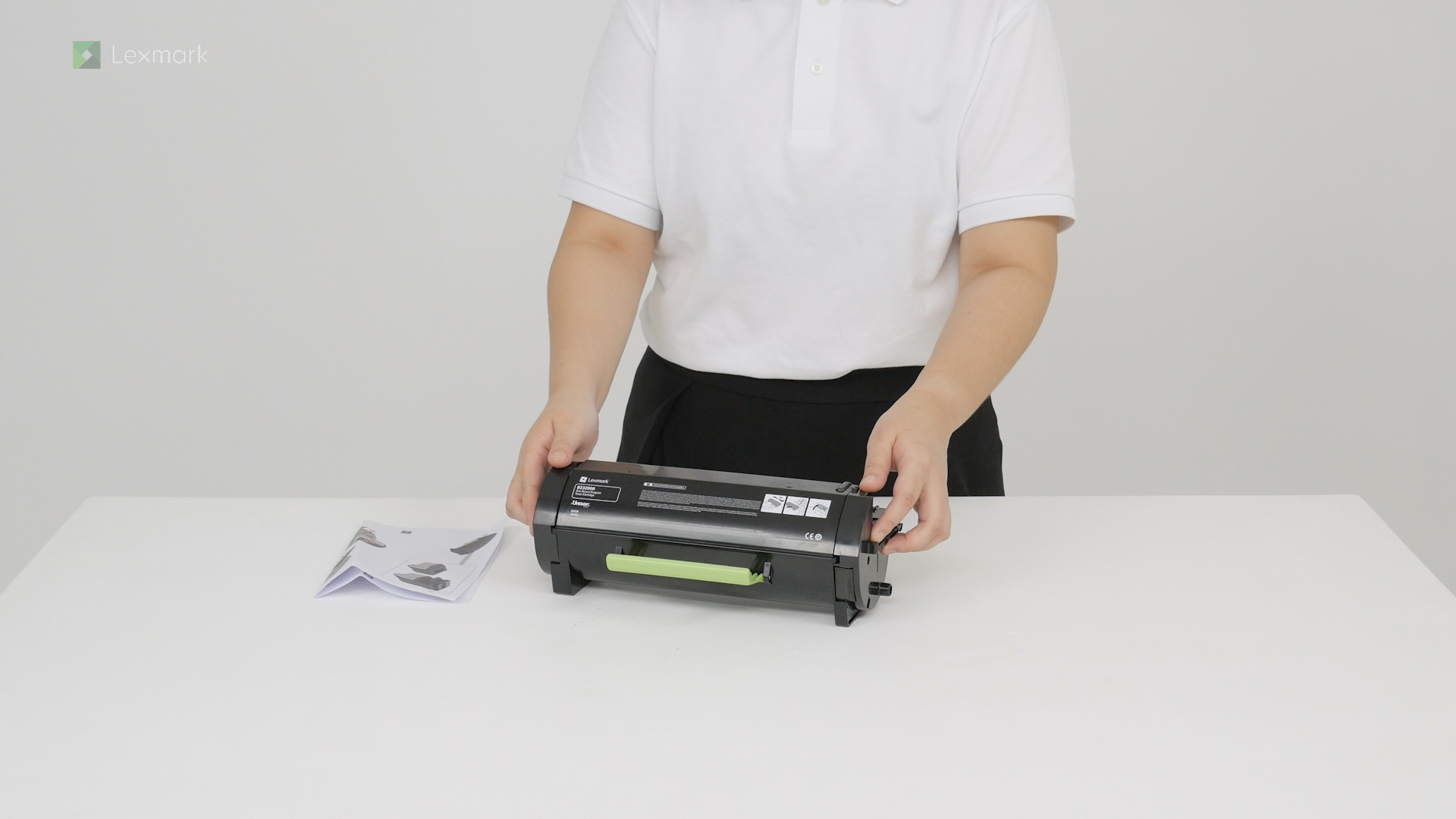
Install a new toner cartridge when you continue to see faded prints.
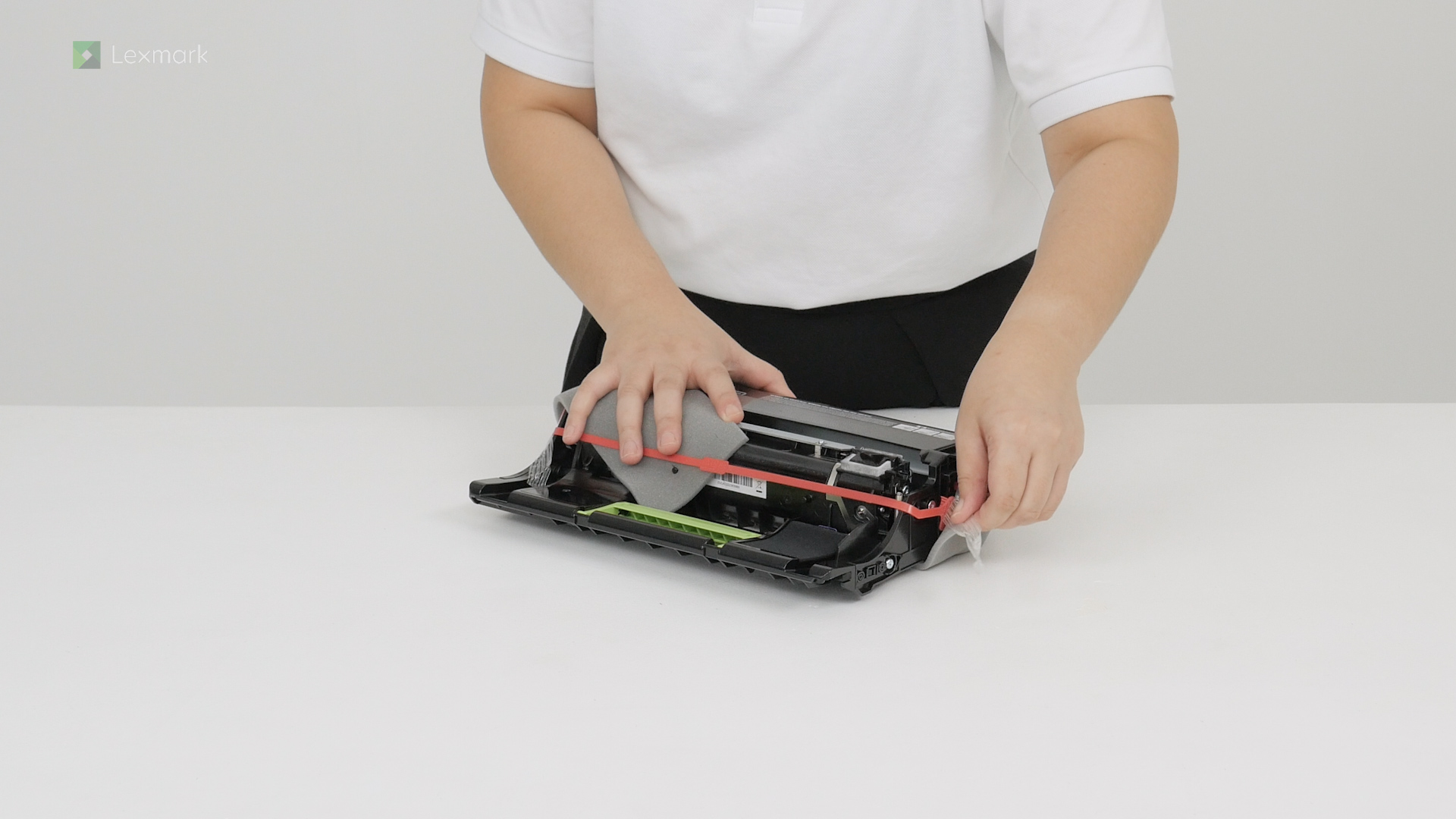
Avoid printing delays. Install a new imaging unit when the printer prompts you to replace it.
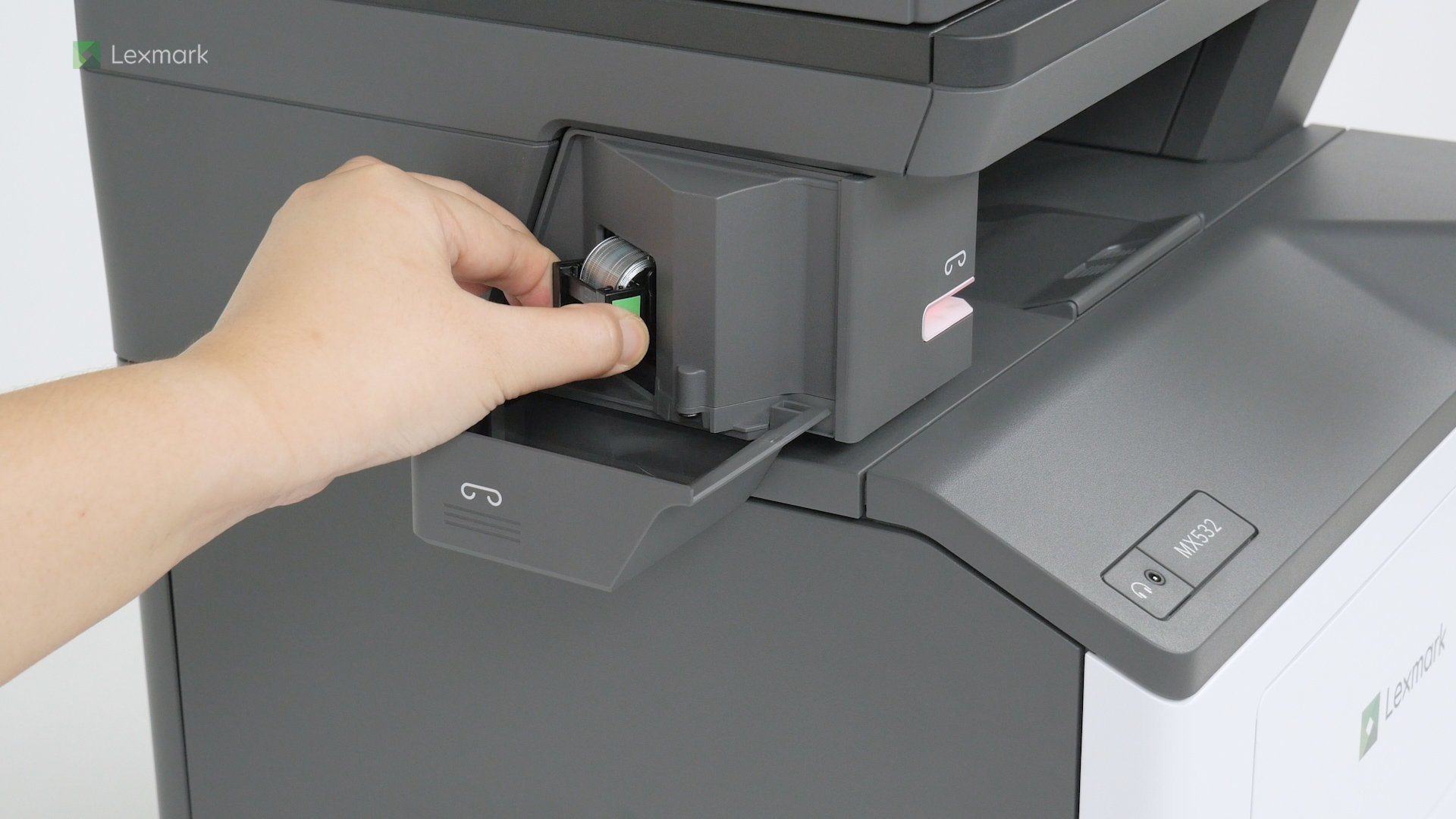
Learn how to replace a staple refill in the convenience stapler.
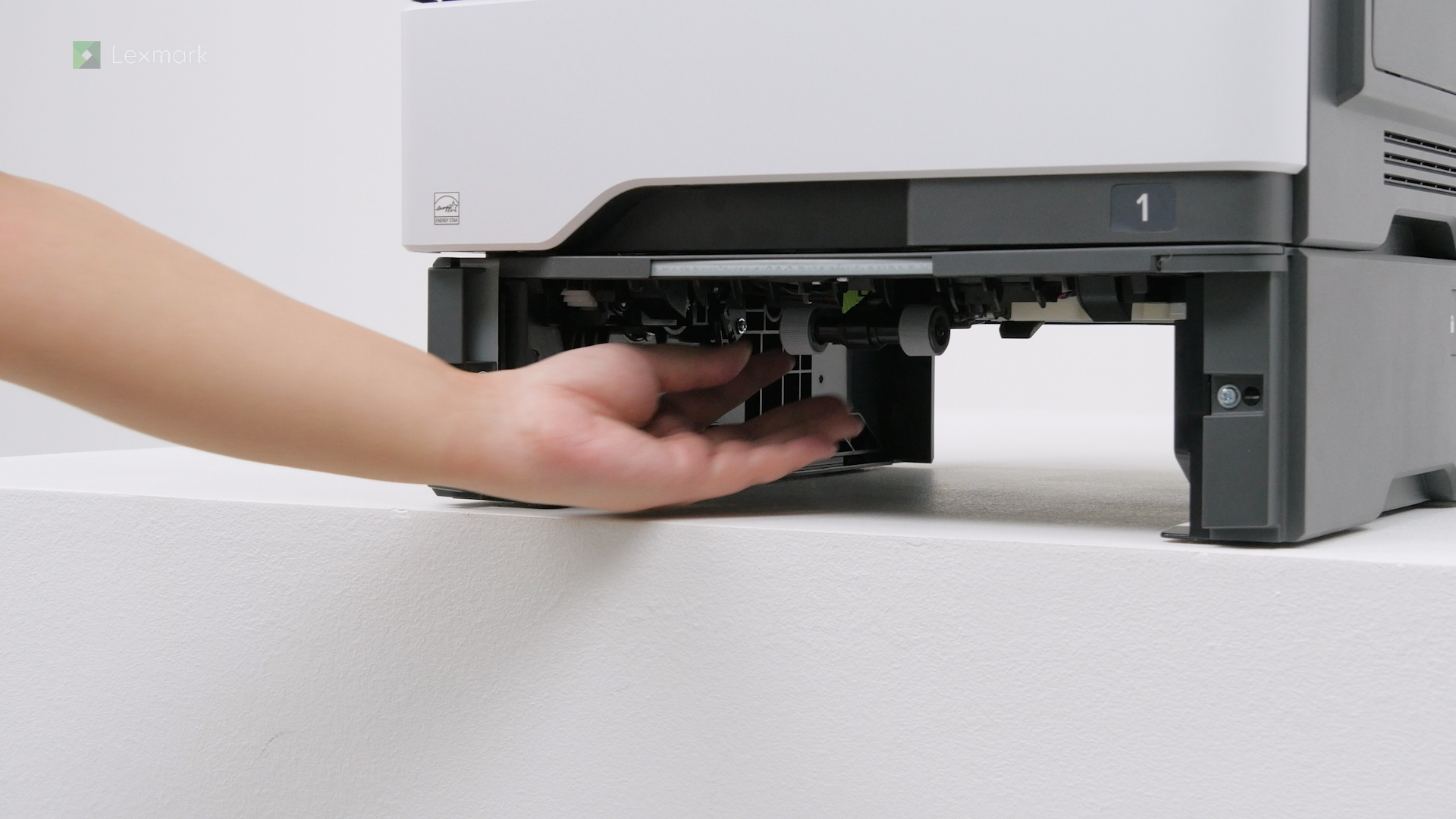
Learn how to replace the pick roller in the optional tray of your printer to prevent paper feed problems from happening again.
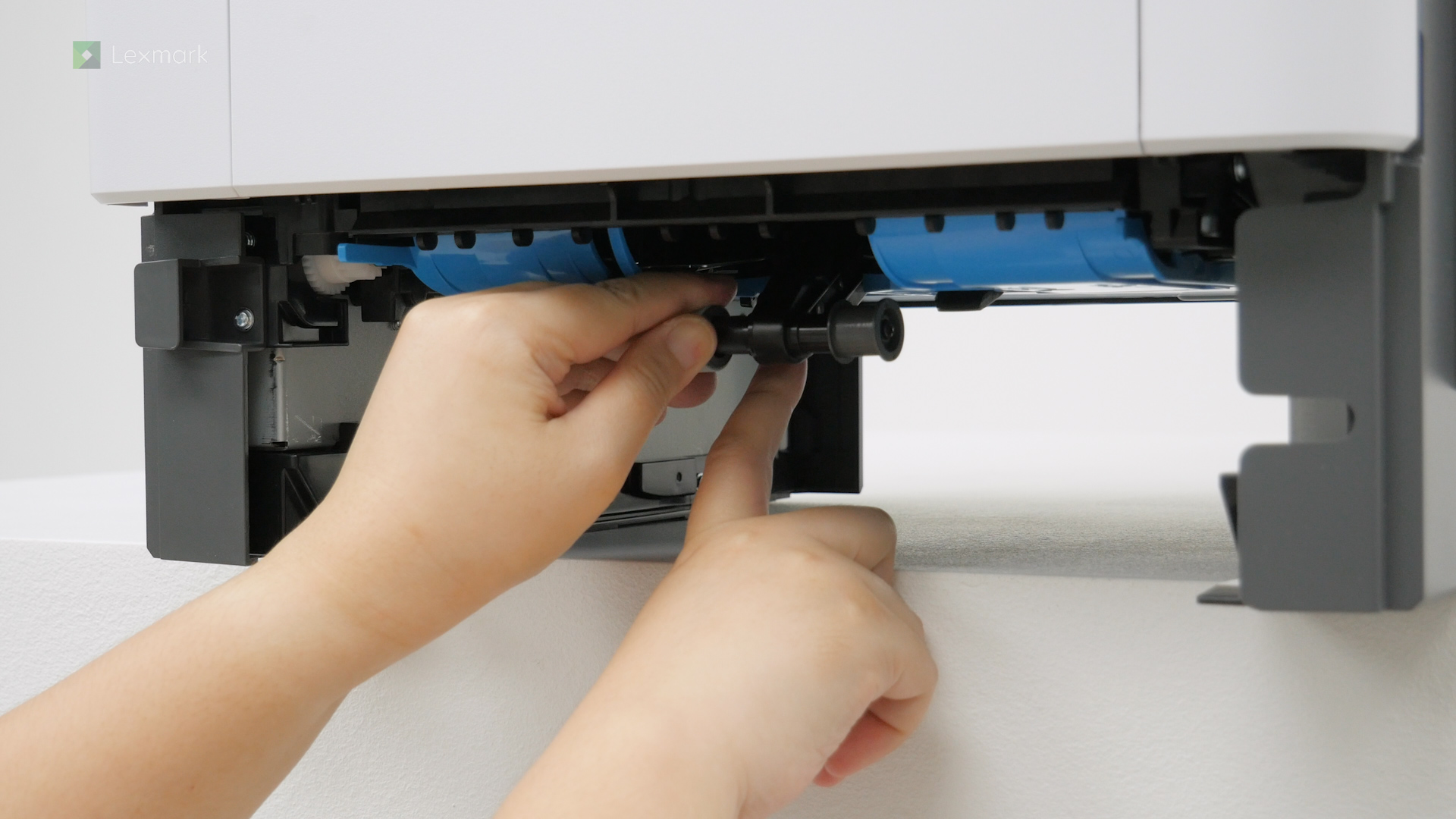
Learn how to replace the pick tires of your printer.
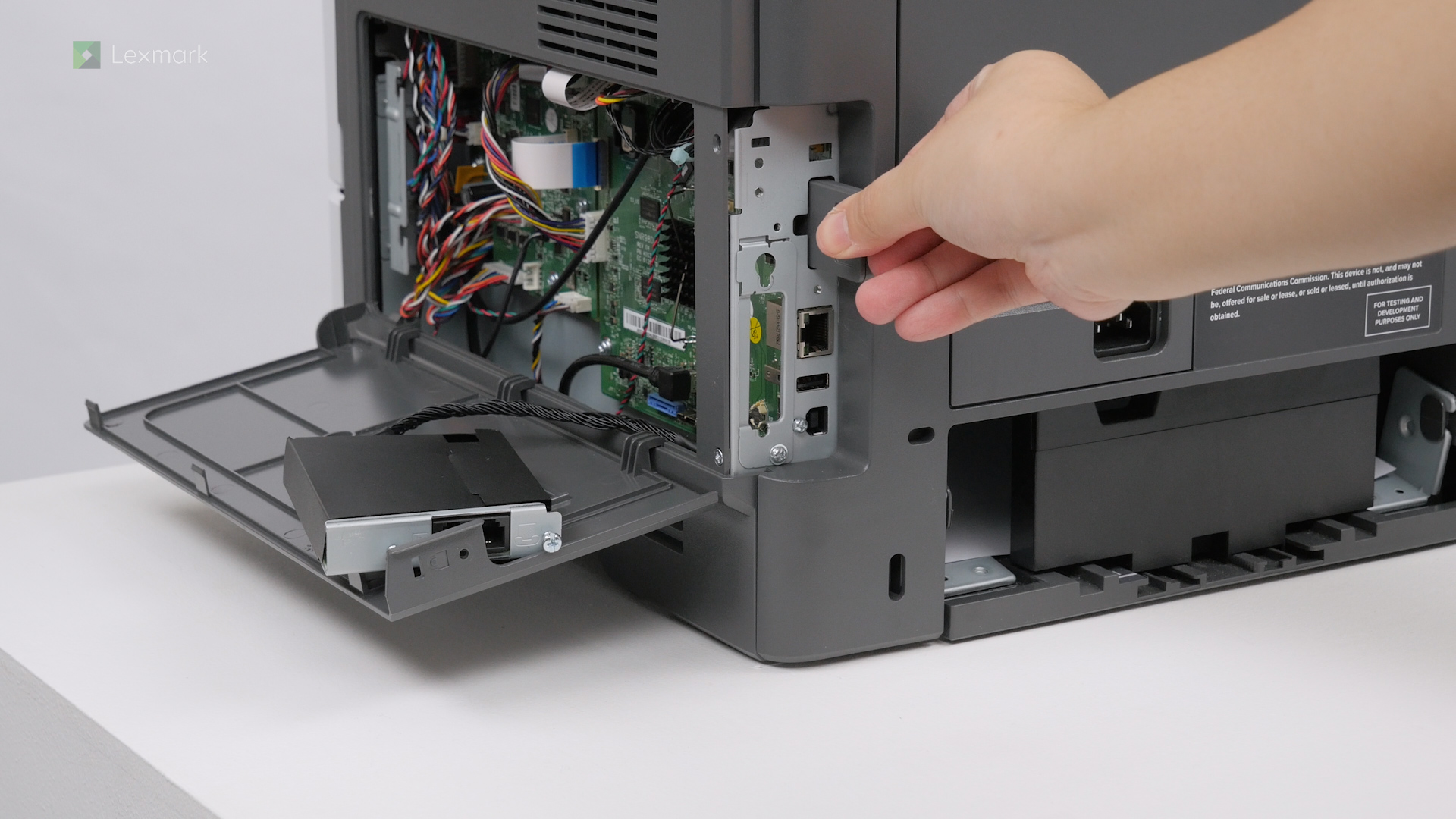
Learn how to remove and replace the MarkNet N8450 wireless print server.
Learn how to replace the rollers in the automatic document feeder of your printer.
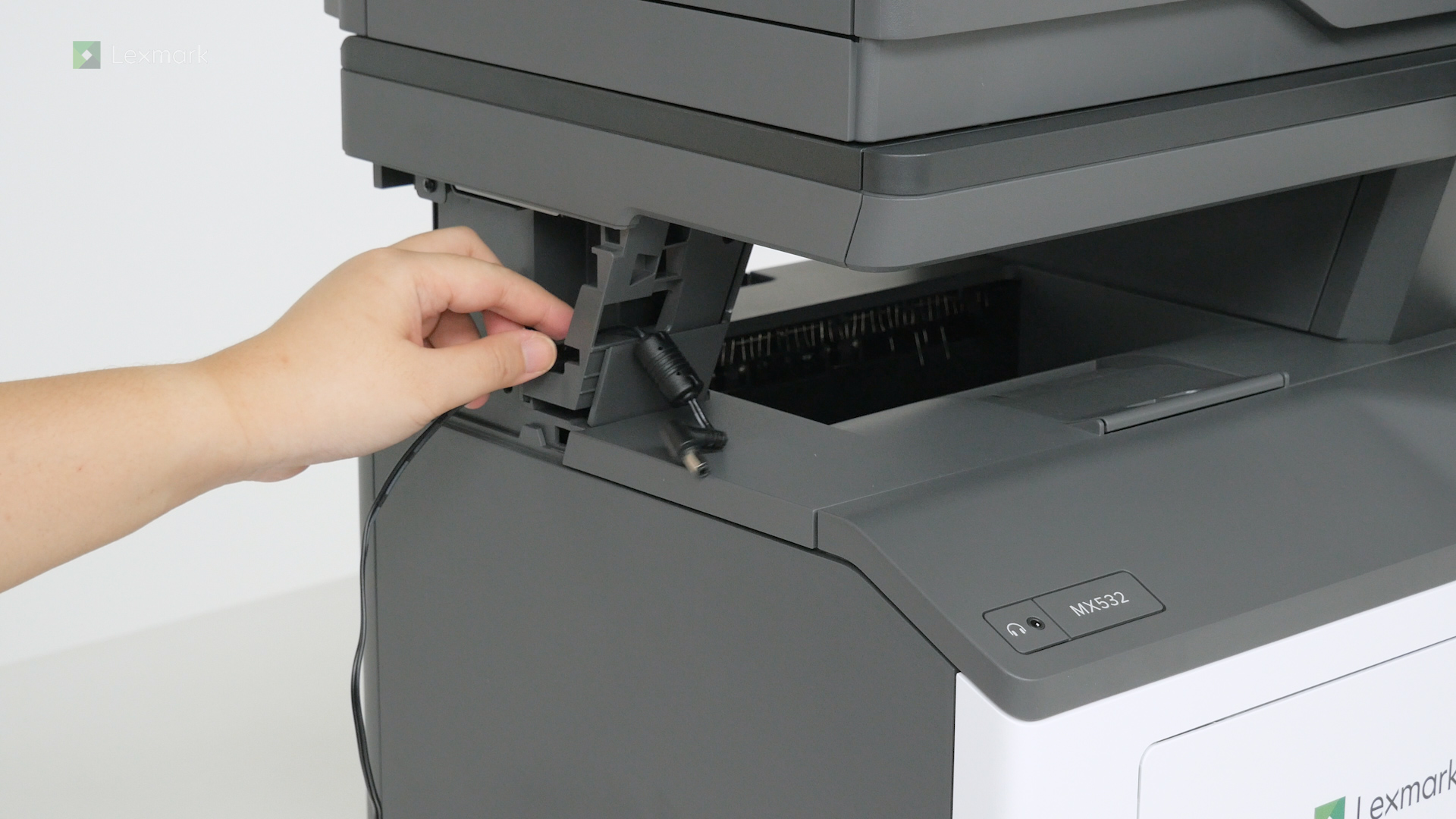
Follow these steps on how to change the convenience stapler properly.
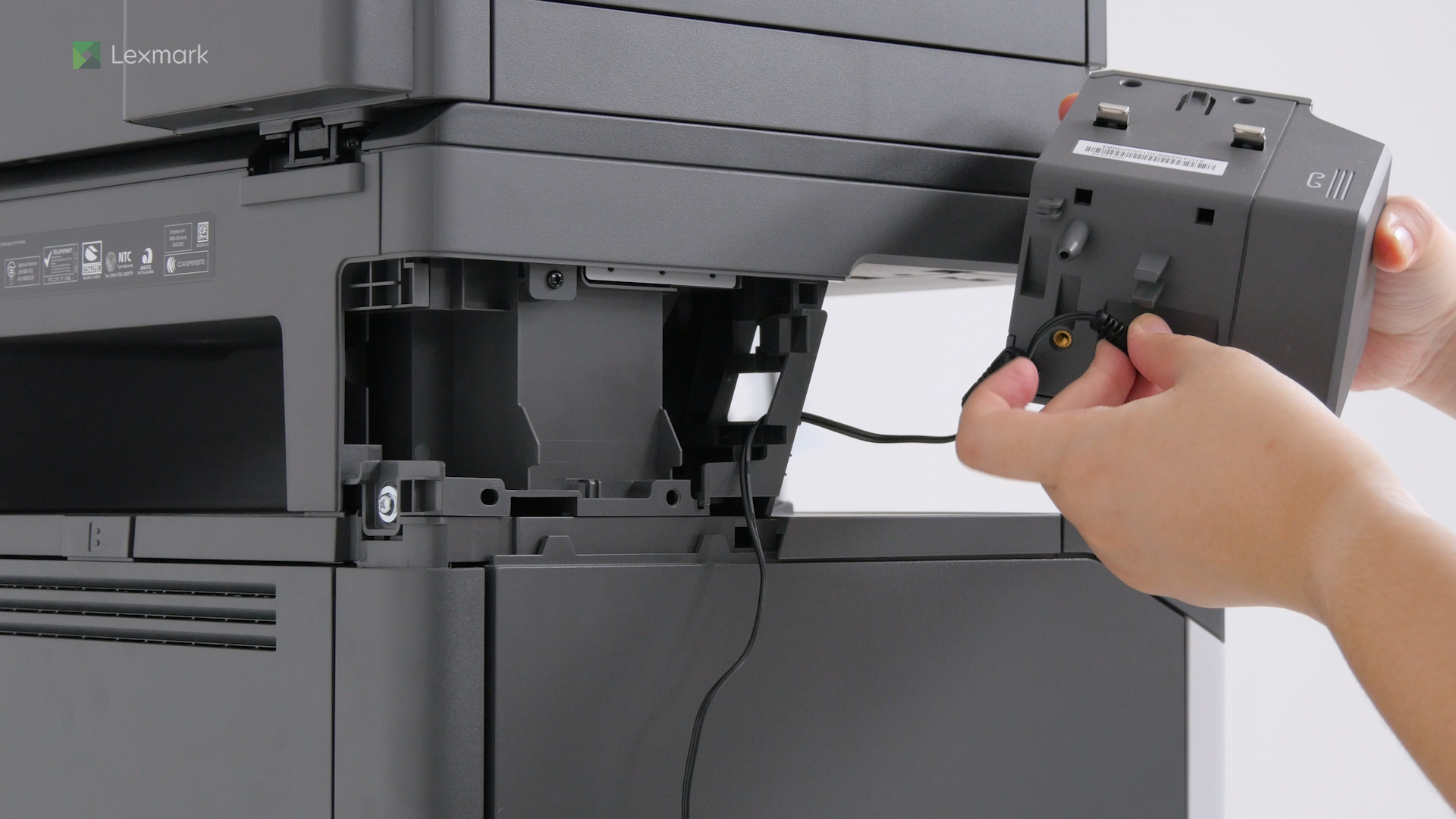
Follow these steps on how to change the power supply of the convenience stapler.
Use an alcohol-based solution with at least 70% alcohol and water and use it according to the manufacturer safety guidelines when cleaning the pick tires.
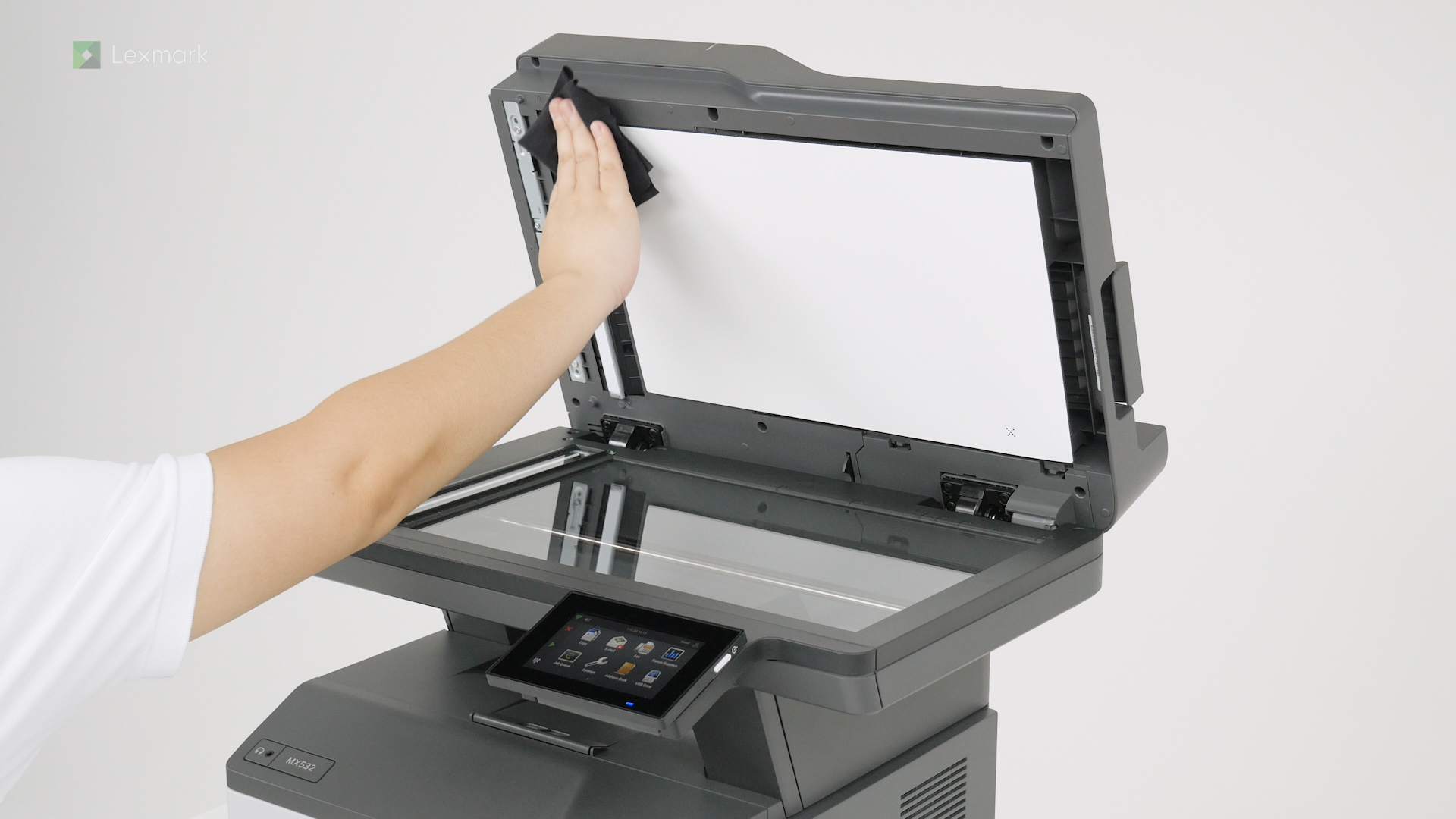
Clean your scanner periodically to avoid getting blurry and faded scanned images or text.
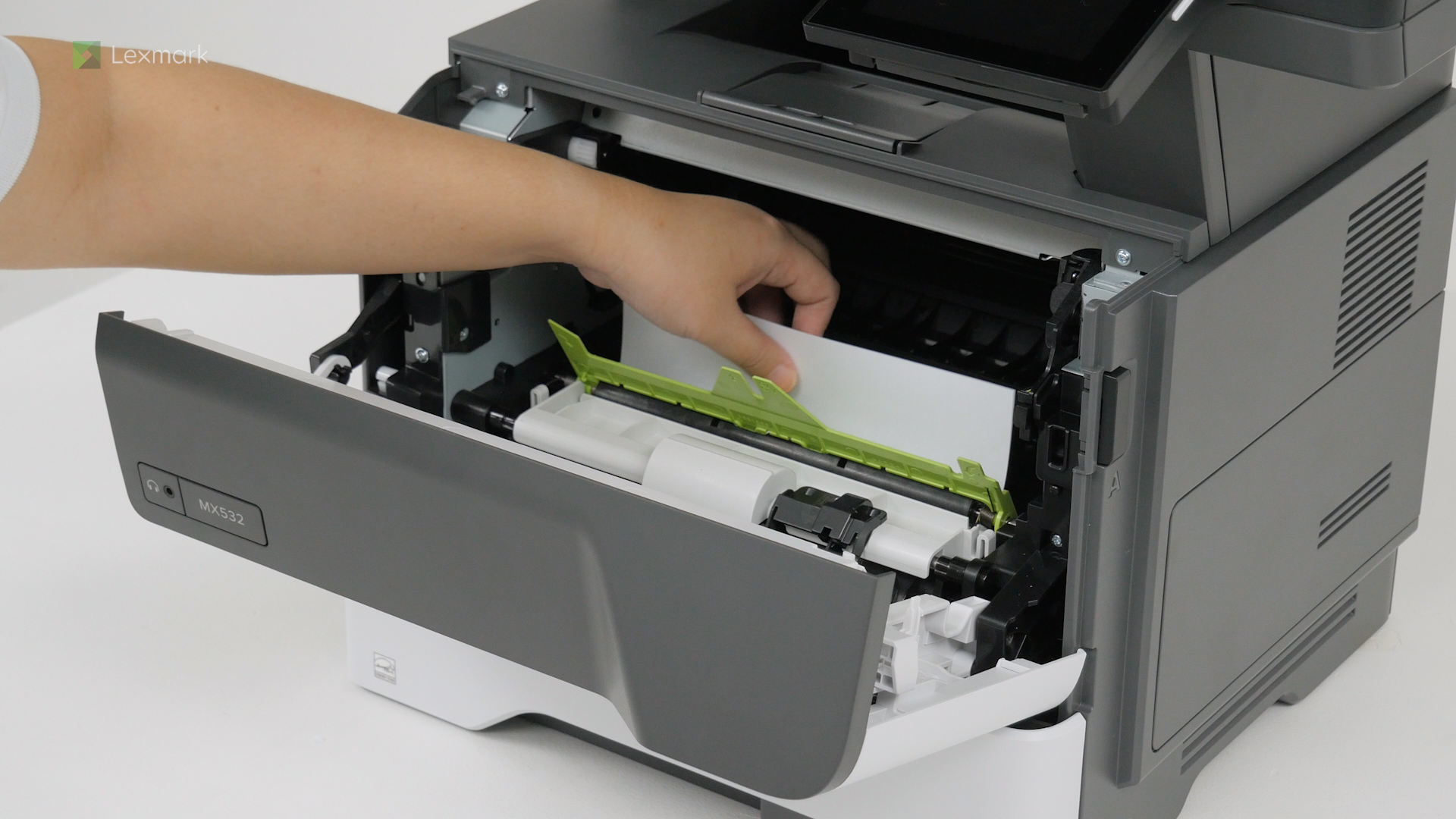
Remove the jammed paper in door A to continue printing.
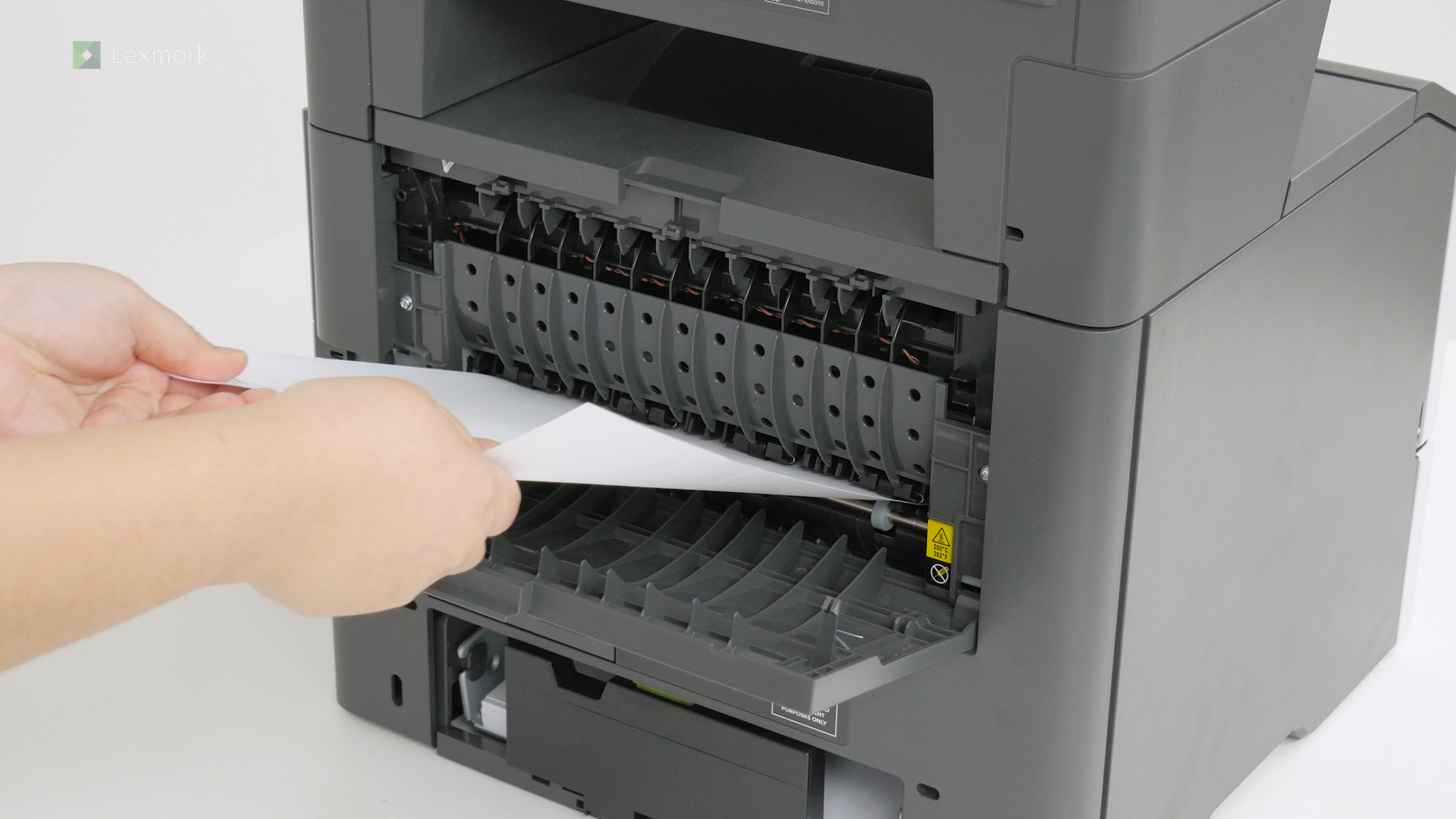
Remove paper that is stuck in door B to continue printing.
Learn how to remove the jammed paper in the tray.
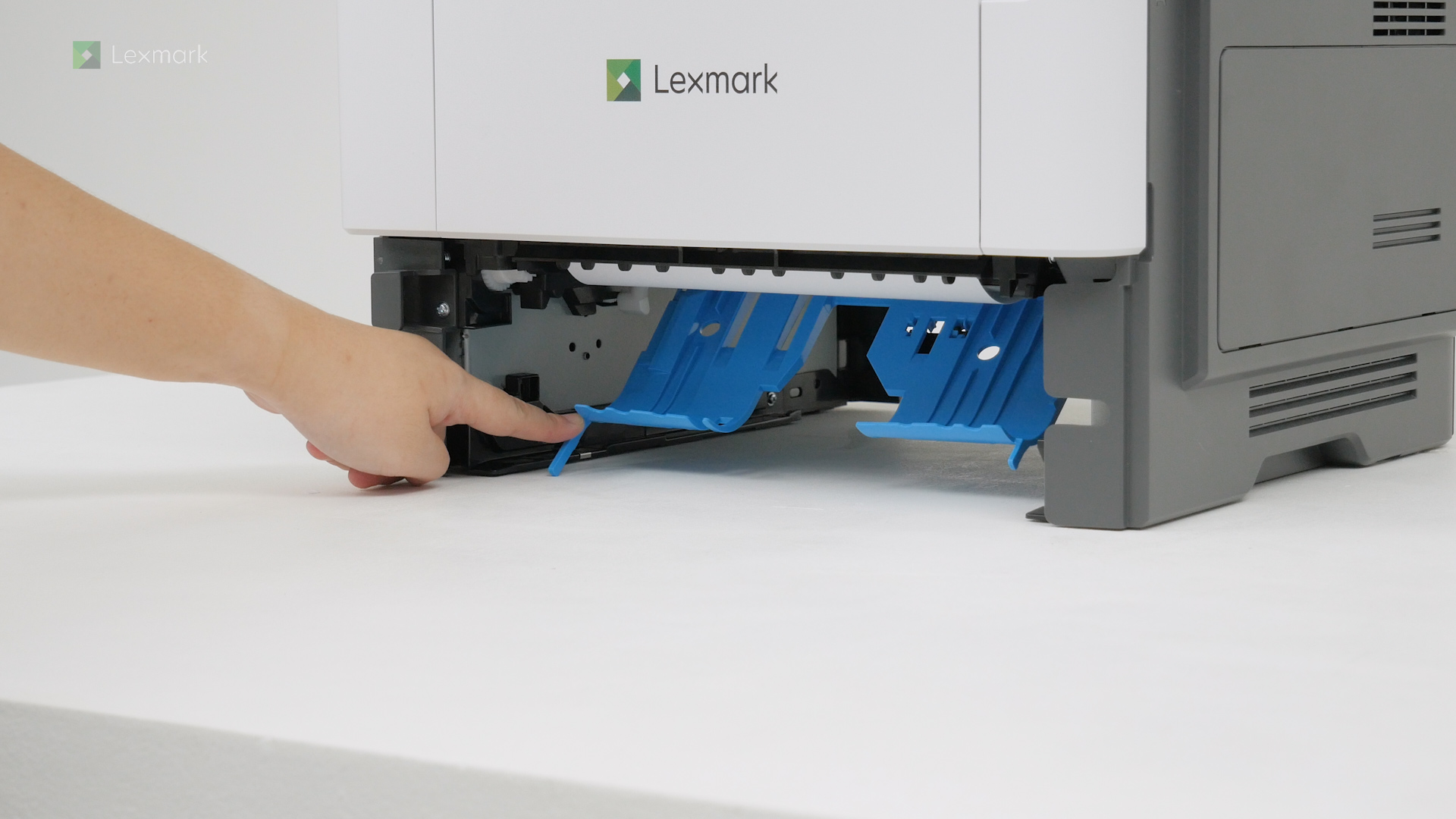
Learn how to remove the jammed paper in the duplex unit.
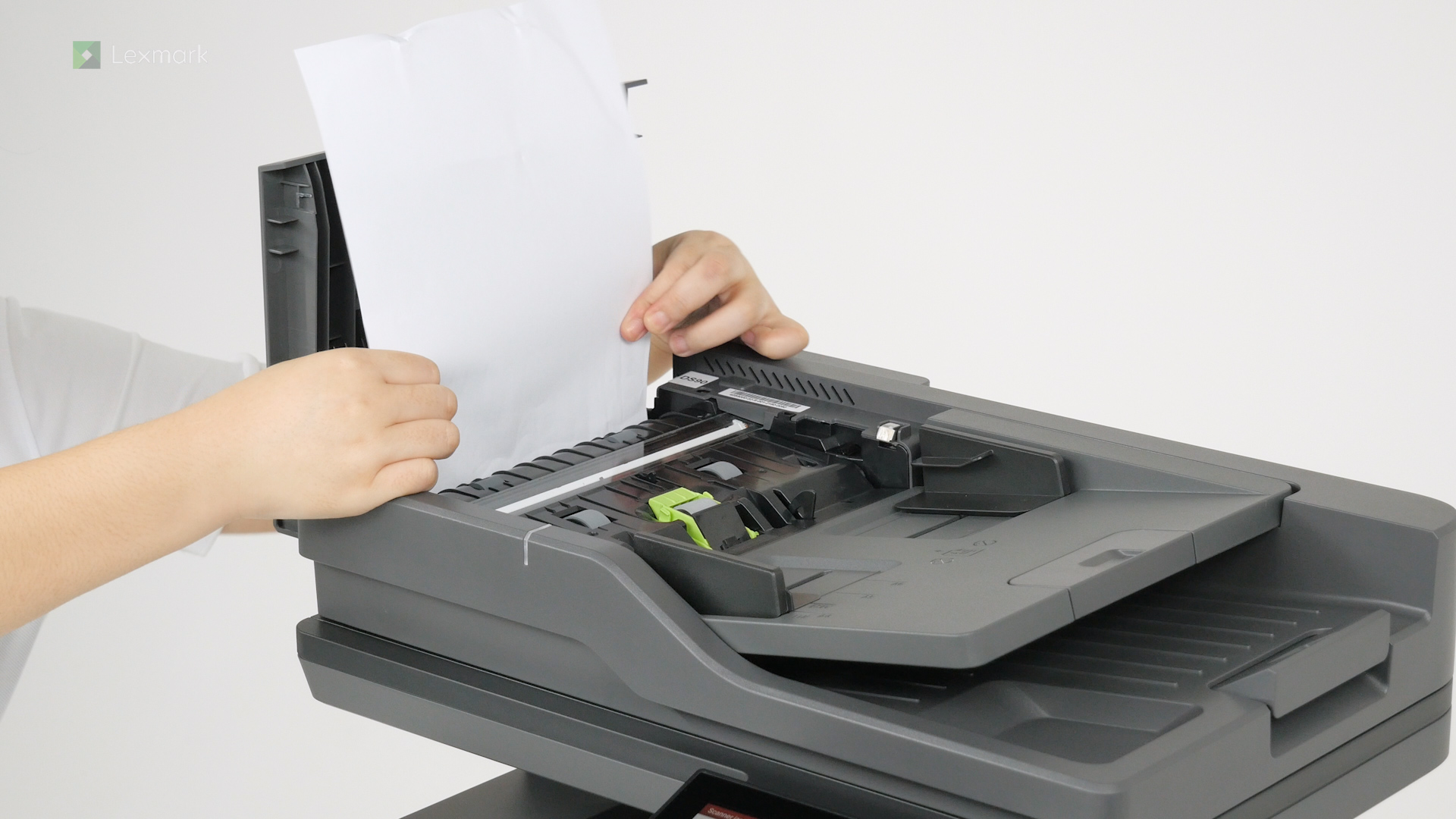
Remove paper that is stuck in the automatic document feeder to continue scanning.
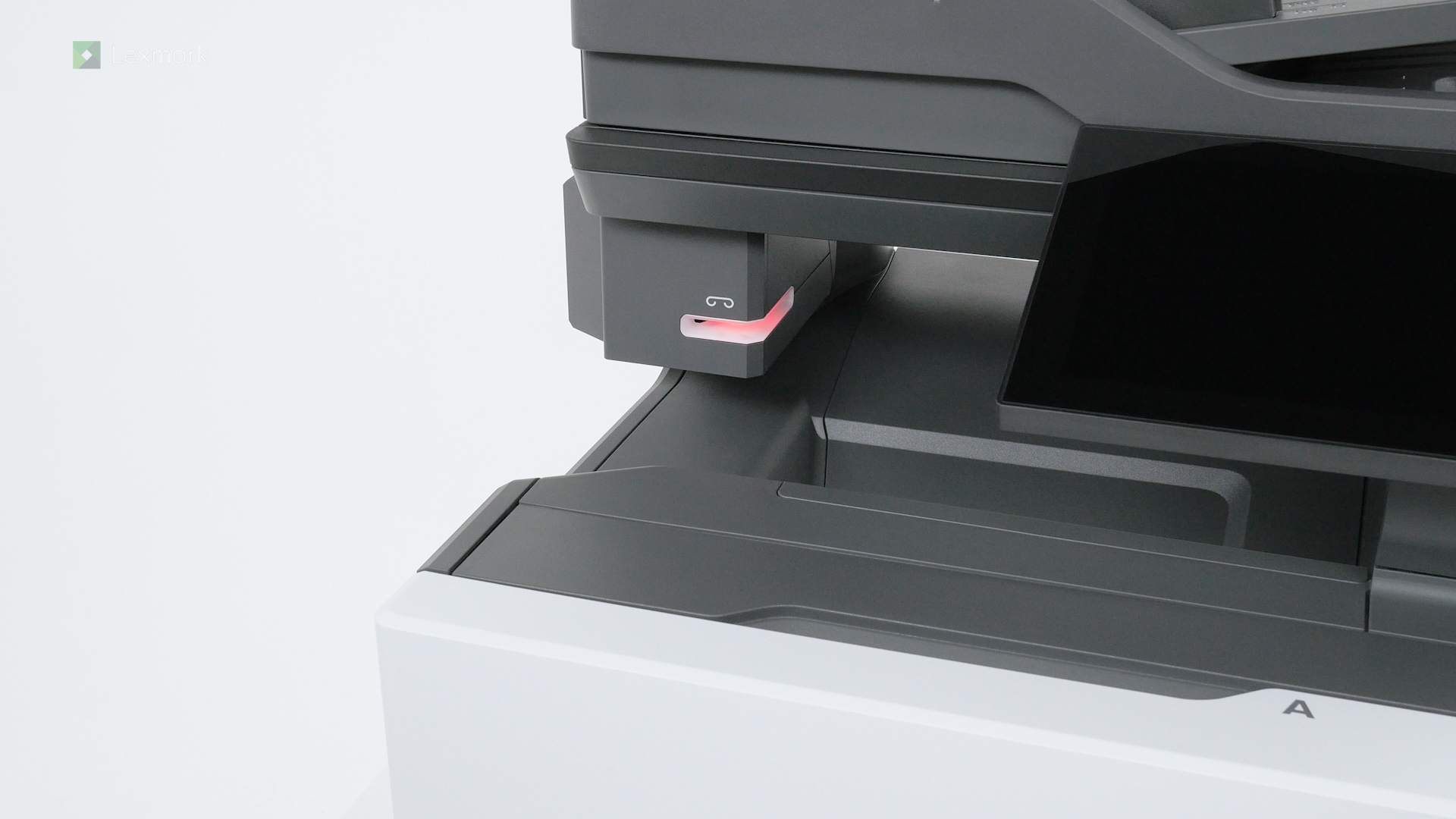
Different troubleshooting scenarios when the convenience stapler flashes red light.