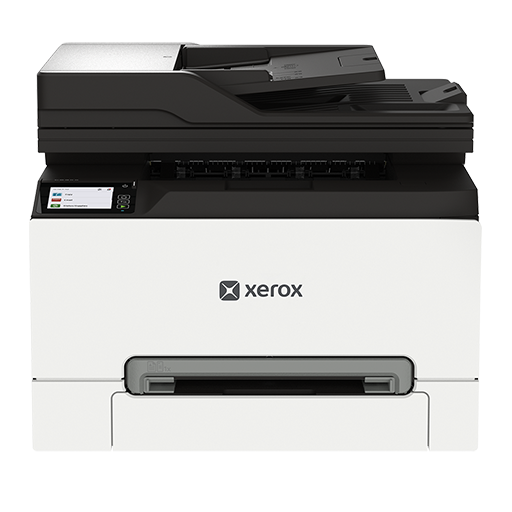
Printer features: Laser, multifunction, color
Xerox C245 Support
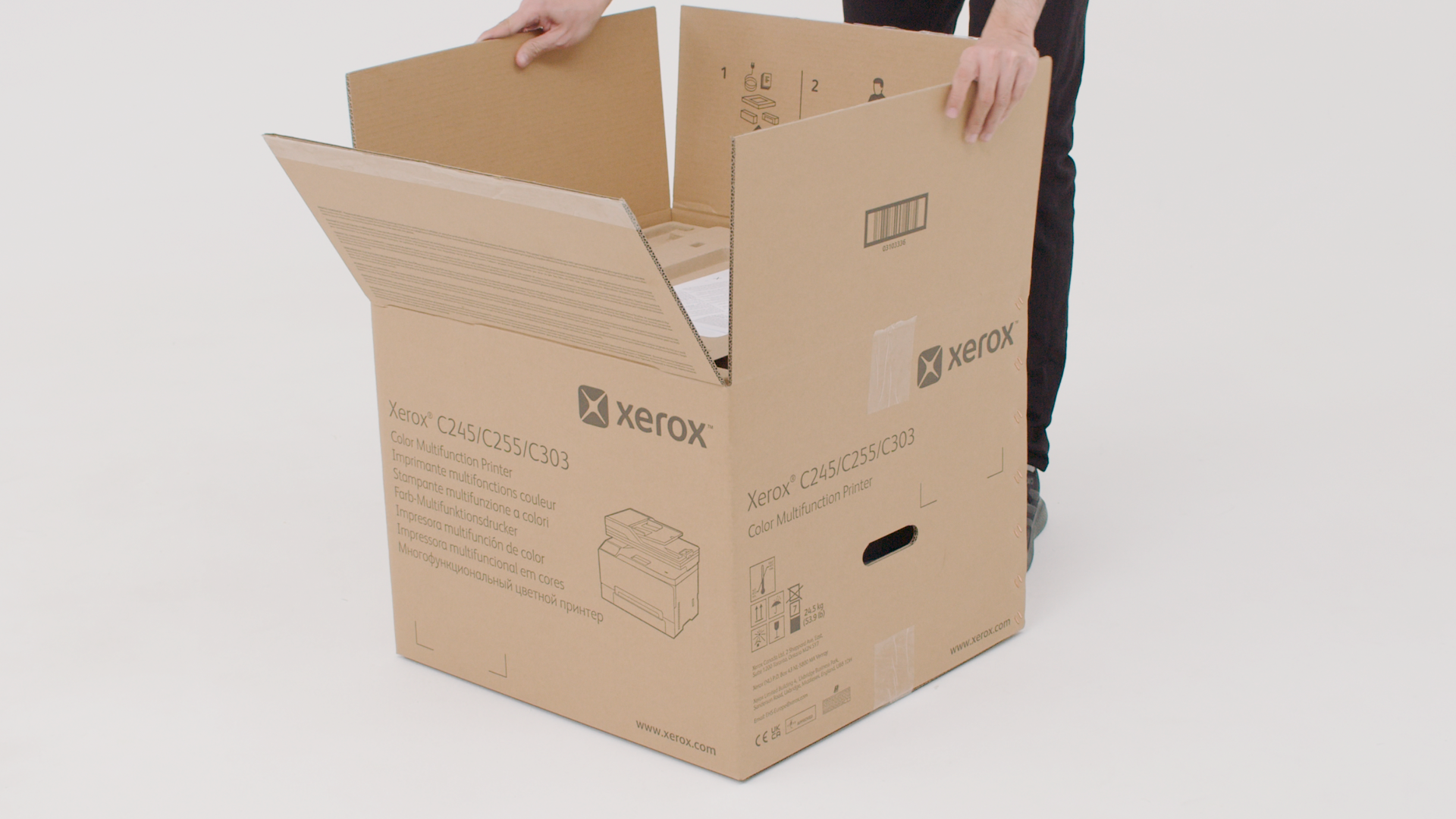
Learn how to set up your new printer.
Follow these instructions to install the print driver for your Windows computer.
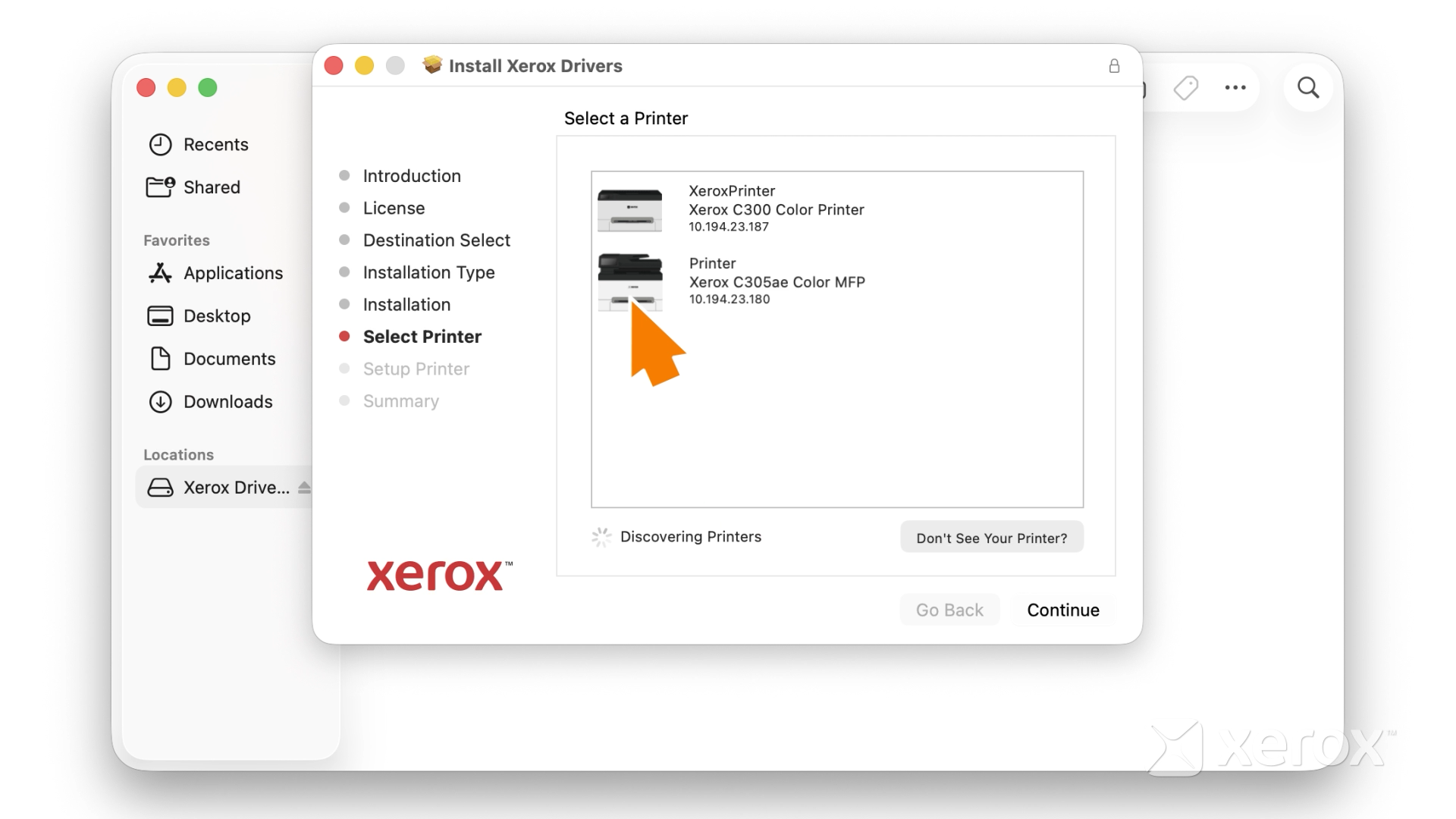
Follow these instructions to install the print driver for your MacOS.
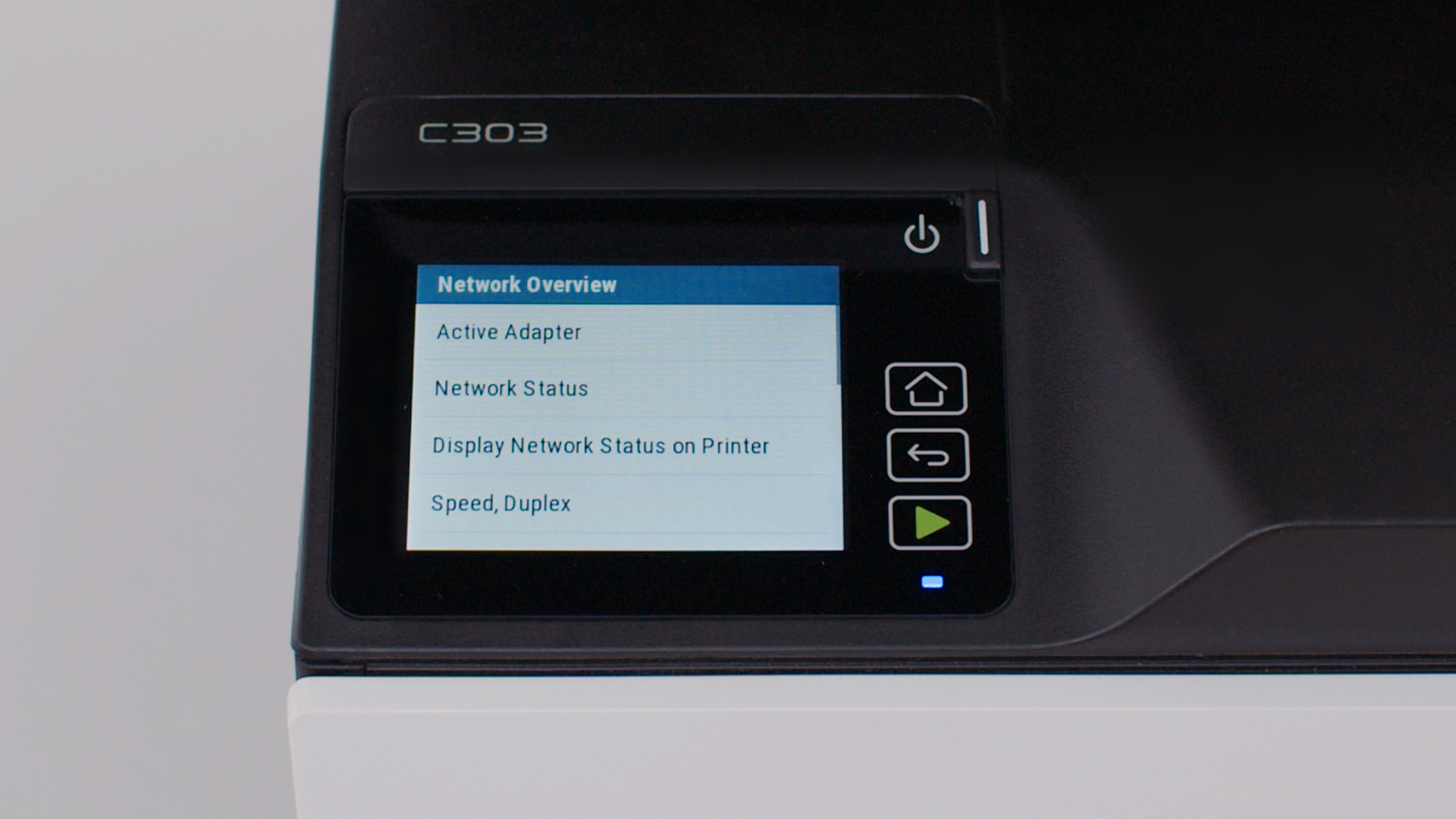
Connect your printer securely to a wireless network.
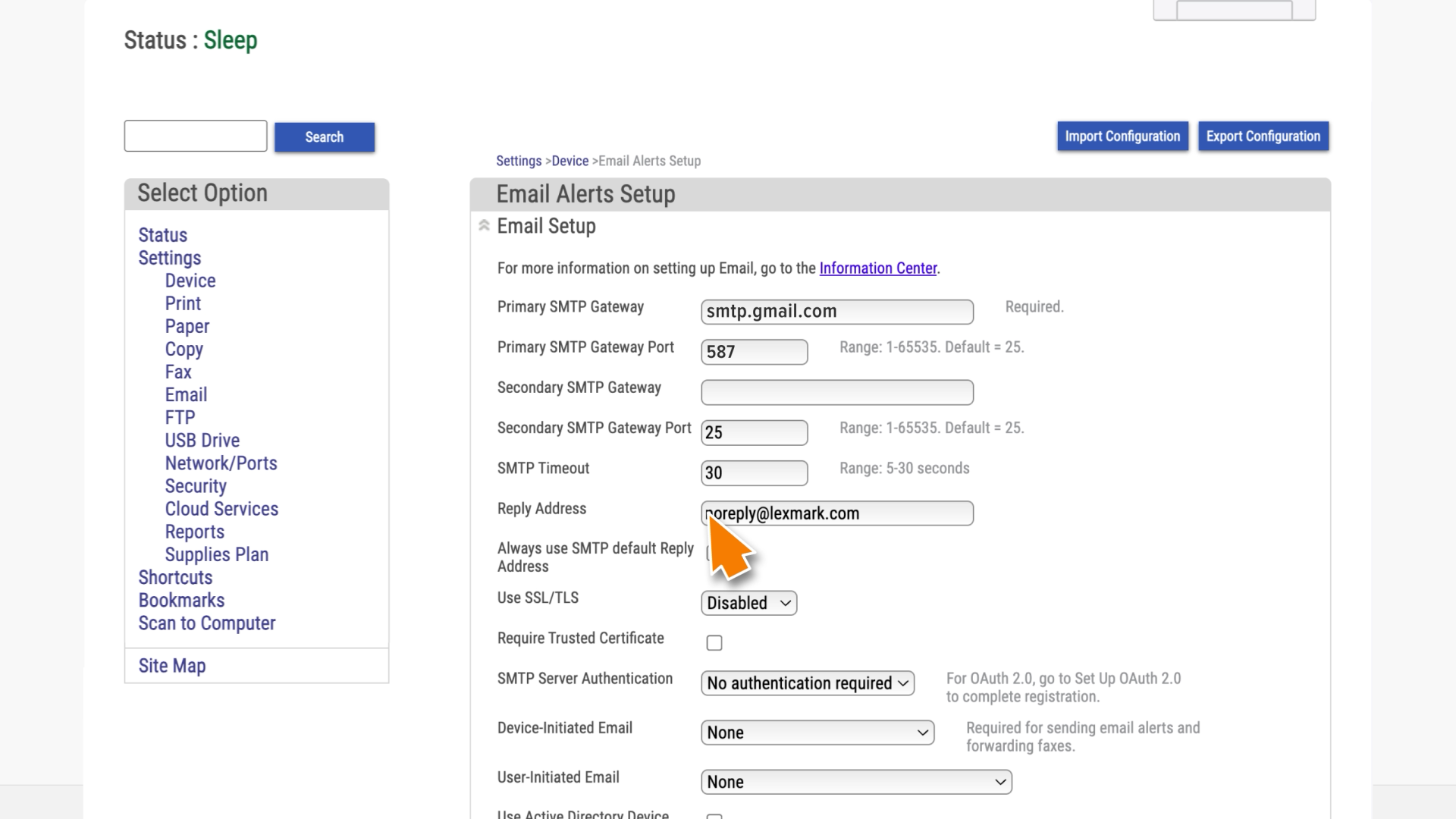
Learn the email SMTP settings for your email service provider.
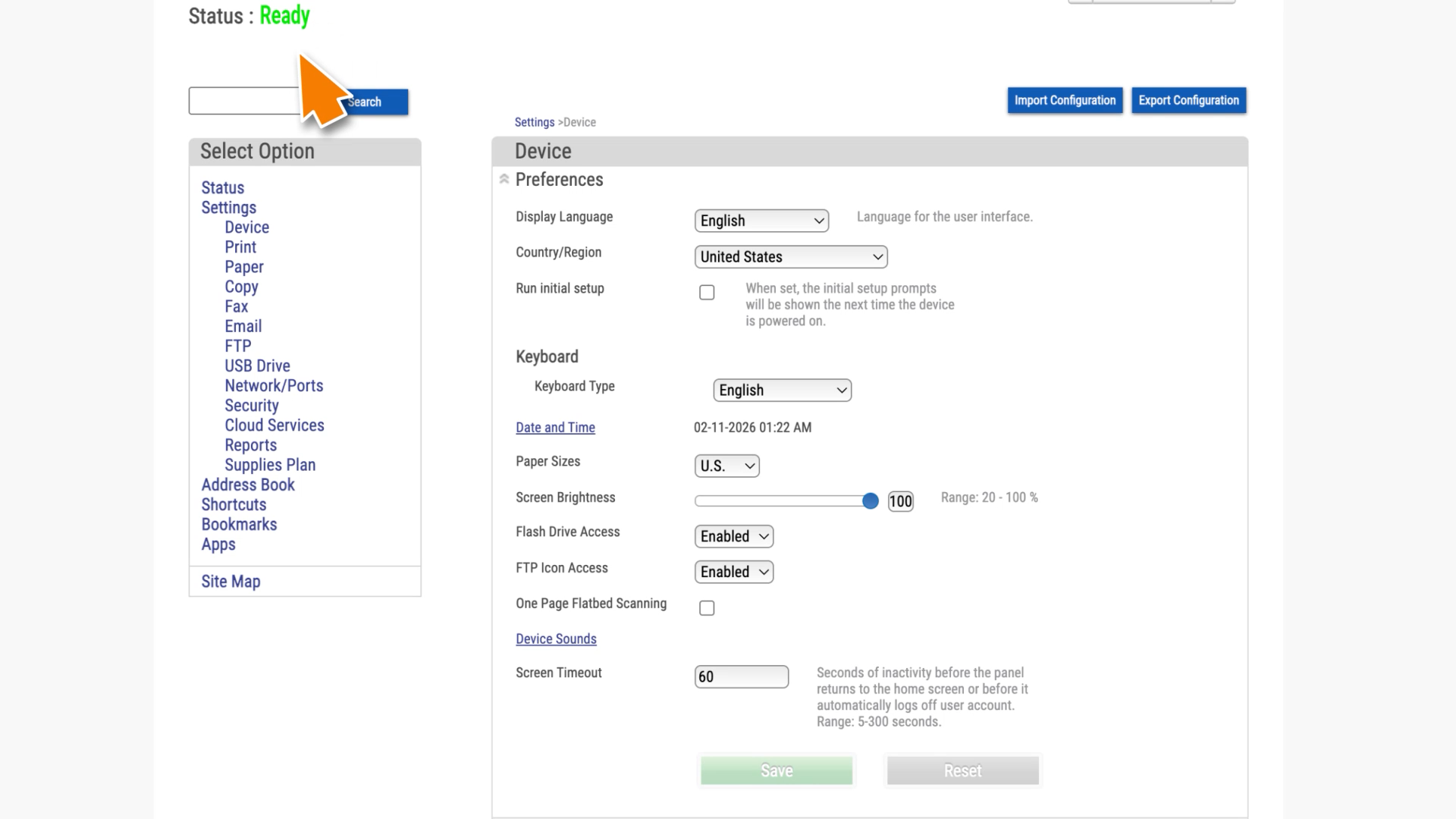
Learn how to navigate the Embedded Web Server of your Xerox printer.
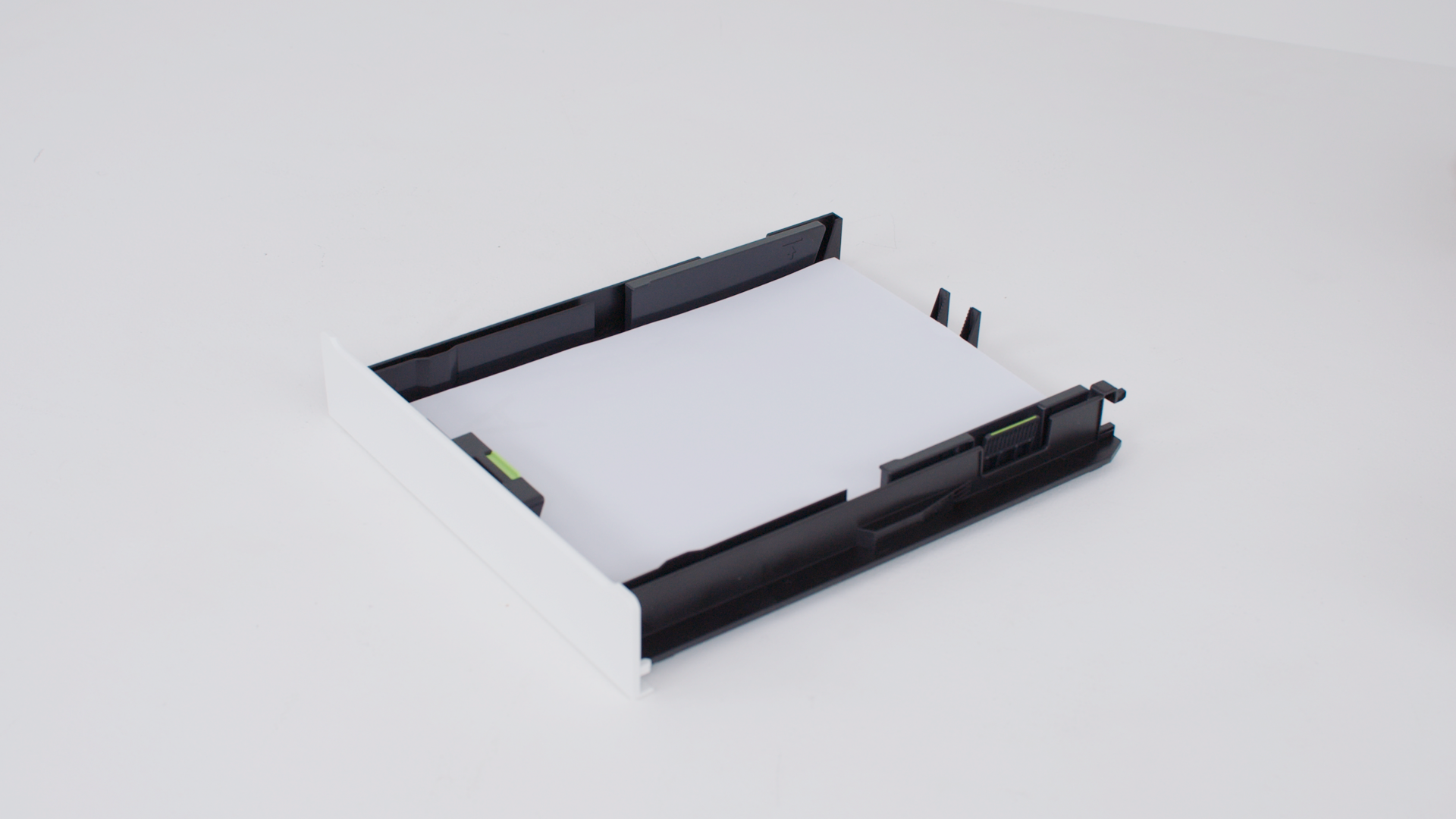
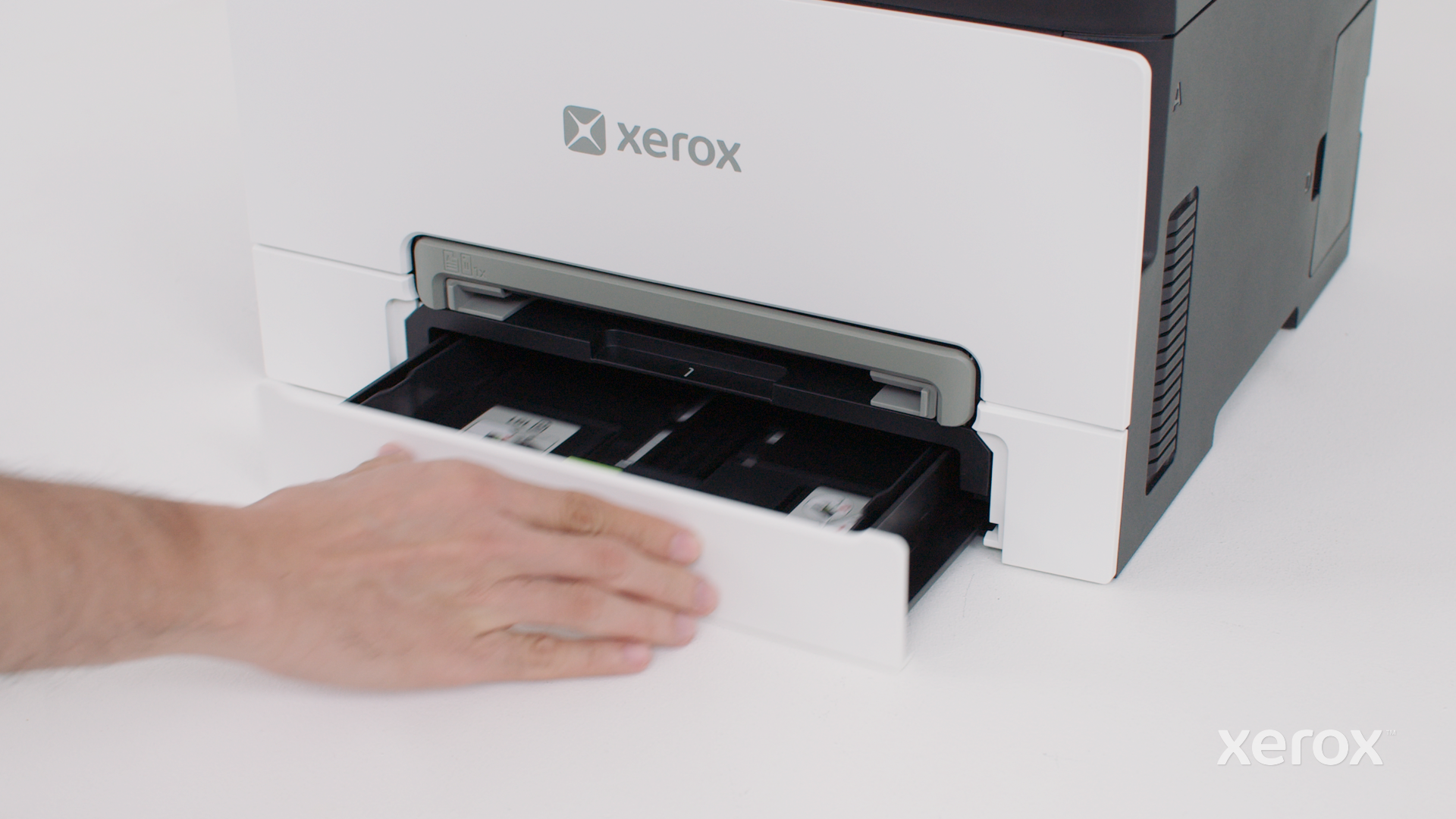
For reliable printing results, use these instructions to load paper properly.
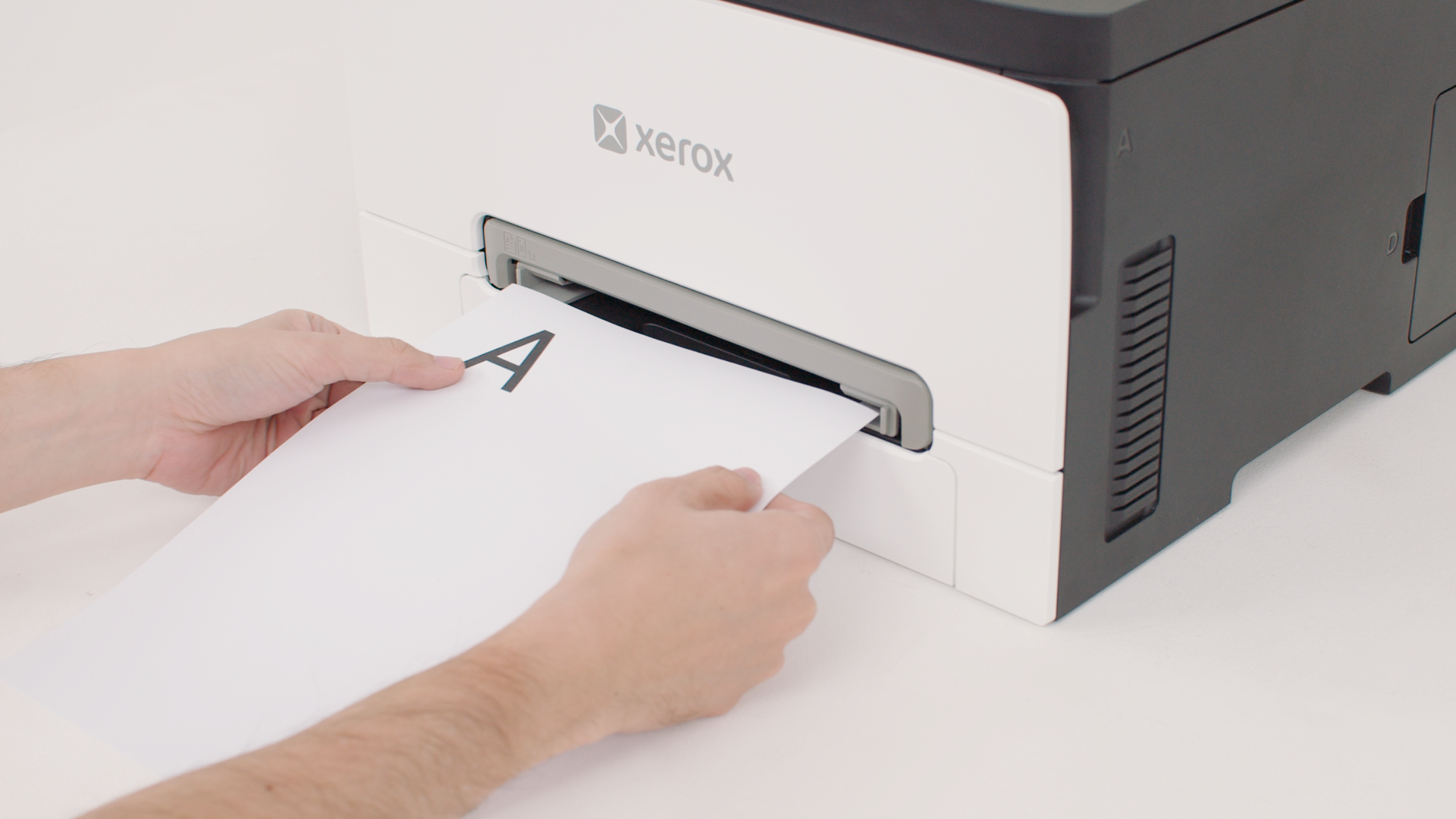
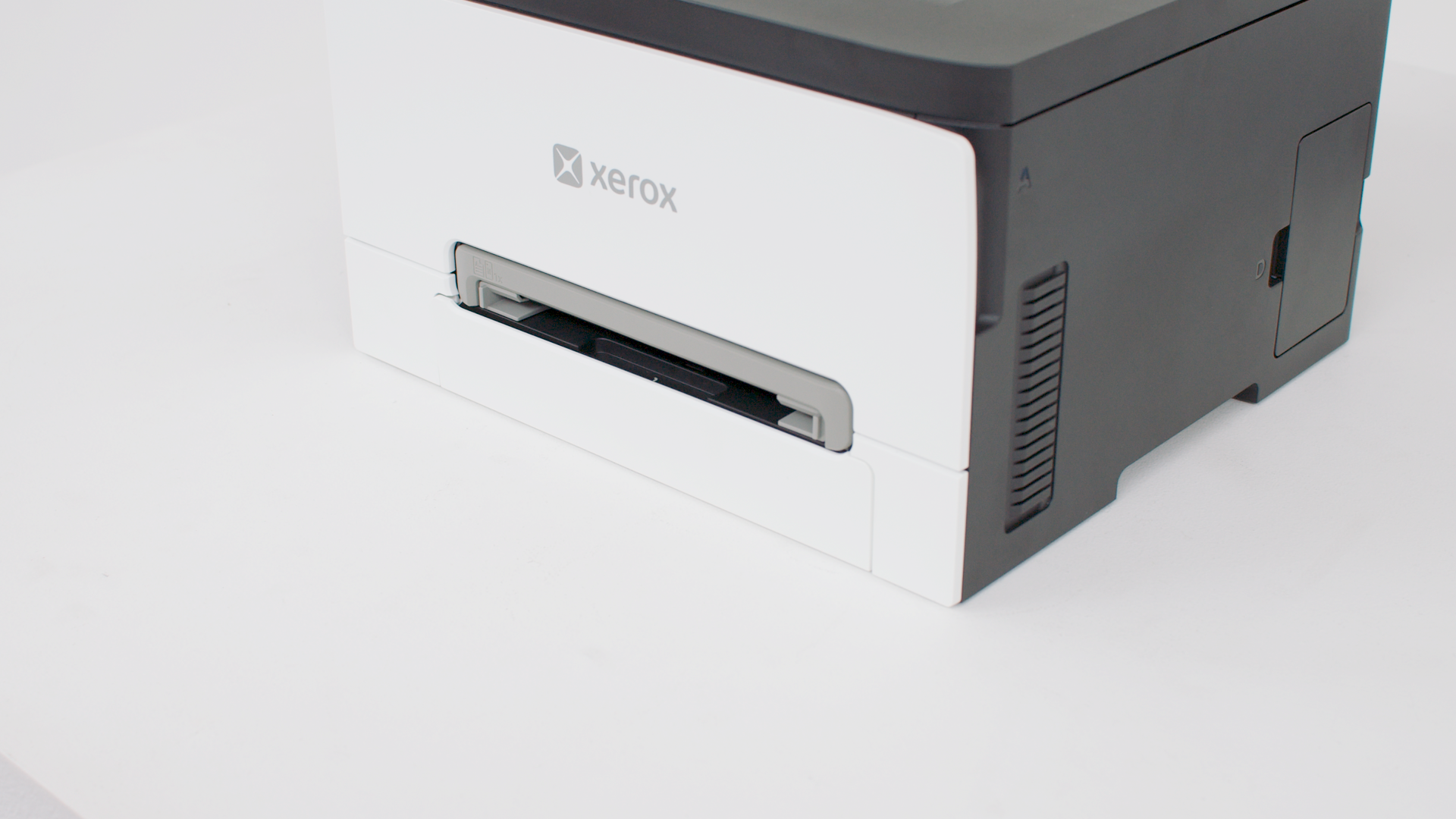
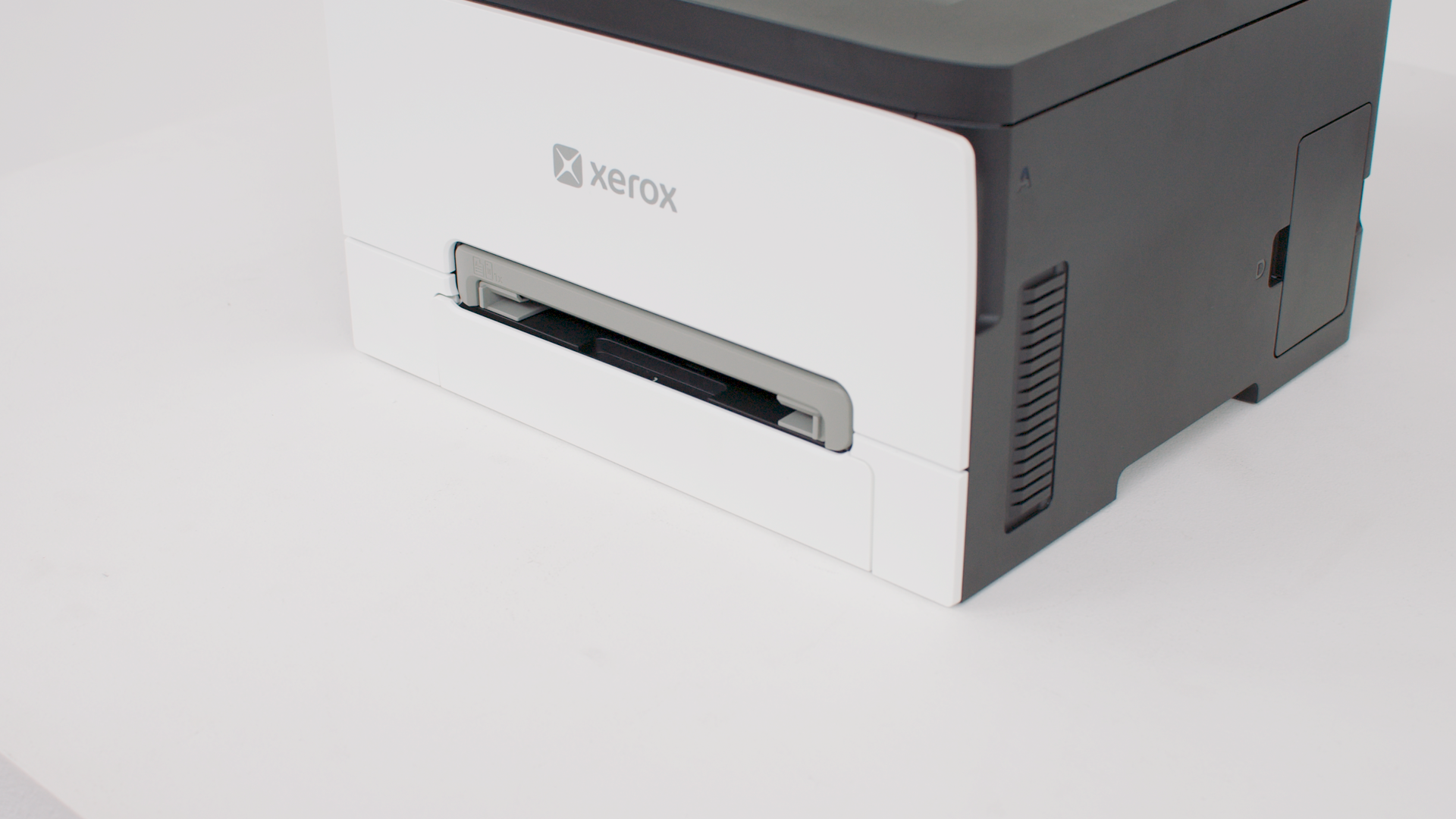
Learn how to load paper in the manual feeder.
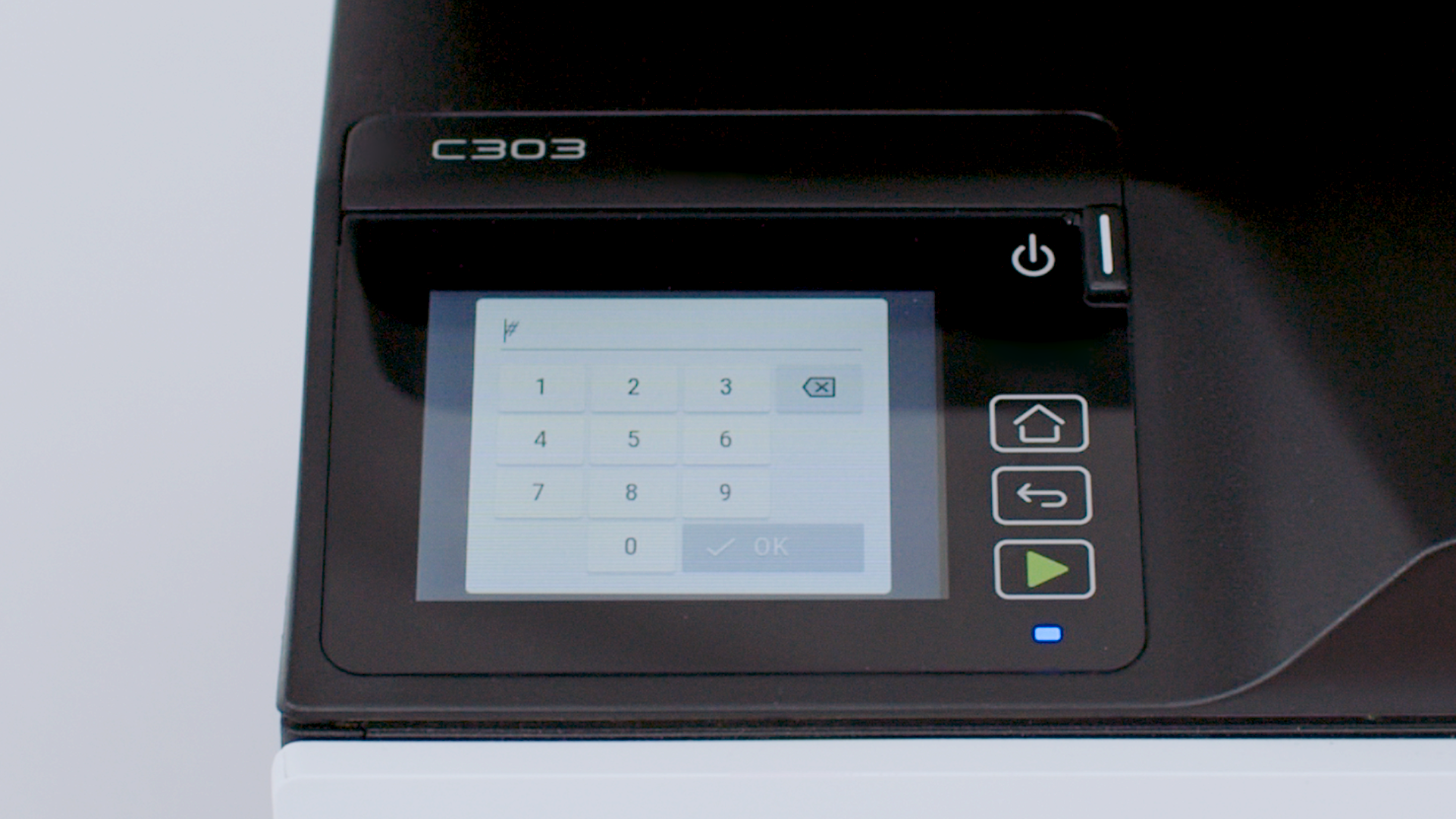
Transfer your documents directly to a network folder.
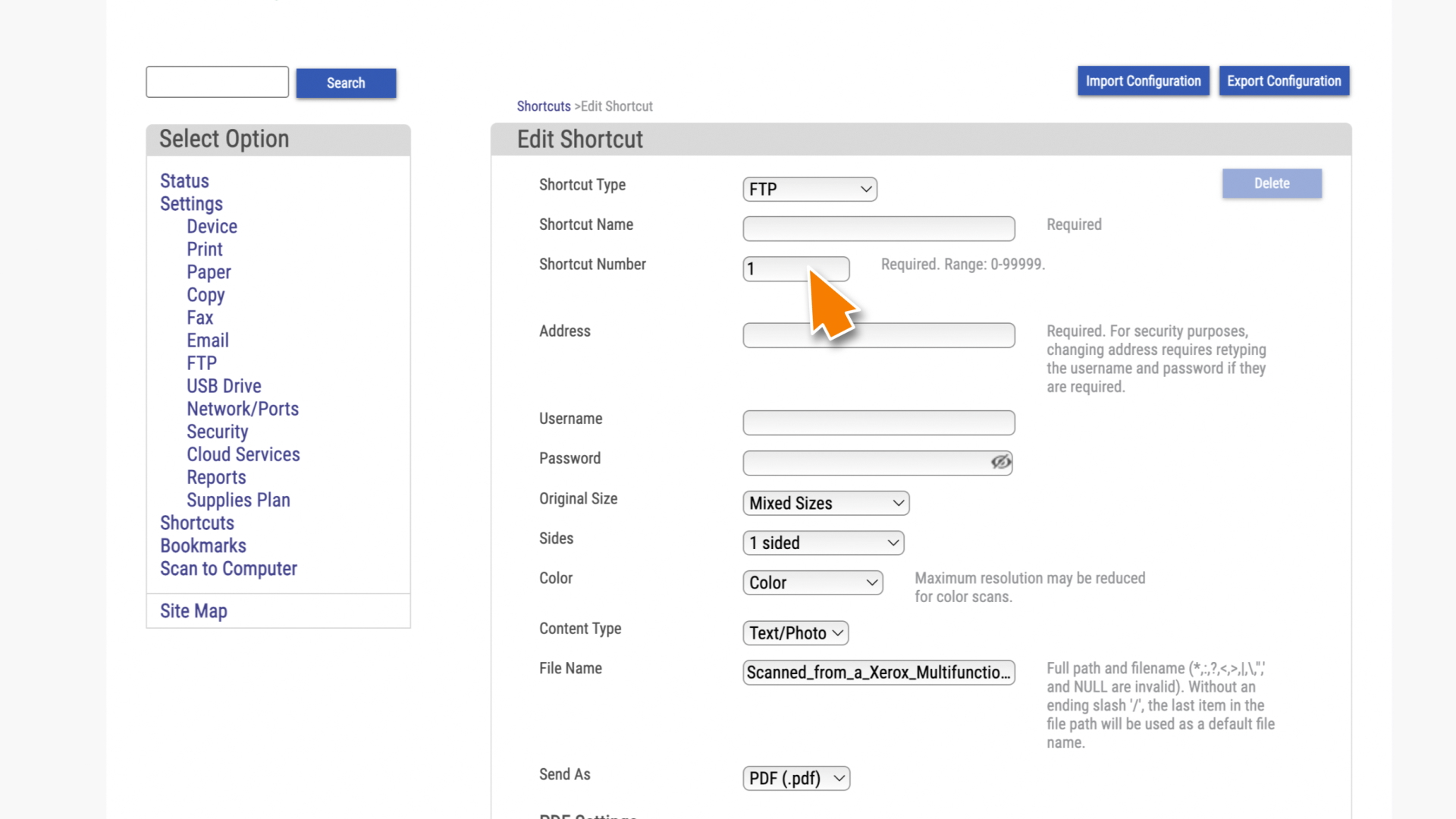
Transfer your documents directly to File Transfer Protocol server over the internet.
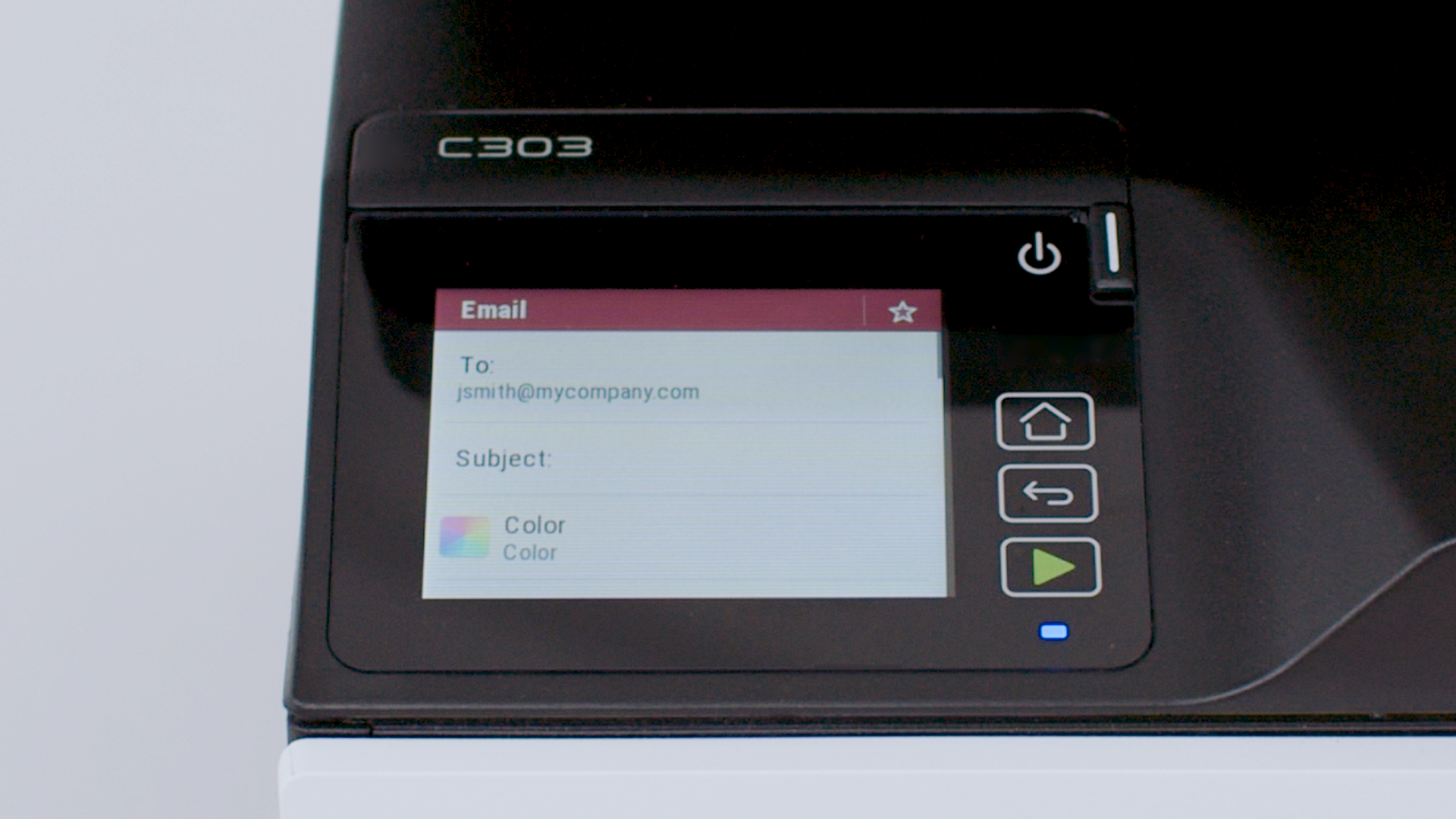
Follow these steps on how to send an email directly from your printer.
Follow these instructions to send scanned documents to your computer.
Follow these instructions to send scanned documents to your Macintosh computer.
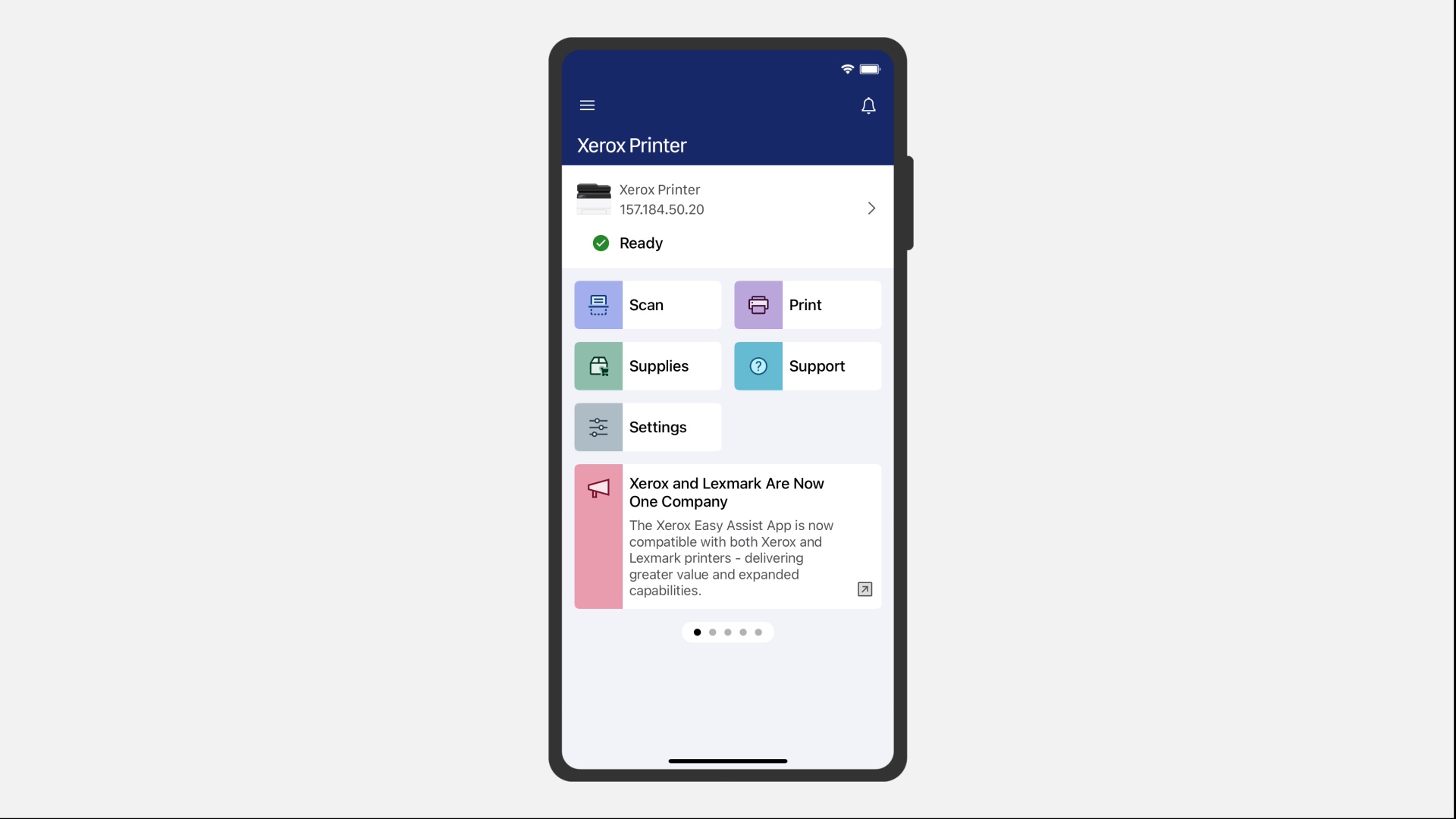
Learn how to send print a job from your iOS or Android mobile phone using the Xerox® Easy Assist app.
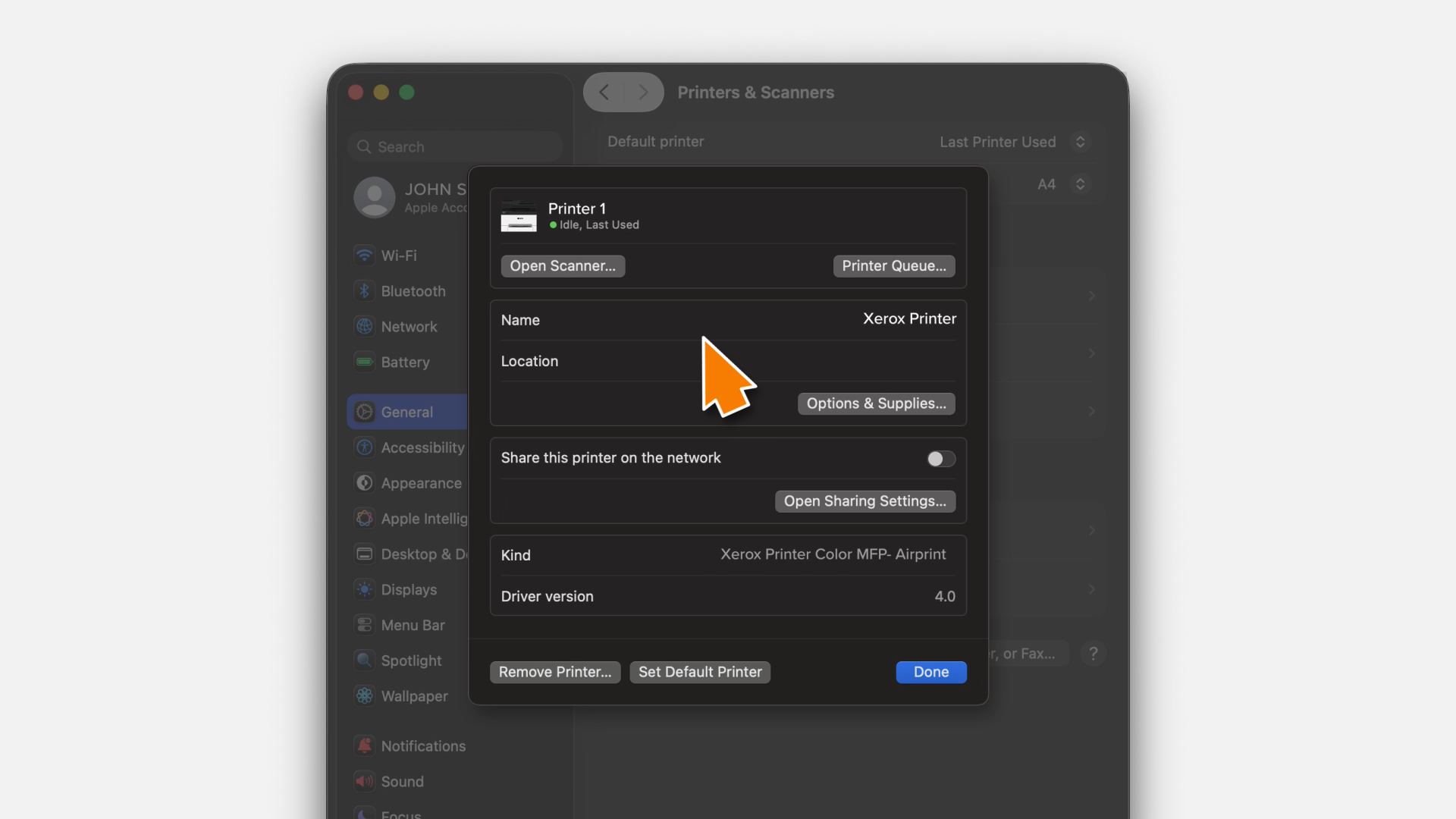
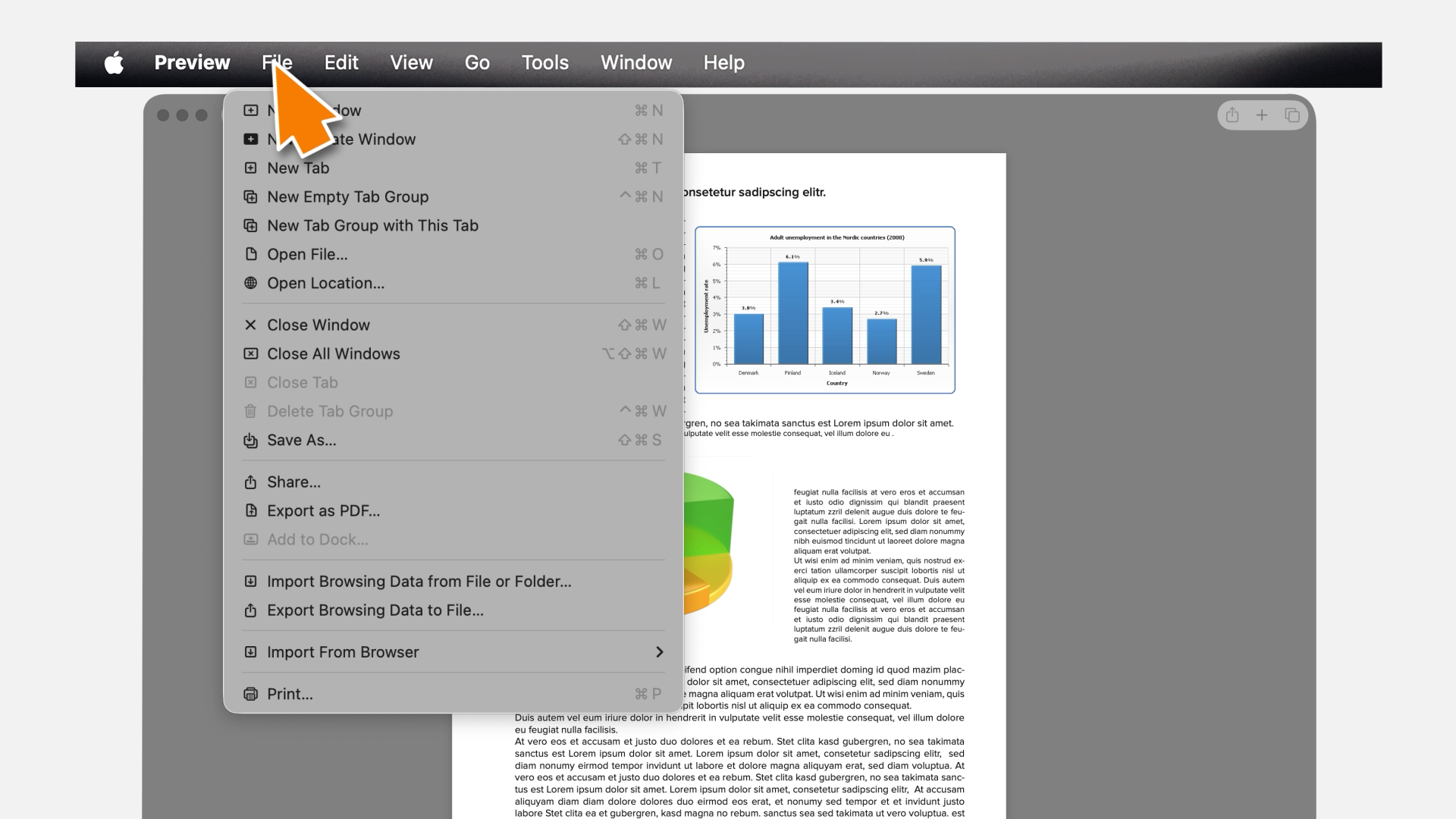
Learn how to use the AirPrint on your Macintosh computer to send a print job to your printer.
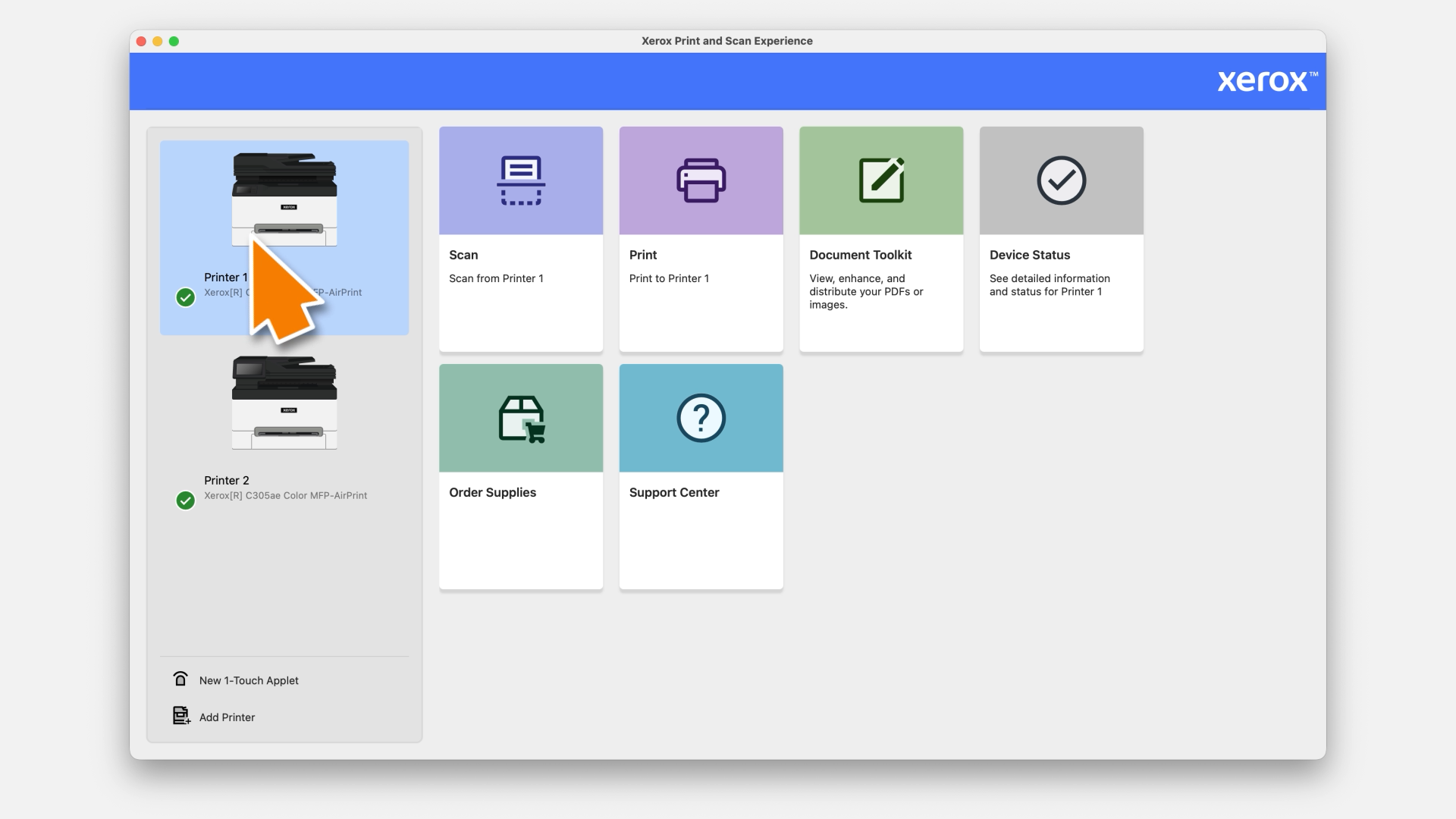
Learn how to use the Xerox® Print and Scan Experience of your Windows computer to send a print job to your printer.
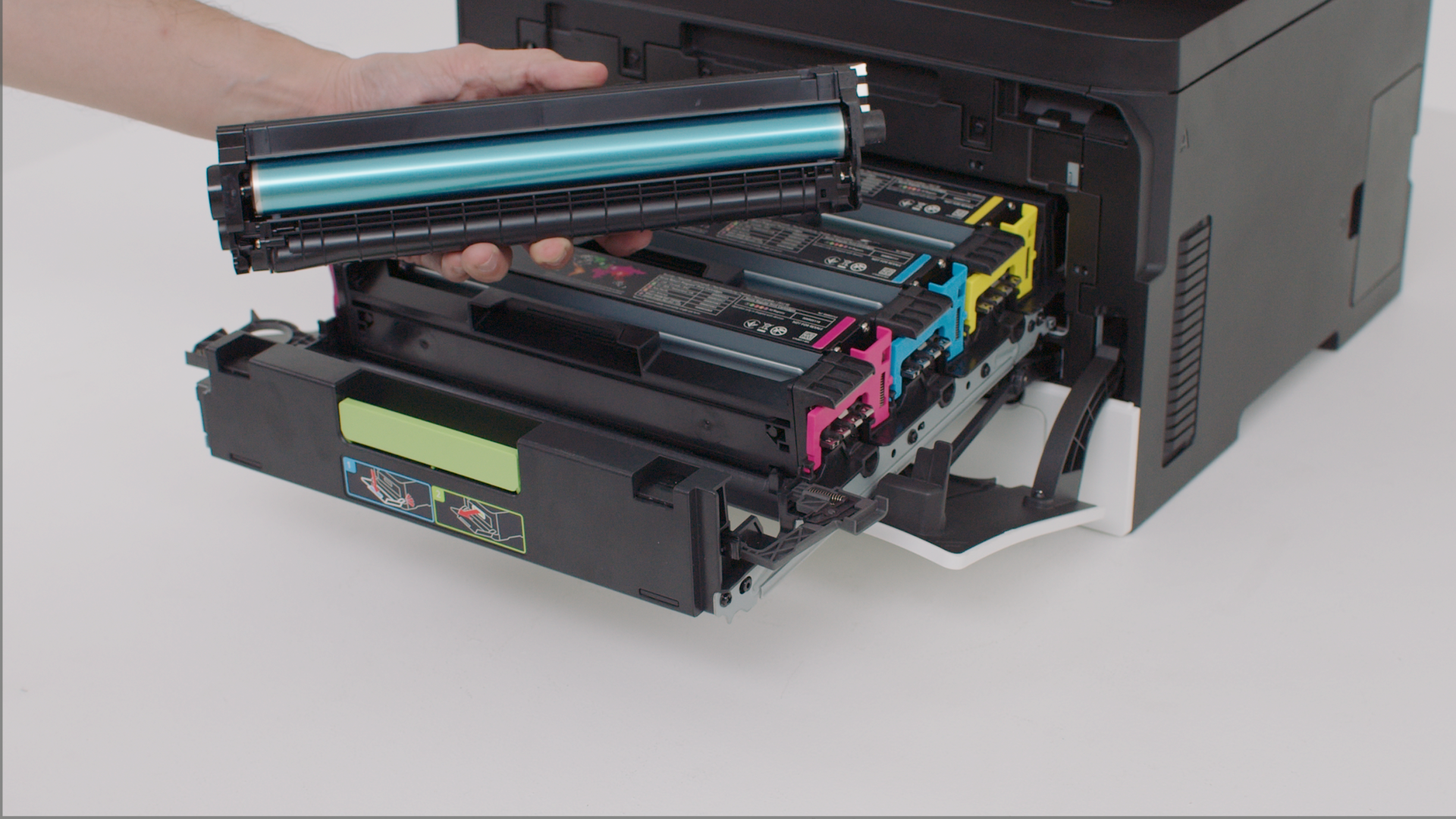
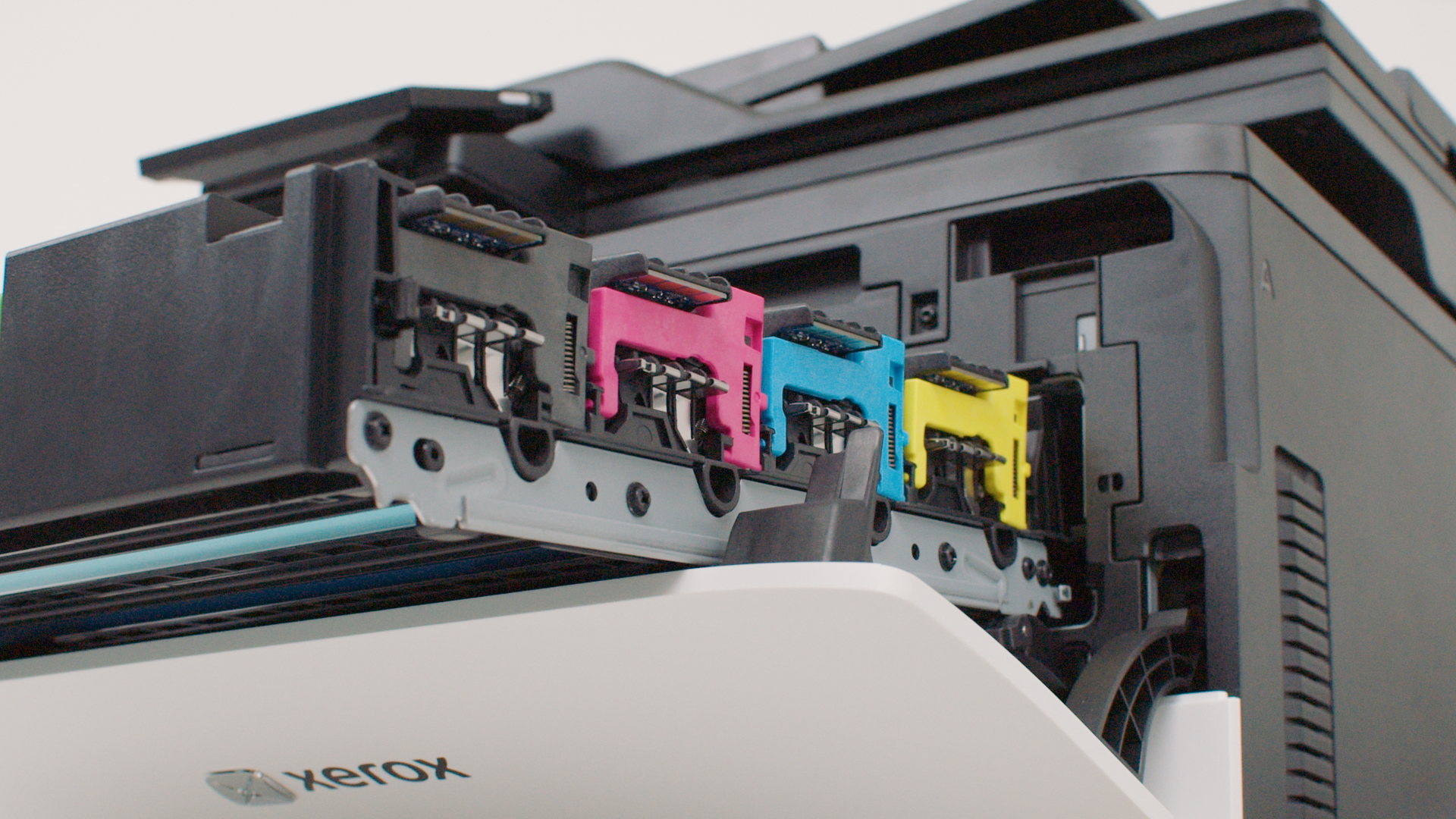
Install a new print cartridge when the replace cartridge message appears for the affected color.
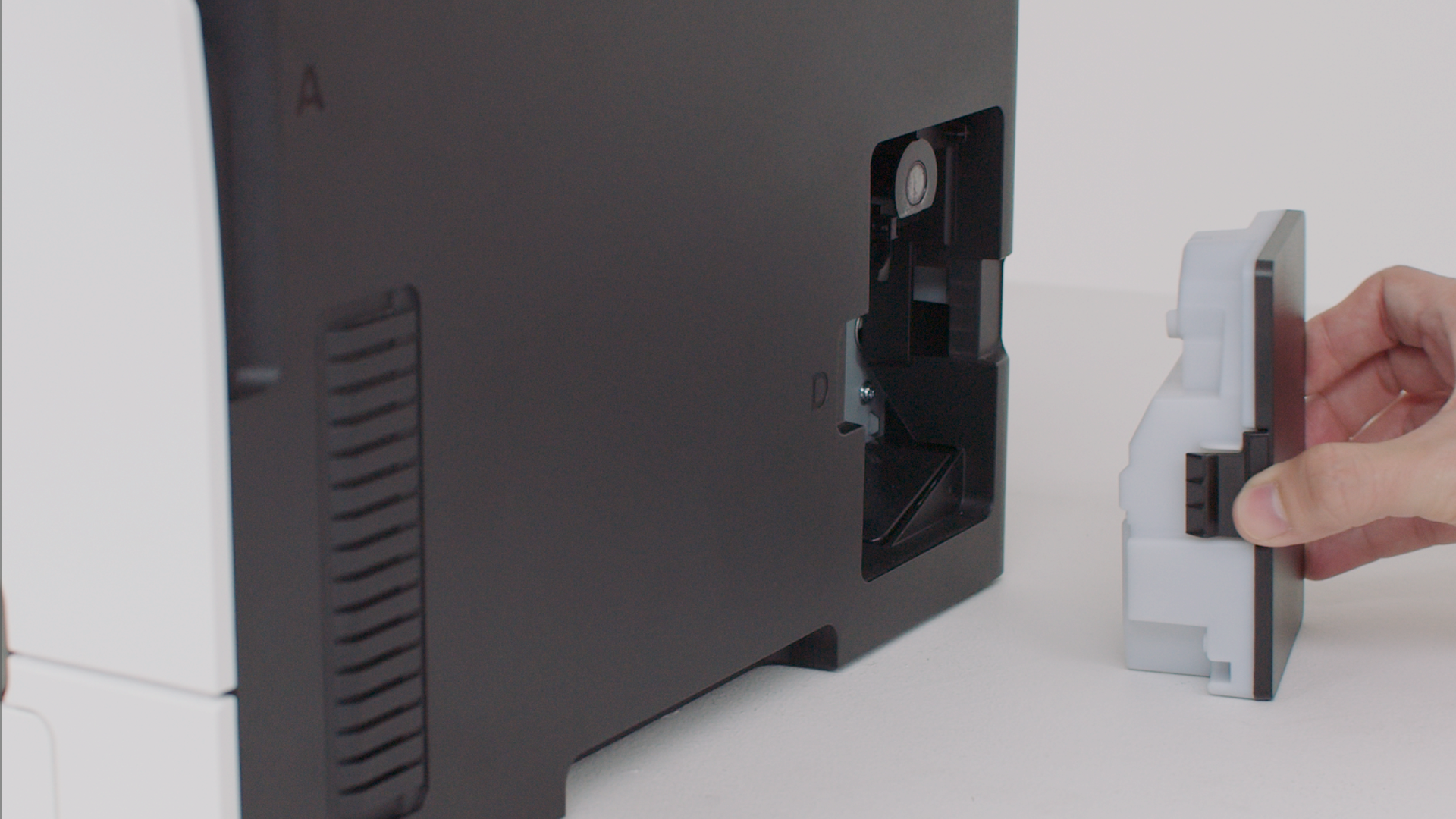
Learn how to replace the waste toner bottle of your printer. Changing the waste toner bottle regularly prevents toner spillage.
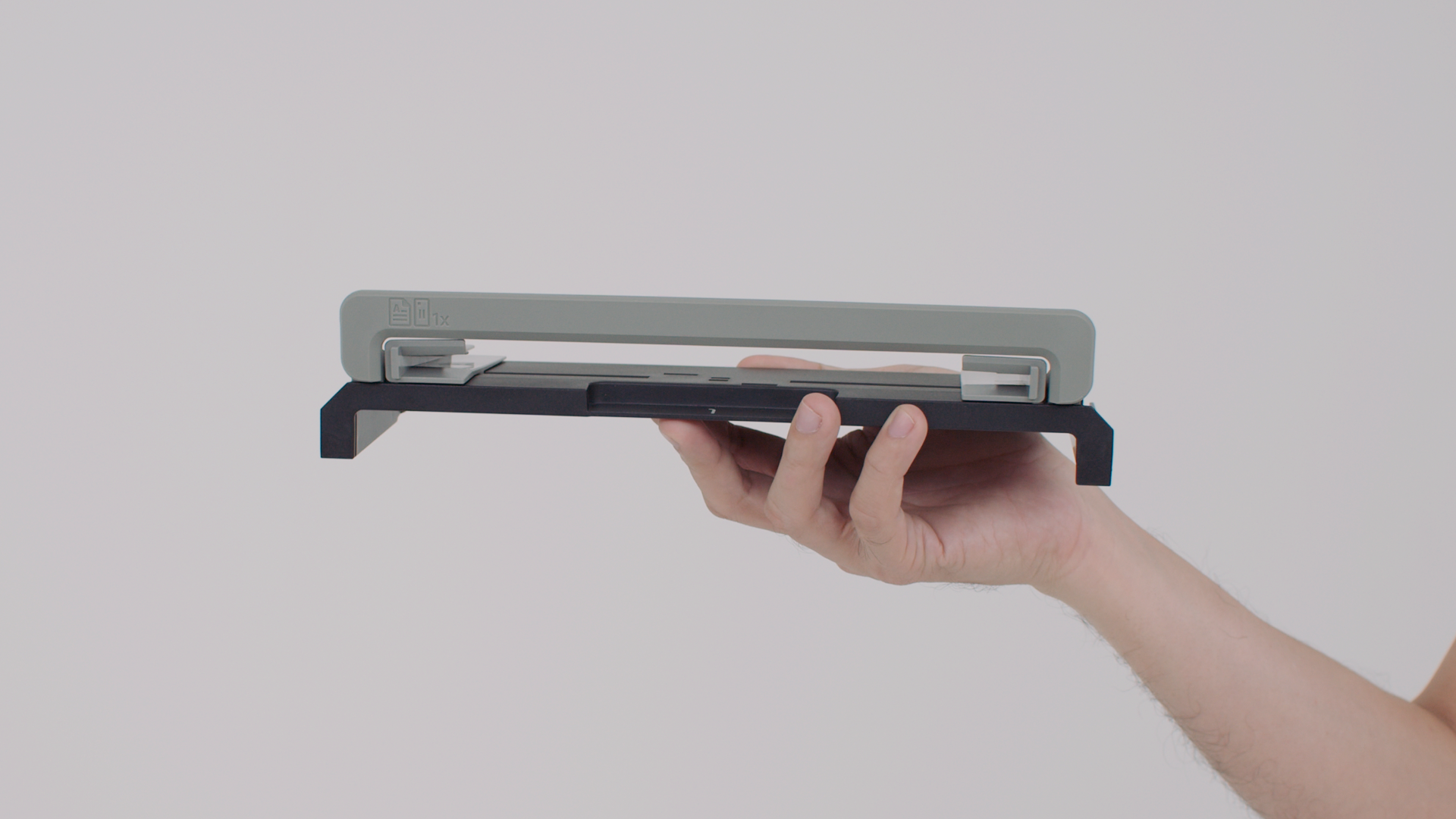
Follow these steps to replace the tray insert of your printer.
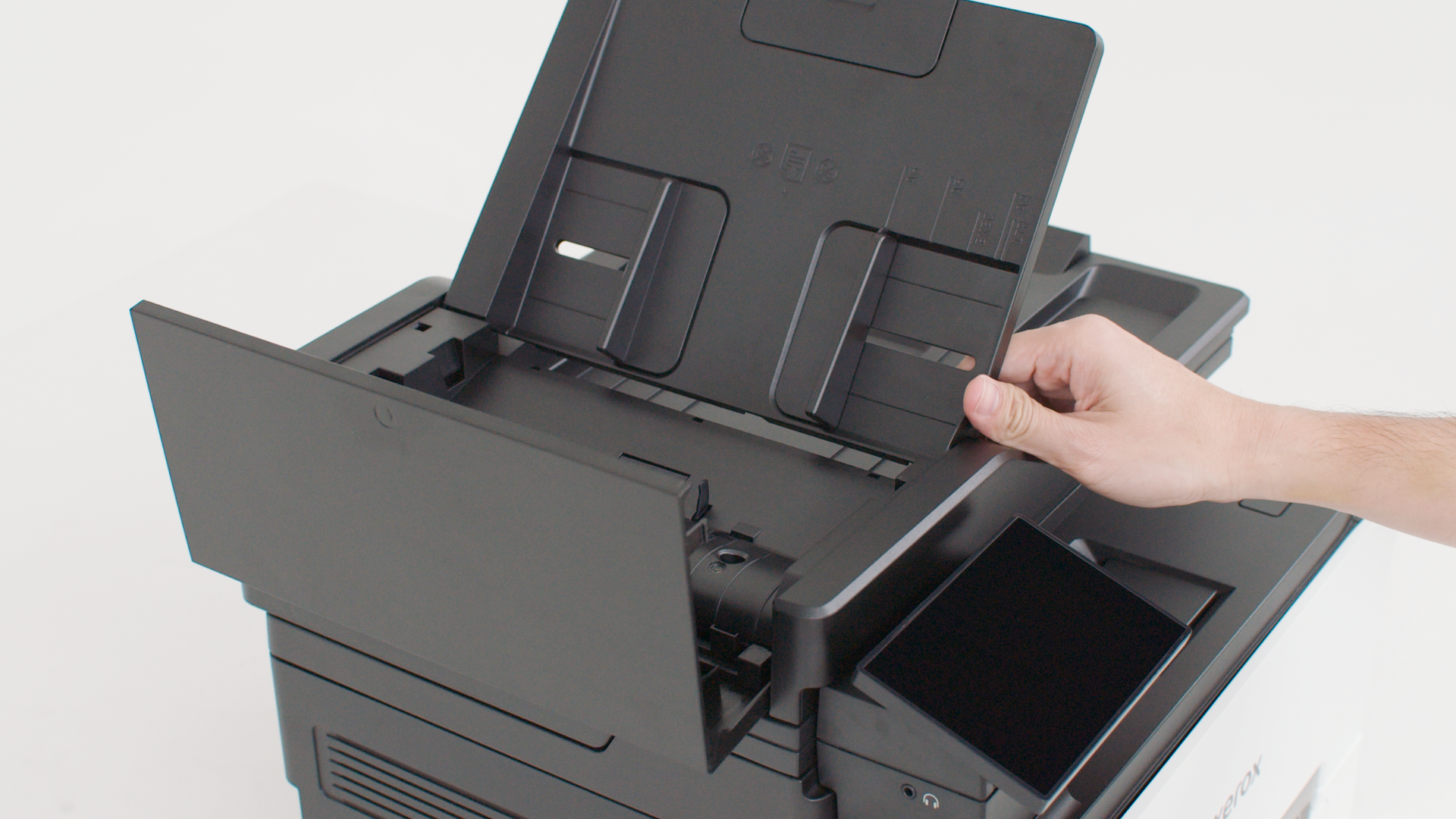
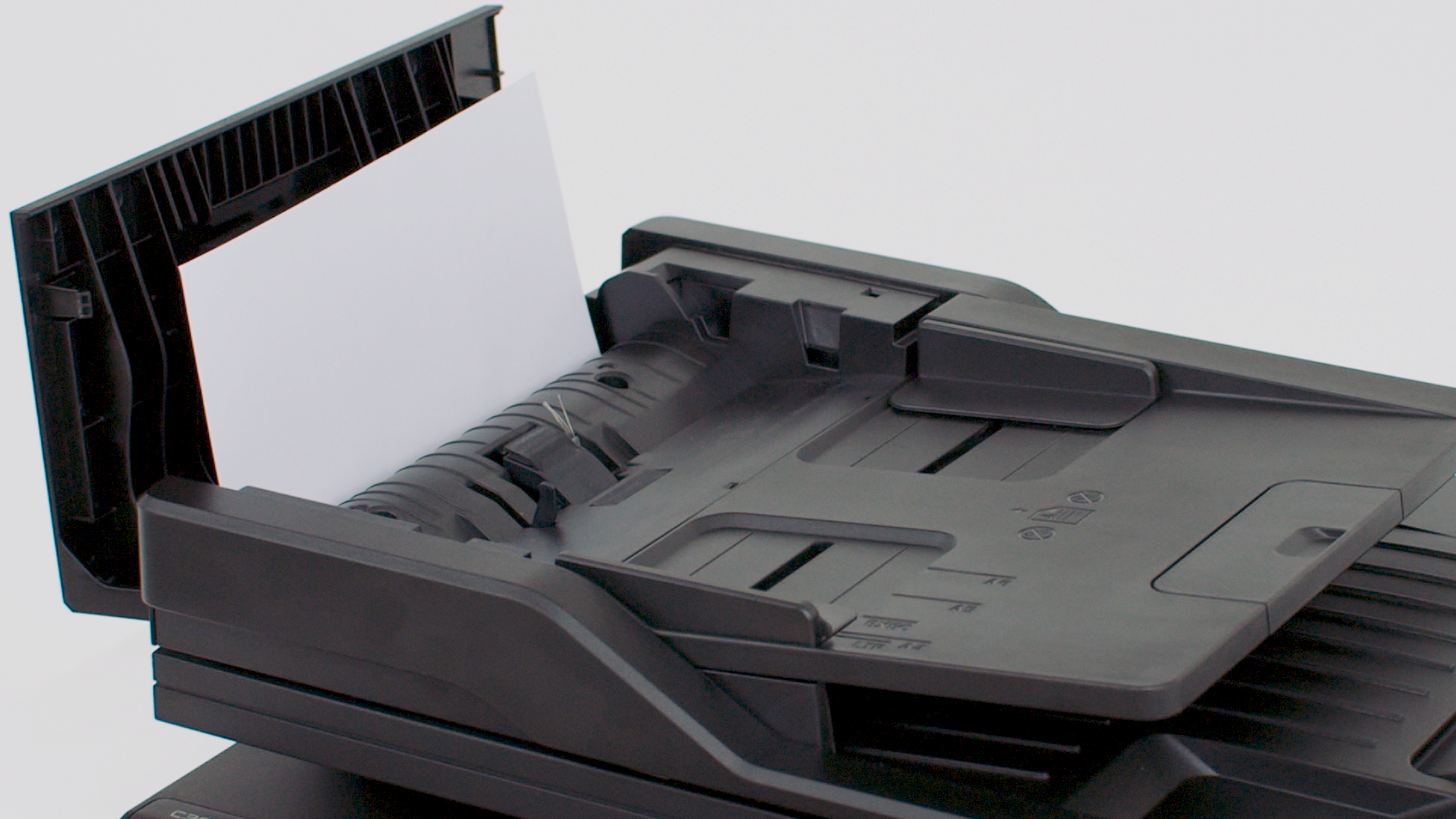
Follow these steps to replace the ADF tray of your printer.
Learn how to replace the manual feeder of your printer
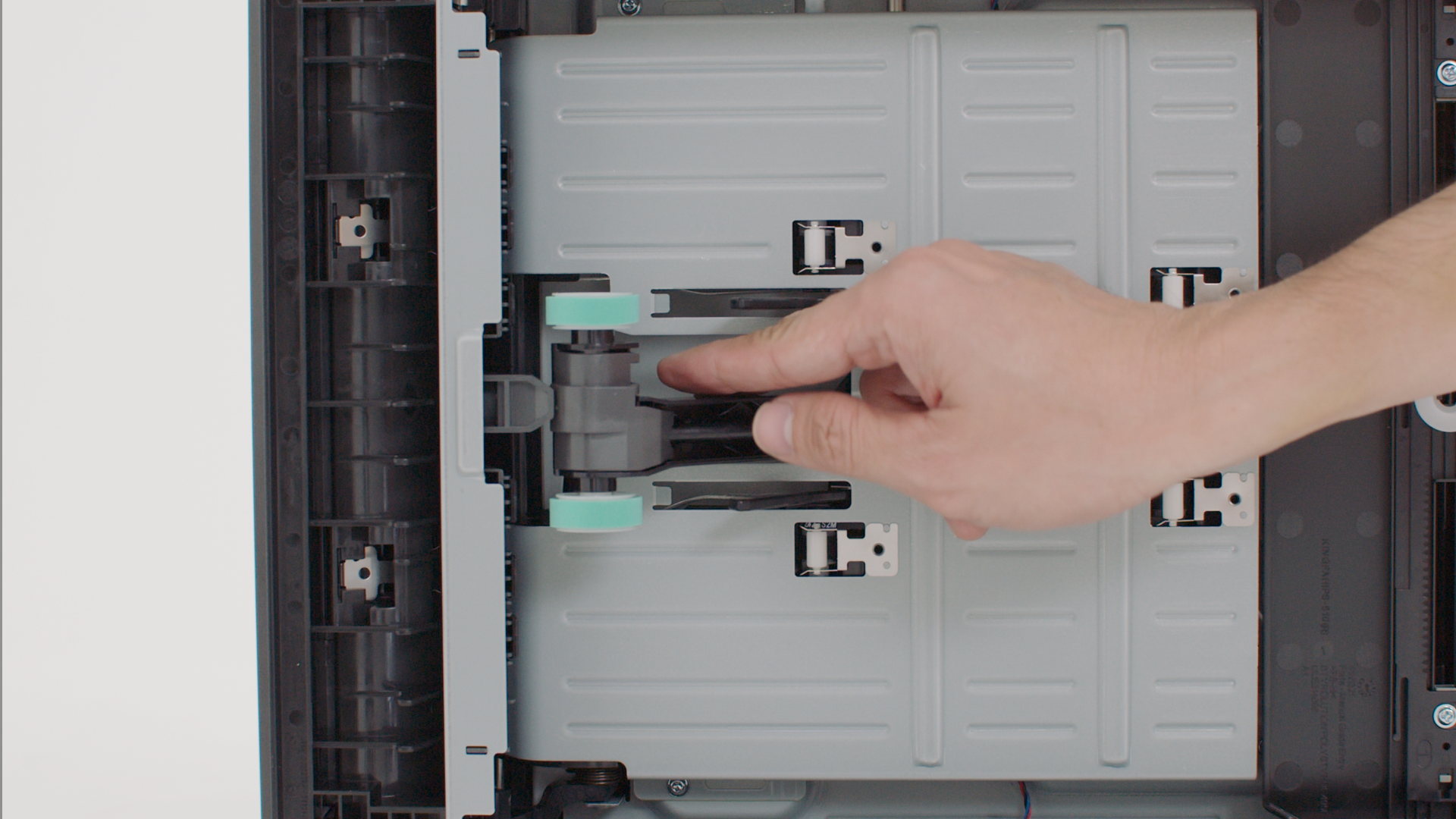
Learn how to replace the pick tires of your printer to prevent paper feed problems.
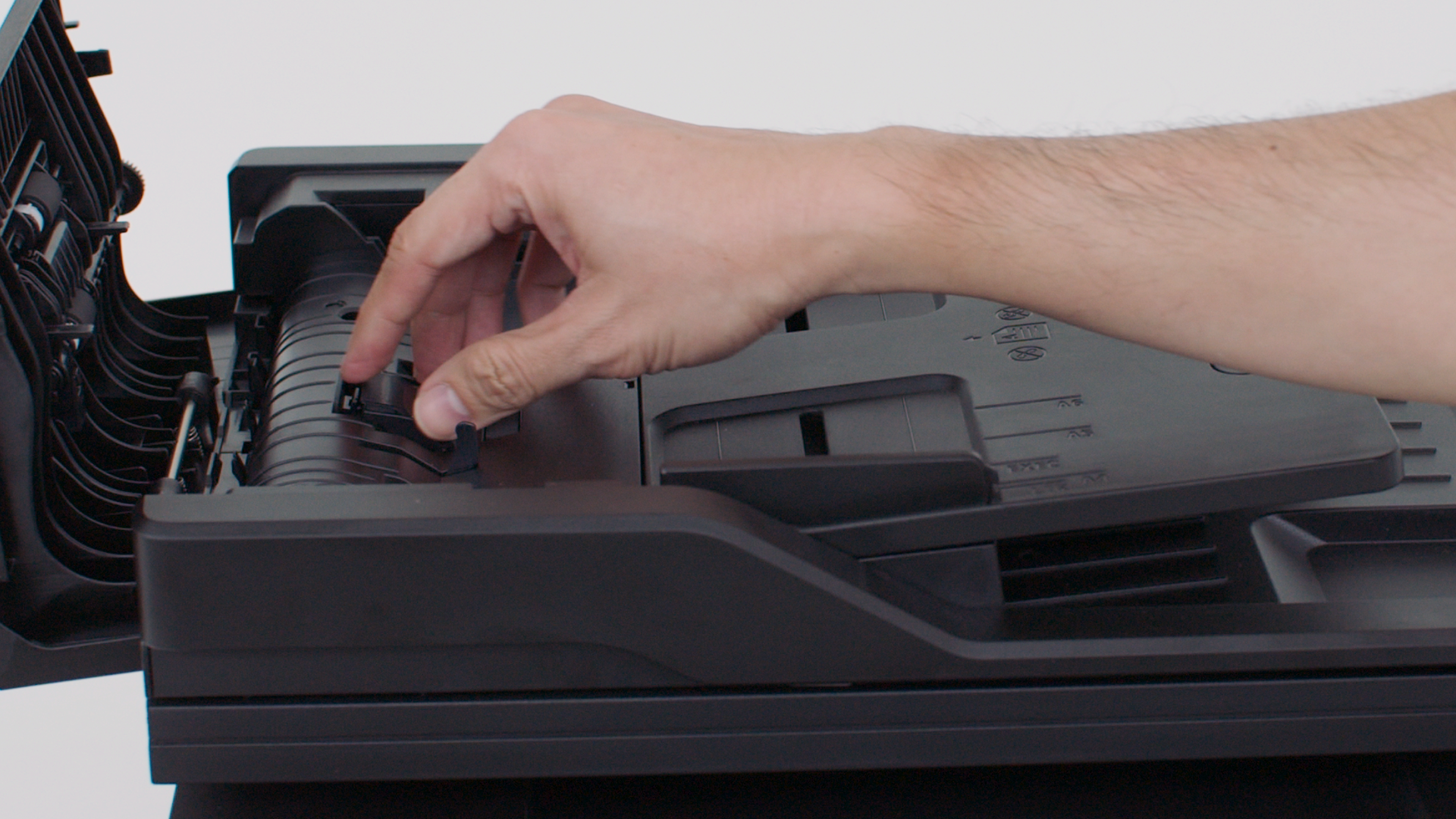
Install a new ADF separator pad to avoid paper feed problems.
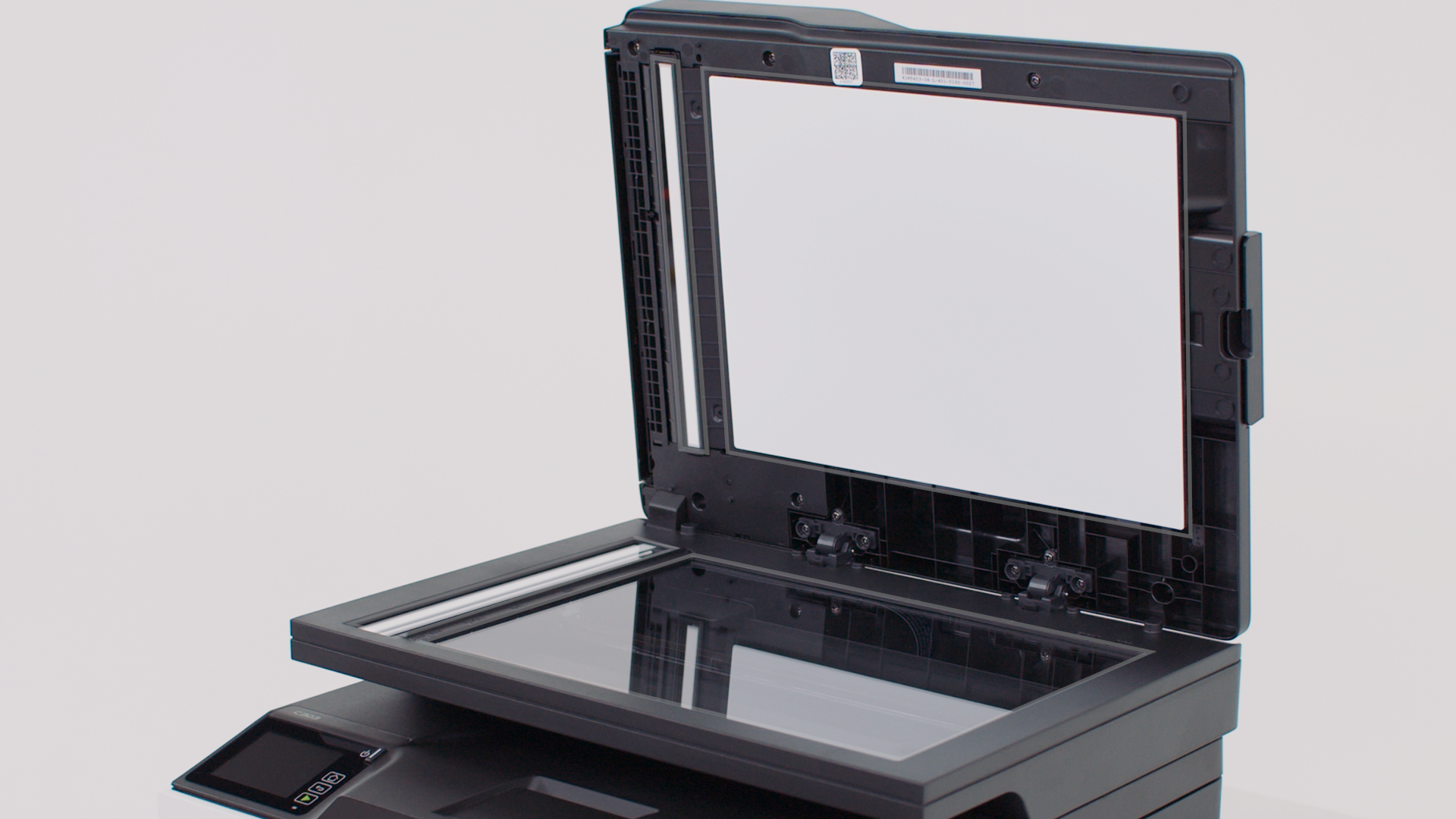
Clean the scanner glass and automatic document feeder (ADF) periodically to prevent or resolve streaks and other scan defects.
Learn how to clean the print cartridge contact to prevent print cartridge errors.
Remove paper that is stuck in the automatic document feeder to continue printing.
Remove paper that is stuck in the manual feeder to continue printing.
Remove paper that is stuck in the standard tray to continue printing.
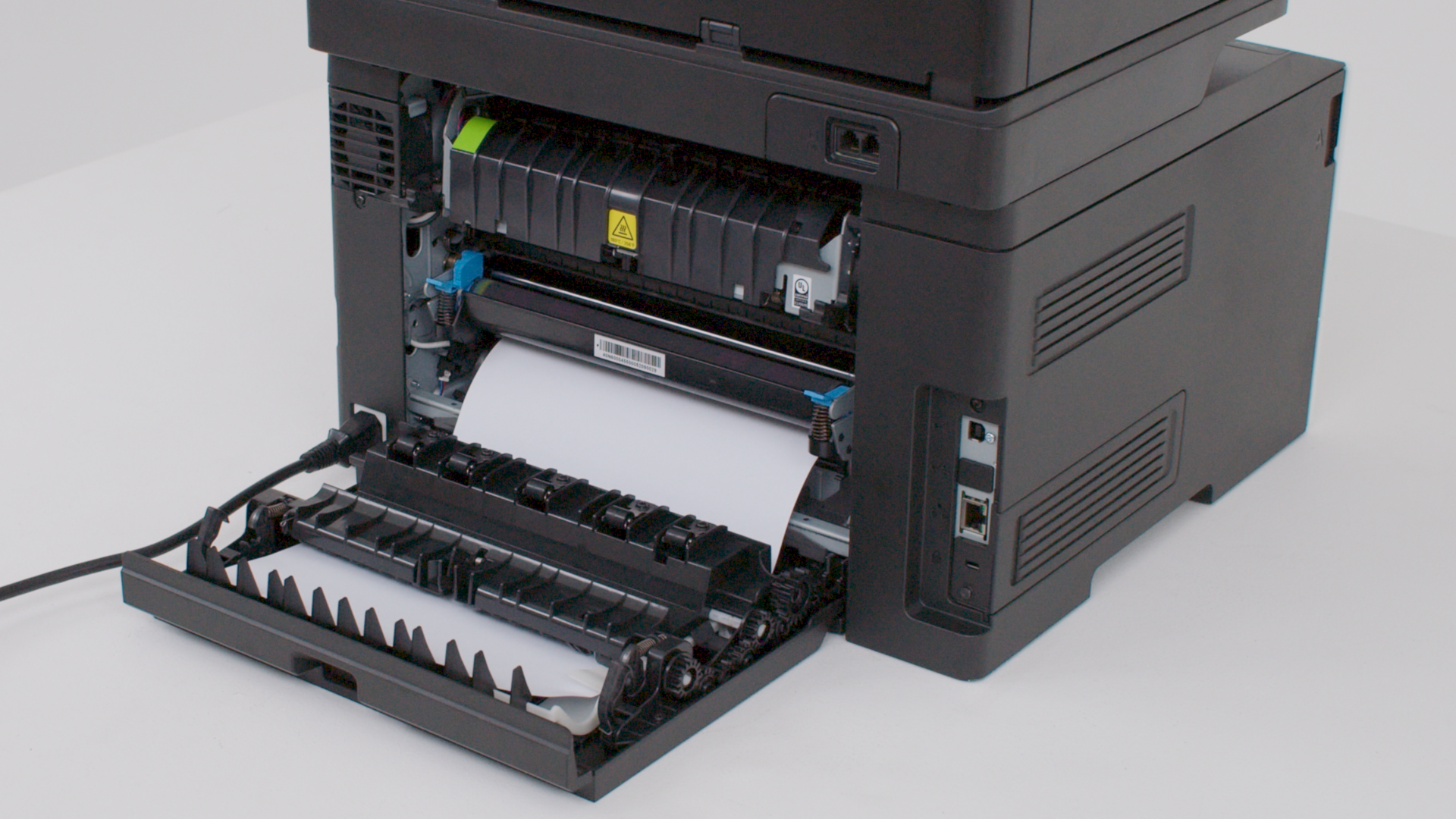
Remove paper that is stuck in the door B to continue printing.