Identifying the printer eSF version
Identifying the printer eSF version
Overview
Embedded solutions framework (
eSF
) defines and identifies the software architecture for differing product generations. Generational differences in this framework can mean changes to an app navigation, configuration, features, and capability.eSF versions by printer model
eSF version 1 (eSFv1) | eSF version 2 (eSFv2) | eSF version 3 (eSFv3) | eSF version 4 (eSFv4) | eSF version 5/6 (eSFv5) |
|---|---|---|---|---|
X644 X646 X772 X782 X850 X852 X854 X940 X945 (e-Task 2) | X463 X464 X466 X651 X652 X654 X656 X658 X734 X736 X738 X860 X862 X864 T656 (e-Task 2+) | X548 X746 X748 X792 X925 X950 X952 X954 C748 C792 C925 C950 6500 e‑scanner option (e-Task 3) | MX610 MX611 MX710 MX711 MX810 MX811 MX812 MX910 MX911 MX912 CX510 MX410 MX510 MX511 CX410 MS812 MS610 CS510 MS810 MS911 MX6500e‑scanner option (e-Task 4) | CS72x CX725 CS820 CX820 CX825 CX860 CX921 CX922 CX923 CX924 CX927 (e-Task5 and 6) |
Where is "eSF" usually referenced?
- Application flash files, for example, IdleScreen_e4-3.11.0.fls,e4representseSF v4.xprinters.
- Administrator's Guides, for example, "This setting is compatible witheTask2+,eTask3, andeTask4frameworks."
- User Guides, for example,"The Setup Scan to Network feature is available for use toeSF v4.xprinters only."
- App Readme files
Identifying the eSF version
There are two ways to identify the eSF version:
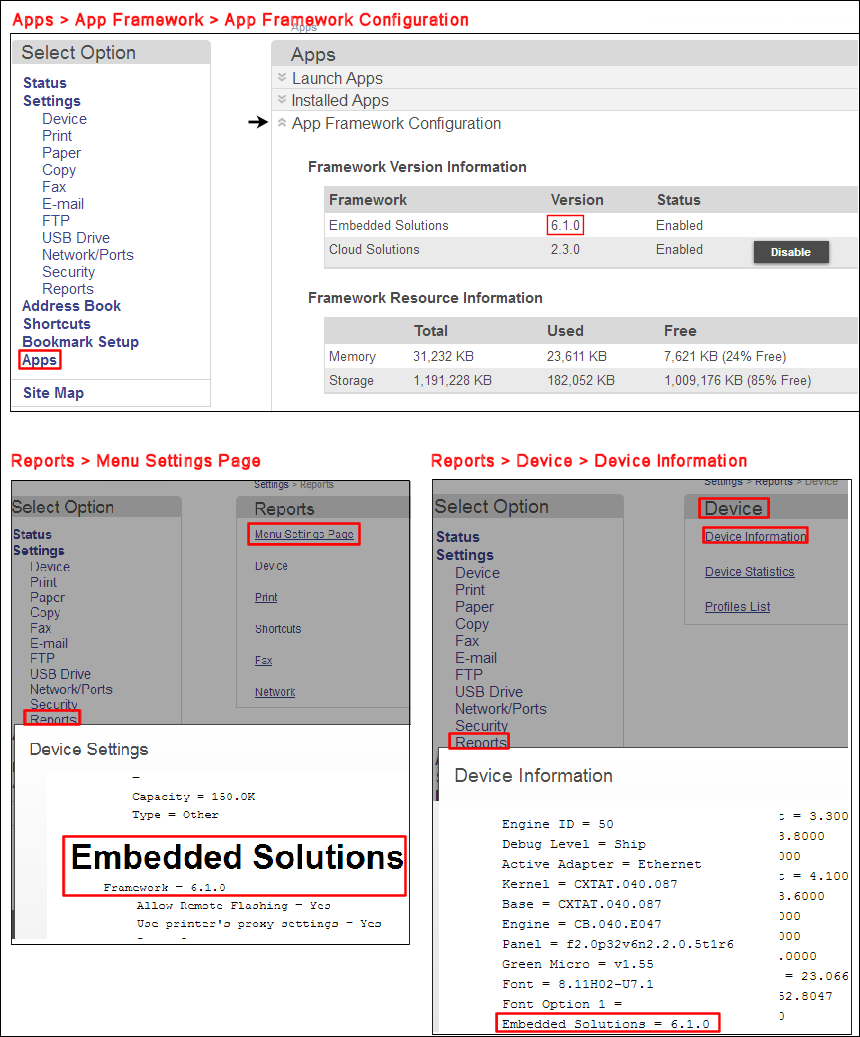
- Print aMenu Settingspage and look underEmbedded Solutions.
- In theEmbedded Web Server(EWS), navigate toReports>Device Settingsvia the (EWS) by following the steps below:
- Enter the IP Address into the Internet browser's URL field; e.g., http://IP_Address, whereIP_Addressis the TCP/IP address of the printer.
- ClickReports.
- ClickDevice Settings (Menu Settings).
- Scroll down the page until you seeEmbedded Solutions(usually found near the bottom).
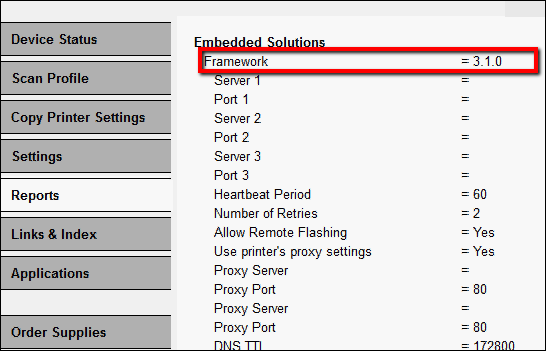
- Take note of the version next toFramework.
eSF version 3 example:
Obtaining the TCP/IP address
Read this only if you do not know how to identify your printer's IP address.
The following are the general steps for accessing the TCP/IP address from the control panel.
| 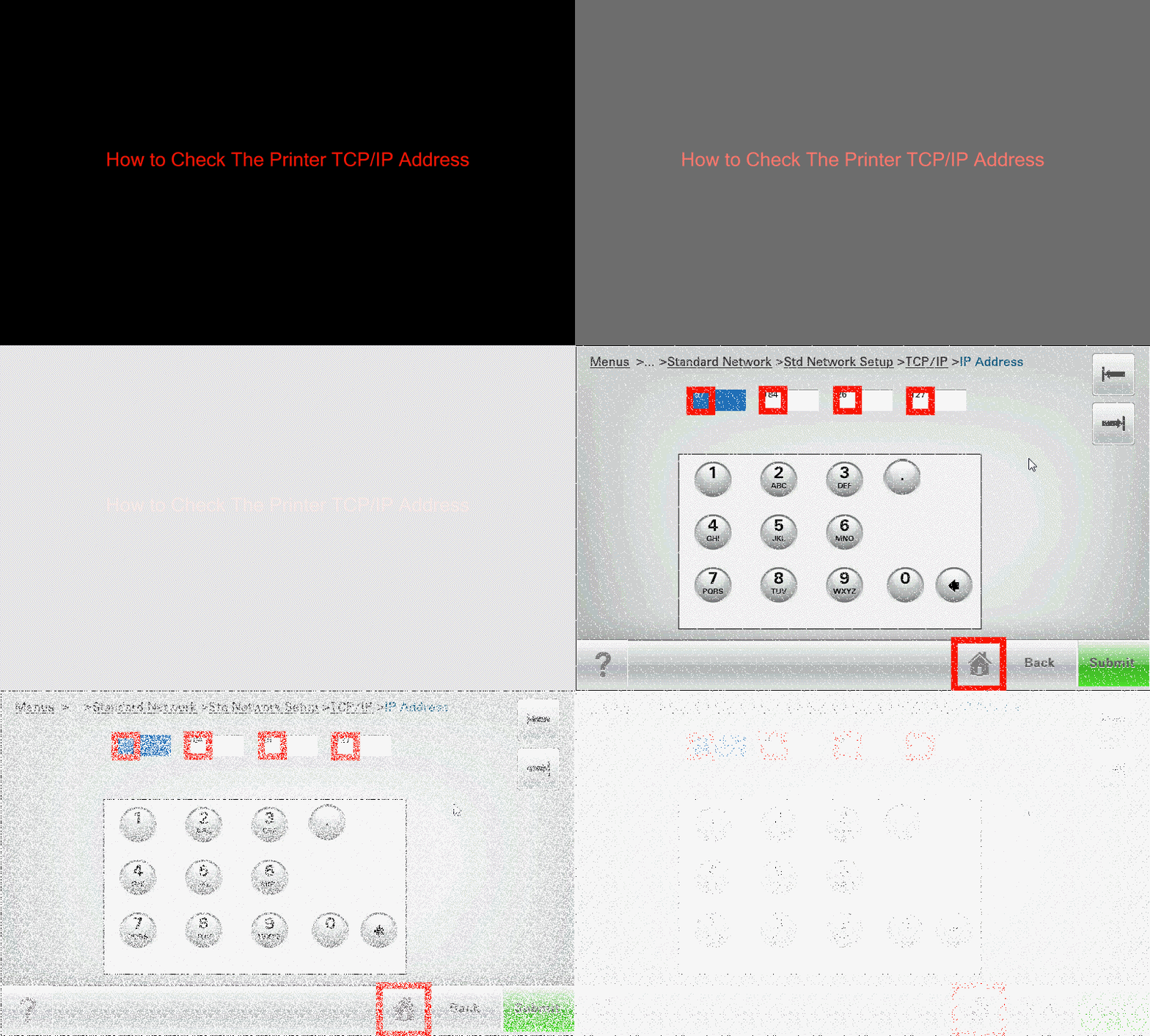 |
The Menus button in this example may not exist on your model and
Std. Network
may be read Network 1
if a network option card is active on your printer. Optionally, you can print a network settings page to obtain the TCP/IP address.LEGACY ID:
HO3859