How to configure Lexmark devices for Common Access Card when using PIV certificate
How to Configure Lexmark Devices to Work on Common Access Card (CAC) Using PIV Certificate
Issue description
Lexmark Configuration Bundles/Install:
These instructions will allow Lexmark MFP’s to use PIV certificates on a CAC in compliance with the DOD’s CAC modernization directives
To understand more about the DOD’s CAC Modernization directives, go to Lexmark’s CAC Modernization Page at https://www.lexmark.com/en_us/solutions/government/cac_modernization.html .
The MPFs will not support a Mixed Environment. The MFP will either support the PIV or the CAC cert, not both on the same device. The user roll out will need to coincide with printer configurations.
The following must be done to switch to the PIV certificates on the CAC:
- Install PIV card driver
- Update Secure/PKI Email apps
- Remove/Stop CAC driver
Click on the corresponding eTask model that applies to your device and follow the instructions.
eTask Model | Lexmark Printer Model | App Levels Required |
|---|---|---|
eTask 5 and 6 | MS82x, MS62x, MX82x, MX72x, MX62x, MX52x, MX42x, CS92x, CS82x, CS72x, CS62x, CX82x, CX86x, CX52x, CX92x | PIV Card Driver 1.3.8 or greater Secure Email 2.1.11 or greater |
eTask 4 (s2) | MS812, MX610, MX611, MX6500, MX6500e, MX710, MX711, MX810, MX811, MX812, CX510 | PIV Card Driver 1.3.8 or greater Secure Email s2_1.4.9 or greater |
eTask 4 (s3) | CS510, MS610, MS810, MX410, MX510, MX511 | PIV Card Driver 1.3.8 or greater Secure Email s3_1.4.9 or greater |
eTask 3 | X54x, 6500, X74x, X792, X95x, C74x, C792, C925, C950 | PIV Card Driver 1.3.8 or greater PKI Email 4.1.3 or greater |
eTask 2+ | X46x, X65x, X73x, X86x, T656 | PIV Card Driver 1.3.9 or greater |
eTask 1 | X64x, X78x, X94x |
eTask instructions
eTask 5 AND 6 Instructions
- Download Configuration Files here: eTask-5,6_ModernizationBundle.zip (Do not extract this file)
- On the Lexmark device embedded web server (EWS):
- ClickImport Configuration> ClickImport> ClickBrowse> Browse the eTask-5,6_ModernizationBundle.zip
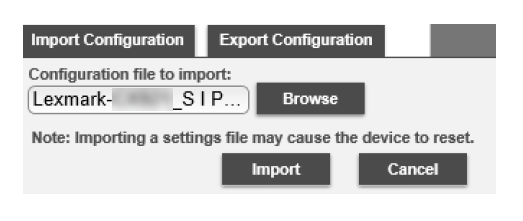
It may take several minutes to upload. - Click Apps on the device main webpage.
- Click here to vieweTask 4 (s2)printer models.
- Download the Configuration Files at eTask-4s2_ModernizationBundle.zip. (Important!Do not extract this file)
- On the Lexmark device embedded web server page (EWS):
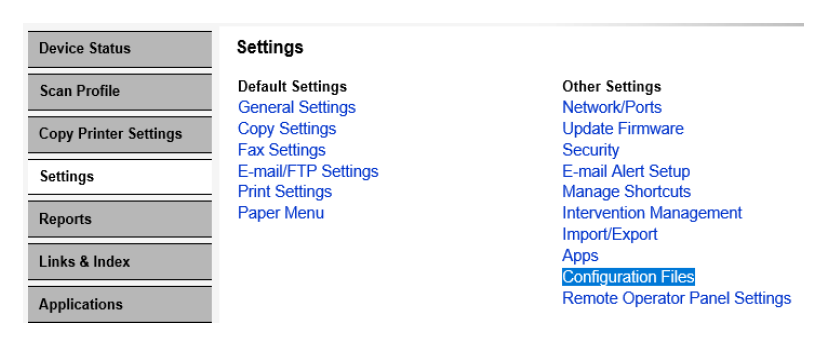
Click 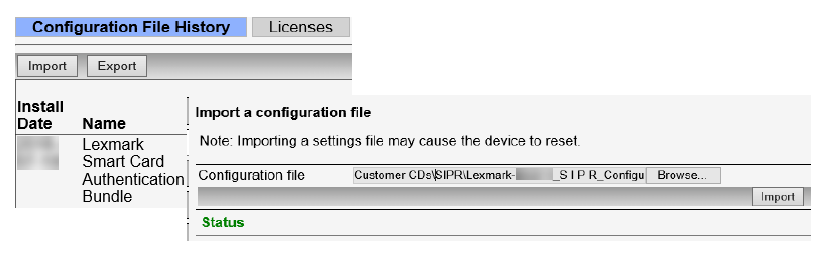
Import Configuration Files
> Click Import
> Click Browse
> Browse to the directory that contains the
eTask-4s2_ModernizationBundle.zip
> Click Import
.- Verify thePIV driver was installedand theCAC driver was stopped.
- Return toSettings:
Click
Apps
> Click Apps Management
> Scroll down to find the CAC and PIV Drivers
> the drivers should be set as follows:
- The CAC Driver should be stopped/grayed out

- The PIV Driver should be running (not grayed out)

eTask 4 (s3) Instructions
- Download the Configuration Files at eTask-4s3_ModernizationBundle.zip. (Important!Do not extract this file)
- On the Lexmark device embedded web server page (EWS):
Click
Import Configuration Files
> Click Import
> Click Browse
> Browse to the directory that contains the
eTask-4s3_ModernizationBundle.zip
> Click Import
.- Return toSettings:
Click
Apps
> Click Apps Management
> Scroll down to find the CAC and PIV Drivers
> the drivers should be set as follows:
- The CAC Driver should be stopped/grayed out
- The PIV Driver should be running (not grayed out)
eTask 3 Instructions
- Download thefiles at eTask-3_Modernization_apps.zip. Extract the.zipfile to access the two files that are necessary:.zipandeTask-3_PIV_CardDriver-1.3.8.eTask-3_PKI-Email-4.1.3.fls
- On the Lexmark device embedded web server page (EWS), clickDevice Solutions:
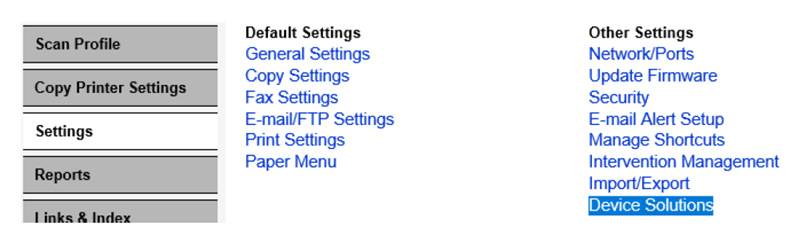
a. Click 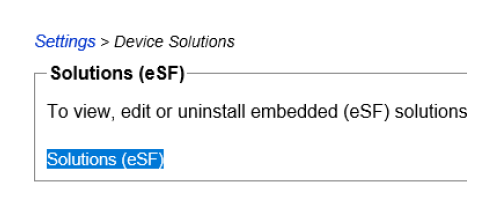
Solutions eSF.
b. Click 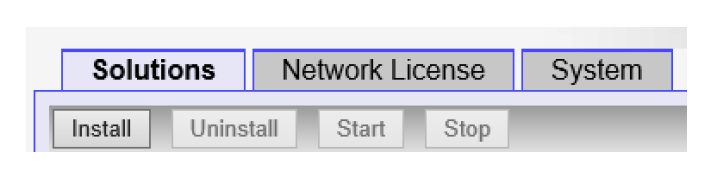
Install.
c. Browse the
, then
Click  d. Make sure to also browse the updated
,
then Click
d. Make sure to also browse the updated
,
then Click
eTask-3_PIV_CardDriver-1.3.8.fls
Start Install.
eTask-3_PKI-Email-4.1.3.fls
Start Install
.
- Verify thePIV driverwas installed and theCAC driverwas stopped.
- Return toSettings:
Click
Apps
> click Apps Management
> scroll down to find the CAC and PIV Drivers
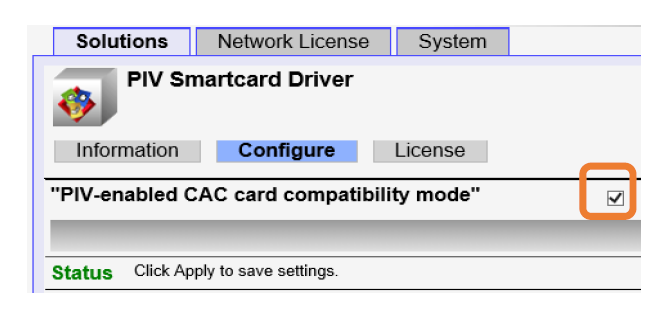
- Make sure that the CAC Smartcard Driver is ''Stoppedand the PIV Smartcard Driver is ''.Running


- Click on the PIV Smartcard driver and make sure that the '' is checked.PIV-enabled CAC card compatibility mode
eTask 2+ Instructions
These devices do not support digital signing of email with a PIV certificate on a CAC. If you require this functionality, please contact your
. If you do not know who your Lexmark Account Manager is please visit https://www.lexmark.com/en_us/solutions/government/cac_modernization.html.
Lexmark Account Manager
- Download PIV Driver at eTask-2+_AuthtokenPIV-1.3.9
- On the Lexmark device embedded web server page, clickDevice Solutions:
- ClickSolutions eSF> ClickInstall--> browse the eTask-2+_AuthtokenPIV-1.3.9 > ClickStart Install
- Make sure toStop/Disablethe CAC Smart Card Driver
- Check theCAC Smartcard Driverand clickStop, then make sure that the State shows as.Stopped

- PIV Smart Card Driver =Running

eTask 1 Instructions
These models do not support PIV authentication with a
for more information.
CAC
. Please contact your Lexmark Account Manager
If you do not know who your
is, please visit
https://www.lexmark.com/en_us/solutions/government/cac_modernization.html
Lexmark Account Manager
Additional Information:
IMPORTANT!
Should you need further support, please contact our Technical Support Center
.
DOD CONUS Support
•
Option 1, Option 2, Option 2. For additional information please contact your Lexmark Account Manager. If you do not know who your Lexmark Account Manager is, please visit https://www.lexmark.com/en_us/solutions/government/cac_modernization.html.
1-800- Lexmark (539-6275)
DOD OCONUS SUPPORT
•
to open new cases or ask for updates. For additional information please contact your Lexmark Account Manager. If you do not know who your Lexmark Account Manager is, please visit
https://www.lexmark.com/en_us/solutions/government/cac_modernization.html
.
LEGACY ID:
HO4137