Using the home screen
Learn how to use the icons on the printer home screen to send files, manage documents, and a lot more.
Your home screen may vary depending on your home screen customization settings, administrative setup, and active embedded solutions.
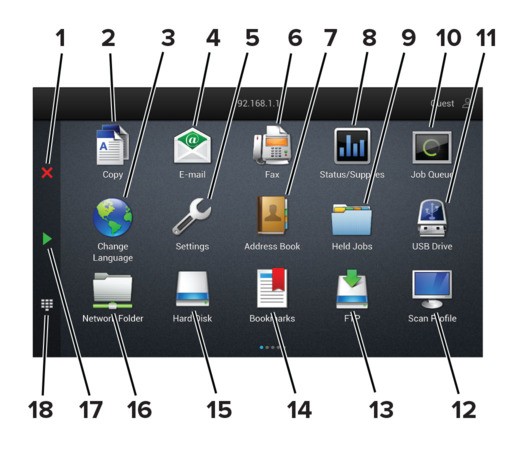
# | Icon | Function |
|---|---|---|
1 | Stop or Cancel button | Stop the current job. |
2 | Copy | Make copies. |
3 | Change Language | Change the language on the printer display. |
4 | Email | Send emails. |
5 | Settings | Access the printer menus. |
6 | Fax | Send fax. |
7 | Address Book | Access, create, and organize contacts. |
8 | Status/Supplies |
You can also access this setting by touching the top section of the home screen. |
9 | Held Jobs | Show all the current held print jobs. |
10 | Job Queue | Show all the current print jobs. You can also access this setting by touching the top section of the home screen. |
11 | USB Drive | View, select, or print photos and documents from a flash drive. |
12 | Scan Profiles | Scan and save documents directly to the computer. |
13 | FTP | Scan and save documents directly to an FTP server. |
14 | Bookmarks | Organize all bookmarks. |
15 | Hard Disk | View, select, and manage documents from a hard drive or an intelligent storage drive. |
16 | Network Folder | Scan to a network folder or network location. |
17 | Start button | Start a job, depending on which mode is selected. |
18 | On‑screen keypad | Enter numbers or symbols in an input field. |