Grayscale or Color shading shows little deviation or excessive color saturation
Grayscale or color shading print quality issue
Issue description
This issue is especially noticeable with lighter colors, grayscale and color shades appear darker or more saturated than normal.
Black developer contact failure
Grays look more black than gray. | 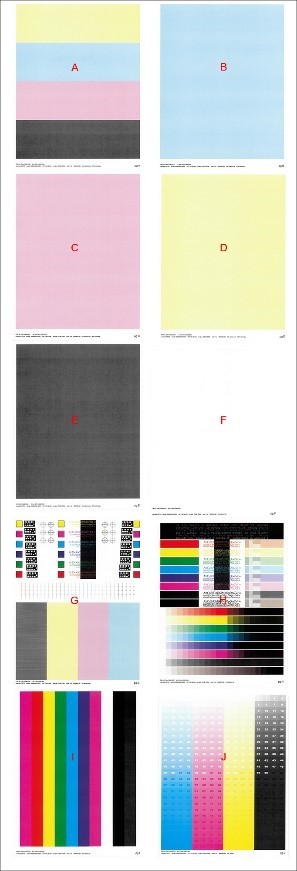 |
Cyan developer contact failure
Light cyan looks darker than expected, and shades of light green may look more blue , or purples look more blue . | 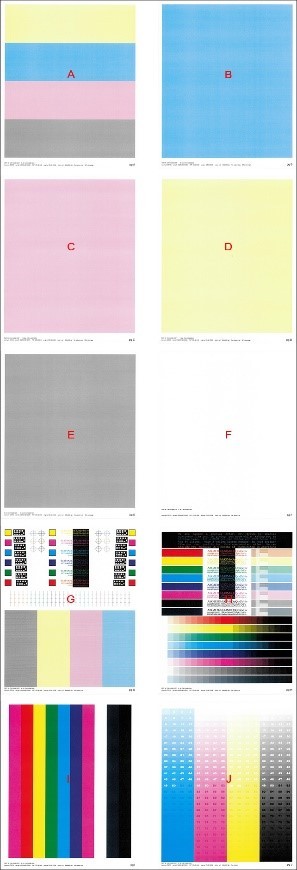 |
Magenta developer contact failure
Oranges may look like a shade of purple or look more red . | 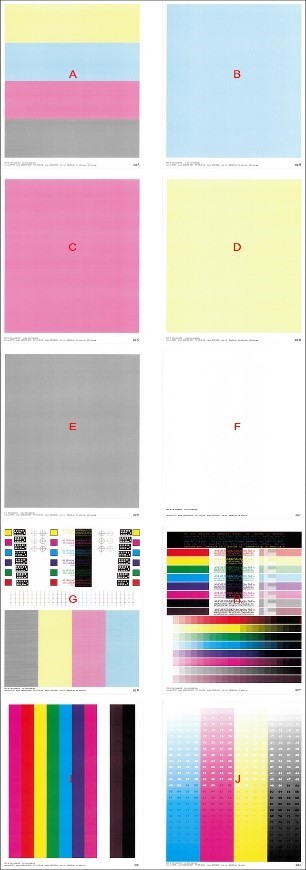 |
Yellow developer contact failure
Oranges and greens are lighter and more yellow . | 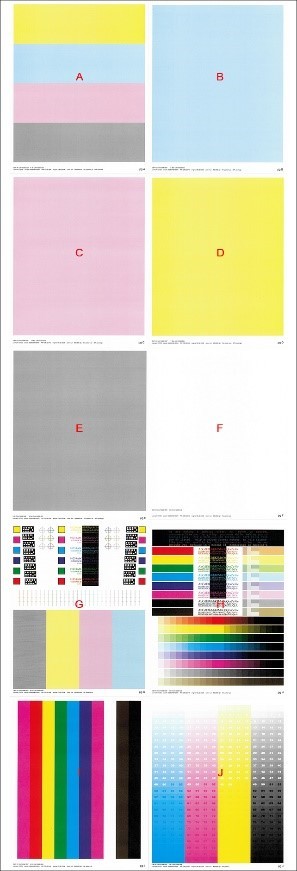 |
Solution
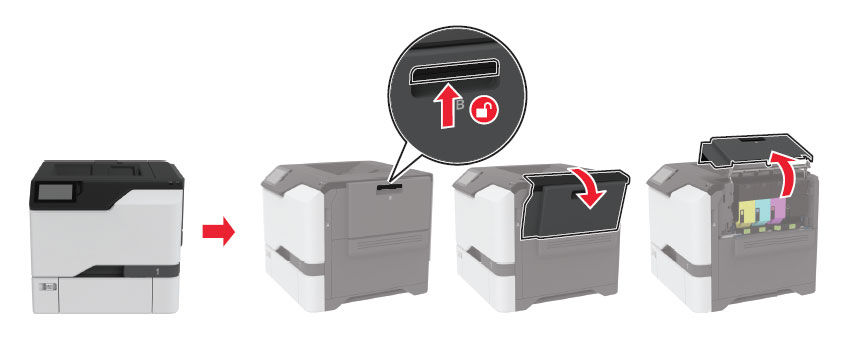
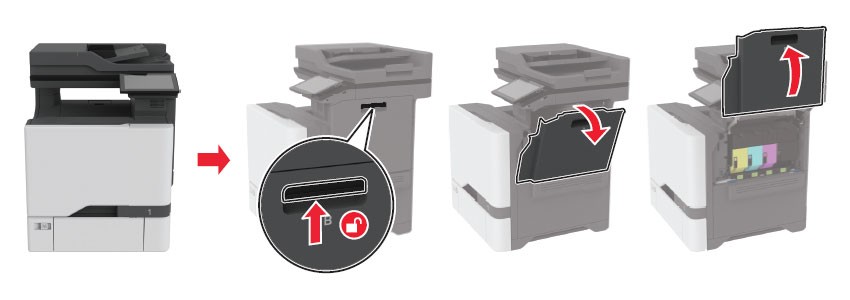
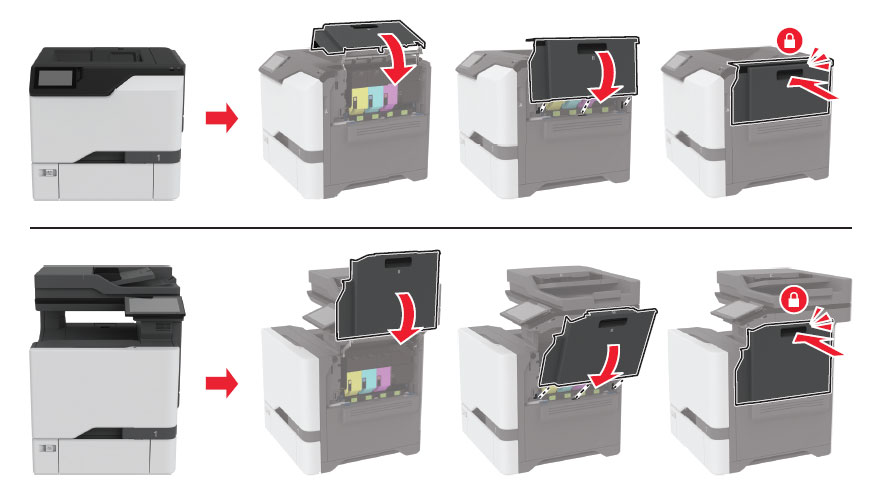
- OpenDoor B.
- For single-function printers
- For multifunction products
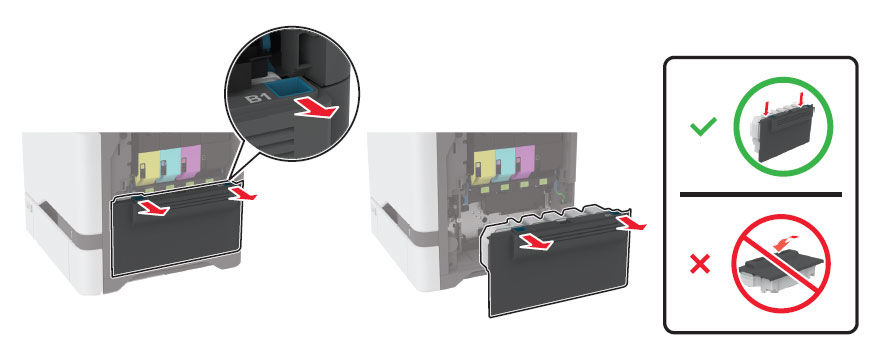
- Remove the waste toner bottle (WTB).
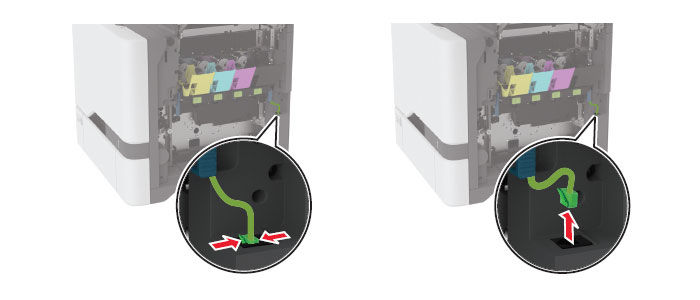
- Unplug the green cable.
- Remove theimaging kit. Pull the unit out of the device and set on flat surface.
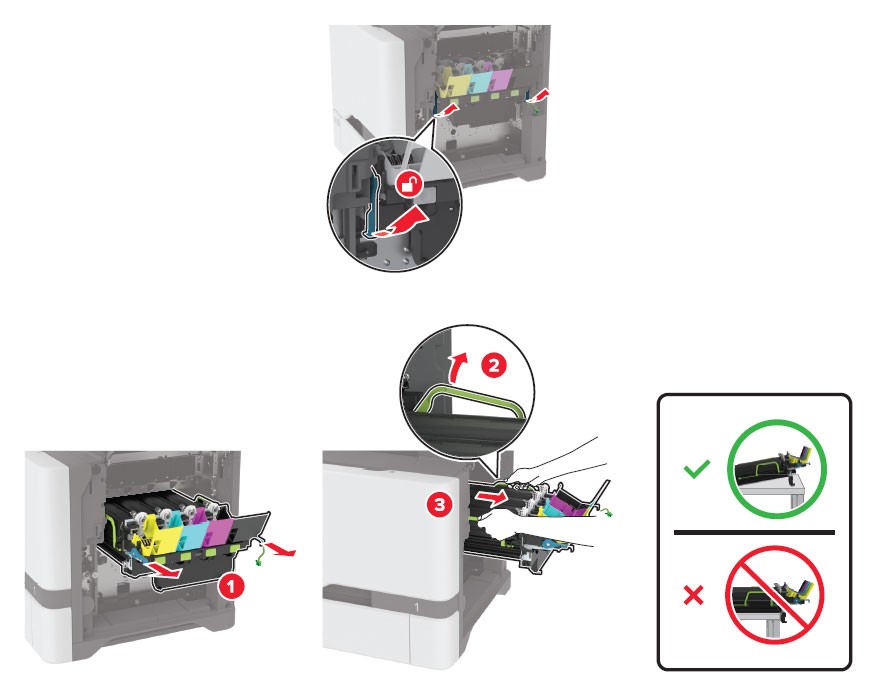
- Unlock theDHDA(developer hold down arm) by turning both blue levers; this disengages the 4 Imaging Units (developer unit and photoconductor).
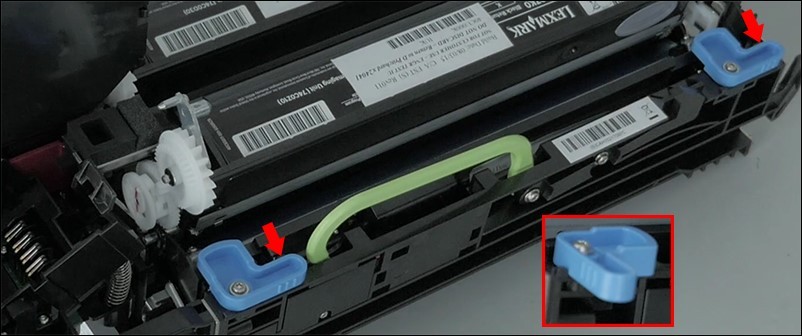
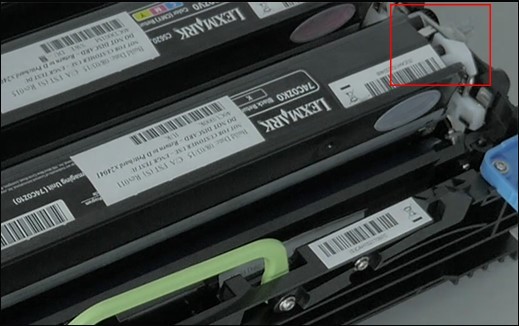
- Inspect the developer unit to make sure all levers are in the closed position and all contacts don’t have any damage.
- Reinstall the imaging kit and plug in the green cable.
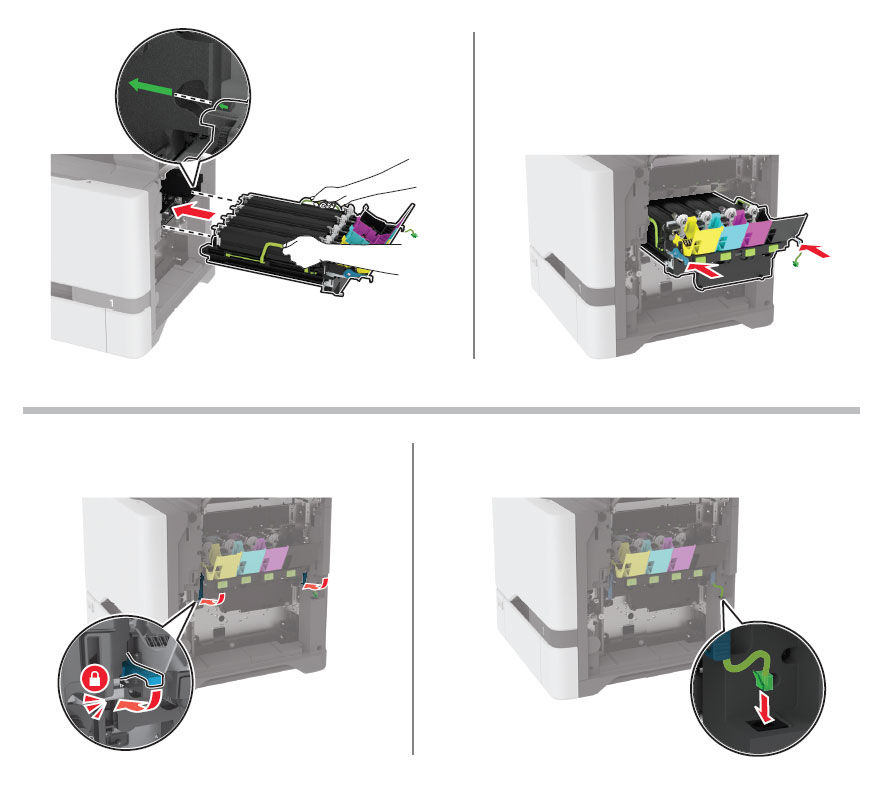
- Insert the waste toner bottle then close Door A and Door B.
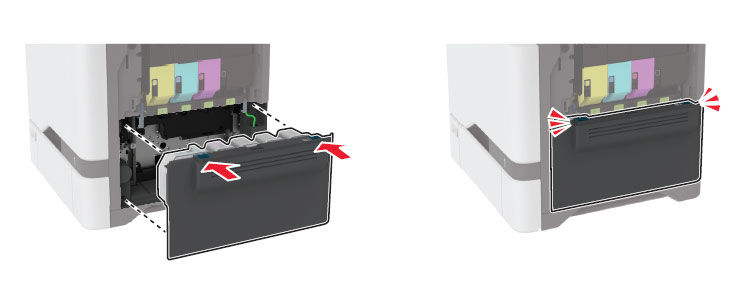
- Perform a test print and check if the issue persists.
- If the issue persists, go to theLexmark Support siteand search for your printer model with the issue for more detailed information.