Ghost images check
Ghosting print quality issue on a printed page
Issue description
Ghosting or a faint residual image remains from a previously printed page; these faded residual images or text appear to be partially transferred to the second page and sometimes multiple pages.
This print defect can also occur when the paper type settings for the printer do not match up with the actual media type being printed.
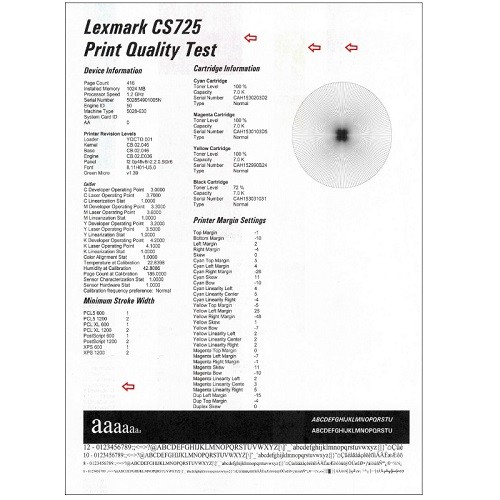 | 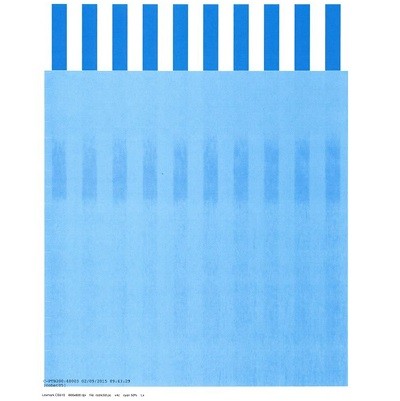 |
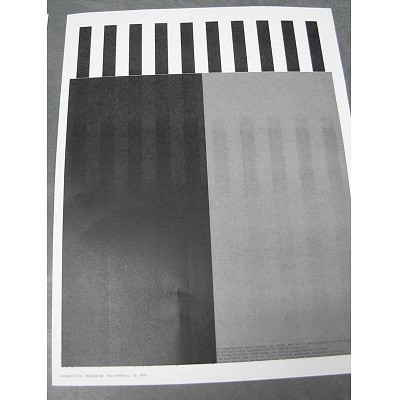 | 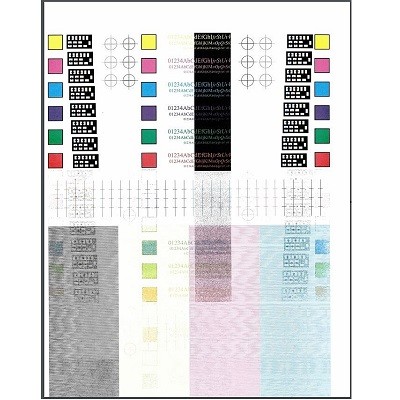 |
Solution
This overtemp issue may be caused by media type being set to
Vinyl Labels
. Check both printer and driver settings for Vinyl Labels
as the Paper Type
.- Confirm that the correct media type is set on the printer: TouchSettings>Paper>Tray Configuration>Paper Size/Typeon the printer home screen.
- Check the status of the black and color imaging unit components. Touch theStatus/Suppliesicon from the home screen and replace those supplies that register low or empty.
- Determine which color is having the issue by printing thePrint Quality Samples. To do this from the home screen, touch:Settings>Report>Print Quality Pages.
- Deselect Vinyl Labels for Paper Type under the Paper/Finishing tab of the Printing Preferences. Navigate to:Control Panel>Devices and Printers> Right click on printer driver >Printing Preferences
 Certain versions of Windows 8 and Windows 10 have been identified installing the auto-In-box (system) driver and settingPaper TypetoVinyl/ Labels, instead of using the ‘Use printer settings’setting.