Print crooked or skewed
Stop seeing crooked or skewed images on your prints. Fix the problem with these easy steps.
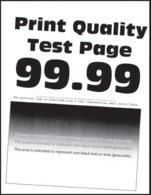
Before solving the problem, print the Print Quality Test Pages. From the control panel, navigate to  to navigate through the settings.
Settings
>
Troubleshooting
>
Print Quality Test Pages
. For non-touch-screen printer models, press to navigate through the settings.- Perform the following tests:
- Adjust the guides in the tray to the correct position for the paper loaded.Print the document.Is the print crooked or skewed?
- Yes:Go to the next step.
- No:The problem is solved.
- Perform the following tests:
- Load paper from a fresh package.Paper absorbs moisture due to high humidity. Store paper in its original wrapper until you are ready to use it.Print the document.Is the print crooked or skewed?
- Yes:Go to the next step.
- No:The problem is solved.
- Perform the following tests:
- Check if the paper loaded is supported.If paper is not supported, then load a supported paper.Print the document.Is the print crooked or skewed?
- Yes:Contact customer support.
- No:The problem is solved.
- Perform the following tests:
- For two‑sided printing, check if the paper size setting in the duplex unit is set correctly.Letter, legal, Oficio, or folio must be set to Letter.Print the document.Is the print crooked or skewed?
- Yes:Contact customer support.
- No:The problem is solved.