Vertical white lines
Get rid of vertical white lines on your prints by following these steps.
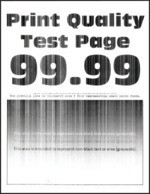
Before solving the problem, print the Print Quality Test Pages. From the control panel, navigate to  to navigate through the settings.
Settings
>
Troubleshooting
>
Print Quality Test Pages
. For non-touch-screen printer models, press to navigate through the settings.- Perform the following tests:
- Depending on your operating system, specify the paper type from the Printing Preferences or Print dialog.
- Make sure that the setting matches the paper loaded.
- You can also change the setting on the printer control panel. Navigate toSettings>Paper>Tray Configuration>Paper Size/Type.
Print the document.Do vertical white lines appear on prints?- Yes:Go to the next step.
- No:The problem is solved.
- Perform the following tests:
- Load the paper source with the recommended paper type.Print the document.Do vertical white lines appear on prints?
- Yes:Go to the next step.
- No:The problem is solved.
- Perform the following tests:
- Open the front door, and then firmly push it down.Pull out the print cartridge tray.Remove, and then insert the print cartridges.
 Insert the print cartridge tray, and then close the door.Print the document.Do vertical white lines appear on prints?
- Yes:Contact customer support.
- No:The problem is solved.