Overview
Learn more about Solution Center.
Cloud Solution Center lets you create or customize your workflows depending on your roles in an organization. You can create a workflow to capture, process, and route a document. After selecting Solution Center card from the dashboard or from the  on the upper-right corner of the page, you can view a list of available solutions based on your role.
on the upper-right corner of the page, you can view a list of available solutions based on your role.There is also a Solution Center eSF application available on Lexmark printers and multifunction products (MFPs). It allows users to view and execute workflows that have been configured through the Lexmark Cloud Services portal. For steps that are kept unlocked in the Lexmark Cloud Services portal, users can still edit or customize them through the eSF application.
For more information on printer models that support Solution Center, see Supported printer models for Solution Center.
Flow chart of using Solution Center
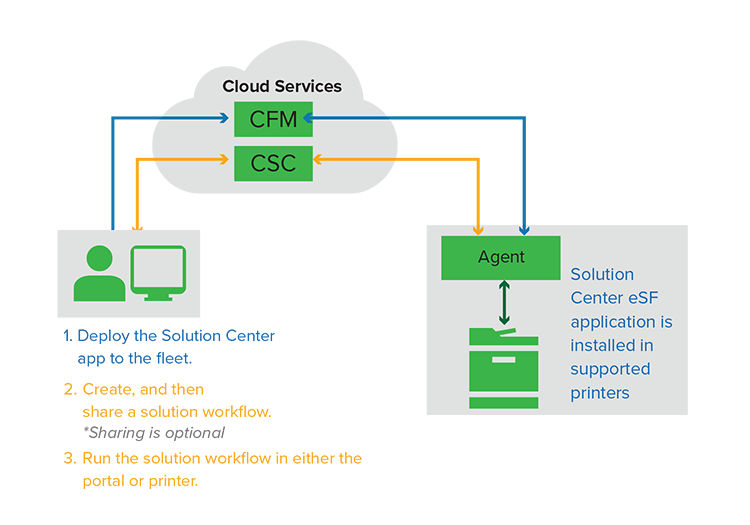
- Deploy the Solution Center eSF application to the fleet.
- Create, and then share a solution workflow. For more information on creating a solution workflow, see Creating a solution workflow.
- Use the Cloud Solution Center from the Lexmark Cloud Services portal. For more information on using a solution workflow, see Using the Cloud Solution Center.
- Use the Solution Center application from the printer. For more information on using Solution Center application, see Accessing the application.
Solution Center Roles
- Solution Center Administrator—Creates personal and shareable solutions with their own organization.A Solution Center Administrator who is also a Partner Administrator can create and share solutions with child organizations.
- Solution Center Advanced User—Creates personal solutions.
- Solution Center User—Executes solutions.
To be able to use the various actions for Solution Center, the following roles are required:
- Translation Assistant User—Uses Translations for the entitled organization.
- Redaction Assistant User—Uses Redactions for the entitled organization.
- OCR User—Uses Optical Character Recognition for the entitled organization.
Limitations
For more information on limitations of Solution Center, see Solution Center e6 ReadMe v1.1.1.