Pre‑enrolling printers
Learn how to pre‑enroll your IoT‑ready printers to Lexmark Cloud Services.
These instructions apply only to printers with firmware version is 075.xx or later preinstalled in the factory.
To determine the printer firmware version, see Viewing the printer firmware version.
- From the Fleet Management web portal, do one of the following:If no devices are enrolled:
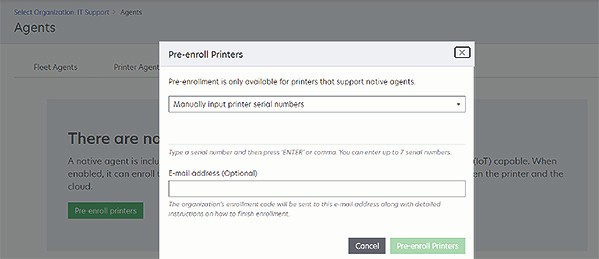
- ClickAgents>Native Agents>Pre‑enroll Printers.
If devices are already enrolled:- ClickAgents>Native Agents>Enrollment>Pre‑enroll>Pre‑enroll printers.
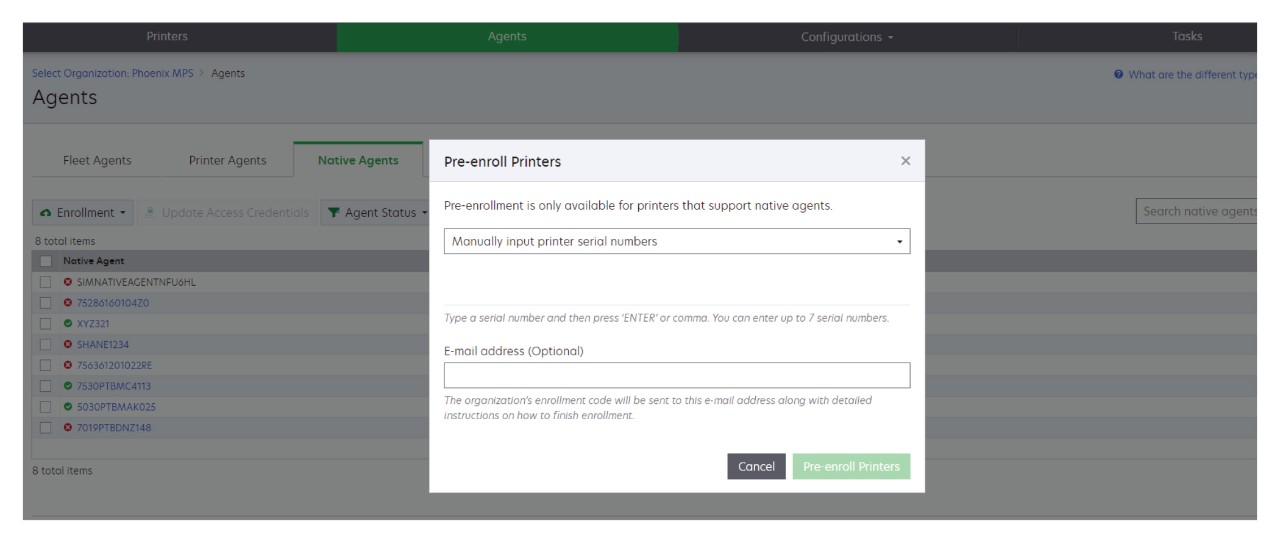
From the Pre‑enroll Printers dialog, do one of the following:- SelectManually input serial number, type the printer serial number, and then pressEnter.
- SelectImport printer serial number from file, and then browse to the CSV or TXT file.
To receive the enrollment code and the complete enrollment instructions using e‑mail, type your e‑mail address.ClickPre‑enroll Printers>Enrollment>Pre‑enroll.Copy the organization’s enrollment code.For pre‑enrolled devices, complete the enrollment process either from the Embedded Web Server or from the printer control panel.Completing the printer enrollment from the Embedded Web Server- From the Embedded Web Server, do one of the following:
- ClickSettings>Cloud Services>Cloud Services Enrollment.
- ClickSettings>Lexmark Cloud Services>Cloud Fleet Management.
Make sure that Enable communication with Lexmark Cloud Services is selected.In the Enrollment Code field, enter the enrollment code, and then clickEnroll Printer.
Completing the printer enrollment from printer control panel- From the printer home screen, do one of the following:
- TouchSettings>Cloud Services>Cloud Services Enrollment.
- TouchSettings>Lexmark Cloud Services>Cloud Fleet Management.
From the Enable communication with Lexmark Cloud Services menu, touchOn.In the Enroll Printer field, enter the enrollment code, and then touchOK.