Gray background
Adjusting the toner darkness and specifying the correct paper type can help remove unwanted gray background from the printed page.
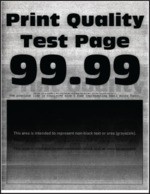
Before solving the problem, print the Print Quality Test Pages. From the control panel, navigate to .
Use tray 1 to print the sample pages and make sure that the paper is loaded in the portrait orientation.
Try one or more of the following:
- Depending on your operating system, increase the toner darkness from the Printing Preferences or Print dialog.You can also change the setting on the printer control panel. Navigate toSettings>Print>Quality>Toner Darkness.
- Check if the printer is using a genuine and supported Lexmark toner cartridge.If the cartridge is not supported, then install a supported one.
- Depending on your operating system, specify the paper type from the Printing Preferences or Print dialog. Make sure that the setting matches the paper loaded in the tray.You can also change the setting on the printer control panel. Navigate toSettings>Paper>Tray Configuration>Paper Size/Type.
- Make sure that the imaging unit is properly installed.
- Pull out the imaging support basket, and then remove the imaging unit.Do not expose the imaging unit to direct light for more than 10 minutes. Extended exposure to light may cause print quality problems.Do not touch the photoconductor drum under the imaging unit. Doing so may affect the quality of future print jobs.
- Insert the imaging unit, and then insert the imaging support basket.
- Update the printer firmware. For more information, see the “Printer firmware instructions” section.
- Replace the imaging unit.
If the problem persists, then contact customer support.