Light print
Adjusting toner darkness or using the recommended paper can prevent the light print quality issue from happening again.
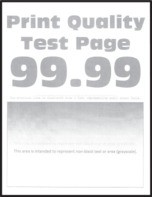
Before solving the problem, print the Print Quality Test Pages. From the control panel, touch
Settings
>
Troubleshooting
>
Print Quality Test Pages
.- Perform the following tests:
- Perform Color Adjust.From the control panel, navigate to:Settings>Print>Quality>Advanced Imaging>Color AdjustPrint the document.Is the print light?
- Yes:Go to the next step.
- No:The problem is solved.
- Perform the following tests:
- Depending on your operating system, increase toner darkness from the Printing Preferences or Print dialog.You can also change the setting on the printer control panel. Navigate toSettings>Print>Quality>Toner Darkness.Print the document.Is the print light?
- Yes:Go to the next step.
- No:The problem is solved.
- Perform the following tests:
- Turn off Color Saver.From the control panel, navigate to:Settings>Print>Quality>Color SaverPrint the document.Is the print light?
- Yes:Go to the next step.
- No:The problem is solved.
- Perform the following tests:
- Depending on your operating system, specify the paper type from the Printing Preferences or Print dialog.
- Make sure that the setting matches the paper loaded.
- You can also change the setting on the printer control panel. Navigate toSettings>Paper>Tray Configuration>Paper Size/Type.
Print the document.Is the print light?- Yes:Go to the next step.
- No:The problem is solved.
- Check if paper has texture or rough finishes.Are you printing on textured or rough paper?
- Yes:Go to the next step.
- No:Go to step 7.
Perform the following tests:- Replace textured or rough paper with plain paper.Print the document.Is the print light?
- Yes:Go to the next step.
- No:The problem is solved.
- Perform the following tests:
- Load paper from a fresh package.Paper absorbs moisture due to high humidity. Store paper in its original wrapper until you are ready to use it.Print the document.Is the print light?
- Yes:Go to the next step.
- No:The problem is solved.
- Replace the imaging unit, and then print the document.Is the print too light?
- Yes:Contact customer support.
- No:The problem is solved.