Replacing the 2200‑sheet tray base
Resolve and prevent jams and paper feed problems. Change the defective tray base to maintain proper printing performance.
To avoid the risk of electrical shock, if you are accessing the controller board or installing optional hardware or memory devices sometime after setting up the printer, then turn the printer off, and unplug the power cord from the electrical outlet before continuing. If you have any other devices attached to the printer, then turn them off as well, and unplug any cables going into the printer.
Installing one or more options on your printer or MFP may require a caster base, furniture, or other feature to prevent instability causing possible injury. For more information on supported configurations, see www.lexmark.com/multifunctionprinters.
Installing one or more options on your printer or MFP may require a caster base, furniture, or other feature to prevent instability causing possible injury. For more information on supported configurations, contact the place where you purchased the printer.
- Turn off the printer.Unplug the power cord from the electrical outlet, and then from the printer.Pull out and unlock the tray insert.
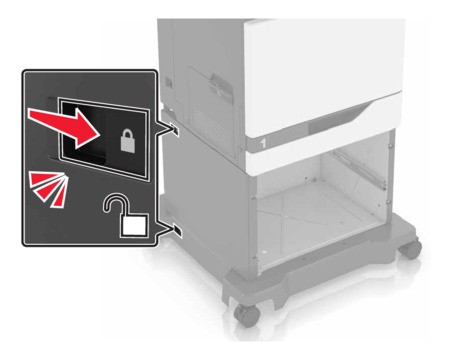
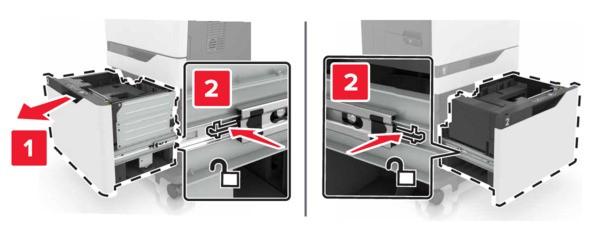 Remove the tray insert.Unlock the tray base and the caster base.
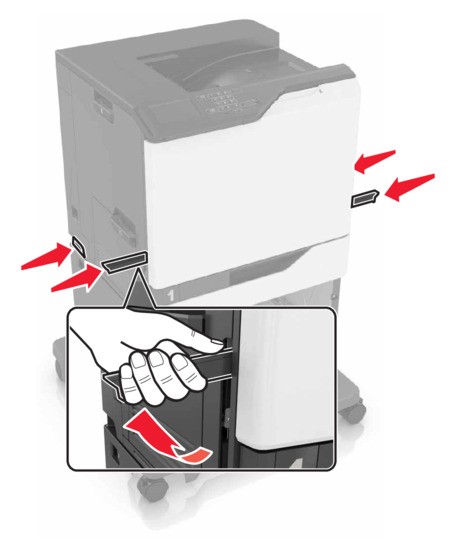
 Lift the printer using the side and rear handles.The printer weight is greater than 18 kg (40 lb) and requires two or more trained personnel to lift it safely.
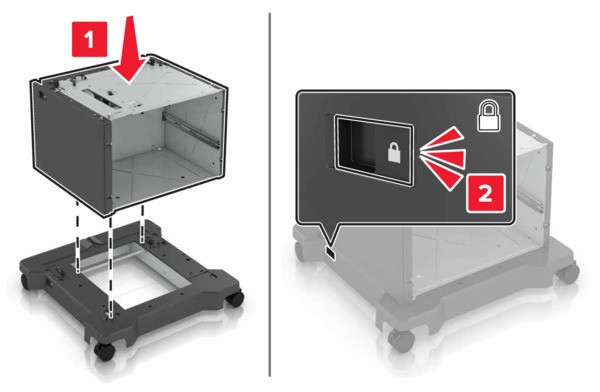
 Remove the tray base from the caster base.Unpack the new tray base.Align the tray base to the caster base, and then lower the tray base until itclicksinto place.
 Align the printer to the tray base, and then lower the printer until itclicksinto place.
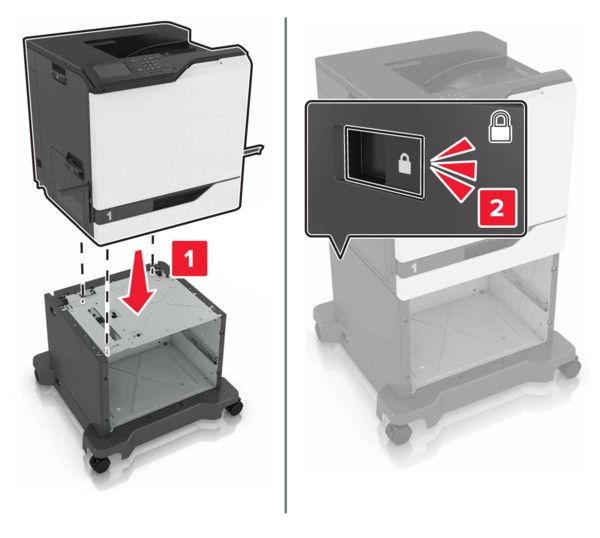 Install the tray insert.
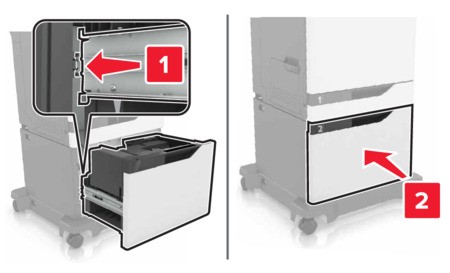 Connect the power cord to the printer, and then to the electrical outlet.To avoid the risk of fire or electrical shock, connect the power cord to an appropriately rated and properly grounded electrical outlet that is near the product and easily accessible.Turn on the printer.