Installing an Internal Solutions Port
The controller board supports one optional Lexmark™ Internal Solutions Port (ISP).
This task requires a flat‑head screwdriver.
If you are accessing the controller board or installing optional hardware or memory devices sometime after setting up the printer, then turn the printer off, and unplug the power cord from the electrical outlet before continuing. If you have any other devices attached to the printer, then turn them off as well, and unplug any cables going into the printer.
Controller board electronic components are easily damaged by static electricity. Touch a metal surface on the printer before touching any controller board electronic components or connectors.
- Open the controller board access door.
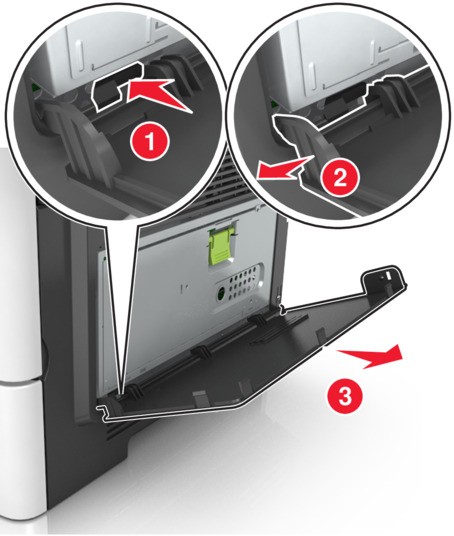
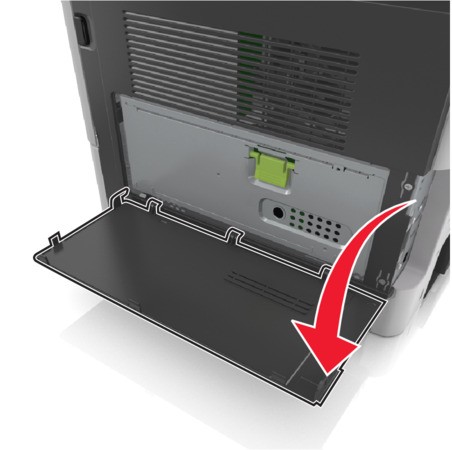 Lightly press the stop on the left side of the access door, and then slide the access door to remove it.
 Unpack the ISP kit.Make sure to remove and discard the small cable attached to the white connector.
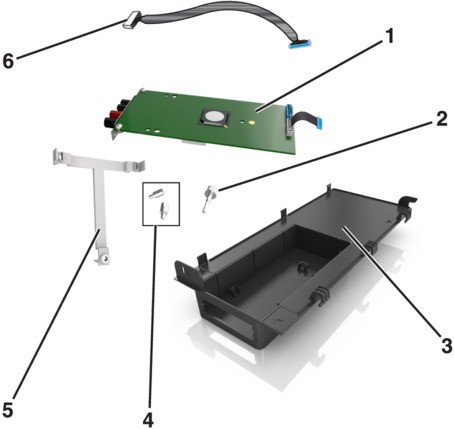 1ISP solution2Screw to attach the ISP to the bracket3ISP exterior cover4Screws to attach the ISP metal bracket to the printer cage5Plastic bracket6Long ISP cablePlace the plastic bracket inside the ISP exterior cover until itclicksinto place.
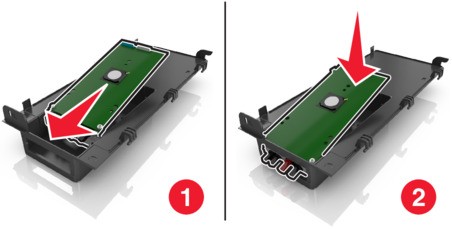
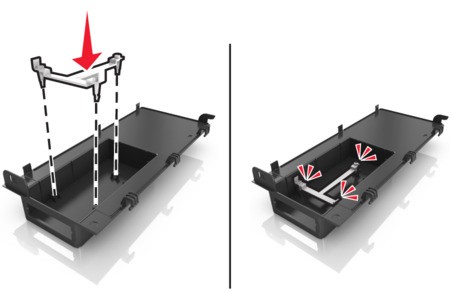 Slide and push the ISP solution into the plastic bracket.
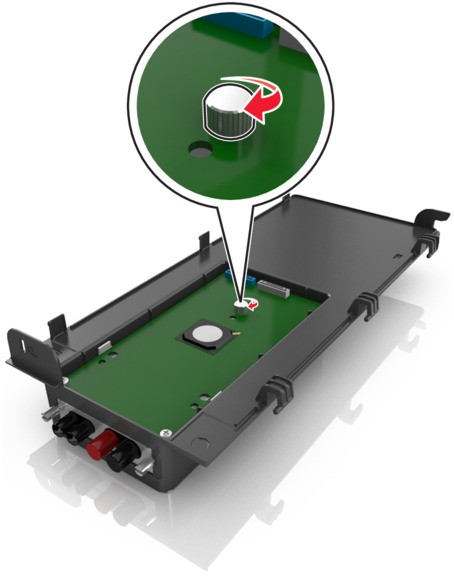
 Secure the ISP solution to the plastic bracket using the long screw.
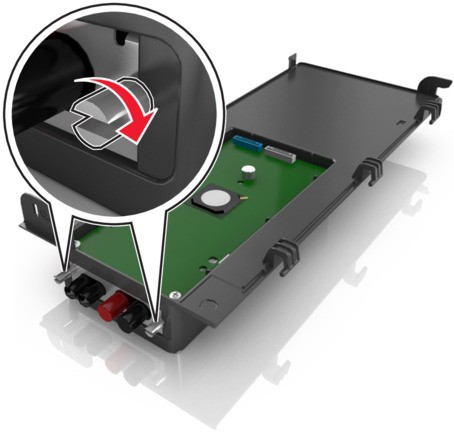
 Tighten the two screws on the end of the ISP solution.
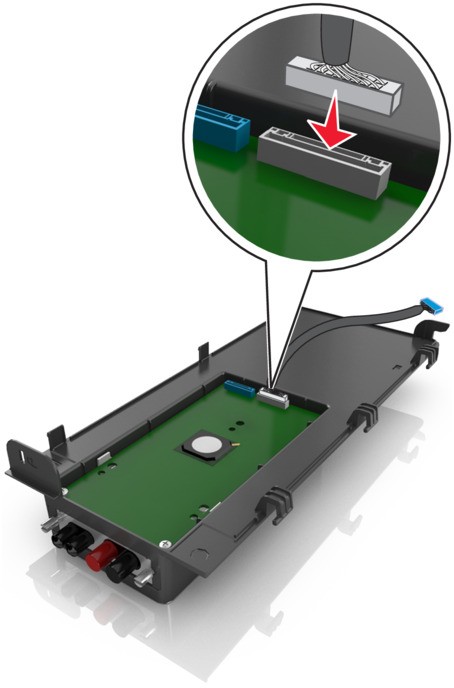
 Attach the white plug of the ISP solution interface cable into the white receptacle on the ISP.
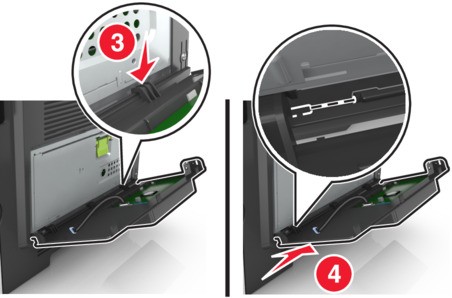
 Attach the ISP exterior cover at an angle by inserting the left hinges first.
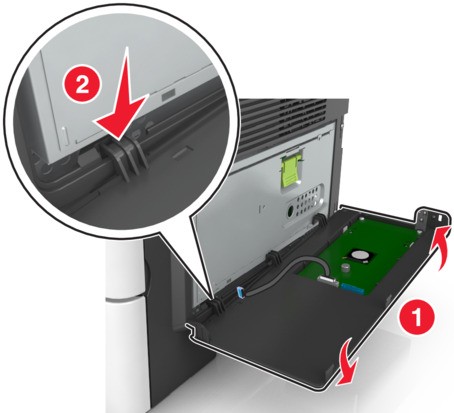 Lower the rest of the cover, and then slide the cover to the right.
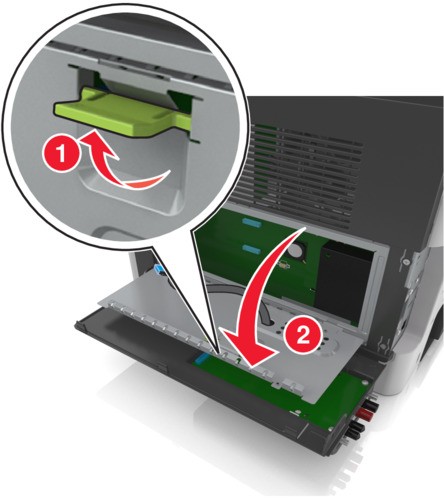
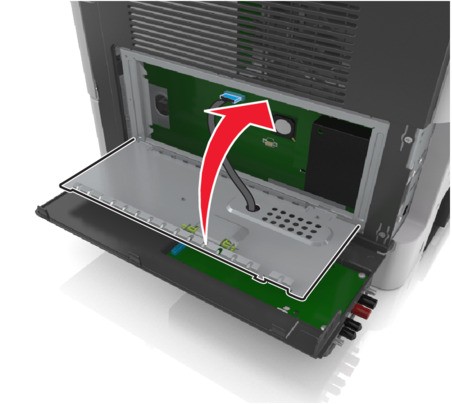
 Run the ISP cable through the controller board shield.Open the shield using the green handle.
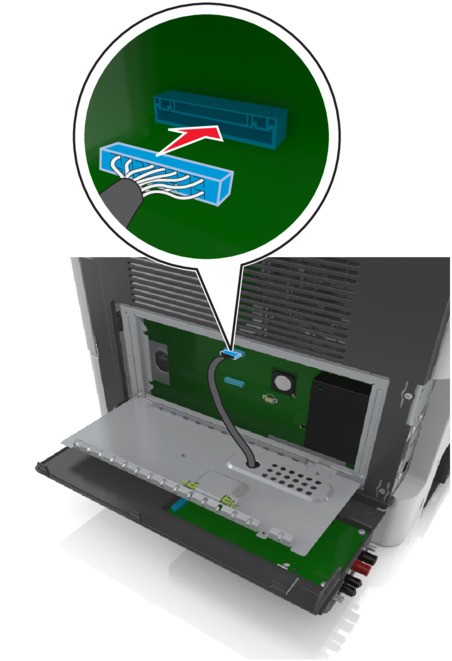
 Attach the blue plug of the ISP solution interface cable into the blue receptacle on the controller board.If you have installed a printer hard disk, then you need to remove it. For more information, see Removing a printer hard disk. To reinstall the printer hard disk, see Installing a printer hard disk.
 Close the shield.
 Close the ISP exterior cover.When the printer software and any hardware options are installed, it may be necessary to manually add the options in the printer driver to make them available for print jobs. For more information, see Adding available options in the print driver.