Attaching cables
Do not set up this product or make any electrical or cabling connections, such as a power cord, a fax feature, or USB cable, during a lightning storm.
Connect the printer to the computer using a USB cable or Ethernet cable.
Make sure to match the following:
- The USB symbol on the cable with the USB symbol on the printer
- The appropriate Ethernet cable to the Ethernet port
- The appropriate parallel cable with the parallel port
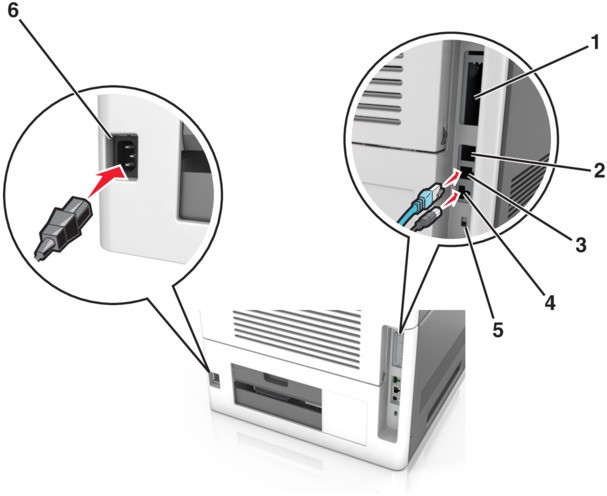
Use the | To | |
|---|---|---|
1 | Parallel port | Connect the printer to a computer. This can also be used in installing an optional Internal Solutions Port (ISP). |
2 | USB port | Attach an optional wireless network adapter. |
3 | Ethernet port | Connect the printer to a network. |
4 | USB printer port | Connect the printer to a computer. |
5 | Security slot | Attach a lock that will secure the controller board. |
6 | Printer power cord socket | Connect the printer to a properly grounded electrical outlet. |
Do not touch the USB cable, any wireless network adapter, or the printer in the area shown while actively printing. Loss of data or a malfunction can occur.
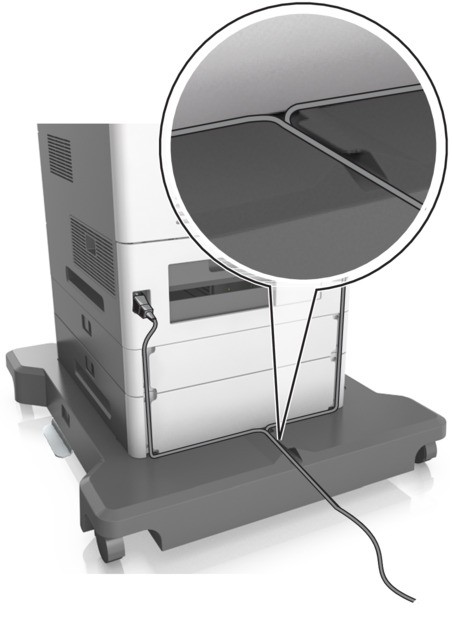
This feature is available only if you purchase optional trays and a caster base. |
After attaching the Ethernet cable and power cord, neatly tuck the cables in the channels at the back of the printer. |
 |