Understanding the home screen
When the printer is turned on, the display shows a basic screen, referred to as the home screen. Use the home screen buttons and icons to initiate an action such as copying, faxing, or scanning; to open the menu screen; or respond to messages.
Your home screen may vary depending on your home screen customization settings, administrative setup, and active embedded solutions.
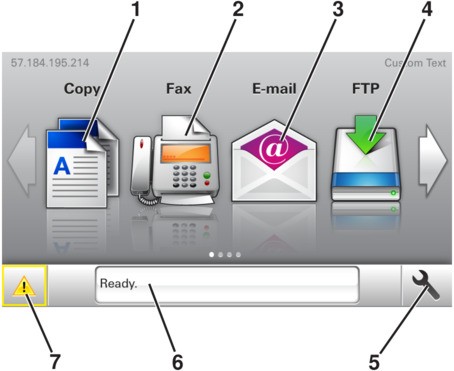
Touch | To | |
|---|---|---|
1 | Copy | Access the Copy menus and make copies. |
2 | Fax | Access the Fax menus and send fax. |
3 | E‑mail | Access the E-mail menus and send e‑mails. |
4 | FTP | Access the File Transfer Protocol (FTP) menus and scan documents directly to an FTP server. |
5 | Menu icon | Access printer menus. The menus are available only when the printer is in ready state. |
6 | Status message bar |
|
7 | Status/Supplies |
|
This may also appear on the home screen:
Touch | To |
|---|---|
Search Held Jobs | Search current held jobs. |
Jobs by user | Access print jobs saved by user. |
Profiles and Apps | Access profiles and applications. |
Features
Feature | Description |
|---|---|
Attendance message alert  | If an attendance message affects a function, then this icon appears and the red indicator light blinks. |
Warning  | If an error condition occurs, then this icon appears. |
Printer IP address Example: 123.123.123.123 | The IP address of your printer is located at the top left corner of the home screen and appears as four sets of numbers separated by periods. You can use the IP address when accessing the Embedded Web Server to view and remotely configure printer settings even when you are not physically near the printer. |