Incorrect margins
Are the margins wrong on your printed page? Check the positions of the paper guides in the tray and specify the correct paper size in the computer or the printer.
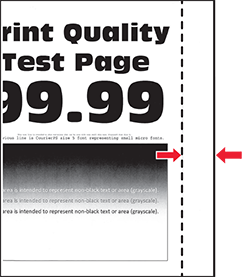
Before solving the problem, print the Print Quality Test Pages. From the control panel, navigate to .
Use tray 1 to print the sample pages and make sure that the paper is loaded in the portrait orientation.
Try one or more of the following:
- Adjust the paper guides in the tray to the correct position for the paper loaded.
- Depending on your operating system, specify the paper size from the Printing Preferences or Print dialog. Make sure that the setting matches the paper loaded.You can also change the setting on the printer control panel. Navigate to .
If the problem persists, then contact customer support.