Dark print
Are your prints too dark? Try adjusting toner darkness or loading paper from a fresh package.
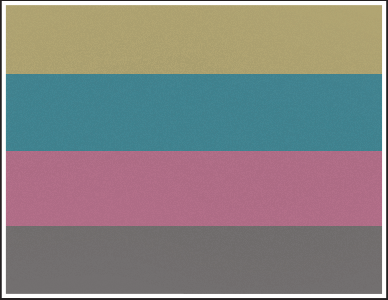
Before solving the problem, do the following:
- Perform Color Adjust. From the control panel, navigate to .
- Print the Print Quality Test Pages. From the control panel, navigate to .Use tray 1 to print the sample pages and make sure that the paper is loaded in the portrait orientation.
Try one or more of the following:
- Depending on your operating system, reduce the toner darkness from the Printing Preferences or Print dialog.You can also change the setting on the printer control panel. Navigate to .
- Depending on your operating system, specify the paper type from the Printing Preferences or Print dialog. Make sure that the setting matches the paper loaded in the tray.You can also change the setting on the printer control panel. Navigate to .
- Make sure that the paper does not have a texture or rough finish.
- Load paper from a fresh package.Paper absorbs moisture due to high humidity. Store the paper in its original wrapper until you are ready to use it.
If the problem persists, then contact customer support.