Light copies or washed-out backgrounds when copying
Troubleshooting light copies or washed-out backgrounds when copying any documents.
Issue description
Copies appear washed out or significantly lighter than the original.
The images are not as dark as the original or have lost their background content.
Sample Images:
Original Document | Document Output Copied from Flatbed |
 | 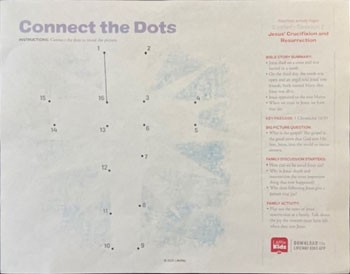 |
Solution
Depending on the type of image being copied, various settings are available to help achieve the best copy quality.
Follow the appropriate steps based on the specific ‘Image Background Type’ to provide the optimal solution for this issue.
Before proceeding with any of the steps, please make sure to check the Content settings.
Content setting check:
- Under More Settings, check if the Content settings match the copied document type. For example, select ‘Photo’ for content with images, or ‘Text/Photo’ for documents that are mostly text with some images.
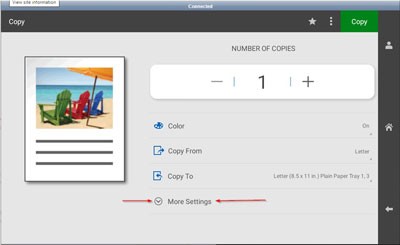
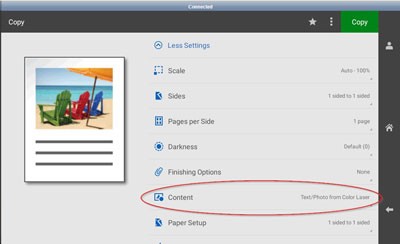
For Images with a Dark Background follow these steps:
- Navigate to: and make sure to change it to set toFixed.
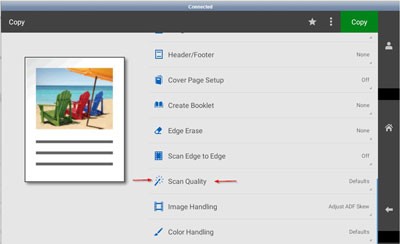
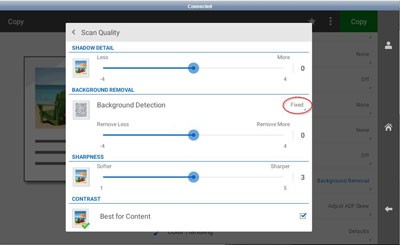
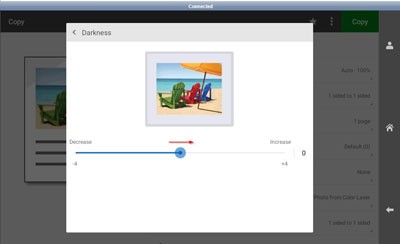
- Decrease the number value incrementally until the desired output is reached.
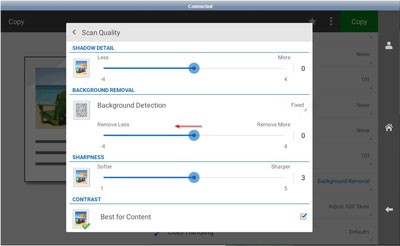
If further darkening is needed, do the following:
- Navigate to:
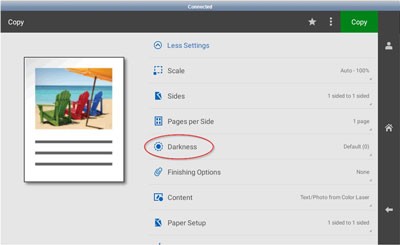
- Increase the number value incrementally until the desired output is reached.
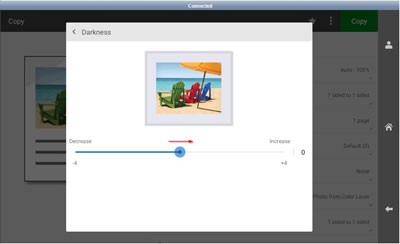
For Images with a Light Background follow these steps:
- Navigate to: and make sure that it is set toContent Based.
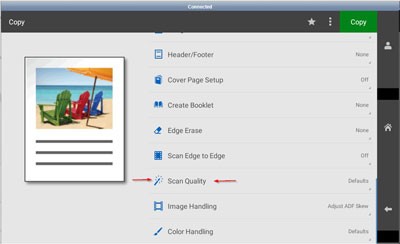
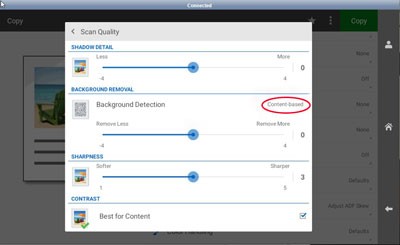
- Decrease the number value incrementally until the desired output is reached.
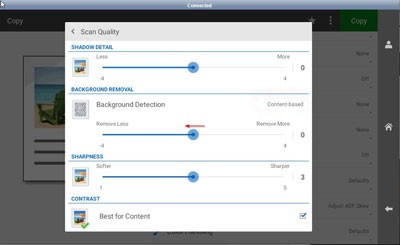
If further darkening is needed, do the following:
- Navigate to:
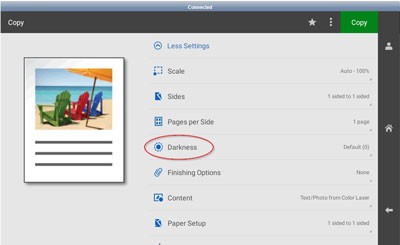
- Increase the number value incrementally until the desired output is reached.
For more information regarding this issue, please contact Lexmark support for further assistance.