Banding, blurring, fuzziness, faded or light print defects check
Print Quality Issue: Vertical and horizontal white lines, non-uniform prints, uniformity, blurry, fuzzy, light, faded, grainy, multi-colored print, or washed-out halftones on the print.
Issue description
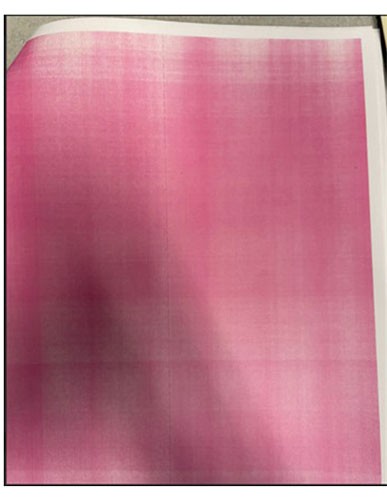
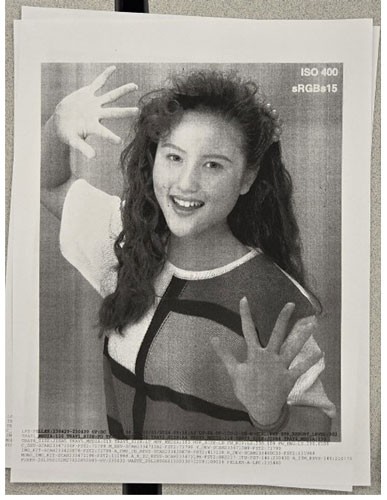
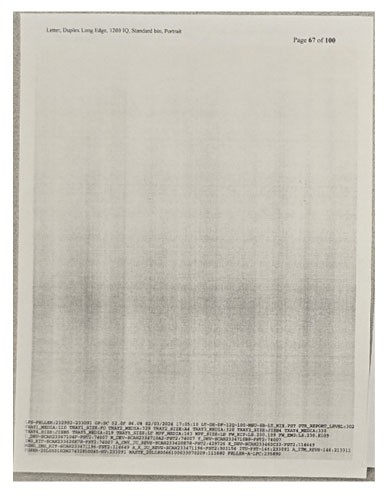
Vertical and horizontal white lines, blurry, fuzzy, faded, or light print defects within a large uniform halftone region of print or copies.
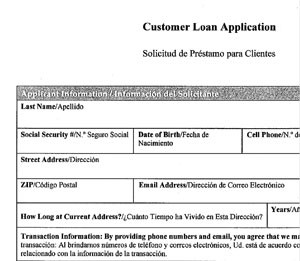
Sample images with banding (vertical and horizontal white lines), blurring, fuzziness, and light or faded prints:
 |  |
 |  |
 |  |
 |  |
Possible cause:
- Imaging unit life of 50,000 pages or later.
- Large jobs or heavy-duty cycles (printing more than 1000 pages/day).
- Large amounts of slower-speed printing (quiet mode or 1200 dpi).
- Large amounts of printing in Hot temperatures (> 78°F) or Humid environments (Relative Humidity > 70%).
- Typically observed in large halftone regions.
Solution
- PerformColor Adjust.
- Navigate to
- Set the resolution to4800 CQ.
- Navigate to
- Check and adjust theToner Darknesssetting.
- Navigate to
- Check the current setting: If the value is less than 4, increase it to 4. A setting below 4 will result in light or faded prints.
The default toner darkness setting is 4, which provides balanced print quality. - Verify if theColor Saversetting is turned off.
- Navigate to
- Check the setting: IfColor Saveris ON, switch it OFF.
Disabling Color Saver ensures richer and more accurate color output. - Make sure that the printer is not inQuiet Mode.
- Navigate toSettings>Device>Maintenance>Config Menu>Device Operations>Quiet Mode.
- Perform a test print and check if the print quality issue remains.
If the issue persists, then contact customer support.