201.x1 Paper jam error message
A 201.x1 Paper Jam Message (x = any number) Is Appearing on a Lexmark T64x Series (T640, T642, T644) or an X64xe Series Printer
Issue description
The printer is displaying a
201
type paper jam message. Typically a page has jammed in the middle of the printer, under the toner cartridge. Select Show areas
on the operator panel to view images that will help you locate the jam.Solution
Clearing the paper jam
To resolve the paper jam message, you must first clear the
entire
paper path and then select Continue
or press the select button to clear the message and resume printing.The images in the table below show the Lexmark T640/642/644 model. However, these directions also apply to the X642, X644 and X646 models.
Step | Action |
|---|---|
1 | Push the outer release latch on the left-hand side and open the multipurpose feeder (lower front cover). |
2 | Push the inner release latch on the left-hand side and open the upper front cover. 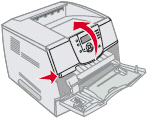 |
3 | Lift and pull the toner cartridge out of the printer. Set the toner cartridge aside. IMPORTANT! Do not touch or damage the photoconductor drum on the undersid e of the cartridge. Doing so can cause print quality issues. It is recommended that the cartridge be placed on a sheet of paper to catch loose toner and prevent any damage. Do not expose the toner cartridge to direct sunlight. Direct sunlight will damage the photoconductor drum. If the cartridge is going to be out of the printer for more than a few minutes, place a sheet of paper over it to shield the photoconductor drum from light.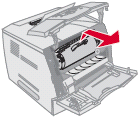 |
4 | Look into the printer. Find the jammed sheet of paper and carefully remove it. CAUTION! Exercise care when removing the jammed sheet of paper. The page will likely be covered with loose toner, which can easily come off. If a ny toner does get on your clothing or carpeting, the best way to remove it is to dab it off using a slightly damp cloth or paper towel and warm water. Do not use hot water or try to scrub the toner off.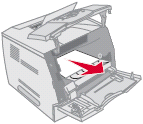 |
5 | If the jammed page does not move immediately when you pull, stop pulling. Open the rear door/cover of the printer. Try to remove the jammed page from here.
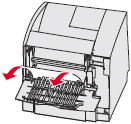 |
6 | If this print job consisted of more than one page, other pages are probably still stuck in the printer. |
7 | Once the entire paper path is clear, reinstall the toner cartridge. Close all doors and covers. Press Continue or the select button button to resume printing. |
If the jamming continues
If the paper jams continue, try the following suggestions based on the applicable circumstances:
- If the error is something other than a201type error, use theShow areasfeature on the printer operator panel to view images that will help you locate and clear the jam. If the paper jam errors continue after this, the printer will likely require service to correct the issue. For more information on arranging repair service, contact Lexmark Technical Support or an authorized service center.
- If201type errors continue, clear the jammed paper and power off the printer. Remove the toner cartridge and carry out the following checks:
- Make sure there are no small pieces of paper inside the printer, blocking the paper path.
- M ake sure none of the parts inside the printer appear loose or broken. If any parts do appear damaged, the printer will likely require service to correct the issue.
- If the jammed sheet of paper is not damaged and appears to have simply stopped in the printer, make sure you are not printing on paper or other media with a width of less than170 mm(6.7 inches). Due to the jam detection method the printer uses, narrow media can stop feeding through the printer and cause a201type paper jam message to appear. Refer to for more information.
- If you are using a duplex unit that has been installed to allow you to print on both sides of the paper, try printing single-sided pages. If single-side pages come out properly, the duplex unit may be the source of the problem. To check this:
- Make sure there are no sheets of paper jammed in the duplex unit.
- If nothing appears to be jammed in the duplex option, power off the printer and try reseating the duplex unit.
- If the jamming continues but only when you are printing on both the front and back of the page, the duplex option will probably need to be replaced. If your duplex option is still under warranty, please contact Lexmark Technical Support or your warranty service provider to get it replaced.
- Are you printing on regular plain bond copy paper? If not, try printing again with plain copy paper. This will eliminate any special media as part of the cause of the jamming, even if the special media has worked in the past. Certain specialty papers, letterhead stock, label stock, and card stock are more prone to jamming. For more information on recommended paper types, please refer to theCard Stock and Label Guide.
LEGACY ID:
SO4074