Scan to USB settings on the X64xe Embedded Web Server
  1. guides
  2. en
  3. Knowledge base
  4. Setup, installation, and configuration issues
  5. Scan to USB settings on the X64xe Embedded Web Server

Scan to USB settings on the X64xe Embedded Web Server

'Scan to USB' Settings on the X64xe Embedded Web Server

Issue description

This article provides a brief description of all the configurable settings found under
Configuration > Scan to USB
. This feature allows you to scan an image to a USB flash drive inserted into a USB port on the front of the MFP.
Security permissions set on the device may prevent access to these settings.
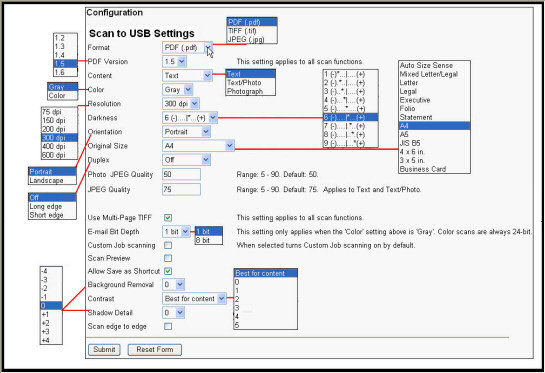
Scan to USB Settings explained

Bold text indicates MFP default settings.
EWS
= Embedded Web Server
MFP
= Multifunction printer
ADF
= Auto document feeder
EWS Setting (top-to-bottom)
Configuration Available
Format
  • PDF
  • TIFF
  • JPEG
PDF Version
  • 1.2
  • 1.3
  • 1.4
  • 1.5
Content
  • Text
  • Text/Photo
  • Photograph
Color
  • Gray
  • Color
Resolution
  • 75
  • 150
  • 200
  • 300
  • 400
  • 600
Darkness
  • 5
  • -5 to 9 range
Orientation
  • Portrait
    or Landscape
Original Size
  • -Letter
    or
    A4
    , depending on the
    General Settings > Paper Sizes
    setting (U.S. or Metric)
  • -Legal
  • -Executive
  • -Folio
  • -Statement
  • -A4 (210 X 297mm)
  • -A5
  • -JIS-B5
  • -Auto Size Sense
  • -Mixed Sizes
Duplex
  • Off
  • Long Edge
  • Short Edge
Photo JPEG Quality
  • 50
  • Range is 5 - 90
JPEG Quality
  • 75
  • Range is 5 - 90
  • Applies to
    Text
    and
    Text/Photo
Use Multi-Page TIFF
  • On
    or Off
This setting determines whether all images will be within one file (name), or individual files differentiated by time stamp.
Scan Bit Depth
  • 8-bit
    mono gray
  • 1-bit monochrome
  • Color scans are always 24-bit
Not Supported:
  • 1-bit with JPEG compression
  • 8- or 24-bit CCITT G4 and JBIG-2 compression
Base File Name
  • Images can have file names of up to 53 characters.
  • Certain characters, such as ", ?,:,<, >, are not allowed.
  • A time stamp is appended to the end of each file name. This helps specify the scanning order and provides additional job differentiation.
  • A file name can also be entered from the touch-screen user interface.
Custom Job Scanning (Job build)
  • On
    or Off
Scan Preview
  • Off
    or On
Background Removal
  • 0
  • Range: -4 to +4
Contrast
  • Best for Content
  • Range: 0 to 5
    -
Shadow Detail
  • 0
  • Range: -4 to +4
Scan edge-to-edge
  • Off
    or On

Additional information

Click here for User's Guide instructions on scanning to the USB flash drive. Visit Lexmark Publications for comprehensive end-user documentation.
LEGACY ID:
SO4553