Print settings on the X64xe Embedded Web Server (EWS)
Print Settings on the X64xe Embedded Web Server
Overview
This article provides a brief description of all the configurable settings found under
Configuration > Print
Settings
. NOTE:
Security permissions set on the device may prevent access to these settings.Print Setting menus
The following
Print Setting
menus are accessible via the EWS:- Finishing Menu
- Quality Menu
- Setup Menu
- PostScript Menu
- PCL Emul Menu
- PDF Menu
- HTML Menu
- Image Menu
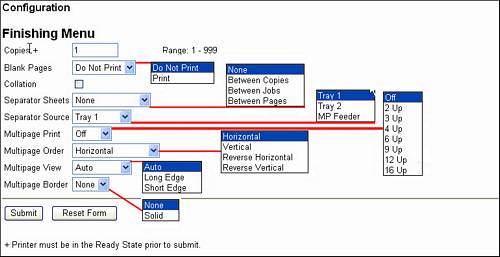
Finishing Menu
Bold
text indicates MFP default settings.EWS Setting | Purpose | Configuration Selections Available |
Copies | The Copies value will be overridden by the value in the application. | Range 1-999 |
Blank Pages | Helps control the printing of excess blank pages in application-specific scenarios. | Do Not Print or Print |
Collation | Determines whether multipage jobs exit the printer sequentially when removed from the exit tray, e.g. as numbered pages 123, 123, 123 or as pages 111, 222, 333 etc. | On or Off |
Separator Sheets | As jobs build up on the exit tray, this feature places a blank page between multiple individual job types. |
|
Separator Source | This setting allows you to specify the source tray of your separator sheets and is dependent on the number of installed and recognized input trays or drawers. | Variable value plus MP Feeder. |
Multipage Print | Also called N -Up under the software driver's Paper tab, this setting will typically be overridden by the driver setting. However, turning this on at the printer may benefit other job types, such as multipage faxes or copy jobs. |
|
Multipage Order | Determines the viewable layout configuration of individual pages of a multipage print job. |
|
Multipage View | Determines whether a landscape or portrait layout of multipage print jobs is used. |
|
Multipage Border | Emulates the border of a piece of paper by printing a line around the perimeter of individual pages in a multipage print job. | None or Solid |
Illustration
Quality Menu
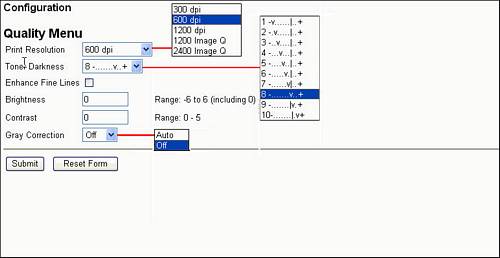
EWS Setting | Purpose | Configuration Selections Available |
|---|---|---|
Print Resolution | Take note that:
| 300 600 1200 1200 Image Q 2400 Image Q (Quality) |
Toner Darkness | Increase or decrease the darkness of text or an image by adjusting this setting. This setting will be overridden by the driver's Toner Darkness setting, which is typically found under Printing Preferences > Print Quality . If changing the driver setting has no effect on output, try changing this setting. | 5 , Range: 1-10 |
Enhance Fine Lines | Lines as thin as 1 pel may not be visible to the naked eye. This setting will attempt to exaggerate the line so that it is visible. | Off or On |
Brightness | This setting may enhance the appearance of printed grayscale images where intricate details may appear dull or too dark. | 0 , Range: -6 to 6 |
Contrast | This setting may enhance the appearance of highly detailed grayscale images by sharpening the edges of individual lines or pels. | 0 , Range: 0 - 5 |
Gray Correction | This setting offers the ability to place brightness and contrast control at the printer level. Turning it to Off switches to completely manual control of grayscale images. The driver setting is typically found under Printing Preferences > Print Quality > More Print Quality Options . | Off or Auto |
Illustration
Setup Menu
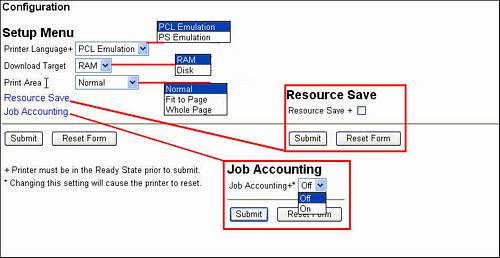
EWS | Setting | Configuration Selections Available |
|---|---|---|
Printer Language | Force printer into PCL or PostScript emulation. Operating system, application, source document, and printer driver typically override this setting. | PCL Emulation or PS Emulation |
Download Target | Allows for the selection of the temporary RAM (Random Access Memory) or permanent hard drive or flash memory for frequently used fonts, barcodes, macros, and overlays. | RAM , Disk, Flash |
Print Area | Modifies the logical and physical print area on the printer. Clipped images may result if print data is outside of the Normal pre-defined print area. This setting only applies to PCL 5 sources in conjunction with the Universal print driver or other operating system environments. It will have no effect on PCL 6 (XL) or PostScript interpreters. | Normal , Fit to Page, or Whole |
Job Accounting | See Reports > Device Statistics . This feature stores usage information on the hard drive. | Off or On |
Illustration
PostScript Menu
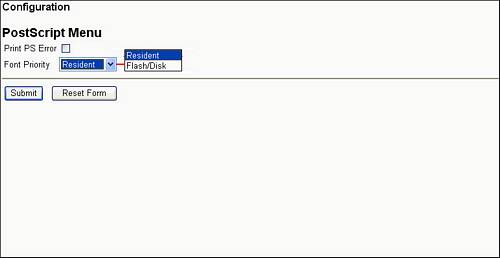
EWS Setting | Purpose | Configuration Selections Available |
|---|---|---|
Print PS Error | Prints offending command information if enabled while the print job is being discarded. | Off or On |
Font Priority | Resident will search NVRAM (non-volatile random access memory) for proper font before searching the hard drive or flash memory for downloaded fonts. The opposite will occur if this setting is changed to Flash/Disk . This setting may have performance repercussions. | Resident or Flash/Disk |
Illustration
PCL Emulation Menu
EWS Setting | Purpose | Configuration Selections Available |
|---|---|---|
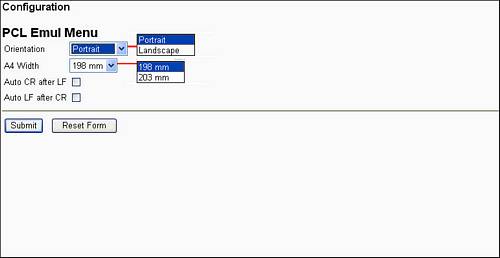
Orientation | The direction in which text or graphics print in relation to the short edge or long edge of a piece of paper. | Portrait or Landscape |
A4 Width | Adjustment of the logical print area wide enough to enable printing of additional characters. Eighty 10-pitch characters if 203mm is selected. | 198 or 203 |
Auto Carriage Return after Line Feed | Absent carriage return commands from the source print file may result in multiple pages or stair-stepping of printer output. This setting will force a carriage return after the line feed command. | Off or On |
Auto Line Feed after Carriage Return | Absent line feed commands from the source print file may result in line-overlap, causing illegible printer output. This setting will force a line feed after the carriage return command. | Off or On |
Illustration
PDF Menu
EWS SEtting | Purpose | Configuration Selections Available |
|---|---|---|
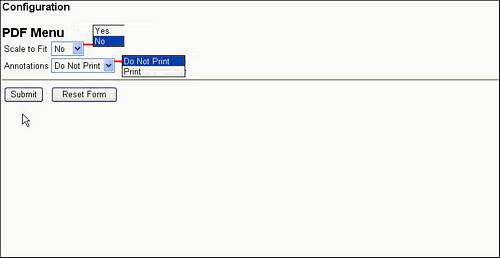
Scale to Fit | Scales image to fit on available paper installed in paper tray. For example, you may print a PDF from a USB flash drive. | No or Yes |
Annotations | Eliminates or includes PDF file annotations (e.g. stamps, sticky notes, digital signatures, redline comments. and more.) | Do not Print or Print |
Illustration
HTML Menu
EWS Setting | Purpose | Configuration Selections Available |
|---|---|---|
Font Size | Sets default font size for html documents | 12 Range: 1pt. -255 pt. in 1 increments. |
Orientation | Portrait is a print orientation that is parallel with the short edge side of a piece of paper. | Portrait or Landscape |
Scale | Sets default scaling of html documents. | 100 Range: 1% - 400% in1 increments. |
Margin Size | Defined margin for html documents. | 19 Range: 8mm - 255mm in 1 increments. |
Backgrounds | Eliminate background information or graphics for html documents. | Print or Do Not Print |
Illustration
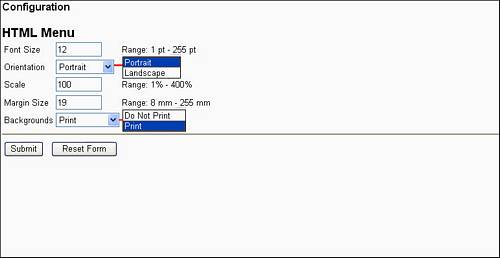
Image Menu
EWS Setting | Purpose | Configuration Selections Available |
|---|---|---|
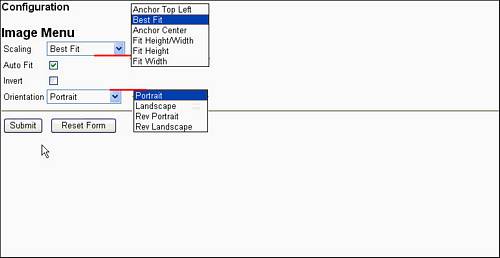
Scaling | Adjust image placement on paper. |
|
Auto Fit | Forces placement of image to fit available paper dimensions. NOTE: May alter or override scaling and orientation settings to make this possible. | On or Off |
Invert | Inverts bi-tonal monochrome images. NOTE: Not available with GIF or JPEG image formats. | Off or On |
Orientation | Landscape is a print orientation that is parallel with the long edge side of a piece of paper. |
|
Illustration
Contacting Lexmark
If you need additional assistance, please contact Lexmark Technical Support.
NOTE:
When calling for support you will need your printer machine/model type
and serial number
. Please call from near the computer and printer in case the technician requires you to perform a task on one of these devices. LEGACY ID:
SO4552