241.09 Paper jam error message
Paper Is Jamming with a '241.09 Paper Jam' Message on a Lexmark T64x Series (T640, T642, T644) or an X64xe Series Printer
Issue description
Explanation of the paper jam message
A
241.09 Paper Jam
message indicates that the printer thinks a sheet of paper has jammed at the front of the printer. The jammed sheet of paper is most likely to be found in one of the paper trays or under the toner cartridge.If you select
Show a reas
on the operator panel, you can view one or more images to help you locate and clear the jam.Solution
Clearing the jam
To resolve the paper jam message, you must first clear the entire paper path. To access the jam area, you will need to open one or more of the paper trays. Follow the steps in the table below to help you locate and clear the jam.
Step | Action |
|---|---|
1 | Open the printer paper tray (tray 1), and remove any jammed media you find there. 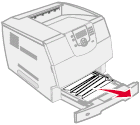 |
2 | Open the front cover and remove the toner cartridge. Examine the area inside the printer and remove any jammed media you find there. 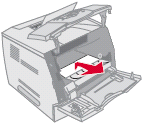 |
3 | If you have a duplex option installed, also remove the duplex access tray and remove any jammed media you find there. 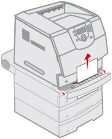 |
4 | If you were printing from an optional paper tray, such as tray 2 or tray 3, open any optional trays, starting at the top, and remove any jammed media. Pull the print media either up or down. If it does not pull easily one way, try the other way. 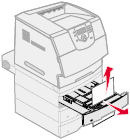 |
5 | If you are printing from an optional 2000-sheet feeder, open the front door. Press the elevator button ( A ) to lower the tray. Remove any partially fed media from the feeder.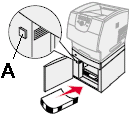 Make sure the stack of print media is straight and pushed all of the way into the feeder. Incorrectly loaded paper is the most common cause of paper jams from a 2000-sheet feeder option. |
6 | Finally, reinstall all of the paper trays and press the check mark button to try printing again. You may receive a different paper jam message informing you that another sheet of paper is jammed elsewhere in the printer. If this occurs, the error code will indicate the location. Click here for a diagram showing the error code locations. The paper path will vary, depending on the paper source and number of paper feed options installed. Remove any jammed sheets of paper you find and try printing again. |
If the printer continues to jam paper
‑ If paper is feeding out of the tray but getting jammed:You may be able to pinpoint the source of the problem by taking a close look at where the leading edge of the paper is stopped.
If paper is not leaving the tray or if no paper appears to be jammed anywhere in the printer, skip ahead to '
If no paper appears to be jammed anywhere
' below.Step | Action |
1 | Remove the paper tray you are printing from. Make sure the guides on the tray are set correctly and that the paper tray is not overfilled. |
2 | With the tray removed, you can also check the feed/pick rollers. Do the following:
|
3 | If the jamming continues, one of the paper trays may not be pushed in all the way. Make sure all of the paper trays are fully installed and try printing again. |
4 | If the page is jamming just outside of tray 1, a small piece of paper may be stuck in one of the rollers at the front of the printer. To complete the steps below, you may need to lay the printer on its side. This is an advanced procedure. Before lifting the printer, make sure the printer is powered off and unplug any cables and cords going into the printer, especially the power cord. You will also need to remove the toner cartridge and the paper tray before setting the printer on its side. If you feel uncomfortable performing this procedure, skip the steps immediately below and go on to step 5 in this table.
|
5 | If the paper is getting past the front of the printer and jamming elsewhere with a 241.09 Paper Jam error, do the following:
|
6 | If you receive this error when printing from an optional tray, such as tray 2 or tray 3, one of the drawer options may not be seated properly. Power off the printer and reseat all of the paper feed options on top of each other. (For information on how to do this, .) |
7 | Check the type of media you are using. Are you printing on regular plain bond copy paper? If not, try printing again with plain copy paper. Certain specialty papers - letterhead stock, label stock, and card stock - can promote j amming. Testing the printer with plain paper will eliminate special media as part of the cause of the jamming. Even if this special paper has worked fine in the past, please test the printer with plain copy paper before arranging to have the printer serviced. For more information on the media specifications for this printer, refer to the printer's User's Guide or to the Card Stock and Label Guide . Both of these manuals can be found on our Publications web site. |
If no paper appears to be jammed anywhere:
Step | Action |
1 | If paper is not leaving the tray or if no paper appears to be jammed anywhere in the printer, remove the paper tray. Make sure the paper is loaded correctly in the tray. Make sure the guides on the tray are set correctly. Make sure the paper tray is not overfilled. |
2 | With the tray removed, you can also check the feed/pick rollers. Do the following:
|
3 | If the printer still will not pull any paper, the feed rollers for that tray may be worn. As a test and a temporary fix, you can try flipping the rubber feed rollers inside out. IMPORTANT! Be very careful not to damage the rubber tires when doing this. If you are uncomfortable performing this step, skip ahead to step 4 below.
If cleaning the feed rollers or flipping them inside out fixes the problem, your feed rollers are worn and need to be replaced soon. For information on how to orde r a new set of these pick rollers, please contact Lexmark Technical Support or a local authorized service center in your area. The part number for a set of pick rollers is 40X0070 . A set of pick rollers also comes with the maintenance kit. |
4 | If the paper still does not feed, the printer will likely need service to allow the problem to be isolated and the failing component replaced. |
LEGACY ID:
SO4176