The Button for Scan to Network has Disappeared from the MFP Control Panel
What you will see
The
Scan to Network
icon or button, which initiates your scan from the MFP, is no longer visible.Illustration
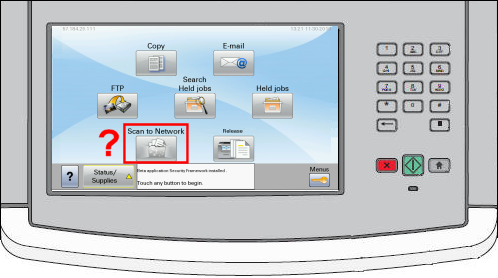
How to turn ON the "Scan to Network" button
Step
| Action
| Illustration
|
1
| Open the printer's embedded web server (EWS). http:// < MFP_IP_Addres
s >, where <MFP_IP_Address > is the IP address of the printer. | |
3
| Click on the Scan to Network (SNF ) embedded solution. | |
4
| Click Configure (next to Information ). | |
5
| Place a checkmark next to Always show button.   Important! The normal behavior (default setting) is to not show this button until a valid (functioning) destination has been created. | |
6
| Click on Apply . |
Click here
to see the troubleshooting portion of the Scan to Network administrators guide.
Still Need Help?
Contact Lexmark Technical Support, or your 'Software Solution' provider, if you require additional technical support.
NOTE:
You will be asked for your printer model/machine type
and serial number
(SN
) when calling for support. We
Please call from near the computer and printer in case the technician on the phone asks you to perform a task involving one of these devices.
LEGACY ID:
SO6409