Explanation of the Operator Panel Buttons on a Lexmark T640, T642, or T644 printer
Back
Menu
Stop
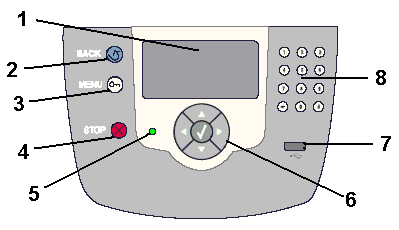
- The Display PanelThe display panel shows messages and graphics describing the current state of the printer and indicating possible p rinter problems you must resolve. The top line of the display is the header line. If applicable, it will contain the graphic indicating that theBackbutton can be used. It will also display the current status and the supplies (warnings) status. If multiple warnings are present, each warning will be separated by a comma from the next one. The other three lines of the display are the body of the screen. This is where you view printer status messages, supplies messages, show-me screens, and can make selections.You can see three main types of screen on the display:A)The main menu screen,B)The "Tell Me More" screen, andC)The "Show Me" screen.

- TheBackbutton Press this button to return to the last screen you viewed.NOTE:Changes made on a screen will not be applied if you press theBackbutton.
- TheMenubuttonPress this button to open the menu index.NOTE:The printer must be in theReadystate before you can access the menu index. A message indicating the menus are unavailable will appear if the printer is not ready.
- TheStopbuttonPress this button to stop the mechanical operation of the printer. AfterStopis pressed, the wordStoppingappears. When the printer has stopped, the status line in the operator panel will showStopped, and a list of options will appear.
- The Indicator LightA two-toned LED is used on the operator panel - one color is green and the other is red. This light indica tes whether the printer power is on, and whether the printer is busy, idle, processing a job, or requires operator intervention.
- The Navigation Buttons
- USB Direct InterfaceThe host USB direct interface on the operator panel is used to plug in a USB flash memory device and print PDF files.NOTE:A different USB port is located on the back of the printer to connect it to a PC or other peripheral.
- The N umeric KeypadThe numeric pad consists of numbers, a pound (#) sign, and a backspace button. The numbers are used to enter numeric values for items like quantities or PINs. The backspace is used to delete the number to the left of the cursor. Pressing the backspace several times will delete additional entries.NOTE:The5button has a raised bump for non-visual orientation. The pound '#' sign is not used.
- If the indicator light isoff, the printer power is off.
- If the indicator light issolid green, the printer is on, but idle.
- If the indicator light isflashing green, the printer is warming up, processing data, or printing a job.
- If the indicator light issolid red, an error has occurred. Operator intervention is required.
- TheUpandDownbuttons are used to move up and down lists. When theUporDownbutton is used to navigate through a list, the cursor moves one line at a time. Pressing theDownbutton at the bottom of the screen chan ges the screen to the next page of menu choices, if more choices exist.
- TheLeftorRightbuttons are used to move within a screen, such as from one menu index item to another. They are also used to scroll through text that will not fit on the screen.
- TheSelectbutton (the center check mark button) is used to initiate action on a selection. PressSelectwhen the cursor appears next to the selection you want (e.g. to follow a link, submit a configuration item, or when you want to start or cancel a job).
LEGACY ID:
FA470