31.41 Missing or Defective Cartridge error
A '31.41 Missing or Defective Cartridge' Error on a Lexmark C52x/C53x/C73x/X73x Printer/MFP
Issue description
This article outlines the steps that you can perform to troubleshoot a
31.41 Missing or Defective Cartridge
error. In most cases, this error appears only when the bronze contacts of cartridge and printer do not touch.Solution
Step | Action |
|---|---|
1 | Check if the error " 31.41 missing or defective <color> cartridge error " appears only when you install a new toner cartridge in the printer.
|
2 | Re-install the new toner cartridge and ensure that it is seated properly inside the printer. Did the error return?
|
3 | Power off the printer, wait for 30 seconds and power it on again. Did the error return?
|
4 | Remove the cartridge and check the bronze smart chip contacts, (See images below; click on them to enlarge). Inspect the contacts' surface for signs tarnishing, discoloration, toner, or other contamination. To clean: Wipe with a cloth dampened with rubbing alcohol or water. This may clean off some contaminants. A more effective cleaning method is to use 400-grit sandpaper or a pencil eraser on the cartridge contacts.When cleaning the contacts or handling the cartridge, be careful not to deform the thin, bronze parts. Smart chip contact location 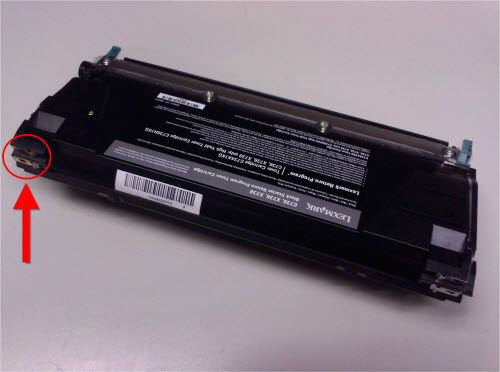 Smart chip area to clean 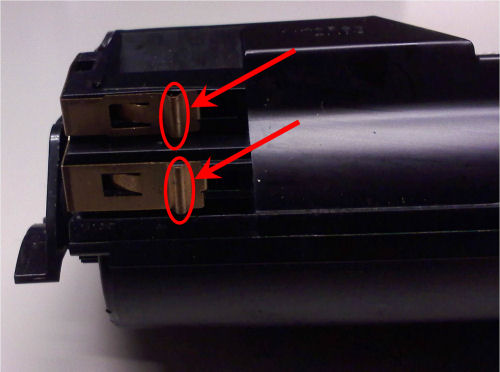 If the error persists, contact Lexmark Technical Support for toner cartridge replacement. |
Service action
If the error is Intermittent:
Step | Action |
|---|---|
1 | Power off the printer. Remove and re-install the cartridge and power on the printer again. |
2 | If the customer has already tried cleaning the bronze contacts of the cartridge, guide them in cleaning the bronze contacts inside the printer, (see right-hand images). Use 400-grit sandpaper or a pencil eraser .Suggestion: Clean the two bronze contacts on each of the four cartridges (8 total ).A: Make sure no sandpaper dust remains on the contacts. B: Be cautious not to deform the thin, bronze contacts.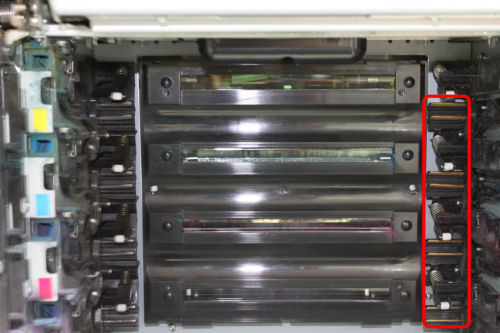 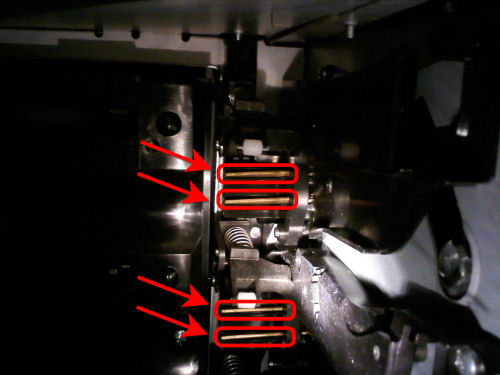 |
3 | If issue persists, replace the toner cartridge . |
If the error is Continuous:
Step | Action |
1 | Power off the printer. Remove and re-install the cartridge and power on the printer. |
2 | Find out if the customer still has the old cartridge. If so, re-install the old cartridge. Did the printer report a “ low <color> cartridge ” error?
|
LEGACY ID:
SO5335