How to Replace the Toner Cartridge (Black, Cyan, Magenta or Yellow) on Lexmark X950, X952 and X954 Color Multifunction Printers
Overview
This article outlines the installation/replacement procedure for the (
Black
, Yellow
, Cyan
, and Magenta
) toner cartridges on the Lexmark X95x MFP
.
Replacement/Installation Procedure
Steps
| Action
| Click Image to Enlarge
|
1
| Open the front door. | 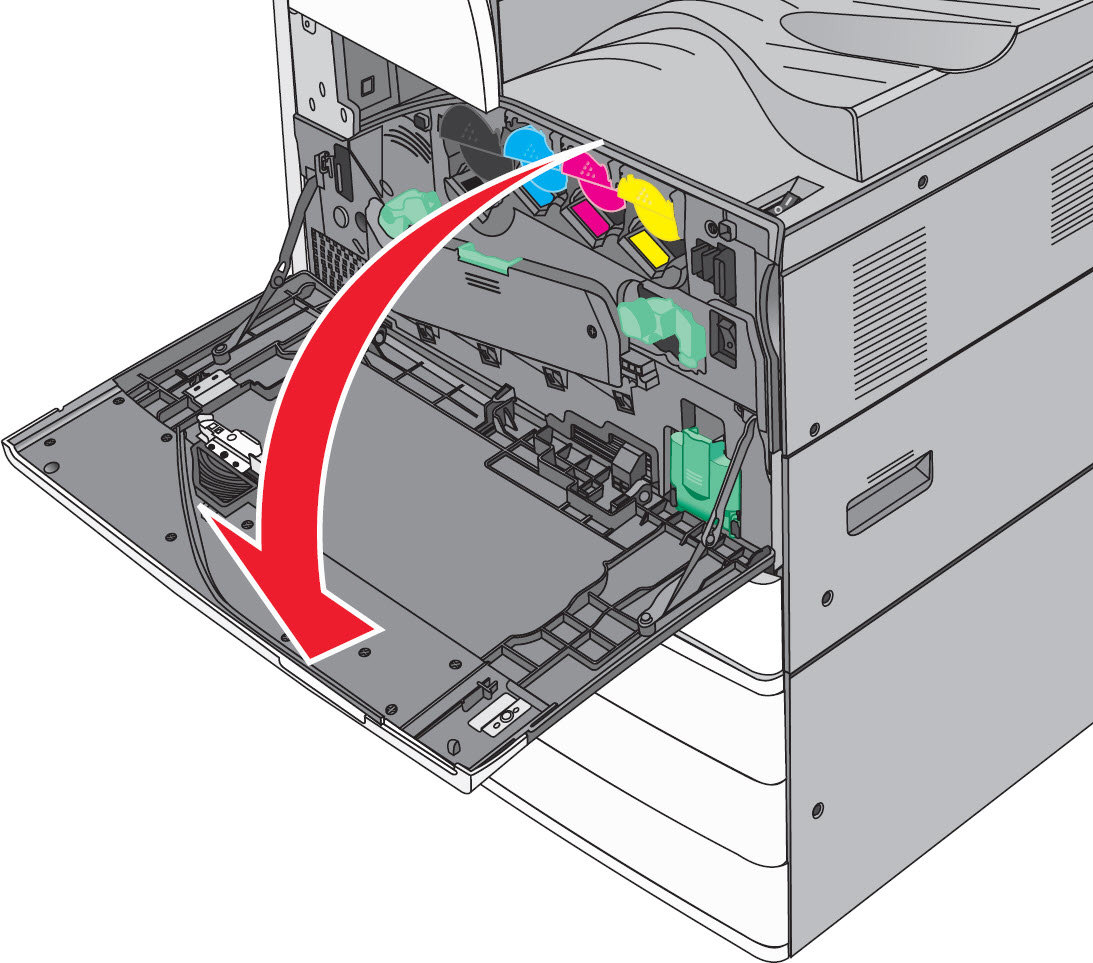 |
2
| Put your hand under the dent of the toner cartridge, and then slightly lift up the cartridge. | 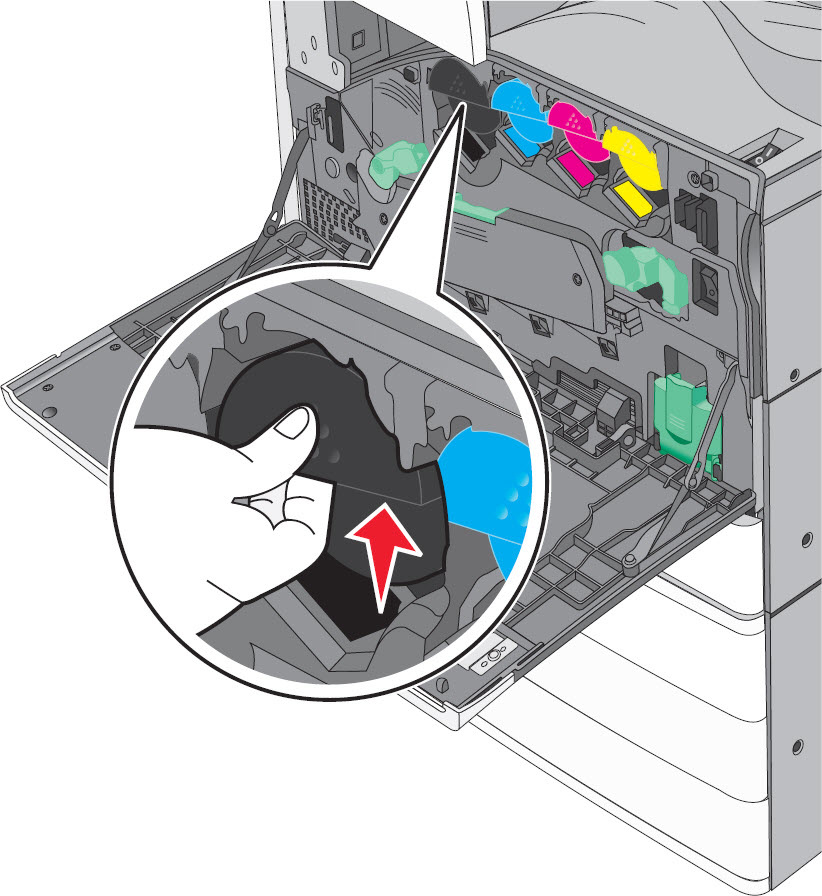 |
3
| Pull out the toner cartridge. | 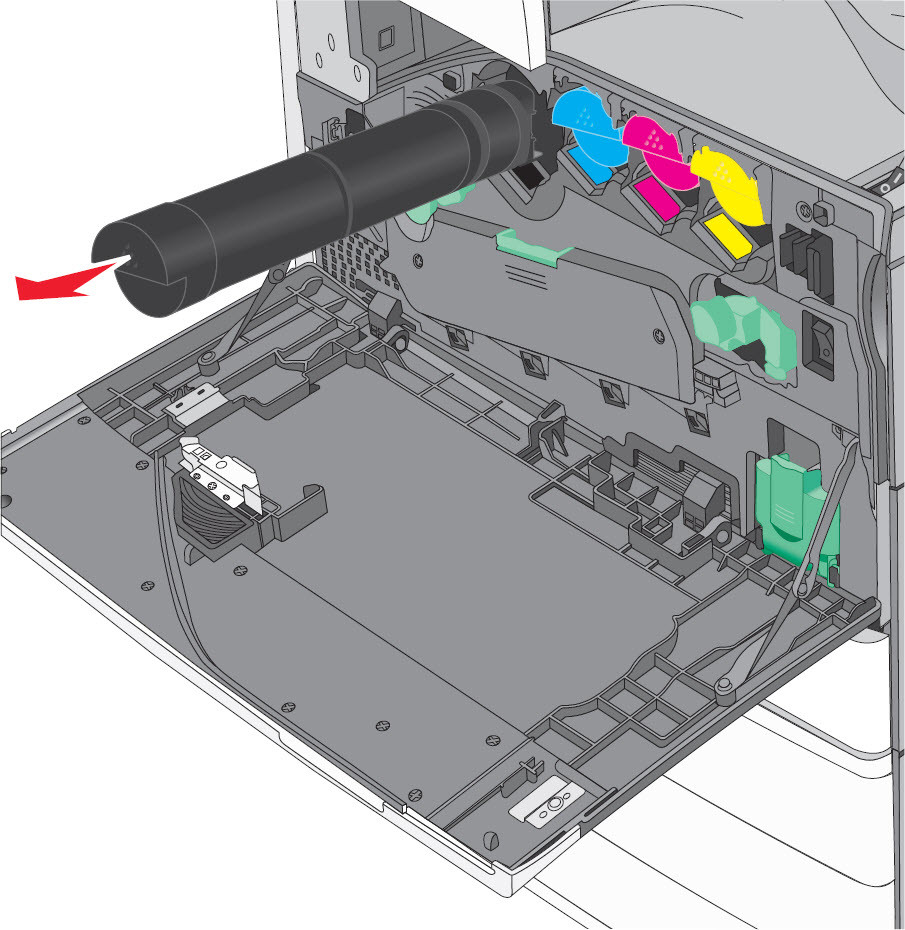 |
4
| Unpack the replacement toner cartridge, and then shake it front-to-back and side-to-side to evenly distribute the toner. |  |
5
| Remove the red packing strip from the new cartridge. | No Image
|
6
| Insert or slide the new cartridge into the appropriate position inside the MFP. | 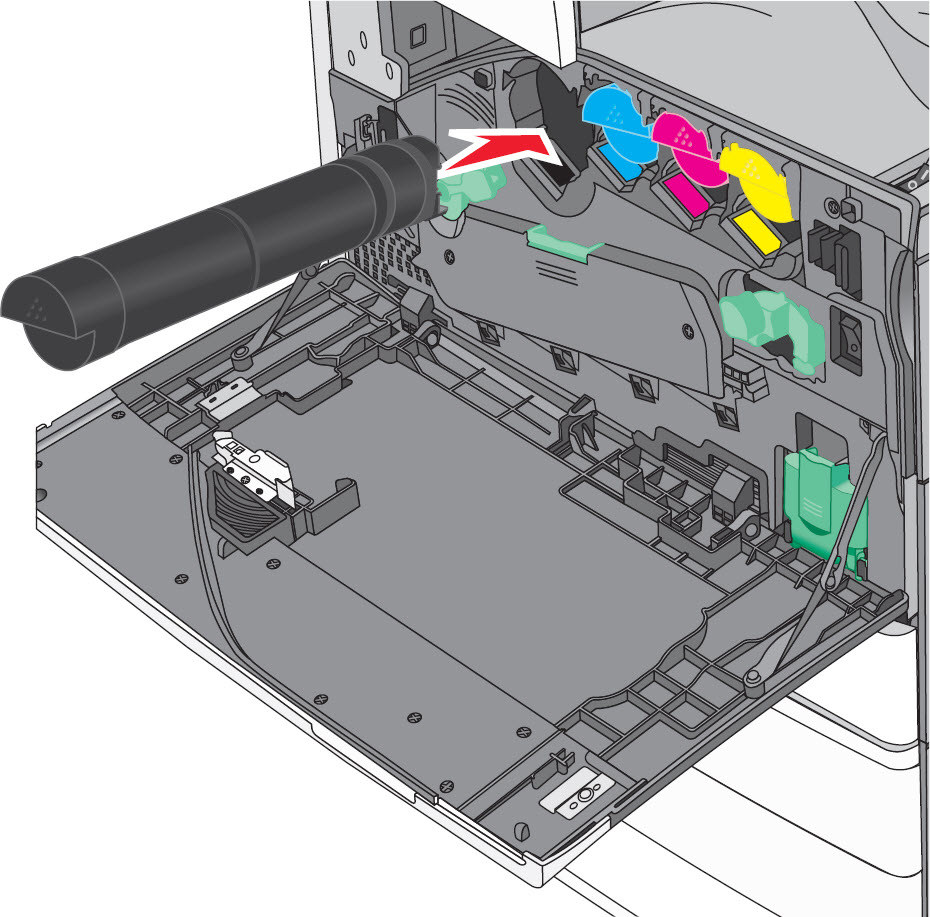 |
7
| Close the front door. | 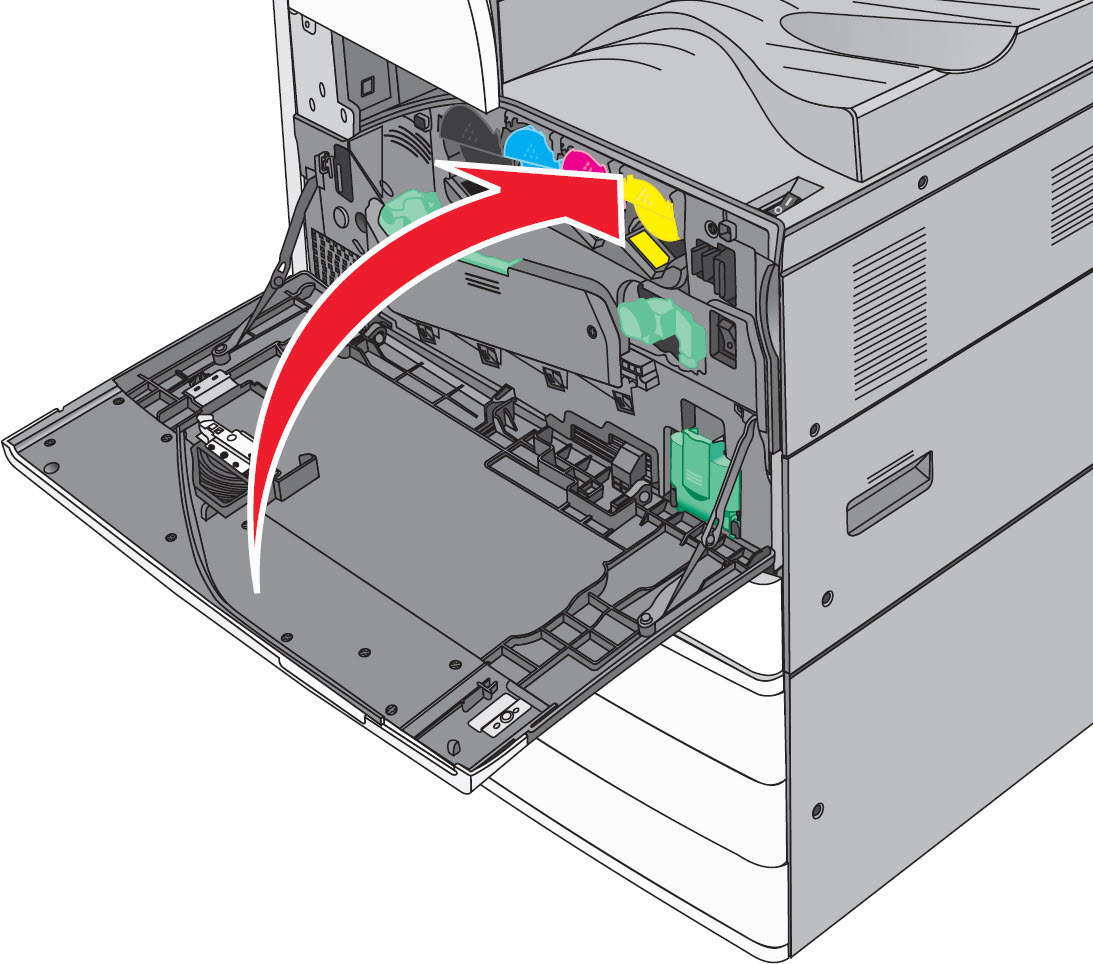 |
Still Need Help?
Please contact
Lexmark Technical Support
if you need additional assistance.
NOTE:
When calling for support, you will be asked for your machine/model type
and serial number
(SN
). If you need help locating these, how-to-locate-the-serial-number-machine-type-and-c.html#how-to-locate-the-serial-number-machine-type-and-configuration-id_HO3770.
Please call from near the printer in case the technician on the phone asks you to perform a task involving the printer.
LEGACY ID:
HO3846