80 Scheduled Maintenance on a Lexmark C950/X95x Printer MFP
What you will see
The printer’s Operator Panel displays “
80 Scheduled Maintenance (80K)
” and frequent paper jams occur on the same paper feeder/tray.
It may also display
"80 scheduled maintenance (xxxK)"
when it reaches 160K
, 320K
and 480K
page counts. How to clear the message and resolve the jam
For
80 scheduled maintenance (80K)
, it is necessary to replace the media feed rollers
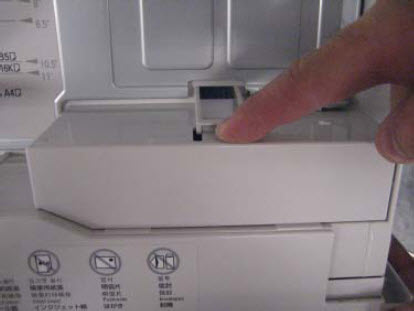
at this interval to maintain printer reliability. Find the replacement media feed roller kit
inside the Media Tray 1
beneath the plastic cover as shown in the following image.Click the Images to Enlarge
| |
 | 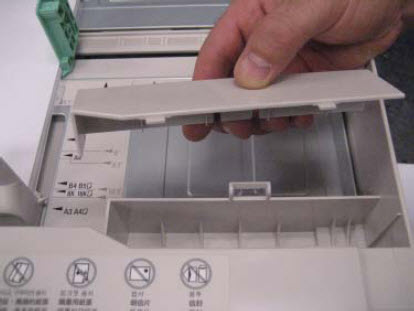 |
80K Maintenance Kit or Media feed roller kit
|
For
80 scheduled maintenance (xxxK)
, it is necessary to replace the appropriate maintenance kit at this interval to maintain the print quality and reliability of the printer. The parts are available as a maintenance kit with the following part numbers:
Kit
| Contents
|
40X7540 – 160K Maintenance Kit |
|
40X7550 – 320K Maintenance Kit (110V) |
|
40X7568 – 320K Maintenance Kit (100V) |
|
40X7569 – 320K Maintenance Kit (220V) |
|
40X7560 – 480K Maintenance Kit |
|
How to Reset Maintenance Counter
After replacing the media feed roller, the
maintenance count
must be reset to clear the “80 scheduled maintenance
” message. To do this:Step
| Action
|
1
| Power off the printer. |
2
| Enter the Configuration Menu .
|
3
| Touch Reset Maintenance Counter from the Configuration Menu . |
4
| From the options displayed, select the maintenance kit to reset. Important! If you are doing a "Reset Maintenance Counter " for the 480k or 320k kit , and a message for a 160k kit is appearing, please reset the 160K Kit in the Configuration Menu . |
5
| Touch “ Yes ” to reset the maintenance counter value. Touch “No ” or “Back ” to return to the previous menu.
Note: The maintenance count resets and the display returns to the Configuration Menu . Touch the option “Exit Configuration Menu ” and let the printer boot to normal mode. |
If the jamming is continuous
If the paper jam persists even after replacing the media feed roller, consider the following:
- Make sure the printer supports the paper being used. See the section “Supported paper sizes, types, and weights” of the printer’sUser’s Guide.
- Check the printer’sPaper Type Settingto ensure it matches the paper type loaded in the tray.
- If the issue persists, contact Lexmark Technical Support for additional troubleshooting suggestions.
Still Need Help?
If you require additional assistance, please close this window and locate 
Get in Touch with Lexmark!
for contact information.
NOTE:
When calling for support, you will be asked for your machine/model type
and serial number
(SN
). Should you need help locating your printer's model type
and serial number
, how-to-locate-the-serial-number-machine-type-and-c.html#how-to-locate-the-serial-number-machine-type-and-configuration-id_HO3770.
Please be near the products described in this article to expedite the support process and reduce callbacks.
LEGACY ID:
SO6795