Testing Printer to Server Communication with the Use of Telnet on Certain Product Generations
Overview
A telnet communication test helps exclude printer hardware as causation for network communication or network printing issues.
Common behaviors for when to consider this test:
- Print Release'sLDSSsystem isbusyand preventing the printer's ability to retrieve print jobs.
- A printer isnot respondingto queued print job(s) on a print server.
- Point and print isunable to locate the printerto complete driver installation and configuration.
- Inconsistentprinter-to-server networkcommunication; thiscan also signal duplicate IP address situations.
Affected products
Click Properties in the title section above to see a full list of printers compatible with this test procedure.

Opening a telnet session and pinging a server
Before you begin, you will need to obtain your
printer and server's TCP/IP address
. The Network Settings
page can be printed to obtain the printer's IP address and C:\ipconfig /all
is a typical command used for obtaining the server's IP address.- Open a command prompt by enteringCMDorcommand promptfromStart>Run (Search).
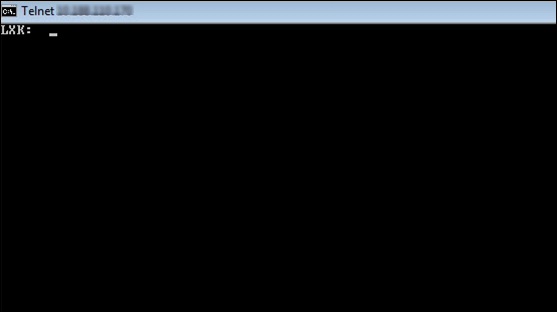
- From a command prompt (C;\), type:telnetprinter's TCP/IP_address10000.

- Successful telnet will be identified by aLXK:prompt.
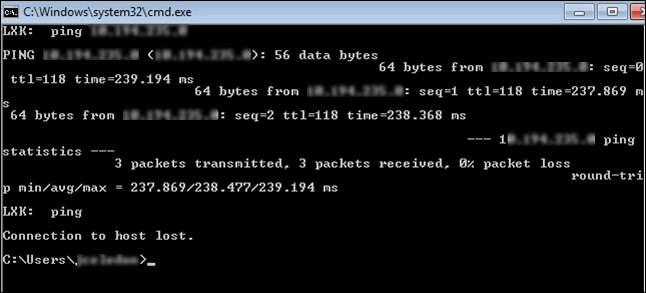
- FromLXK:, typeping server's TCP/IP_address.
- Observepackets transmitted,packets received,%packets lost, and excessive latency (ms), which can signal network saturation or collision issues.
Still need help?
If you require additional assistance, please close this window, go to your product's support page and locate 
Get In Touch with Lexmark!
for contact information.
NOTE:
When calling for support, you will need your printer model/machine type
and serial number
(SN
).
Please be near the products described in this article to expedite the support process and reduce call-back situations.
LEGACY ID:
SO8254