How to Print the Color Samples on Single-Function and Multifunction Color Laser Devices
Overview
Color Samples
are print-sample pages for each of the Red-Green-Blue (RGB
) and Cyan-Magenta-Yellow-Black (CMYK
) color conversion tables used in the printer. They consist of a series of colored boxes along with the RGB
or CMYK
combination that creates the color observed. Click here to see a sample. You can use them to help decide which combinations to utilize in order to get the desired printed output.How to Print on a Single Function Device
1.
Press the Menu
Button.2.
Select Settings
.3.
Select Quality Menu
.4.
Press Color Sample
. Check the table below for the list of available Color Samples.How to Print on a Multi-Function Device
1.
Press the Menu
Key.2.
Select Settings
.3.
Select Printer Settings
.4.
Select Quality Menu
.5.
Press Color Samples
. Check the table below for the list of available Color Samples. List of Color Samples
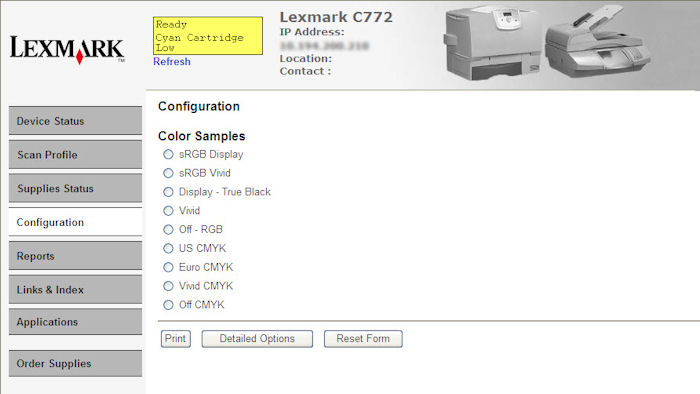
How to Access Color Samples on Embedded Web Server (EWS)
Color Samples
can be accessed through EWS
if the printer is connected on a network. To do this:1.
Launch your Internet Explorer
browser.2.
Type the Printer’s IP Address
on the browser’s address bar.3.
Click Configuration
on the left pane.4.
Click to select Color Samples
.Sample EWS Page
|
 |
Click Image to Enlarge
|
Still need help?
Please contact Lexmark Technical Support if you need additional assistance.
NOTE:
When calling for support, you will be asked for your machine/model type
and Serial Number
(SN
).Please call from near the printer in case the technician on the phone asks you to perform a task involving the printer.
LEGACY ID:
HO3687