Lexmark X792 ? Auto-size Match/Sense Issues when Scanning Through the Automatic Document Feeder (ADF)
What you will see
When scanning from the ADF using the auto-size sense/auto-size match, you may be prompted to select a source paper tray even though the required paper size is already loaded in the tray (or one of the trays).
Also, although the printer picked from the correct tray, scaling of the output print is wrong. This incorrect scaling can also be observed on soft-copy scans.
Recommended solution
This issue requires testing of the
ADF’s sensors
. Please call Lexmark Technical Support
to set up service for the printer.Contacting Lexmark
If you require additional assistance, please close this window and locate 
Get In Touch with Lexmark!
for contact information.
NOTE:
When calling for support, you will need your printer model
/machine type
and serial number
(SN
). Should you need help locating these, how-to-locate-the-serial-number-machine-type-and-c.html#how-to-locate-the-serial-number-machine-type-and-configuration-id_HO3660.Please be near the products described in this article to expedite the support process and reduce callbacks.
LEGACY ID:
TE709
Step
| Action
|
1
| Access the printer’s Diagnostic Menu by pressing and holding the buttons 3
6
|
2
| In the Diagnostic Menu, navigate through: Scanner Tests > Sensor Tests . |
3
| Test the ADF width sensors by moving the ADF edge guides ,starting from the smallest opening. Then move to the 5 1/2" (13.97cm) mark, then the 7 1/4" (18.41 cm) mark, and finally the 8 1/2" (21.59 cm) mark.NOTE: The ADF width sensors 1 , 2 , 3 , and 4 , should change from 0 to 1 in the same order as you moved the guides. Let the guides stay long enough in those positions for the sensor to read them. |
4
| If one or more of the sensors fail to respond, replace the ADF Document Tray Assembly – P/N: 40X7215 . |
Click Images to Enlarge
| |
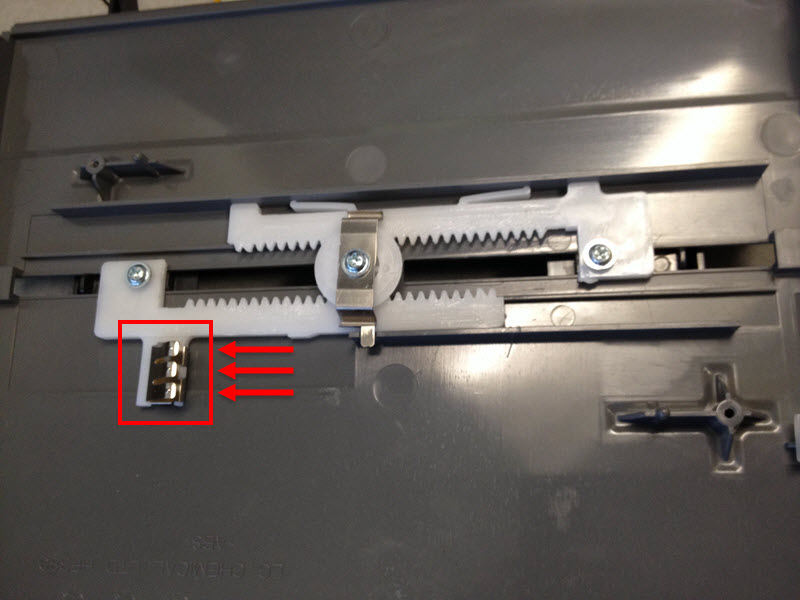 | 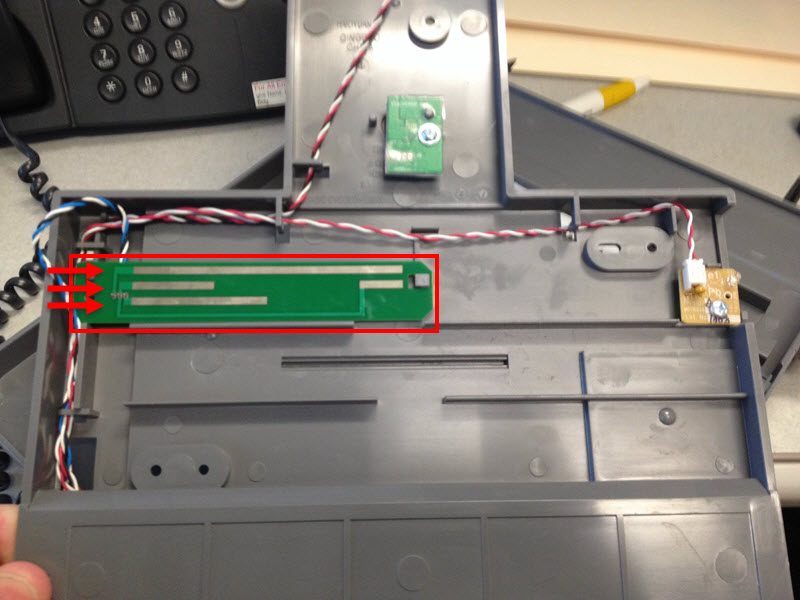 |
Top-side of the ADF tray: Boxed in red are the three fingers of the leaf spring. | Bottom side of the ADF tray: The PCB metal traces should be touching the three fingers of leaf spring. |