Printing from Windows 10
How to print from Windows 10
Overview
Initiating print jobs from
Windows 10
is largely dependent on the application (app) type.If printing from... | To print... | Images |
|---|---|---|
Tablet Mode (Windows 10 Store Apps) | Press Ctrl + P to launch the print preview.Select the Printer charm from the drop-down list. Set the desired print options, and then click Print . | 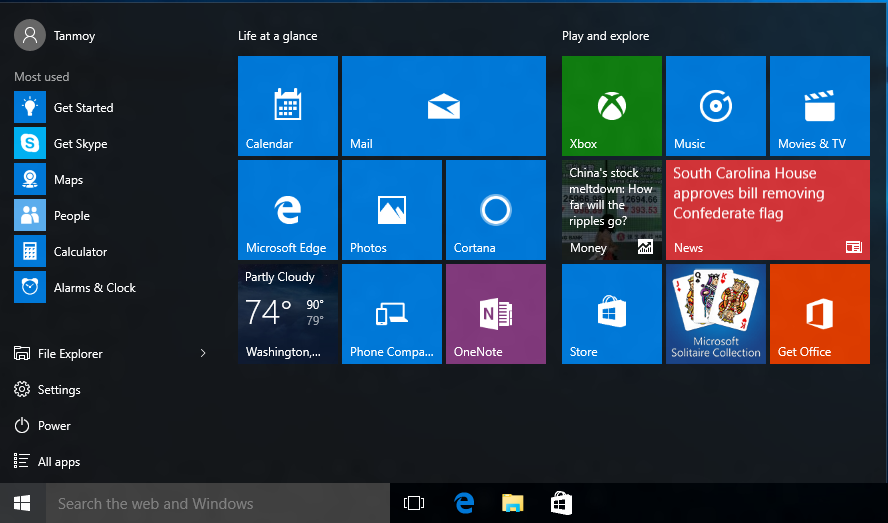 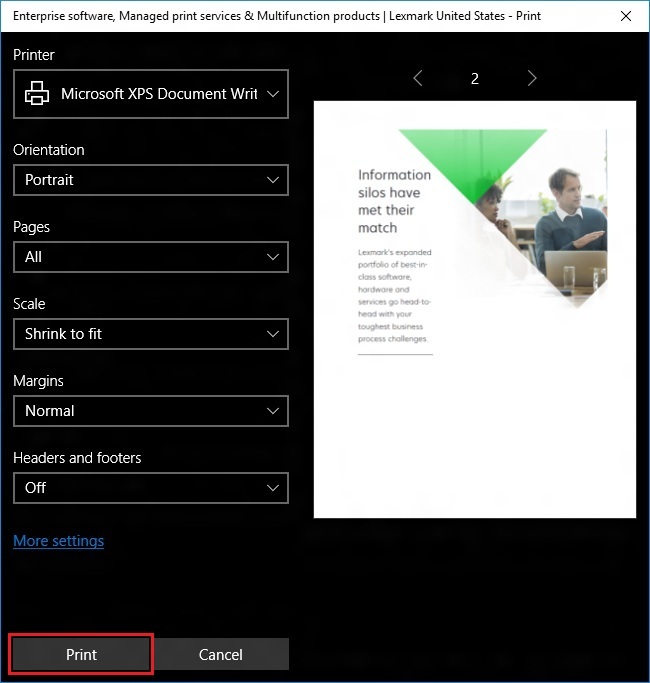 |
Desktop apps (32-bit (x86 ) or 64-bit (x64 )apps) Note: These apps may be represented as tiles in Windows 10, but they will open in the desktop. | Click File > Print from within the app or press Ctrl + P on your keyboard. | 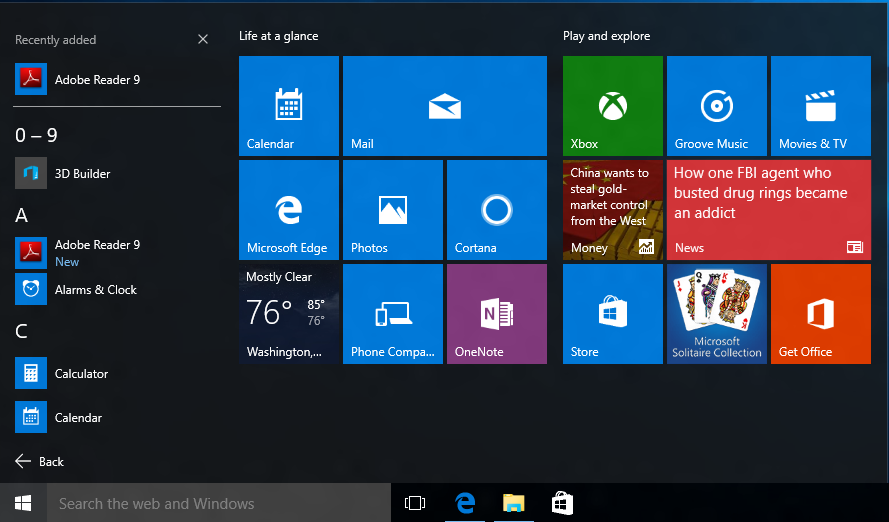 |
Metro App printing
(Example Only)
- Locate a web page to print.
- SelectCtrl + P. It will open theUniversal Appwhere you can select your printer.
- ASettingswindow for your printer appears where you can change the number of copies, orientation, color mode, and other settings.
- ClickMore settingsfor additional options; including paper size, type, and output tray.
- ClickOKto return to the previous screen.
- ClickPrint.
This print setup works in the same way across all
tablet mode
apps.Desktop App printing
Printing Desktop apps in Windows 10 works the same as it does in previous versions of Windows.
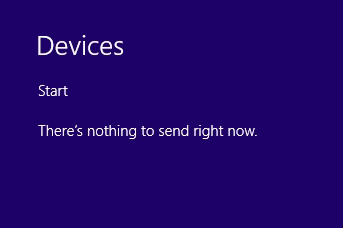
Devices: There's nothing to send right now
Two reasons for this message:
- You donothave an app open that supports printing.
- You are running a desktop app originally designed for Windows 7 or older.
Legend
Windows 10 reference or icon | Description |
|---|---|
 | Start charm returns you to Start screen. |
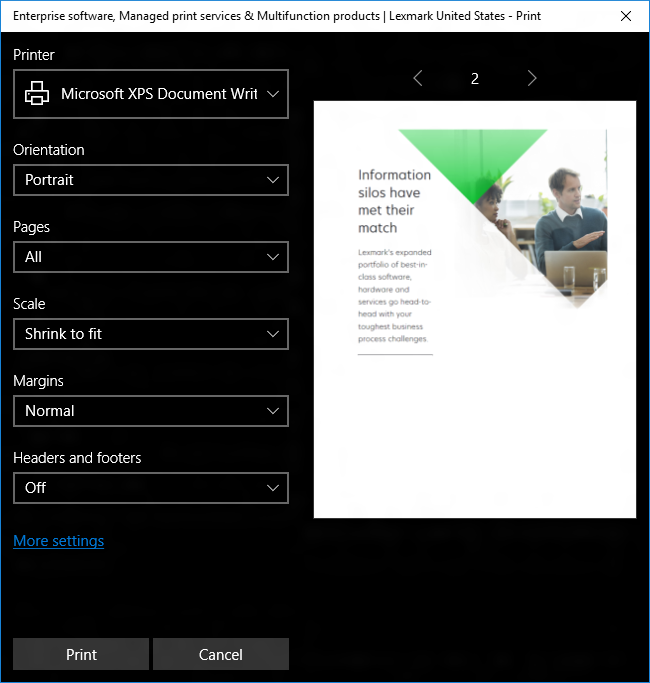 | Print Preview |
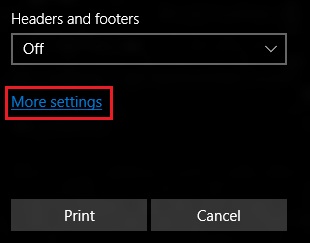 | More settings displays additional print settings. This resembles what you may have seen with Page Setup, Preferences, or Properties with previous Windows versions. |
LEGACY ID:
HO3980