Lexmark T650 Printer Reports a 'Paper Jam' Message Whenever the 'Tray 1' Paper Tray Runs Out of Paper
Lexmark T650 Printer Reports a 'Paper Jam' Message Whenever the 'Tray 1' Paper Tray Runs Out of Paper
What you will see
You encounter one of the following issues:
- Whenever the 'tray 1' (standard) paper tray runs empty, the printer stops printing and displays aPaper Jammessage.NOTE:The printer will display a241.01 Paper Jammessage in most cases.
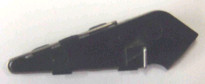
- You have found a broken piece of black plastic similar to the one imaged below. In most cases, this broken piece of plastic will be found in or around the 'tray 1' paper tray.To view a larger image, click here.
Cause
If this flag breaks, the printer will think there is paper in the tray even when the tray is empty. The printer will continue to work as normal, until tray 1 runs out of paper. At that point, the printer will stop printing and display a
241
or a 241.01
paper jam message when it senses no paper feeding from the tray.In addition, if you start a new print job from tray 1 while it is empty, the printer will try to feed paper instead of displaying a
Tray Empty
/Load Tray
message. This also results in a 241
or a 241.01
paper jam message.Recommended actions
Confirm that the 'tray empty' flag is broken.
Step
| Action
|
1
| Power off the printer. |
2
| If this error occurred while printing, check the entire paper path and remove any paper jammed inside the printer. |
3
| Remove the 'tray 1' paper tray. |
4
| Look into the area of the printer where the tray was installed. Locate the paper pick mechanism. It should be located above the area where the tray sits. See the rollers highlighted in the image below. CAUTION! It may be necessary to tip the front of the printer up a little to get a good look at the paper pick mechanism or to find the 'tray empty' flag. If this is necessary, remove any installed output options before moving the printer as they can fall off the top of the printer. Additionally, enlist the aid of another person to help you prevent the printer from slipping or dropping and causing damage to the printer or injury to yourself. If you feel uncomfortable about carrying out this procedure by yourself, or if you encounter any problems, please contact Lexmark Technical Support for additional assistance. See 'Contacting Lexmark Technical Support ' at the end of this document for contact information. 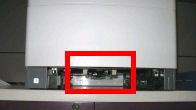 |
5
| Lower the front of the paper pick assembly by pulling down on the pick roller on the right-hand side. 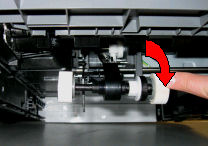 |
6
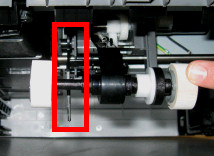
| Look for the 'tray empty' flag, highlighted in the image below. It should be located behind the left-hand pick roller when the paper pick assembly is down. The image shows what you should see if the 'tray empty' flag is present and not broken.
IMPORTANT! As a temporary fix, you can load paper into the tray once the 241.01 Paper Jam message appears and press  NOTE: This failure will affect tray 1 only. If any option trays (such as tray 2 and tray 3) are installed, you can continue to use the option trays as normal. |
Contacting Lexmark Technical Support
If none of the suggestions above correct the issue, or if you have questions about any of these procedures, please contact Lexmark Technical Support for additional assistance.
When contacting Lexmark, please be prepared to describe the problem you are experiencing and any troubleshooting steps already taken.
NOTE:
You will also need the printer's model type
and serial number
(SN). Access this information from labels located under the upper-front cover and on the back of the machine. for further details.If possible, call from near the printer. This will make it easier if the technician on the phone asks you to perform a troubleshooting task on the printer.
LEGACY ID:
SO4730